Importing Your Data into Dreamteam CRM (Contacts, Companies & Deals) using CSV
Last updated: September 30, 2026
Importing Your Data into Dreamteam CRM (Contacts, Companies & Deals) using CSV
You have just come off a webinar. Three hundred people who want to hear from you are sitting in a spreadsheet, and not one of them is in your CRM yet. That is what an import is for: the list goes in tonight, and tomorrow your team is emailing people instead of copying rows.
One CSV file brings contacts, companies and deals into Dreamteam together. You do not run a separate import for each. Dreamteam reads your file, shows you what it found, lets you check how the columns line up, and writes nothing until you press Start Import.
Before you start
Your file needs to meet all of these, or the import will not begin.
Rule | Detail |
|---|---|
File type | .csv only. Save an Excel file as CSV first |
File size | 10 MB maximum |
Rows | Up to 1,000 contacts, 1,000 companies and 200 deals |
An email column | Required. Email is how contacts are matched and how companies are worked out |
Separator | Commas. A file exported with semicolons, tabs or vertical bars is turned away |
Header row | Required, and no two columns may share a name |
At least one data row | Headers on their own are not enough |
How the row limit works
It counts rows in your file, not the records they turn into. A 5,000-row file is over the 1,000 contact limit even if those rows only describe 400 different people.
The strictest limit in your file applies. A file with any deals in it is measured against 200.
An oversized file is rejected completely. Dreamteam does not import the rows that fit and drop the rest. Split it and import the parts.
Two things you do not have to worry about. Dreamteam works out your file's encoding itself, so accents and special characters come through whether the file came from a Mac or from Excel on Windows. And if a quote mark is opened in a cell and never closed, the error message tells you which line to fix.
Where to start an import
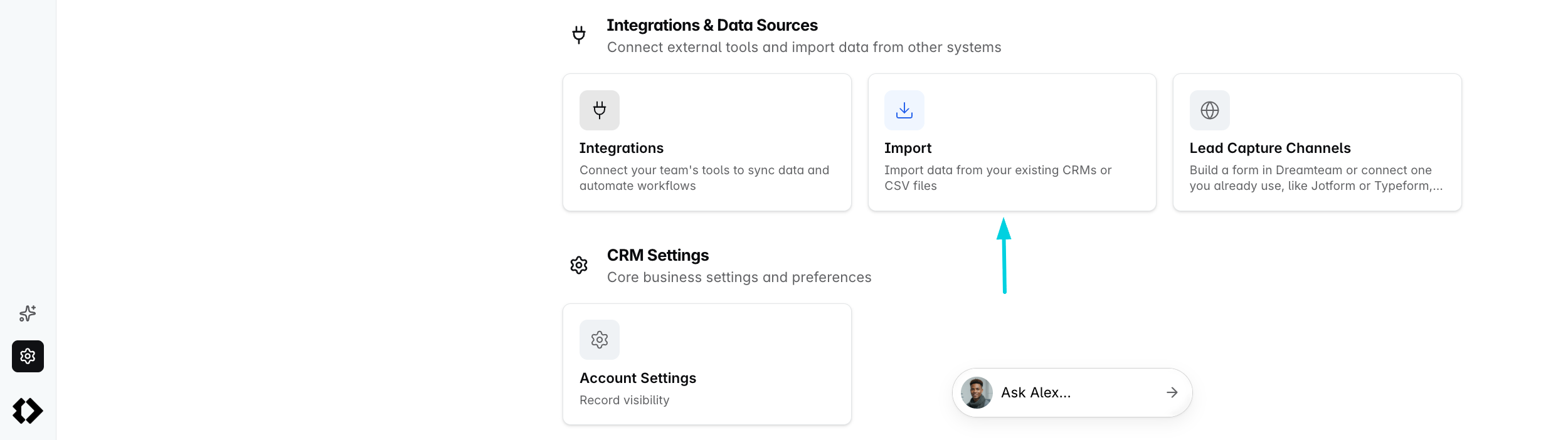
There are three ways in, and they open the same screen:
Settings and then Import
The Import option inside Contacts
The Import option inside Deals, if you are a team manager or an admin
The one under Contacts is not contacts-only, and nor is the one under Deals. All three give you the same steps and the same single file creating all three record types.
Contacts is open to everyone - admin, team manager and sales rep alike. Deals is where it differs: a sales rep is not shown the Import option there at all.

Step 1: Review records
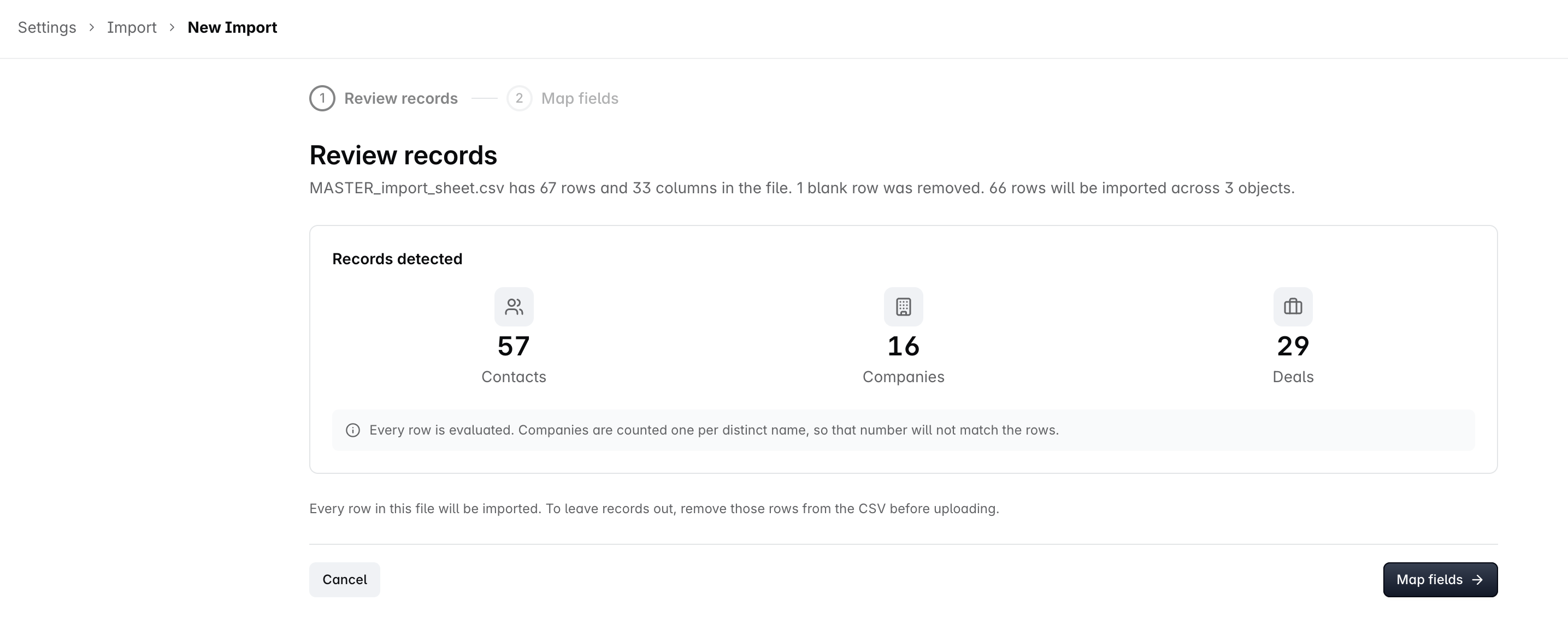
Dreamteam reads your file and reports what it found before anything is written:
00_MASTER_import_sheet.csv has 67 rows and 33 columns in the file. 1 blank row was removed. 66 rows will be imported across 3 objects.
Underneath is a Records detected count for Contacts, Companies and Deals.
The company count will be lower than the row count, and that is correct. Companies are counted one per distinct name, so sixty rows across sixteen employers show as sixteen companies.
Every row in your file gets imported. You cannot deselect rows here. To leave records out, remove them from the CSV before uploading. Blank rows are dropped for you.
Reusing a mapping you have done before
The same list from your events agency turns up every month with the same thirty columns. You map it properly once, and every import after that starts two clicks ahead.
If you have imported a file with these same columns before, Dreamteam offers you that mapping again under Saved mapping found. You get Use automatic mapping, plus a button for each saved mapping naming the file it came from.
Picking one pre-fills the next step, and you can still change anything.
Step 2: Map fields
Dreamteam matches your columns to Dreamteam fields and asks you to check its work. Each row shows your column, an example value from your file, and the field it will write to. Matches are marked Exact match or Likely match.
Each row has a checkbox. Untick one to leave that column out of the import.
Reset mapping throws away your changes and runs the automatic matching again.
You do not need company columns. Companies are created from work email domains automatically.
Matching values, not just columns
This is what stops most imports.
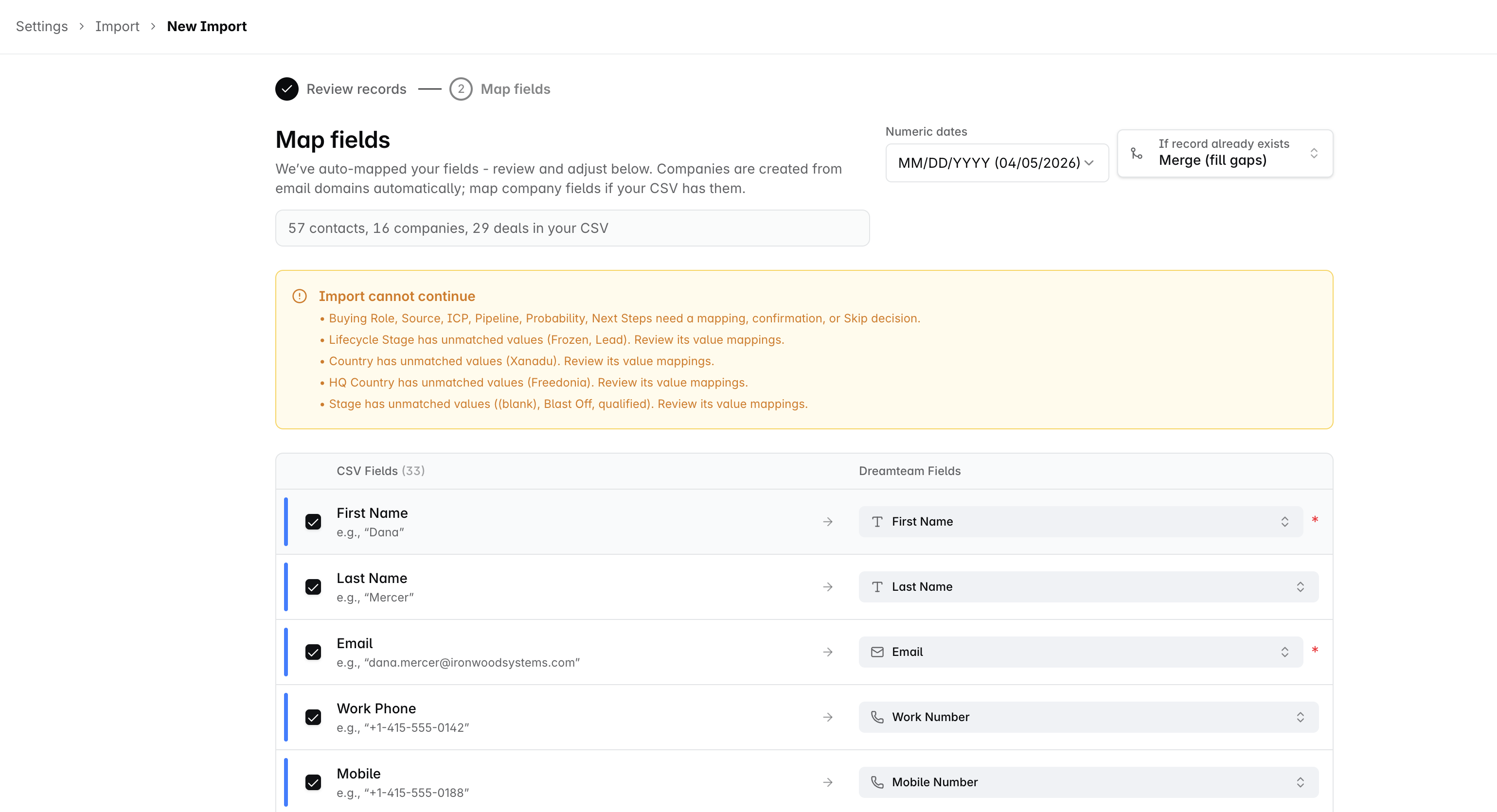
Where one of your columns feeds a fixed-choice field such as Contact Activity Status, Country or deal Stage, Dreamteam checks every distinct value in your file against the values Dreamteam accepts. It reports something like "3 of 5 values auto-matched" with a Review link.
Anything it could not match raises Import cannot continue, and Start Import stays unavailable until you map every one.
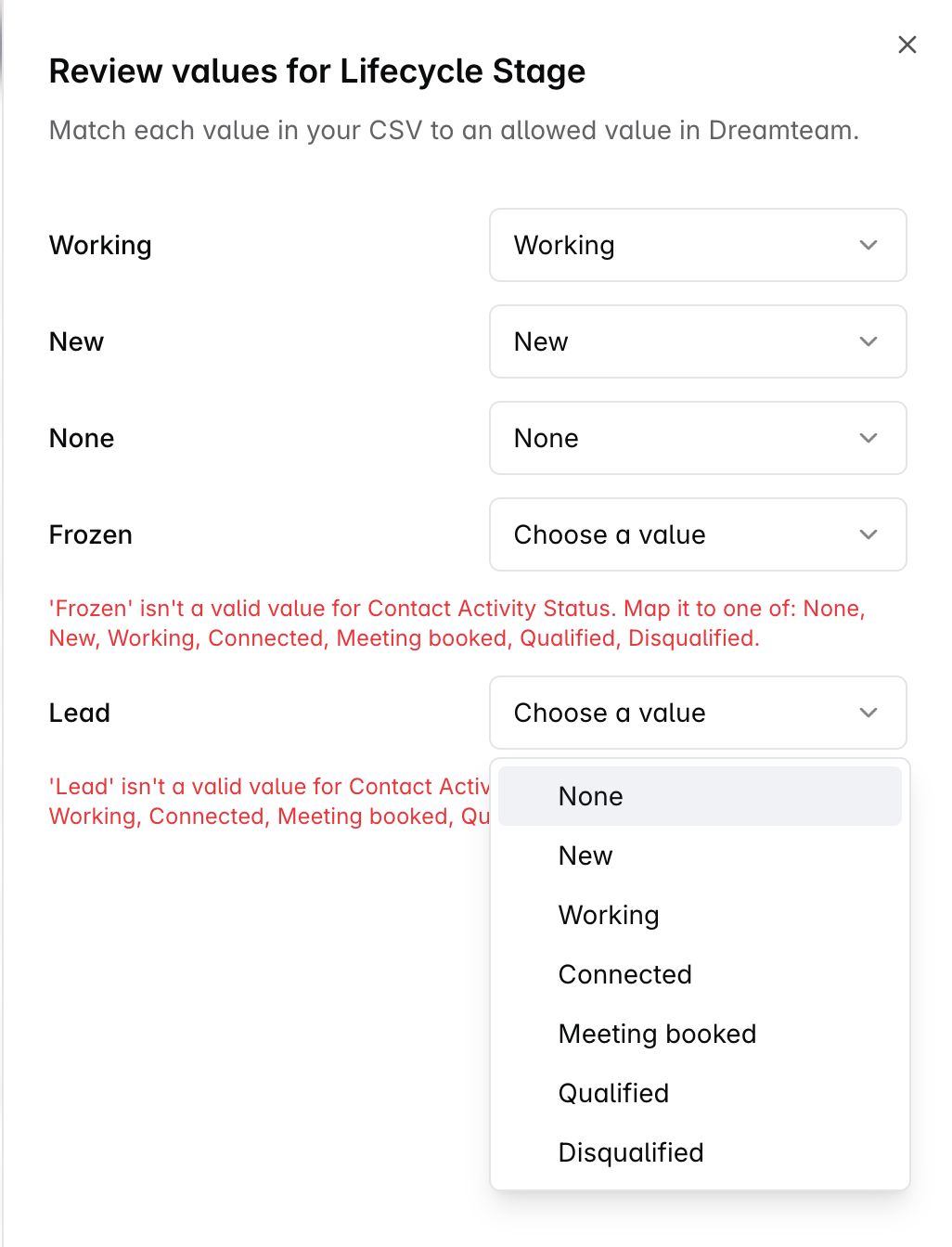
Review opens a dialog per field, listing your values on the left and a picker on the right. Matched values are already filled in; the rest say Choose a value and show you what is allowed:
'Frozen' isn't a valid value for Contact Activity Status. Map it to one of: None, New, Working, Connected, Meeting booked, Qualified, Disqualified.
A blank value is treated as a value to be mapped, like any other.
Dates
Write dates as YYYY-MM-DD and there is nothing to configure. That format is read correctly whatever the settings say.
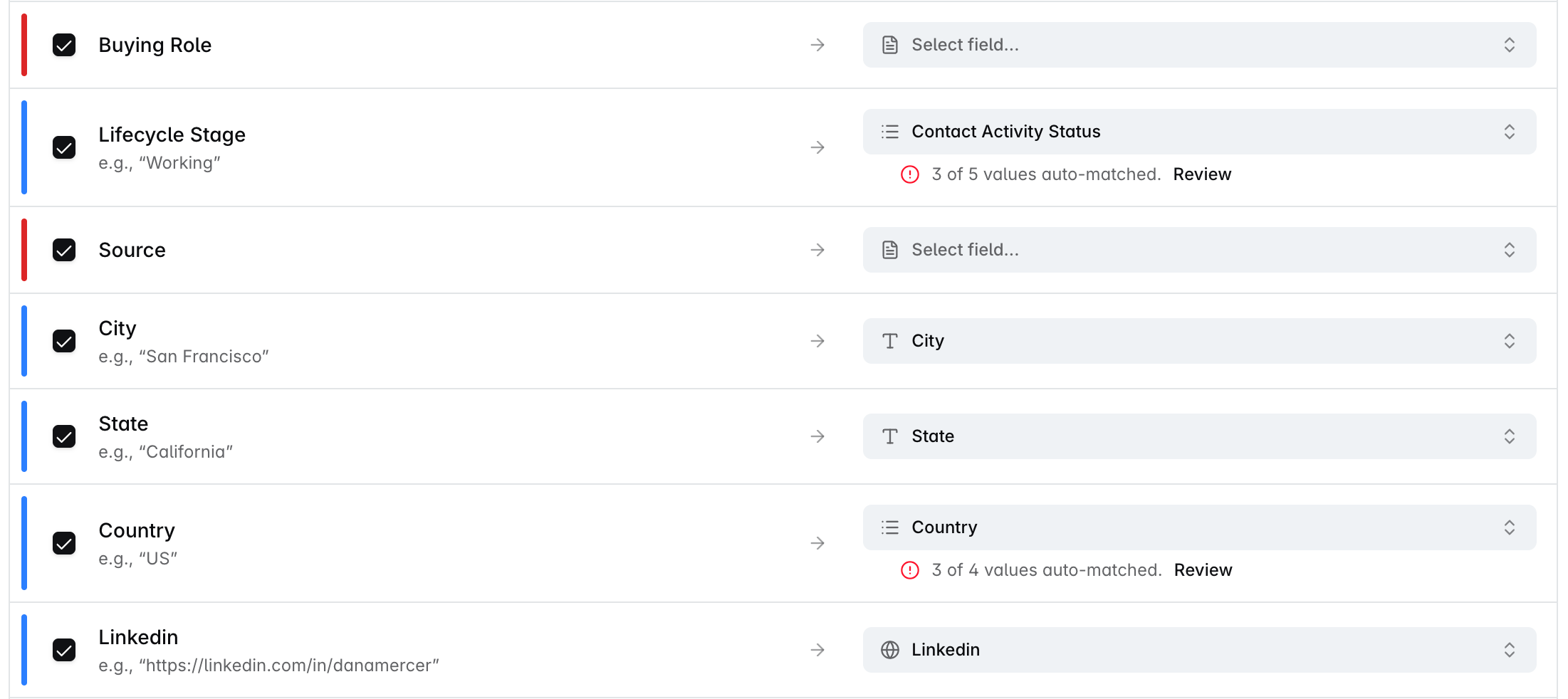
The Numeric dates selector only matters for dates written as numbers with slashes. 04/05/2026 could be 4 May or 5 April, so you tell Dreamteam which convention your file uses: MM/DD/YYYY or DD/MM/YYYY. A date that can only be read one way settles itself, because there is no 25th month in 25/04/2026.
Named months such as 23 Jan 2026 work too. An impossible date like 2026-02-30 fails that row rather than quietly becoming 28 February.
If a record already exists
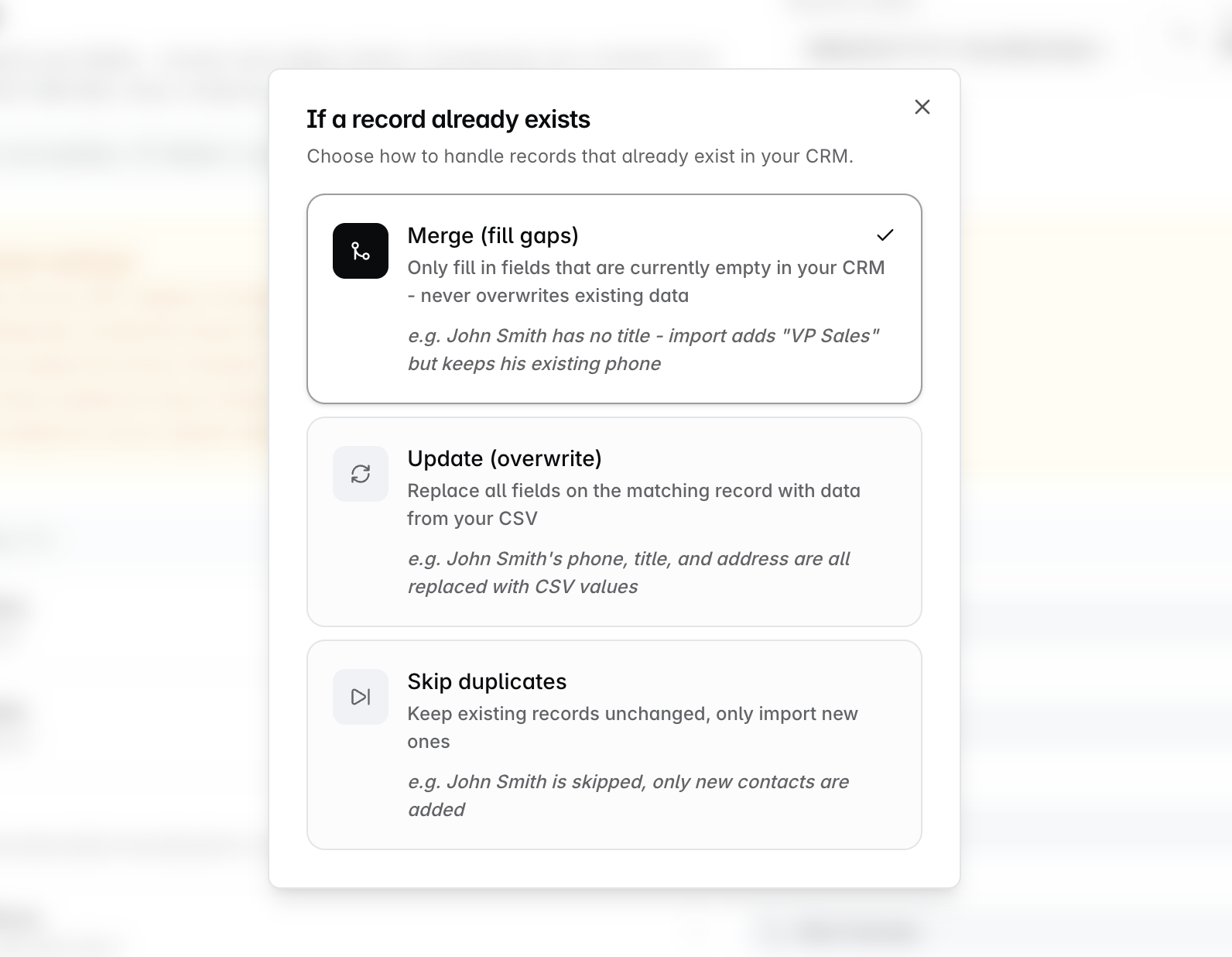
Half a conference list is usually people you already know. Before you start, you choose what happens when a row matches a record you already have. Contacts are matched on email.
Choice | What it does | Example |
|---|---|---|
Merge (fill gaps) - the default | Only fill in fields that are currently empty in your CRM. Never overwrites existing data | John Smith has no title, so the import adds "VP Sales" but keeps his existing phone |
Update (overwrite) | Replace all fields on the matching record with data from your CSV | John Smith's phone, title and address are all replaced with CSV values |
Skip duplicates | Keep existing records unchanged, only import new ones | John Smith is skipped, only new contacts are added |
An empty cell never wipes a value, on any of the three settings. A blank column in your file means "nothing to say about this field", not "empty this field". Even on Update (overwrite), only the columns that carry a value are written. The only way to clear a field through an import is to overwrite it with something else.
Update (overwrite) is the one setting that changes many existing records at once. It is worth a moment's thought before you start, because nothing rolls an import back.
Default owner
Every imported record needs an owner, and Default owner sets the fallback. It offers Use me as default.
It is not only for rows with no owner. A row naming an owner who is not a real user in your workspace also falls back to the default, and the summary afterwards tells you how many rows that happened to and which names caused it. That is how a typo in an owner column ends up assigned to whoever ran the import.
Default field values
Stamp a fixed value onto every record in the run, for something your file does not carry. Add a field, choose a value, done.
It saves adding a column to your CSV purely to repeat the same value on every row.
What a deal row needs
A deal cannot exist without a company and a stage, so deals are the fussiest to import.
Deals need | Detail |
|---|---|
A way to identify the company | Map Company Domain or the contact's work Email. A company name on its own is not enough, because a name cannot identify which company to attach to |
A stage | Map a column to Deal Stage. The values then go through value matching like any other fixed-choice field |
Deal Value as digits | No currency symbols, or the row fails |
Close Date as YYYY-MM-DD | Any other format may be rejected |
If a deal's company could not be created, the deal fails with it. Fix the company rows first and re-import, and the deals usually follow.
Step 3: Watch it run
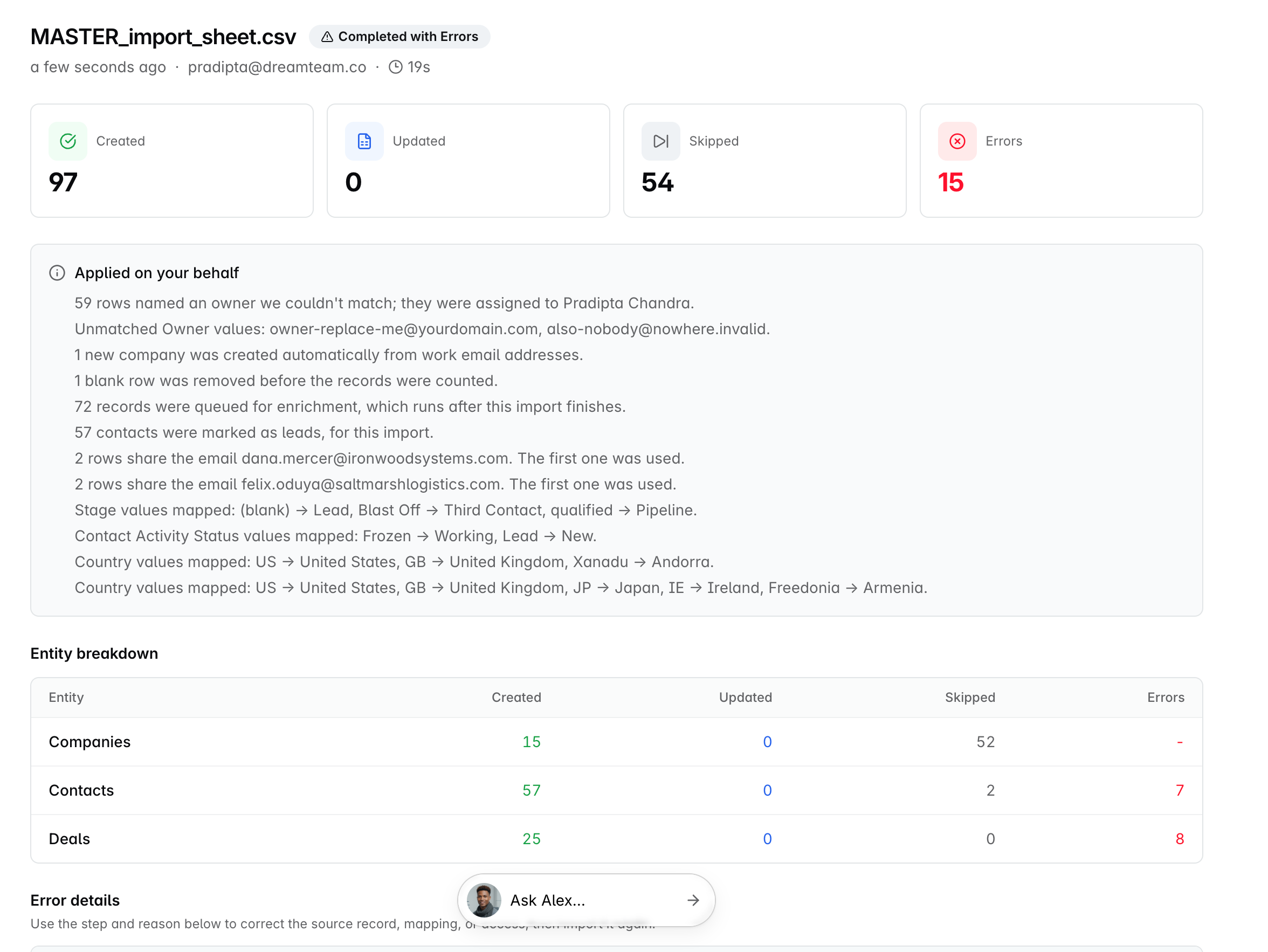
Start Import opens the run's own screen: In Progress with a percentage and four live counters, Created, Updated, Skipped and Errors. Cancel import stops a run in flight.
When it finishes it reads Completed, or Completed with Errors if any record failed.
The same run is named differently in the two places you can see it. The run screen says Completed with Errors. Import History calls that same run Partial.
Applied on your behalf
The summary lists every decision Dreamteam made without asking you. It is the most useful part of the screen and worth reading every time:
Owner fallbacks - how many rows, who they went to, and the names that were not recognised.
Companies created automatically from work email addresses.
Blank rows removed.
Records queued for enrichment, which runs after the import finishes.
Duplicate emails in your own file - the first row is used and the rest are skipped. This is usually why a run skips more records than you expected.
Automated addresses dropped - noreply@ and notifications@ addresses do not become contacts.
Personal email domains - a gmail or outlook address creates no company.
Every value swap you approved, written out field by field.
Errors, and getting the full list
Eighteen rows out of three hundred did not make it. You do not want to run the whole thing again, you want those eighteen.
A table splits Created / Updated / Skipped / Errors per record type, so you can see that the contacts landed but the deals did not.
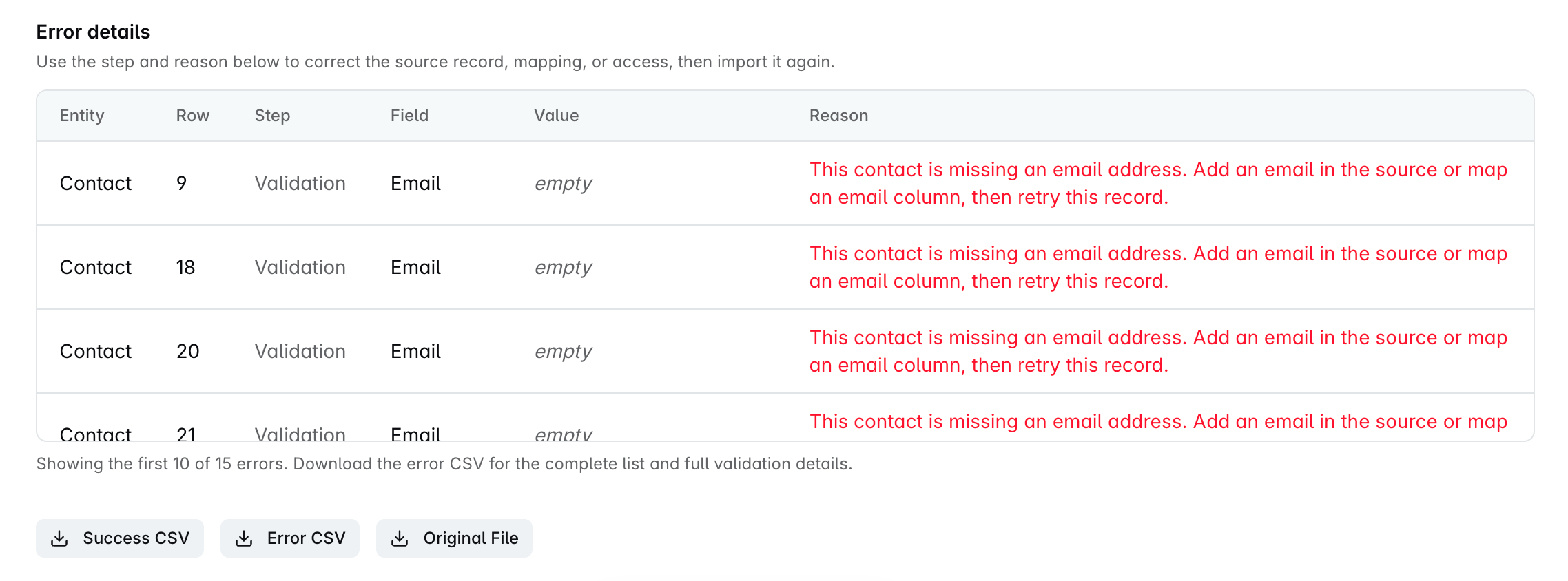
Error details then lists failures with the Entity, the Row in your file, the Step that failed, the Field, its Value, and a reason written as an instruction, for example: "This contact is missing an email address. Add an email in the source or map an email column, then retry this record."
Only the first 10 errors appear on screen. There is no second page. If the run had more, a line under the table says so, for example "Showing the first 10 of 18 errors." Download the Error CSV to see all of them, with the full validation detail for each.
Three downloads sit at the bottom of the run: Success CSV, Error CSV and the Original File. The files stay available for as long as the run is in your history. Each click generates a fresh download link, so if a link you saved earlier stops working, click the button again.
Import History
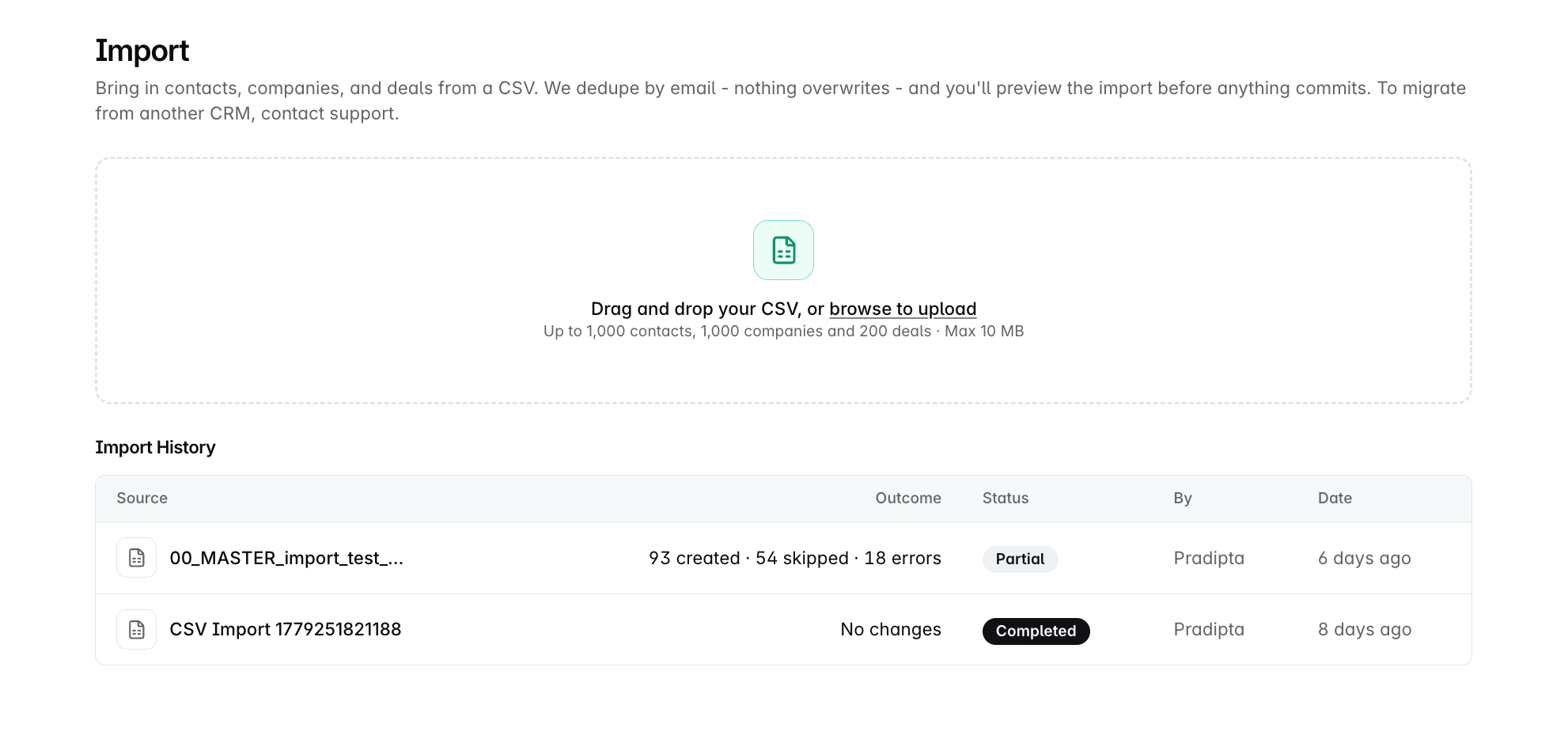
Someone asks whether last Tuesday's list ever went in. Import History is where you look, and you see your own imports only - it is per person, not per workspace. A file you uploaded but never started does not appear at all.
Column | What it shows |
|---|---|
Outcome | A one-line summary such as 93 created, 54 skipped, 18 errors. Only the non-zero parts appear. A run that changed nothing reads No changes |
Status | Completed, Partial, Failed or Cancelled, or a progress bar while the run is going |
By and Date | Who ran it, and when |
Partial means the run finished and some records did not. The ones that worked are in Dreamteam; the rest are on that run's error table. Failed is the different case where the run itself could not complete. Click any run to open its full detail.
What your role changes
Anyone can import. Three things inside an import depend on your role.
Can you... | Sales rep | Team manager | Admin |
|---|---|---|---|
Import contacts and companies | Yes | Yes | Yes |
Import deals | No | Yes | Yes |
Set an owner other than yourself | No | Their team | Anyone |
Create a new custom field during the import | No | No | Yes |
"Manager" means managing a team, not a job title. A sales rep who has been made a team's manager can import deals.
If a sales rep uploads a file with deals in it, the file is not rejected. The deal columns are skipped, everything else imports, and the rep is told on the first step, before mapping: "Deals will not be imported. A sales rep cannot import deals. The contacts and companies in this file are imported and the deals are skipped. Ask your manager or an admin to import the deals." This limits importing deals, not creating them - a rep can still create deals one at a time.
When it finishes, you get an email
Dreamteam emails the person who ran the import, and nobody else. The subject carries the outcome - Import finished: 57 contacts, 25 deals - and the body names the file and counts what landed. A run that created more than one kind of record says so.
This is a notification email, so you can see how the run went. If anything did not import, open that run in Import History to see what failed and download the Error CSV from there.
It is sent by default when the run ends.
Migrating from another CRM
Moving over from another CRM? Export your data from it as a CSV file, then import that file here. It comes across the same way as any other import, and the same limits above apply.
If the file is on the large side, or your migration looks more involved than one clean export, write to us at gethelp@dreamteam.co and we will help you through it.
FAQs
Can I undo an import?
No. Nothing rolls an import back. The working loop for a messy import is the Error CSV: download it, fix what it names, and import just that file again. This is why the duplicate-handling choice is worth a moment's thought before you start.
Why does my company count not match my row count?
Companies are counted one per distinct name. Sixty rows across sixteen employers detect sixteen companies. That is correct, not an error.
Why did my import skip more records than I expected?
Usually because rows repeated an email already used earlier in the same file. The first row is imported and the rest are skipped. Automated addresses such as noreply@ are skipped too. The "Applied on your behalf" summary lists every one of these.
What date format should I use?
YYYY-MM-DD. It is read correctly whatever the Numeric dates setting says, so it removes the question entirely. The setting only matters for slash-dates like 04/05/2026, which could be 4 May or 5 April.
Can a colleague download the error file from my import?
No. Only the person who ran an import can download its files or cancel it, and that applies to admins too. Download the Error CSV yourself and send it on.
Can I import a file with more than 1,000 rows?
Not in one go. Split it into smaller files and import them one at a time. An oversized file is rejected completely rather than partly imported.
Can I import an Excel file?
Not directly. Save it as CSV first, and check it is comma-separated with a header row.
Still stuck? Write to gethelp@dreamteam.co and we will take a look.