Connecting Dreamteam to Zapier
Last updated: November 14, 2026
Your team books demos in one tool, signs contracts in another and gets paid in a third. Zapier is how you make those tools talk to Dreamteam without anybody writing code: when something happens over there, a record appears or updates over here.
This article covers getting connected and what the Dreamteam app can do. A second article walks through the recipes people actually build.
You will not find Dreamteam by searching Zapier. The app is invite only for now, so it does not appear in Zapier's public app directory.
Ask your Dreamteam contact for the invite link. Open it once while you are signed in to Zapier and the app stays available in your account from then on.
Before you start
A Zapier account.
The invite link to the Dreamteam app.
A Dreamteam sign-in. The connection acts as the person who creates it, in the workspace that account belongs to.
Connecting your workspace
In Zapier, click Create to start a new Zap.
Click the Trigger step, type Dreamteam in the search box and choose Dreamteam AI.
Pick a trigger event, then look at Account underneath it.
Click Select, then Connect a new account, and sign in to Dreamteam in the window that opens.
Click Continue. The connection is saved, and every later Zap can reuse it instead of signing in again.
You only connect once. After that the account appears in the list for any new Zap, and you can see and remove your connections from Zapier at any time.
What can start a Zap
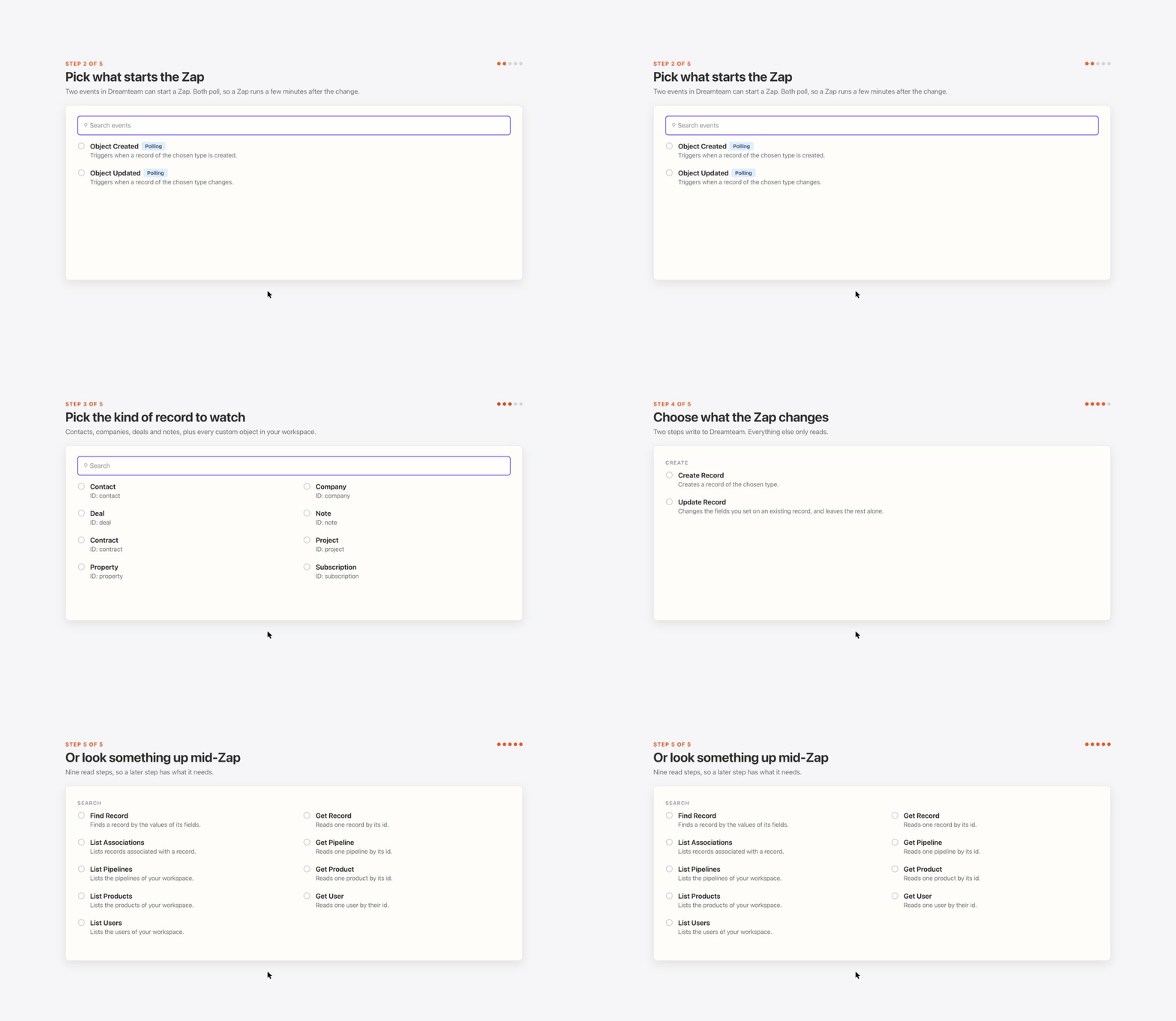
Two events in Dreamteam can start a Zap.
Trigger | What it does |
|---|---|
Object Created | Triggers when a record of the chosen type is created. |
Object Updated | Triggers when a record of the chosen type changes. |
Both triggers poll, which means a short wait. Zapier checks Dreamteam for new and changed records on a schedule rather than hearing about them the instant they happen, so a Zap starts a few minutes after the change rather than immediately. How often Zapier checks depends on your Zapier plan.
Choosing the record type
After you pick a trigger, the Object field asks which kind of record to watch. You can choose contacts, companies, deals, notes, and any custom object your workspace has.
There is also an Include Associations option, which brings the records linked to the one that triggered, so a Zap about a deal can also see the company and contacts attached to it.
What a Zap can do in Dreamteam
Dreamteam steps come in two kinds. The first two change something; the rest only read.
Steps that write
Action | What it does |
|---|---|
Create Record | Creates a record of the chosen type. |
Update Record | Changes the fields you set on an existing record, and leaves the rest alone. |
Steps that read
Use these to look something up in the middle of a Zap, so a later step has what it needs.
Action | What it does |
|---|---|
Find Record | Finds a record of the chosen type by the values of its fields. |
Get Record | Reads one record of the chosen type by its id. |
List Associations | Lists records associated with a Dreamteam record. |
Get Pipeline and List Pipelines | Reads one pipeline by its id, or lists the pipelines of your workspace. |
Get Product and List Products | Reads one product by its id, or lists the products of your workspace. |
Get User and List Users | Reads one user by their id, or lists the users of your workspace. |
Find Record searches, Get Record fetches. Use Find Record when you have something like an email address and need to work out which record it belongs to. Use Get Record when an earlier step already handed you the record's id.
FAQs
I cannot find Dreamteam in Zapier. Where is it?
The app is invite only, so it is not listed in Zapier's public app directory and searching for it while signed out will not find it.
Ask your Dreamteam contact for the invite link. Open it once while signed in to Zapier, and from then on Dreamteam AI comes up in the search box inside the Zap editor like any other app.
How soon does a Zap run after something changes in Dreamteam?
Within a few minutes rather than instantly. Both triggers poll, so Zapier asks Dreamteam for new and changed records on a schedule.
How often that happens is set by your Zapier plan, not by Dreamteam, so a faster Zapier plan checks more often. If you need something to happen the moment it happens, tell us what you are trying to build and we will look at it with you.
Which records can a Zap work with?
Contacts, companies, deals and notes, plus every custom object you have added to your workspace. Custom objects appear in the Object list automatically, under their own names.
If the record type you need is not in that list, write to us at gethelp@dreamteam.ai and tell us what you are trying to connect.
What can the connection see in my workspace?
The connection acts as the person who created it, in that person's workspace. It can read records and it can create and change them, which is what the Create Record and Update Record steps need.
You can see every connection you have made, and remove any of them, from your Zapier account at any time. Removing one stops the Zaps that use it.
Can two people in my team share one connection?
Yes. Once an account is connected in Zapier, any Zap in that Zapier account can use it, and you do not sign in again each time.
It is worth deciding who connects it, because the Zaps act as that person.
Do I have to build the Zap in one go?
No. A Zap stays a draft until you turn it on, and nothing runs in the meantime. You can set up the trigger, leave it, and come back to the action later.
Zapier also lets you test each step as you build it, so you can see a real record come through before anything is live.
Once you are connected, the next article covers what to actually build: the handful of Zaps most teams set up first.
Stuck on any of this? Write to us at gethelp@dreamteam.ai.