What to build with Zapier and Dreamteam
Last updated: November 14, 2026
A form gets filled in at eleven at night. A contract comes back signed while everyone is asleep. A payment lands on a Friday afternoon. None of it shows up in the CRM until somebody types it in, and by then they are working from memory.
Zapier is where you hand that over. Below are six Zaps worth building, each with the steps laid out and the other jobs the same shape covers. Between them they use every step the Dreamteam app offers.
Not connected yet? Start with Connecting Dreamteam to Zapier, which covers the invite link and signing in. Everything here assumes your workspace is already connected.
How a Zap is put together
A Zap is one trigger and at least one action, and you can put as many lookup steps as you like in between. Knowing which of the three you are adding is most of the skill.
Kind of step | What it is for | The Dreamteam steps |
|---|---|---|
Trigger | The thing that sets the Zap off. One per Zap, and it goes first. | Object Created, Object Updated |
Lookup | Reads something so a later step has what it needs. Changes nothing, so you can add several without risk. | Find Record, Get Record, List Associations, Get Pipeline, List Pipelines, Get Product, List Products, Get User, List Users |
Action | Changes something. These are the two steps that write to Dreamteam. | Create Record, Update Record |
A Zap does not have to start in Dreamteam. Four of the six below start in the other tool and write into Dreamteam, which is the direction most teams need first.
Six Zaps worth building
Turn a form fill into a contact, without collecting duplicates
Your website form already emails somebody. The trouble is that Jordan Blake fills it in on Tuesday, forgets, and fills it in again on Thursday, and now you have two of him. This Zap looks first and only creates when there is nothing there.
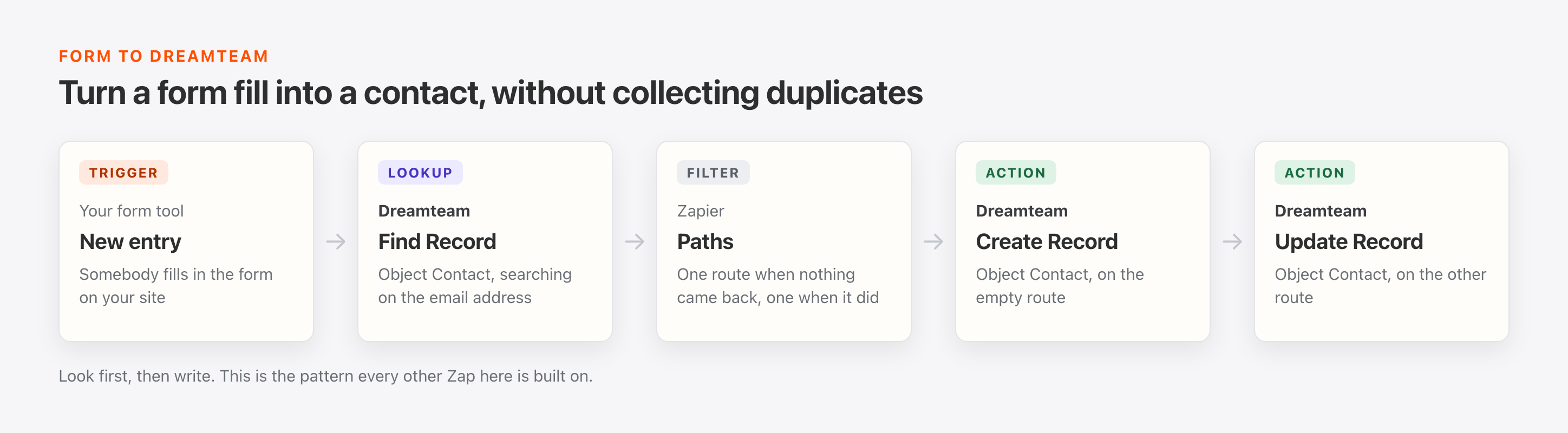
Step | Where | What you set |
|---|---|---|
1. Trigger | Your form tool | A new entry or submission |
2. Lookup | Dreamteam, Find Record | Object Contact, searching on the email address the form collected |
3. Split | Zapier, Paths or Filter | One route for when Find Record came back empty, another for when it found somebody |
4. Action | Dreamteam, Create Record | Object Contact, on the empty route. Name, email, and whatever else the form asked for |
5. Action | Dreamteam, Update Record | Object Contact, on the other route. The record Find Record returned, plus the new answers |
The same shape also does:
An event or webinar sign-up list, so everyone who registered is already a contact on the morning.
A calendar booking tool, so whoever booked the call exists before the call happens.
A spreadsheet somebody keeps by hand, so adding a row adds a contact and nobody retypes it.
Update Record only touches the fields you give it. Anything you leave out stays exactly as it was, so this Zap cannot quietly blank a phone number one of your team typed in by hand.
Announce a new deal in words people recognise
You want new deals in a channel. The snag is that the trigger hands you ids for the pipeline, the owner and the product, and nobody reads ids. Three lookups turn them into names.
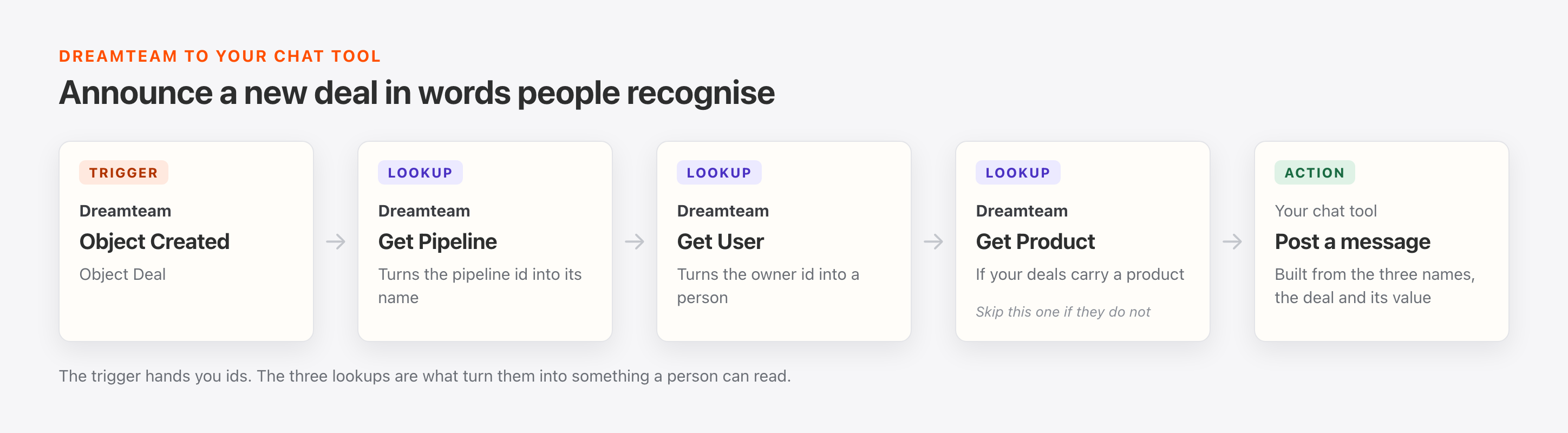
Step | Where | What you set |
|---|---|---|
1. Trigger | Dreamteam, Object Created | Object Deal |
2. Lookup | Dreamteam, Get Pipeline | The pipeline id that came through with the deal, so the message can name the pipeline |
3. Lookup | Dreamteam, Get User | The owner id from the trigger, so the message names a person and not a string of characters |
4. Lookup | Dreamteam, Get Product | If your deals carry a product, feed its id in here and the message can say what the deal is for |
5. Action | Slack, or wherever your team talks | A message built from the names those three steps returned, plus the deal name and value |
The same shape also does:
A quieter version that only speaks up when the deal is above a value you set, using a Zapier filter.
The same message to one person instead of a channel, so a lead keeps an eye on their own patch.
An announcement when a company is created instead of a deal, for teams who care about new logos.
Three lookups for one message feels like a lot of steps. Each one swaps an id for something a human can read, and the message is the only part of this Zap anybody ever sees.
When a deal reaches the stage you care about, start the next job
Closing a deal sets off a small pile of work somewhere else: a project gets opened, an invoice goes out, a welcome goes to the customer. The stage change is the signal, and the linked company and contacts are what the other tool needs.
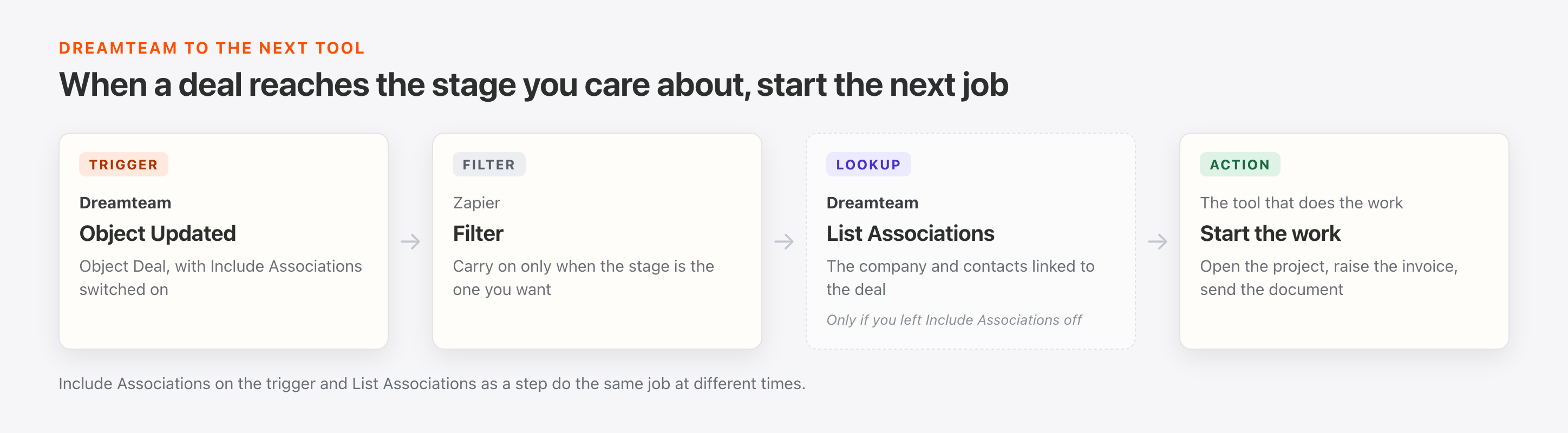
Step | Where | What you set |
|---|---|---|
1. Trigger | Dreamteam, Object Updated | Object Deal, with Include Associations switched on |
2. Filter | Zapier, Filter | Only continue when the stage is the one you are waiting for, so the Zap stays quiet on every other edit |
3. Lookup | Dreamteam, List Associations | Only needed if you left Include Associations off. Returns the company and contacts linked to the deal |
4. Action | The tool that does the work | Open the project, raise the invoice, or send the document, using the customer details from step 1 or 3 |
The same shape also does:
Send the contract out for signature the moment a deal reaches negotiation.
Create the customer in your billing or onboarding tool when the deal is won.
Start a handover checklist for the team who picks the account up next.
Include Associations and List Associations do the same job at different times. Switch on Include Associations when every single run needs the linked records. Add List Associations as its own step when only some runs need them, or when you want the associations of a record the trigger did not hand you.
Write what happened elsewhere back onto the deal
An invoice gets paid in your finance tool. A document comes back signed. The deal in Dreamteam still says what it said last week, and the person who needs to know is looking at the deal, not at the finance tool.
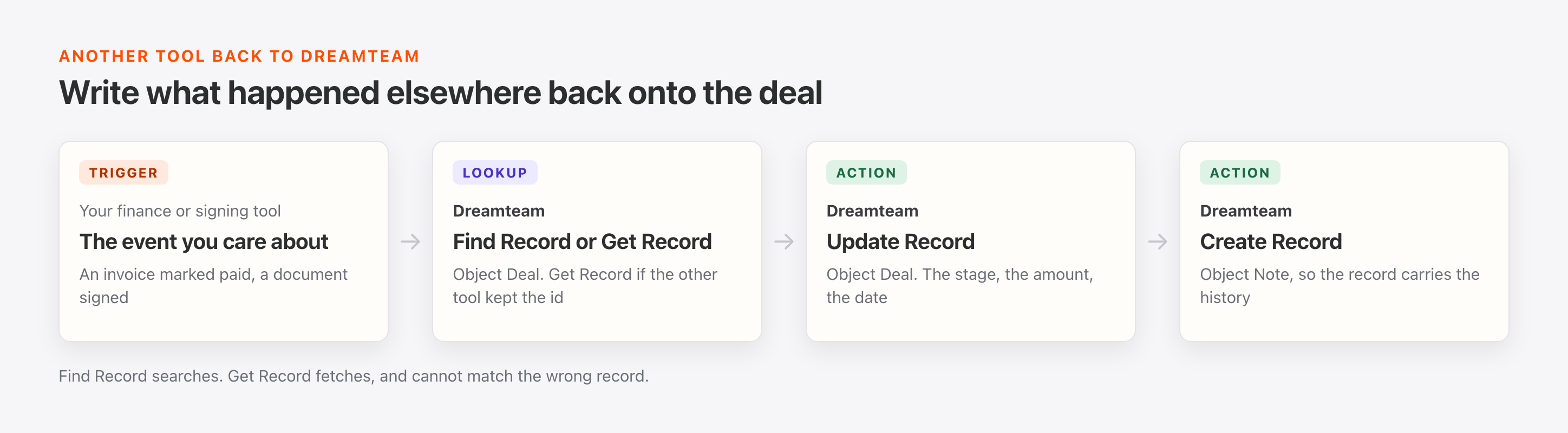
Step | Where | What you set |
|---|---|---|
1. Trigger | Your finance or signing tool | The event you care about, such as an invoice marked paid |
2. Lookup | Dreamteam, Find Record or Get Record | Object Deal. Find Record if all you have is a name or a reference, Get Record if the other tool kept the Dreamteam id |
3. Action | Dreamteam, Update Record | Object Deal. Set the stage, the amount, the date, or whichever fields moved |
4. Action | Dreamteam, Create Record | Object Note, so the record carries a line of history and not just a changed field |
The same shape also does:
A signed document sets the stage and the close date without anybody opening the CRM.
A support escalation writes a note onto the company, so the next person sees it on the record.
A product usage milestone updates a field on the account, ready for the next conversation.
Find Record searches. Get Record fetches. Get Record is the safer of the two whenever the other tool was handed the Dreamteam id at the start, because it cannot match the wrong record. Find Record is what you use when all you have is an email address or a name.
Keep your lists in step with the workspace
Your form has a dropdown of owners on it. Somebody joins, somebody leaves, and the dropdown is wrong for a month before anyone notices. The same goes for a sheet that lists your pipelines, or the products a deal can be set to.
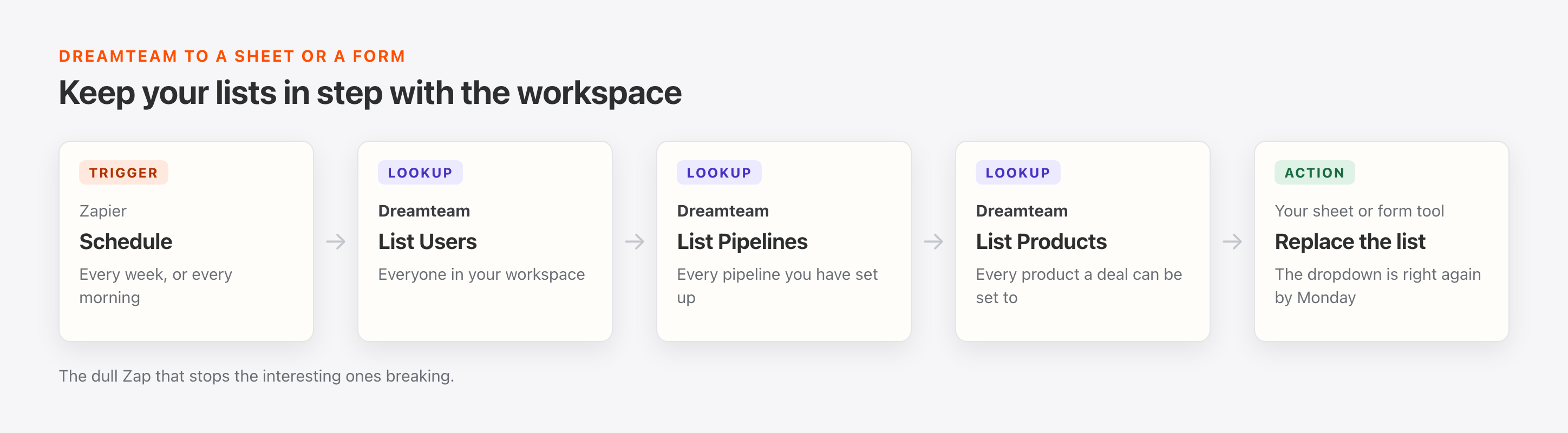
Step | Where | What you set |
|---|---|---|
1. Trigger | Zapier, Schedule | Every week, or every morning |
2. Lookup | Dreamteam, List Users | Everyone in your workspace |
3. Lookup | Dreamteam, List Pipelines | Every pipeline you have set up |
4. Lookup | Dreamteam, List Products | Every product a deal can be set to |
5. Action | Your sheet or form tool | Replace the list with what came back |
The same shape also does:
A quoting tool whose product list has to match what sales can actually sell.
A reporting sheet that needs your pipeline and stage names spelled the way the CRM spells them.
A routing rule in another tool that sends work to whoever is currently on the team.
This is the dull Zap that stops the interesting ones breaking. A Zap that creates deals needs to know which product and which pipeline to put them in, and both of those change without warning.
Put the account in front of whoever answers the ticket
A ticket arrives from an email address. Whoever picks it up has no idea whether this is a customer in their first week or an account with three open deals. Everything they need is already in Dreamteam, one email address away.
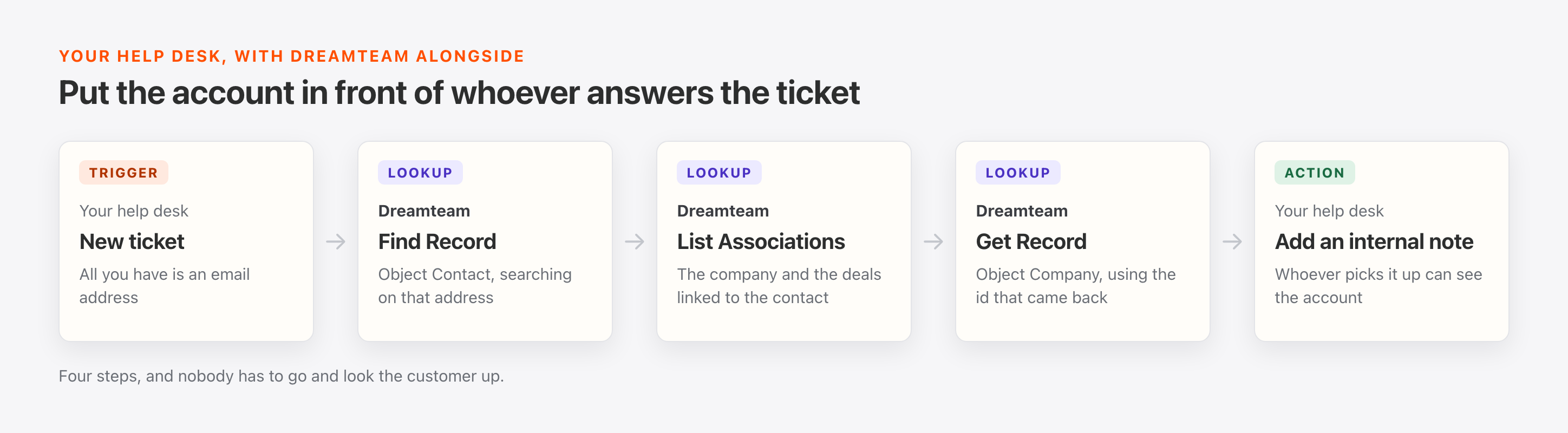
Step | Where | What you set |
|---|---|---|
1. Trigger | Your help desk | A new ticket |
2. Lookup | Dreamteam, Find Record | Object Contact, searching on the email address the ticket came from |
3. Lookup | Dreamteam, List Associations | The company and the deals linked to that contact |
4. Lookup | Dreamteam, Get Record | Object Company, using the id step 3 returned, for the fields the association does not carry |
5. Action | Your help desk | Add an internal note to the ticket with what the three lookups found |
The same shape also does:
The same lookups on an inbound chat, so the person replying has the account open already.
A flag on tickets from a contact with an open deal, so they get picked up first.
A note on a renewal reminder, carrying the deals and the company it belongs to.
FAQs
Which one should I build first?
The form one. It takes the least setup, it pays off the same day, and it teaches you the pattern every other Zap here uses: look first, then write.
Build it with your own email address in the form, watch the contact appear, then submit the form a second time and watch it update instead of duplicating.
Will an update wipe the fields I did not fill in?
No. Update Record changes only the fields you hand it and leaves every other field exactly as it was.
So a Zap that sets a deal's stage and amount leaves the owner, the close date and every other field alone, including the ones your team filled in themselves.
Can a Zap set itself off in a loop?
It can, if it watches updates to a record and then writes back to that same record. The write counts as a change, the trigger notices the change, and round it goes.
Two things stop it. Put a Filter straight after the trigger so the Zap only carries on when the field you actually care about has the value you are waiting for. And keep the write to fields that are not what the Zap is watching for. Zapier also shows you every run in the Zap history, so a loop is easy to spot early.
Why does my Zap take a few minutes to notice a change in Dreamteam?
Because Object Created and Object Updated both work by checking in. Zapier asks Dreamteam for new and changed records on a schedule, so the Zap starts shortly after the change and not the instant it happens.
The gap is set by your Zapier plan, not by Dreamteam, so a plan that checks more often shortens it. Zaps that start in the other tool do not wait at all, which is why four of the six above are built that way round.
Can I build these on a record type I added myself?
Yes. Every custom object in your workspace shows up in the Object list under its own name, next to Contact, Company, Deal and Note, and all of the steps above work on it.
So a Zap can create a Contract, update a Subscription, or watch a Project for changes, as long as that object exists in your workspace.
How many steps can one Zap have?
More than you will need for any of these. Zapier sets the limit, and the Zaps above run to five steps at most.
Lookup steps are the cheap ones to add, because they only read. If a Zap is getting long it is usually two Zaps wearing one coat, and splitting it makes both easier to fix later.
What I want to connect is not one of these six.
These are starting points, and most Zaps people build are a version of one of them with a different tool on the other end. Work out which of the three kinds of step you need, pick the Dreamteam step from the table near the top, and build it the same way.
If you cannot see how to get there, tell us what you are trying to join up. Email gethelp@dreamteam.ai with the two tools and what should happen, and we will work out the Zap with you.
Built something good? Tell us at gethelp@dreamteam.ai, and we may add it here for everyone else.