Dreamteam MCP Documentation
Last updated: October 13, 2026
What if you could look up a contact, update a deal, and prep for your next call - just by asking? Dreamteam MCP connects your AI assistant directly to your CRM, so you spend less time navigating screens and more time closing deals.
What is Dreamteam MCP?
Dreamteam MCP gives AI assistants like Claude, ChatGPT, and Cursor secure, real-time access to your CRM. Think of it as giving your AI a login to your workspace - it can look things up, create records, and update deals, all while respecting your permissions.
Skip the UI - Look up contacts, move deals, and log notes by just asking
Full CRM access - Search, read, create, update, and delete records across your objects. Call recordings are the one exception: they can be read, but never changed or deleted
Secure - Authenticates with OAuth using your existing credentials. You control what the AI can and can't do
Works with any MCP client - This guide uses Claude as the example, but the same setup works with any MCP-compatible tool
Setup Guide
You'll need:
An active Dreamteam CRM account
Access to a supported AI tool
Your account domain - the part before
.dreamteamcrm.aiin your login URL
Your org name is the subdomain from your login URL:
Your login URL | Org name | MCP URL |
|---|---|---|
|
|
|
Already know which AI tool you're using? We've tested the connection flow end-to-end for these three and written step-by-step guides for each:
Using something else? The general setup works with any MCP-compatible client.
Available Tools
Read-Only Tools (13)
Can't modify anything - safe to set to Always allow.
Tool | What it does |
|---|---|
List association definitions | Lists the types of links possible between objects in your workspace (e.g., contact-to-company, deal-to-contact) - the schema for how records can connect |
Describe object type | Returns the full schema for an object type - field names, data types, and whether fields are required. Call this before creating or updating records |
Filter records | Searches records using structured filters - combine conditions with AND/OR logic (e.g., "deals where amount > 25K AND stage is Negotiation") |
Get record | Fetches a single record by its ID - returns all properties, associations, and audit info for that record |
List records | Returns a paginated list of records for an object type, with optional sorting (e.g., list all contacts sorted by last updated). Call recordings cannot be listed this way |
List record associations | Returns every record linked to a specific record (e.g., all contacts on a deal, all deals a contact is on) |
List object types | Lists every object type in your workspace - contacts, companies, deals, notes, meetings, recordings, tasks, email and email threads, plus any custom objects you've created. Email and email threads can be read but not changed. |
Get pipeline | Fetches a single pipeline by ID with its full configuration |
List pipelines | Lists all deal pipelines in your workspace |
Get pipeline stage | Fetches a single pipeline stage by ID |
List pipeline stages | Lists all pipeline stages across your workspace |
Get user | Fetches one team member's profile by ID - name, email, role, job title (no sensitive data exposed) |
List users | Lists all team members - name, email, role, and whether they're a sales user (no sensitive data exposed) |
Write & Delete Tools (4)
These can change your data.
Tool | What it does |
|---|---|
Batch create or update records | Bulk create, update, or delete multiple records in one call. Supports all-or-none mode (rolls back everything if one fails) |
Create record | Creates a new record with validation and built-in dedup checks (e.g., won't create a duplicate contact if one exists with the same email) |
Delete record | Permanently deletes a record by ID, along with the records that depend on it - this action is irreversible. It does not work on call recordings, and a company that still has deals on it is refused rather than deleted |
Update record | Partially updates a record - only the fields you mention get changed, everything else stays as-is |
Read-only tools, pipeline/stage lookups, and user lookups are all safe to set to Always allow - they can't change anything. For write tools (object_create, object_update, object_delete, object_batch), starting with Ask every time lets you review changes before they happen. Adjust based on what feels right for you.
Two things to know before you let an assistant delete anything.
A delete is permanent, and it is not just the one record. There is no restore and no recycle bin, and the records that hang off the one you delete - its notes, for instance - go with it. Ask the assistant to show you the record first if you are not certain.
Some deletes are refused, and that is deliberate. A company that still has deals on it cannot be deleted until those deals are moved or deleted first, and call recordings cannot be deleted through MCP at all - they hold your call audio and transcripts, so the assistant can read one but never change or remove it.
Security
OAuth authentication - Uses your existing Dreamteam credentials. No API keys to juggle.
Your permissions apply - The MCP respects your CRM user permissions. If you can't see it in the app, you can't see it through MCP either.
Disconnect anytime - Remove the connection whenever you want.
Talk to Your CRM
Anything you'd normally do in the CRM UI, you can do through conversation instead. Look up contacts, create records, update deals, check pipelines, explore fields - just ask in plain English.
A few examples to get you started:
"Find the contact record for John Smith"
"Create a new contact: Jane Doe, VP Sales at Acme Corp, jane@acme.com"
"Move the Acme deal to Proposal Sent stage"
"Give me a summary of all open deals by stage"
"What fields are available on the deals object?"
The real power, though, is when you chain these together. That's where things get interesting.
Skip the Clicks, Get It Done
This is where MCP earns its keep. Instead of clicking through five screens, you get it done in one conversation. For eg:
Call Prep
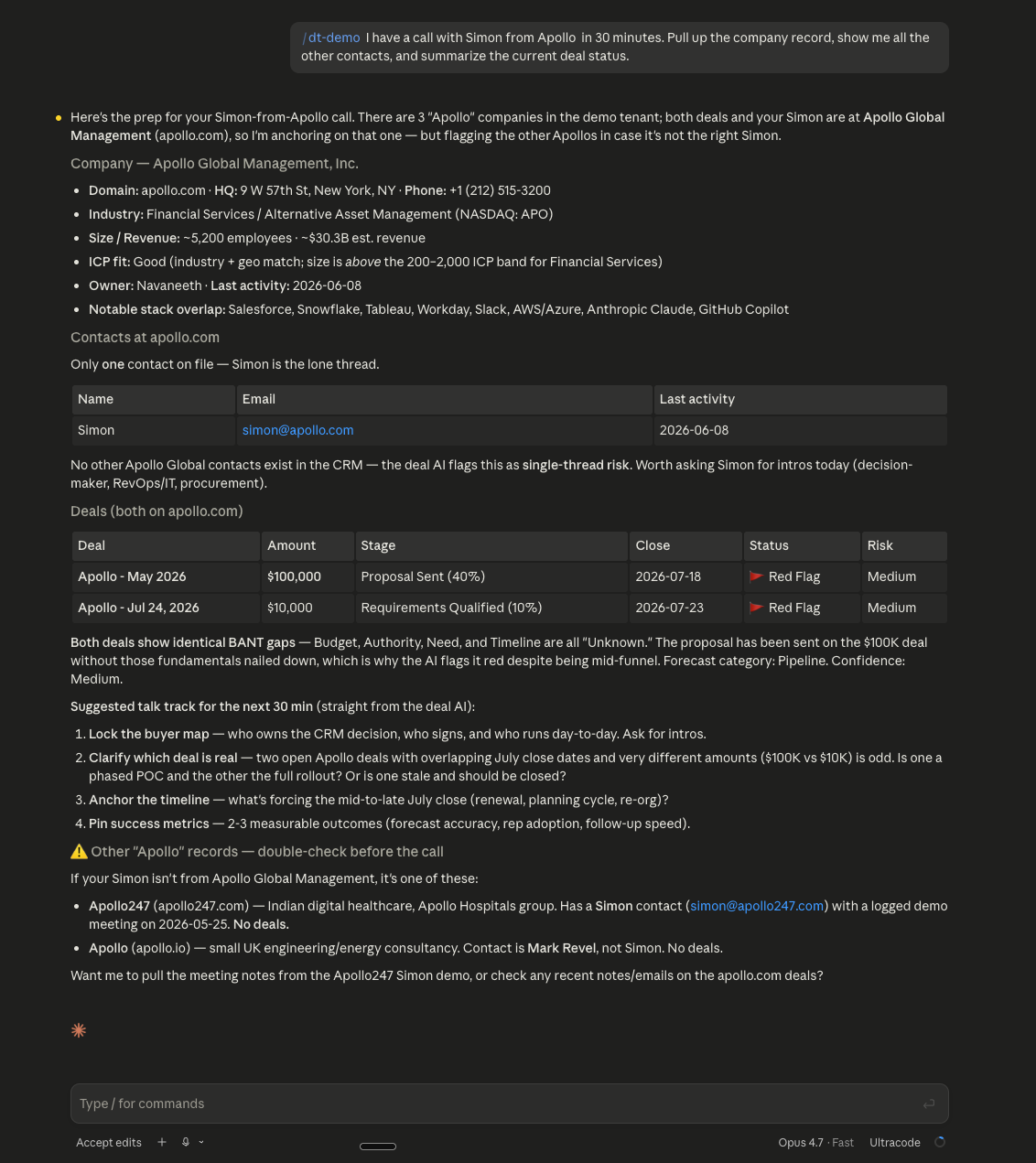
You're 30 minutes out from a call. Instead of clicking through the CRM, searching the company, opening each contact, and checking the deal tab - you just ask:
"I have a call with Acme Corp in 30 minutes. Pull up the company record, show me the primary contacts, and summarize the current deal status."
Everything you need, surfaced before you even open the calendar invite.
More workflows to try
Scenario | What to ask |
|---|---|
Post-Call Update • Log a stage change and new contact in one go | "Just finished my call with John at Acme. Update the deal stage to Proposal Sent, and create a new contact for Lisa Chen (lisa@acme.com, Head of Procurement) who joined the call." |
Pipeline Review • Monday morning status check before the team sync | "Show me all deals in the Enterprise pipeline in Negotiation or later, sorted by deal amount. Who owns each one?" |
Data Cleanup • Find the gaps without digging manually | "Find all contacts that don't have a mobile number. Show me the list so I can decide which ones to clean up." |
Troubleshooting & FAQ
The login page doesn't load when I click Connect.
Check your MCP URL format: https://api.dreamteamcrm.ai/org/{your-org-name}/mcp. The org name is exactly what appears before .dreamteamcrm.ai in your login URL - no spaces, no https://, no .dreamteamcrm.ai suffix.
Connected successfully but the tool isn't available.
Go to Settings → Connectors, click your Dreamteam connector, and make sure tools aren't set to "Deny." Also check that the connection status shows as connected.
Shows "not connected" even though I completed login.
The redirect back to the AI tool might not have completed properly. Disconnect and reconnect from Settings → Connectors.
Can multiple users from my org connect?
Yes. Each user connects with their own credentials and gets access based on their individual CRM permissions.
What happens if my session expires?
Sessions run on a 7-day rolling window. As long as you use MCP at least once every 7 days, you're good. Go longer than that, and you'll need to reconnect from Settings → Connectors.
Getting errors when creating or updating records.
Usually a missing required field. Ask "What fields does the [object] have?" to check which fields are required before creating records.