Connecting Codex to Dreamteam CRM
Last updated: August 27, 2026
You're deep in a Codex session and need to check a deal or pull a contact - without breaking flow.
Dreamteam MCP lets Codex talk to your CRM directly. Ask Codex to look up a contact, update a deal, or pull pipeline data - it goes through your Dreamteam workspace, respects your permissions, and returns the answer right in your chat. Setup takes a minute.
Before you start
You'll need:
An active Dreamteam CRM account
ChatGPT with Codex mode enabled
Your org name - the part before
.dreamteamcrm.aiin your login URL (e.g.,acmecorpforacmecorp.dreamteamcrm.ai)
Your MCP URL will look like this:
<https://api.dreamteamcrm.ai/org/{your-org-name}/mcp>Adding the MCP server
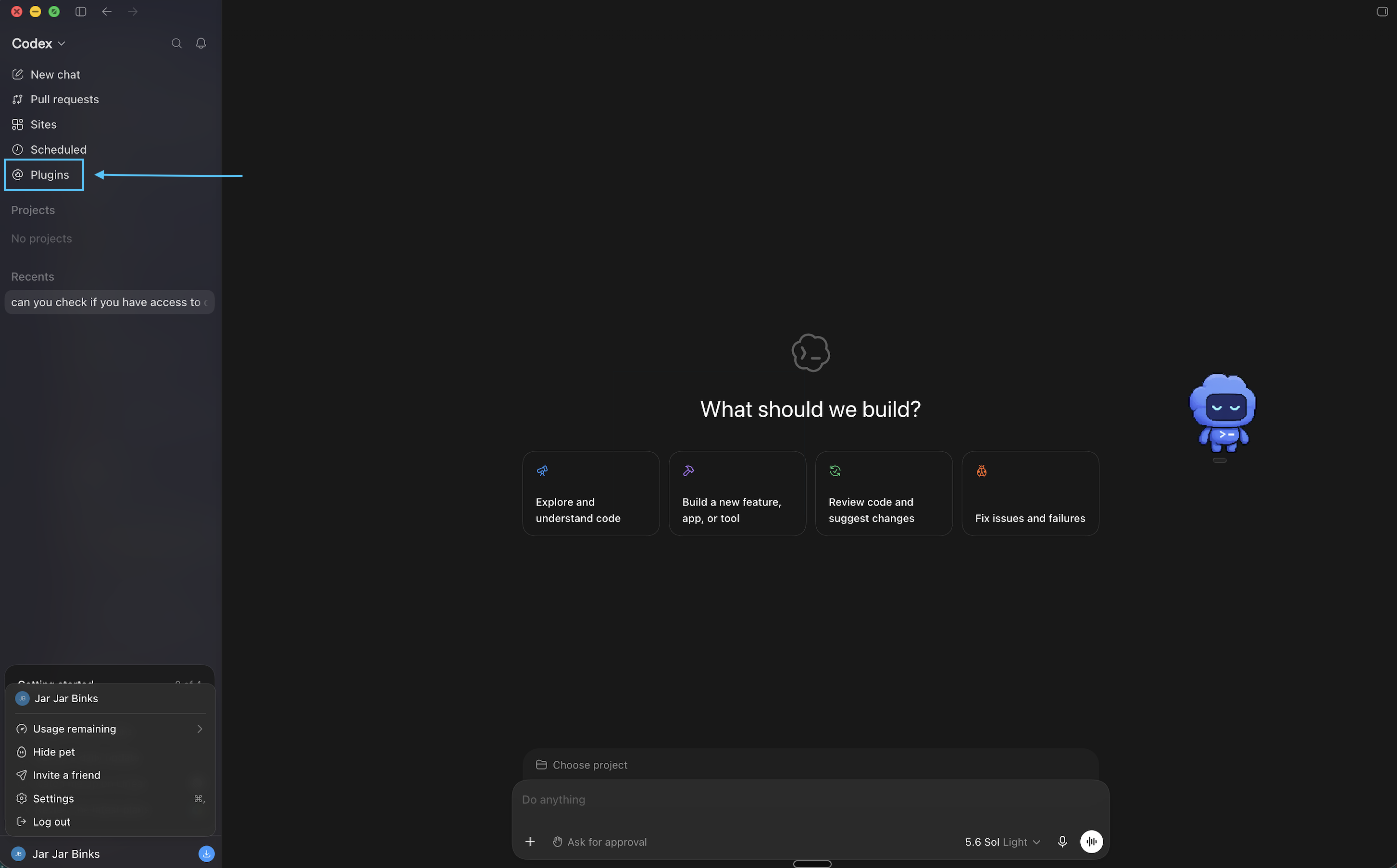
In Codex, click Plugins in the left-side panel.
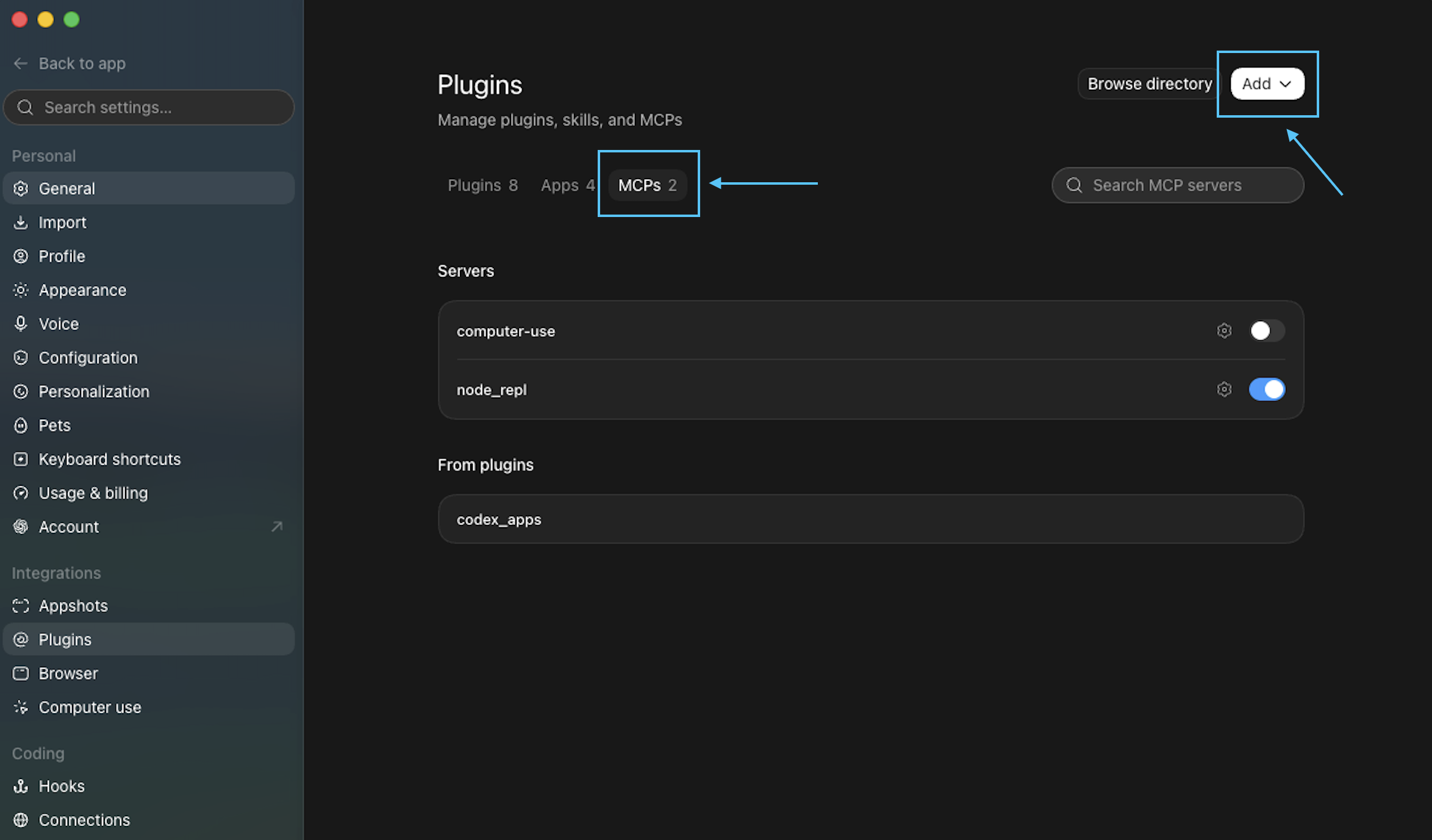
Switch to the MCPs tab (alongside Plugins and Apps) and click Add in the top right.
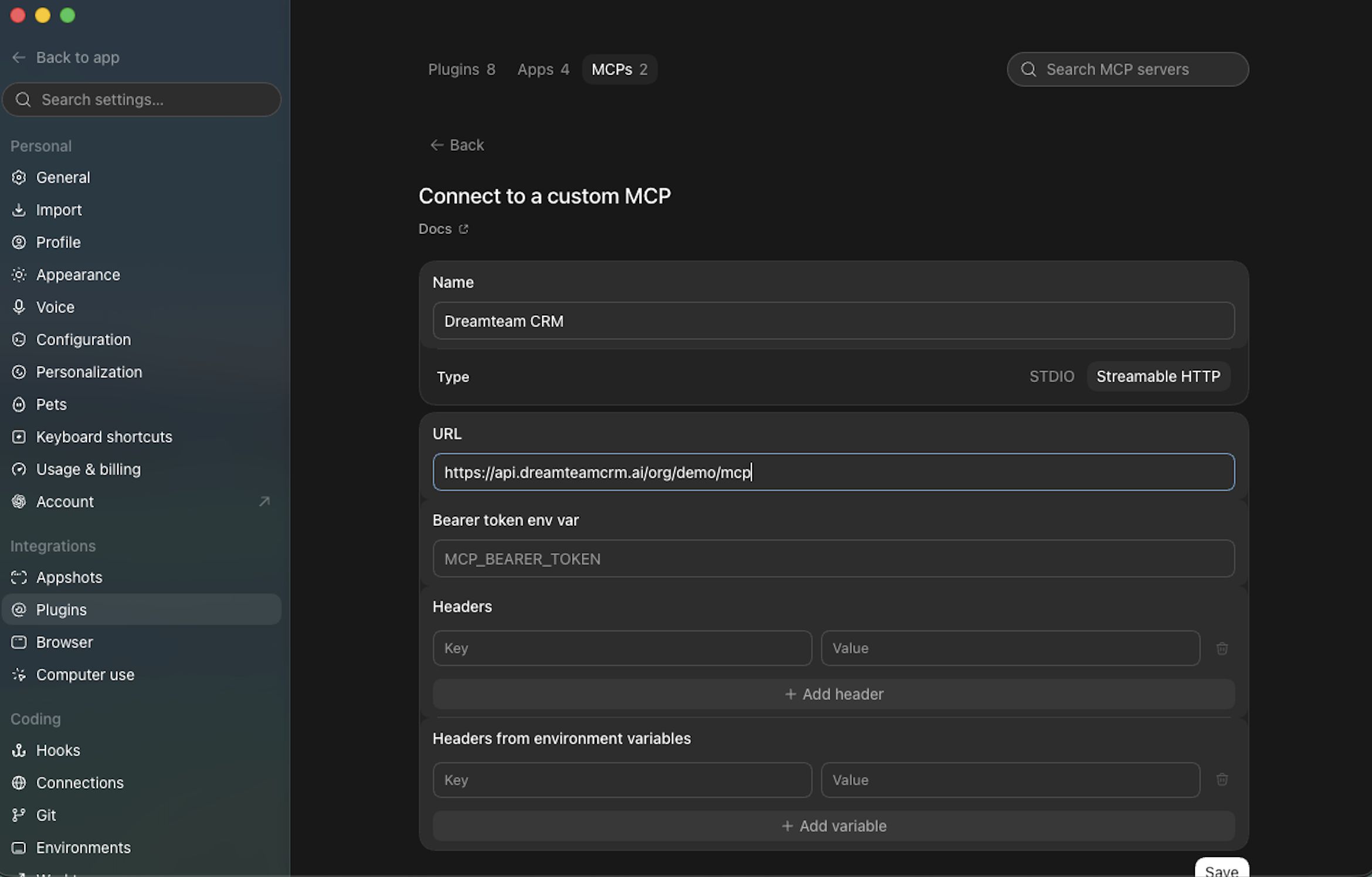
In the Connect to a custom MCP dialog, fill in:
Name:
Dreamteam CRMType:
Streamable HTTPURL: your Dreamteam MCP URL from above
Click Save.
Codex will prompt you to sign in via OAuth. Your browser opens the Dreamteam login page - sign in with your username and password (or Google), approve the access request, and you're set.
Once you're back in Codex, Dreamteam CRM shows as connected and you can start asking it questions right away.
What you can do next
Once connected, Codex can look up, filter, create, update, and delete records across contacts, companies, deals, notes, and any custom objects you've set up.
For the full list of tools, permissions guidance, and example prompts, see the Dreamteam MCP documentation.
Good to know
Your CRM permissions apply - if you can't see a record in the app, you can't see it through MCP either.
Disconnect anytime - toggle off the Dreamteam CRM server under Plugins → MCPs, or remove it entirely.
If you need help, reach out to us at gethelp@dreamteam.co.