Email and Calendar Sync
Last updated: September 3, 2026
Your first morning in a new CRM is a quiet one. No contacts, no companies, no history - just a lot of empty columns and a growing suspicion that somebody is going to have to type all of this in.
Nobody is. Connect your inbox and calendar, and the CRM builds itself out of work you have already done.
Connecting takes about a minute
You connect your own mailbox, and so does everyone else - an admin cannot do it on your behalf. Two providers, one card each:
Once you are signed in, the sync starts by itself, and Dreamteam emails you when the first one lands, so close the tab and get on with your day - a busy inbox takes a while to work through.
The meeting side comes with whichever provider you pick - Google Meet with Google, Microsoft Teams with Microsoft. Neither is a separate step, and the Dreamteam Recorder can join calls on both.
What actually comes across
Not everything, which is the point. Dreamteam sorts your mail into Sales, which syncs, and Non-Sales, which does not. Newsletters, notifications and marketing are left behind without you lifting a finger.
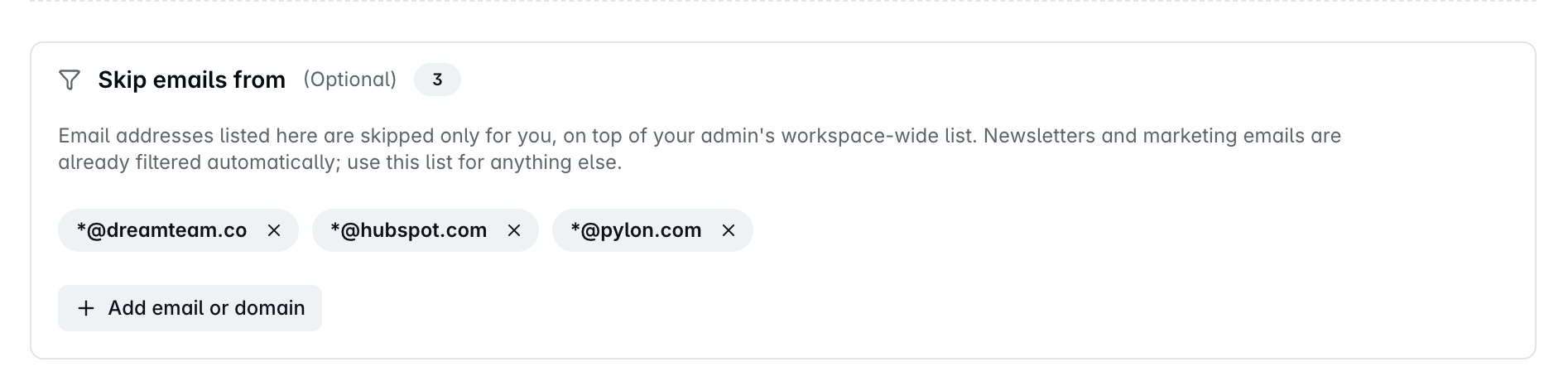
You can leave more out whenever you like - one address, or a whole domain:
person@example.com - a single sender
*@vendor.com - everyone there
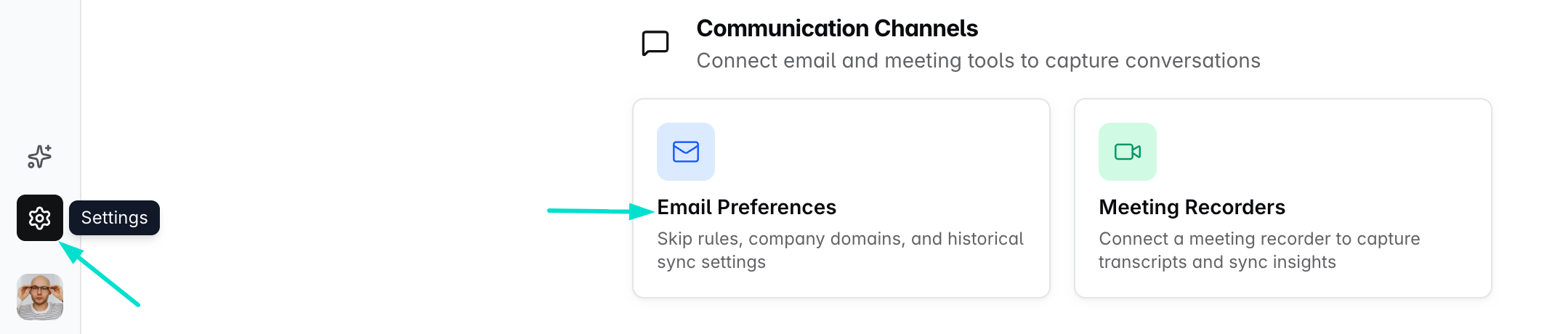
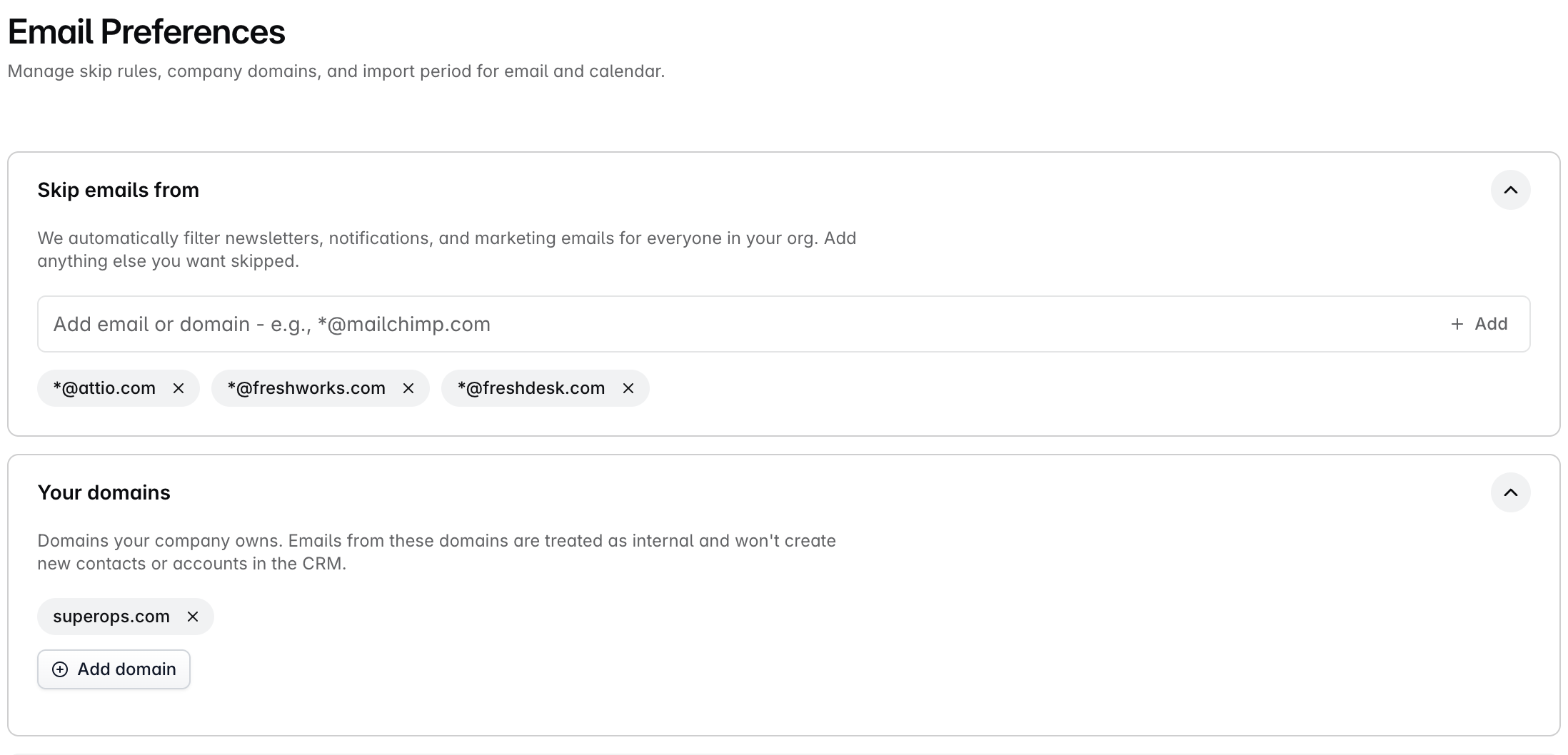
Your recruiter, your own ticketing tool, the vendor who will not stop following up: none of that is customer context. Your own list lives under Skip emails from on the same Email & Calendar page. Separately, an admin sets skip rules, internal domains and the import period - how far back the first sync reaches, 120 days unless they change it - for the whole workspace in Email Preferences.
What you get for it
Give the first sync time to land, then look here:
My Day - your upcoming meetings, already prepped
Contacts - the people you have actually been emailing
Companies - accounts built out of email domains
Deals - conversations, Last Activity dates and AI summaries filling in on their own
Looking after the connection
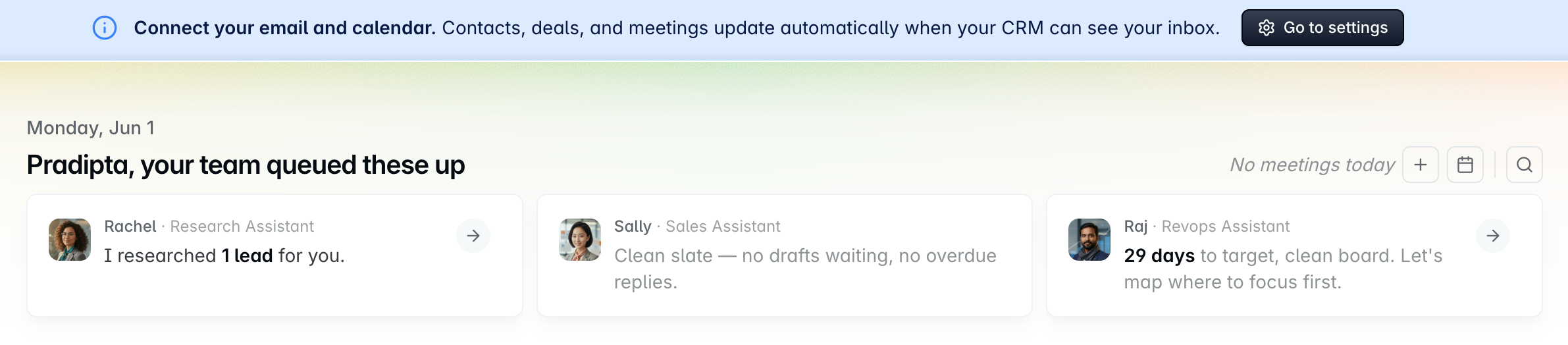
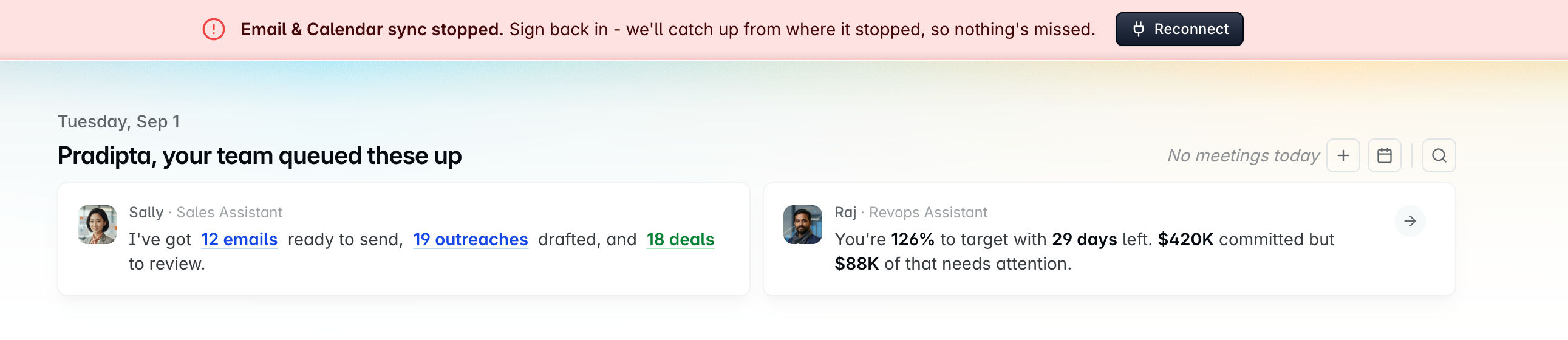
Dreamteam puts a banner across the top of the CRM whenever the connection wants a moment of your attention. The button on it takes you to the right place, and the FAQs below say what each one is asking for.
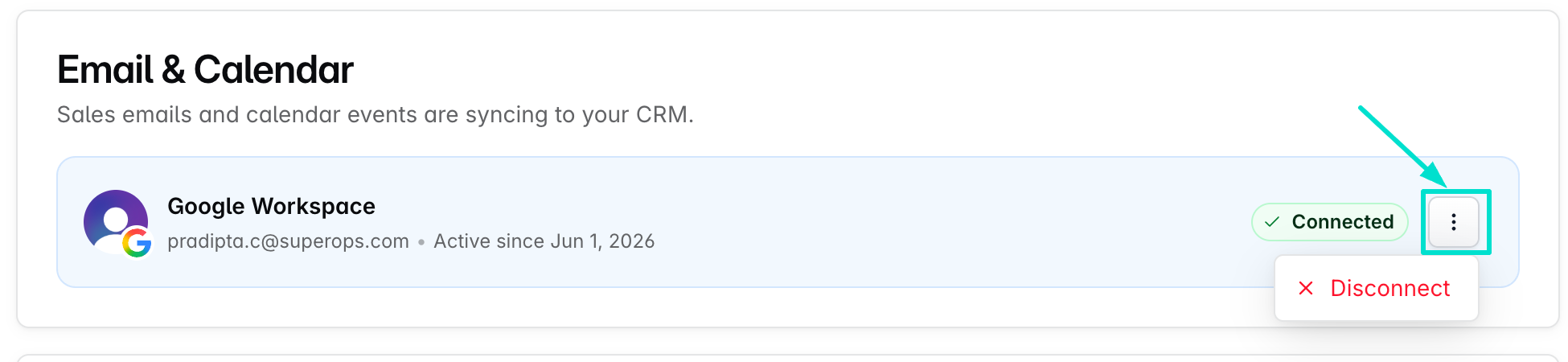
To fix or end a connection yourself, click your avatar in the bottom-left corner and choose Email & Calendar. Your provider card is there, with Reconnect and Disconnect on it.
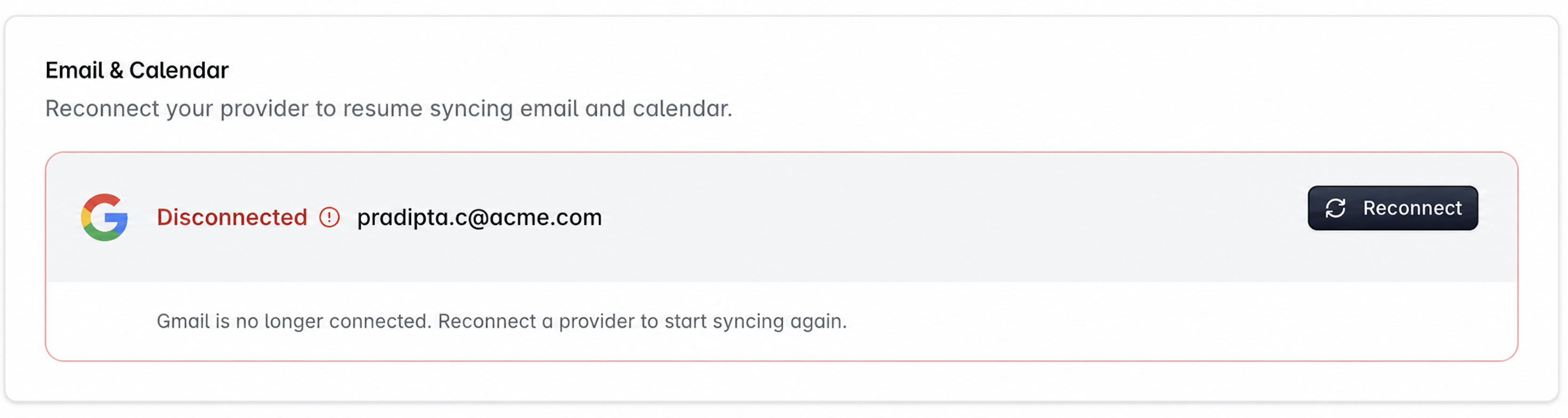
Neither one loses you anything. Reconnecting carries on from where it stopped and restarts the sync for you - unless you paused the inbox deliberately, in which case it waits for you to click Resume sync. Disconnecting stops new mail and meetings arriving; everything already in the CRM stays exactly where it is.
FAQs
Can I still change what syncs after it has started?
Yes, at any time - see Email Preferences. Changes apply from that point on rather than reaching back through what has already synced.
Does everyone on my team need to do this?
Yes. Sync is per person, so each teammate connects their own inbox and calendar.
It says it is done, but the CRM still looks thin.
Give a busy inbox a few hours. After that, check you connected the right account, that the banner is gone, and that the customers you expected are not sitting on your exclusion list. Bear in mind a relationship with three emails in it will look like a relationship with three emails in it.
What does "Connect your email and calendar" mean?
Nothing is connected on your account yet. The button takes you to the connect screen.
What does "Calendar permission missing" mean?
Your email is syncing and the calendar needs one extra approval. Click Grant permission on the banner and you are done.
What does "Email & Calendar sync stopped" mean?
Your provider has stopped accepting the connection - usually after a password change or an expired permission. Click Reconnect and Dreamteam carries on from where it stopped. Nothing already in the CRM is lost.
If you need help or assistance, reach out to us at gethelp@dreamteam.co.