Approving Dreamteam in Microsoft Entra
Last updated: September 10, 2026
Your team is trying to connect Outlook to Dreamteam and Microsoft is asking for an administrator's approval. This is that approval. One administrator gives it once for the whole organisation, it takes about three minutes, and after that nobody sees the prompt again.
You need to be on one of the following Entra roles:
Global Administrator,
Privileged Role Administrator,
Application Administrator or
Cloud Application Administrator.
You will also need Dreamteam's Application ID, which is the same for every organisation: 841f484f-e9a6-4a2c-bd42-64852ad50557
The screenshots below use the example organisation Contoso Ltd. Your own organisation name and your own IDs appear in place of those values.
Everything below happens in the Microsoft Entra admin center, at entra.microsoft.com. Signing in there puts your tenant details on the first page you land on.
What you are approving
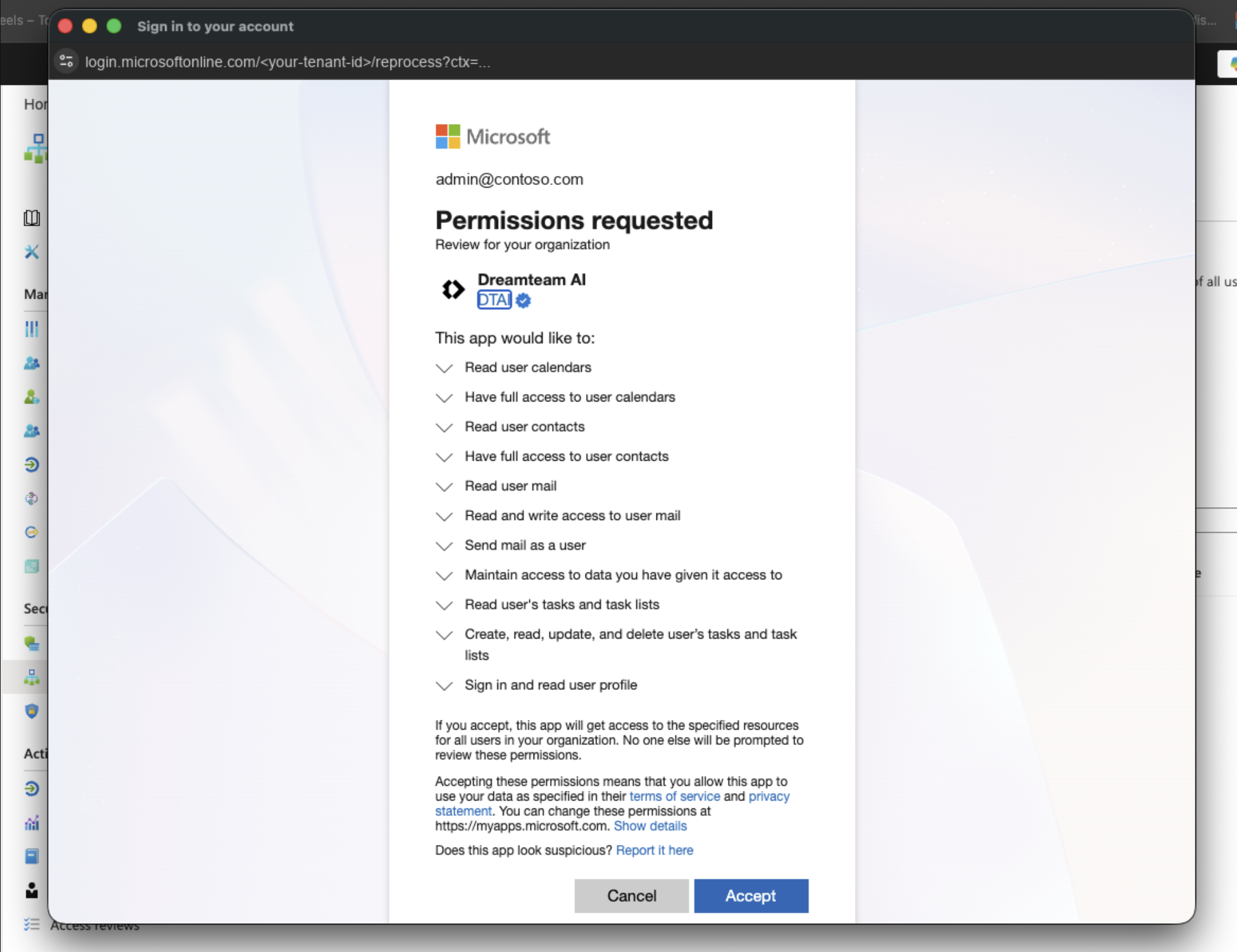
Every permission below is delegated. The app acts only as the signed-in user, which means it cannot open a mailbox nobody has connected.
Microsoft shows you everything the application is registered for, so the consent screen and the Permissions page both list eleven Microsoft Graph permissions. Connecting a mailbox asks for six of them. The other five are registered but are not requested today, and approving the list does not connect anybody's mailbox or start any sync on its own.
Permission | What it is for | Asked for when you connect a mailbox |
Calendars.Read | Reads meetings. | Yes |
Calendars.ReadWrite | Creates, updates and cancels meetings. | Yes |
Contacts.Read | Not requested today. | No |
Contacts.ReadWrite | Not requested today. | No |
Mail.Read | Reads new messages, with their content and attachments. | Yes |
Mail.ReadWrite | Not requested today. | No |
Mail.Send | Sends mail from the user's mailbox. | Yes |
offline_access | Keeps the connection alive. | Yes |
Tasks.Read | Not requested today. | No |
Tasks.ReadWrite | Not requested today. | No |
User.Read | Identifies the user. | Yes |
The rows are in the same order the admin center lists them, so you can check this table against your own screen.
Granting consent
Which path you take depends on whether Dreamteam has reached your tenant yet.
If Dreamteam is not in your directory yet
This is the usual case the first time. Open the address below, replacing both values, and the approval page comes up with the app and its permissions already loaded:
https://login.microsoftonline.com/{tenant-id}/adminconsent?client_id=841f484f-e9a6-4a2c-bd42-64852ad50557{tenant-id} - your Microsoft tenant ID, or your verified domain. You will find it on the Entra ID home page under Basic information, with a copy button beside it.
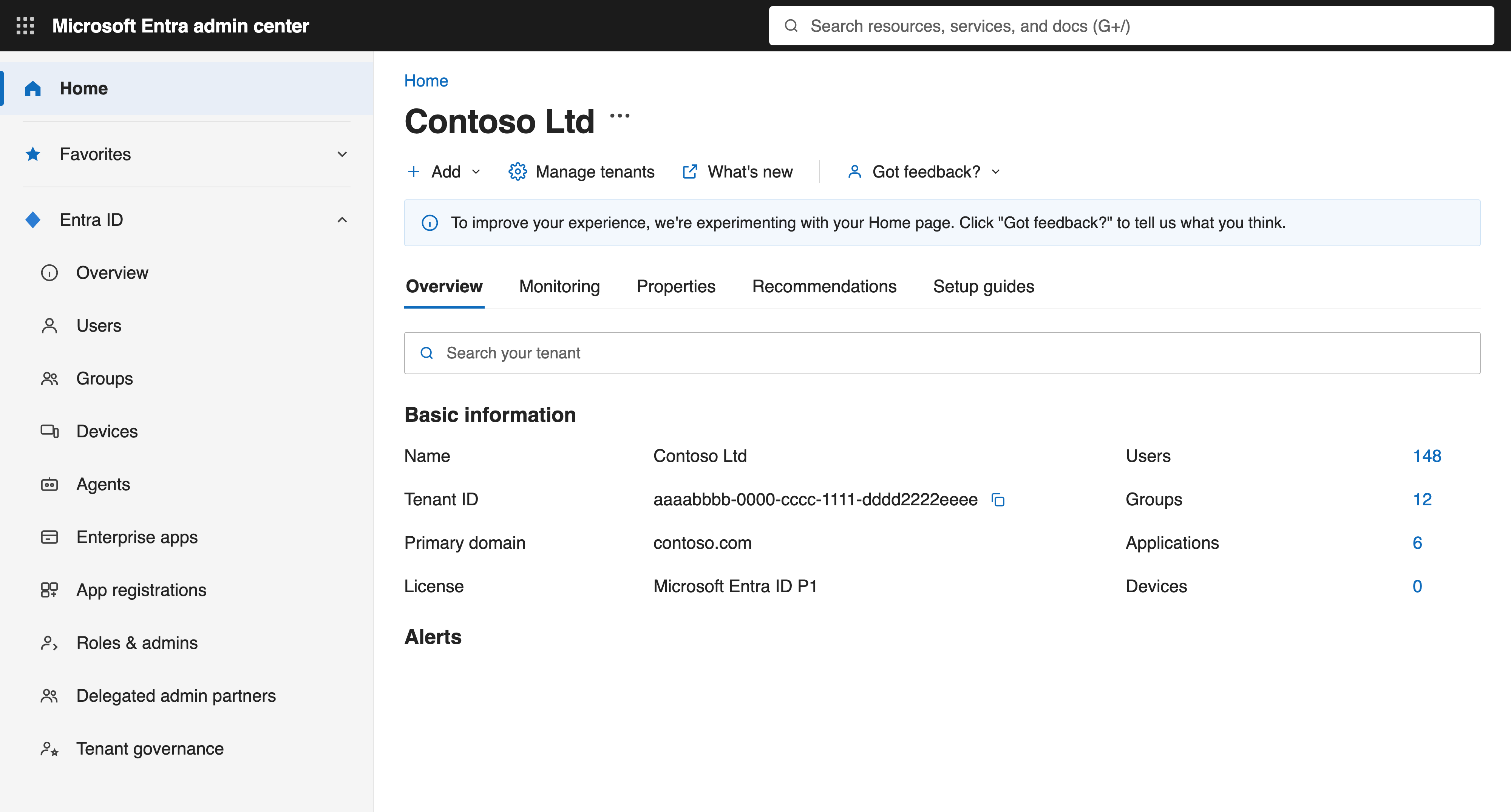
Sign in as an administrator and select Accept. That both creates the directory entry and approves it, so you can skip the rest of this section. The page that loads next reads Unauthorized access; that is expected, and your approval is already saved.
If Dreamteam is already listed
In the Admin Center, open Entra ID > Enterprise applications > All applications. Search for Dreamteam AI.
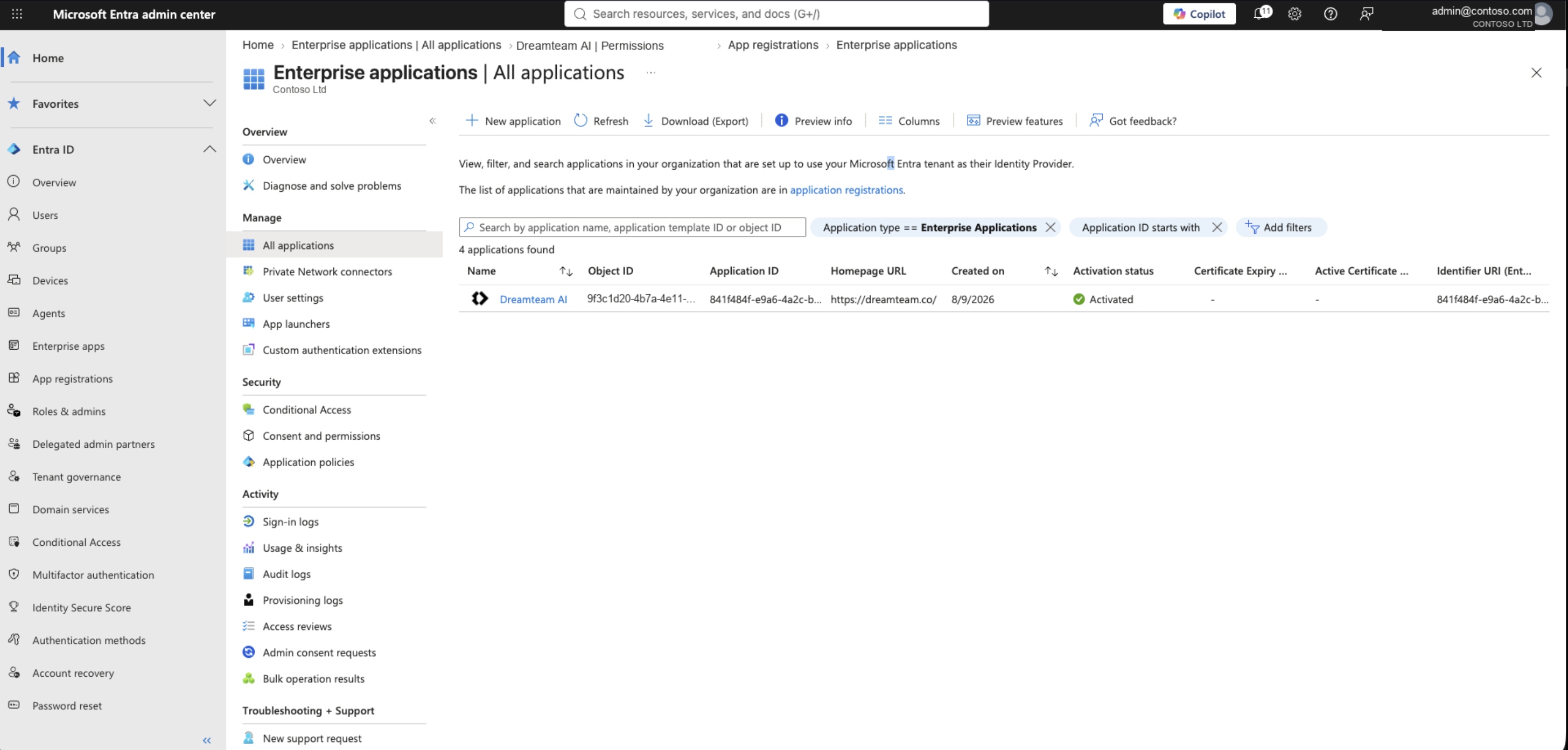
Select it, and under Security open Permissions. The Admin consent tab is empty until you approve.
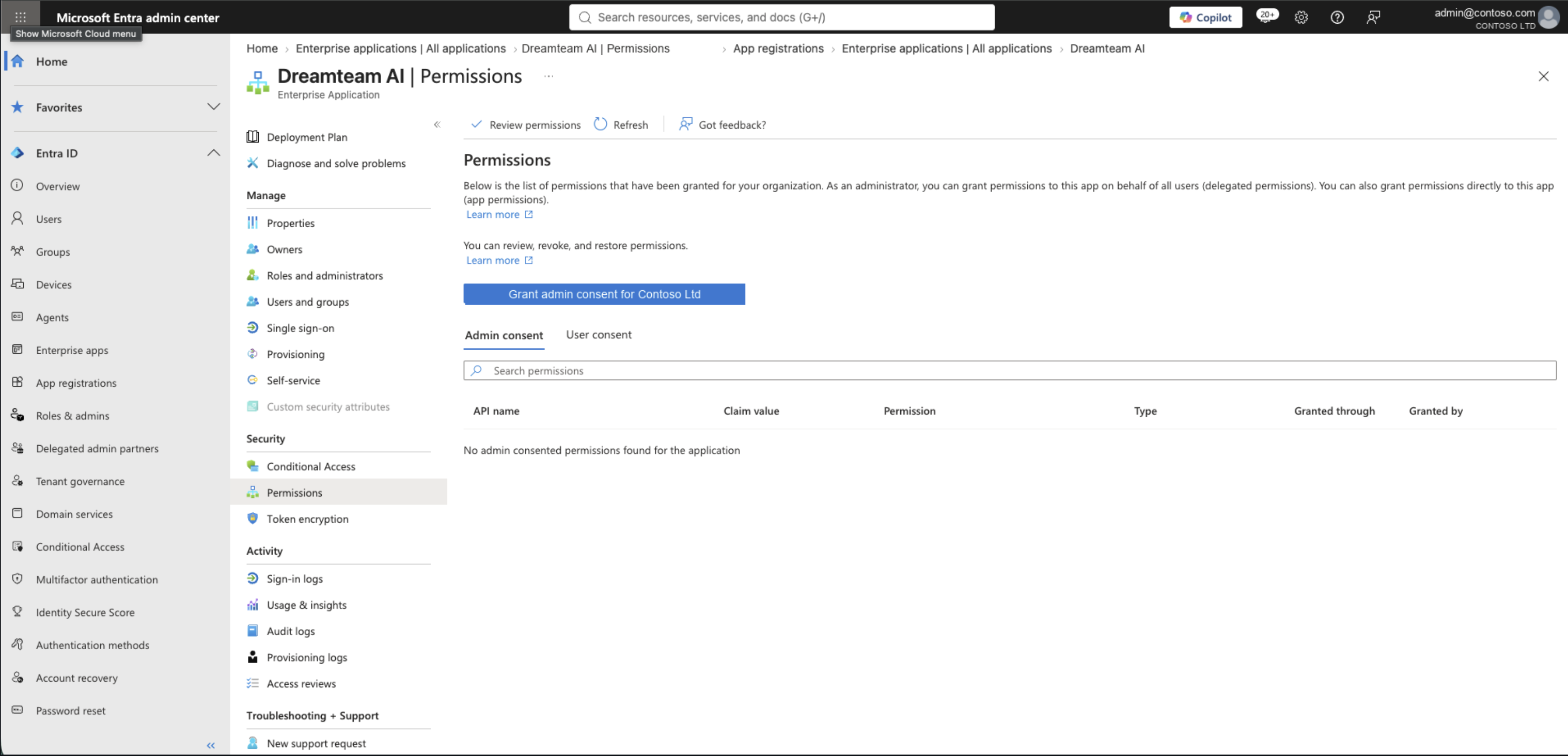
Select Grant admin consent for <your organisation> and sign in with your administrator account.
Check the publisher reads DTAI Technologies Pvt Ltd with the blue verified mark, then select Accept.
The page that loads next shows a short block of text reading Unauthorized access. That is expected. Your approval was saved before this page loaded, so nothing has gone wrong - close it and go back to the Permissions page in the Admin Center.

Select Refresh. The Admin consent tab should now list the Microsoft Graph permissions, every row showing Delegated and Admin consent.
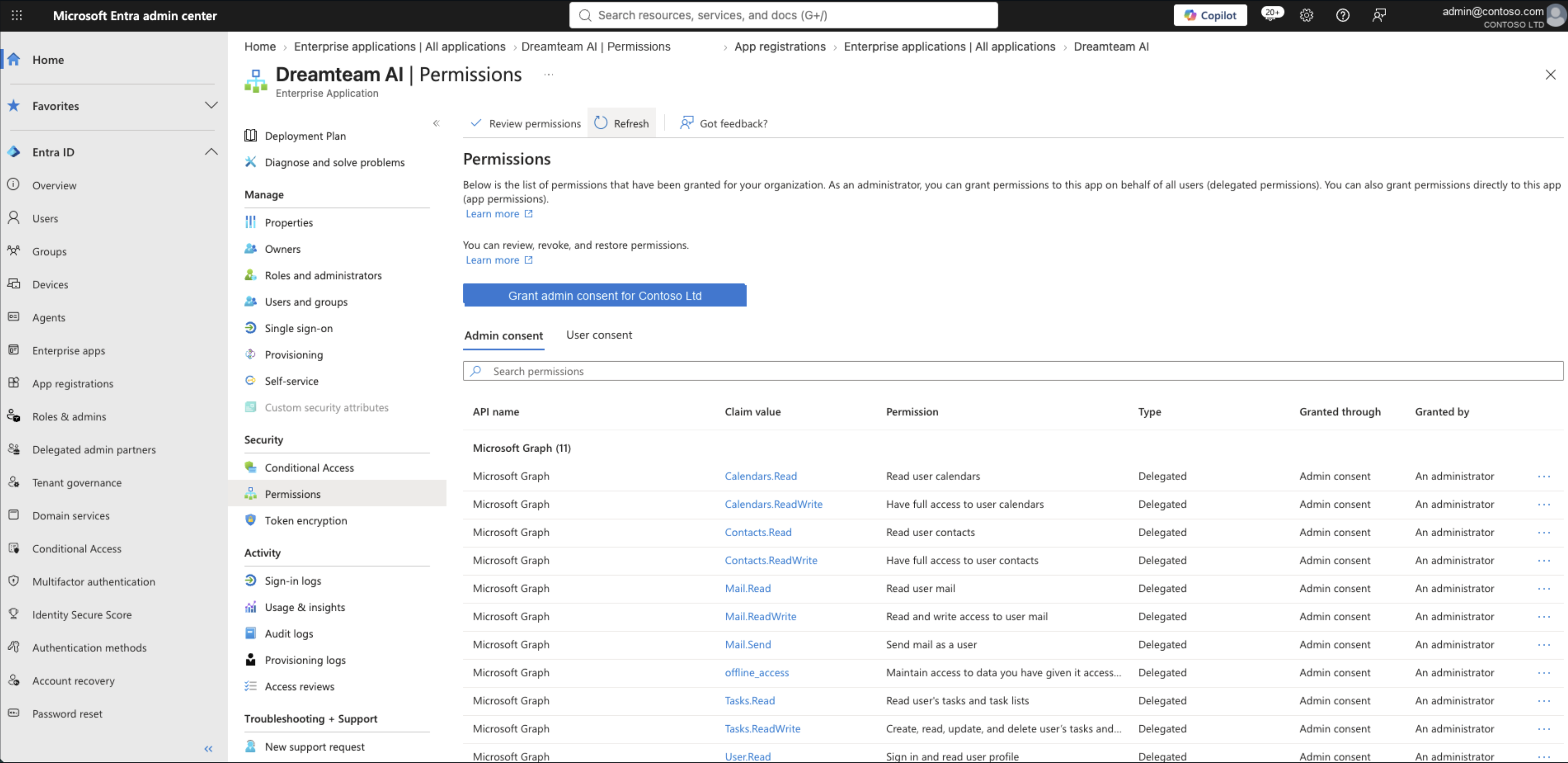
An empty Admin consent table straight after Accept is the page showing its old state - select Refresh and the rows appear. The Grant admin consent button is greyed out for roles that cannot approve on behalf of the organisation; a Global Administrator will need to do it.
After you approve
Your approval moves no data on its own. Each person still opens Dreamteam, goes to Email & Calendar and signs in with their work account - Microsoft will not ask them for consent again. The steps they follow are in the Connecting your Microsoft 365 account article, which is worth sending round once you are done here.
When it does not go through
What you see | Why | What to do |
A message about needing approval from an administrator | Your role cannot approve for the organisation. | Ask a Global Administrator to run it. |
Dreamteam AI is not in the list | The app has not reached your tenant yet. | Use the direct link above. |
The page is still empty after Accept | The page is holding its old state. | Select Refresh and wait a few seconds. |
A user still gets a consent window | That connection is asking for a permission outside your approval. | Send the permission list to Dreamteam Support. |
A Conditional Access policy blocks the sign-in | A policy blocks the app, or the conditions around it. | Open Sign-in logs - the failed entry names the policy. |
A page reading Unauthorized access after Accept | The approval was already saved. The message is about the page, not the consent. | Nothing to do. Check the Admin consent tab if you want to confirm. |
Removing access
One permission - on the Permissions page, open the "…" menu at the end of the row and revoke it.
All access - open Properties and select Delete. Every connection stops.
Dreamteam keeps the CRM records it has already created, and reads no further mail or calendar data.
FAQs
Do I have to do this before anyone connects?
Only if your organisation requires administrator approval for new applications. Many tenants let people approve for themselves, in which case connections just work. If your users are hitting a "needs admin approval" message, this is the fix.
Does approving it give Dreamteam access to everyone's mailbox?
No. Every permission is delegated, so Dreamteam only ever acts as a signed-in user who has connected their own account. Approving the app does not open a single mailbox by itself.
Does this also set up single sign-on?
No. This approval only covers email and calendar connections.
If you need help or assistance, reach out to us at gethelp@dreamteam.co.