Connecting your Google Workspace account
Last updated: September 3, 2026
Everything else in Dreamteam waits on this one. Sign in with Google and your inbox and calendar start doing the data entry for you - contacts, companies and meetings, built out of mail you have already sent.
It takes about a minute, and you never have to do it again.
What you are connecting
Gmail - your sales email.
Google Calendar - your meetings.
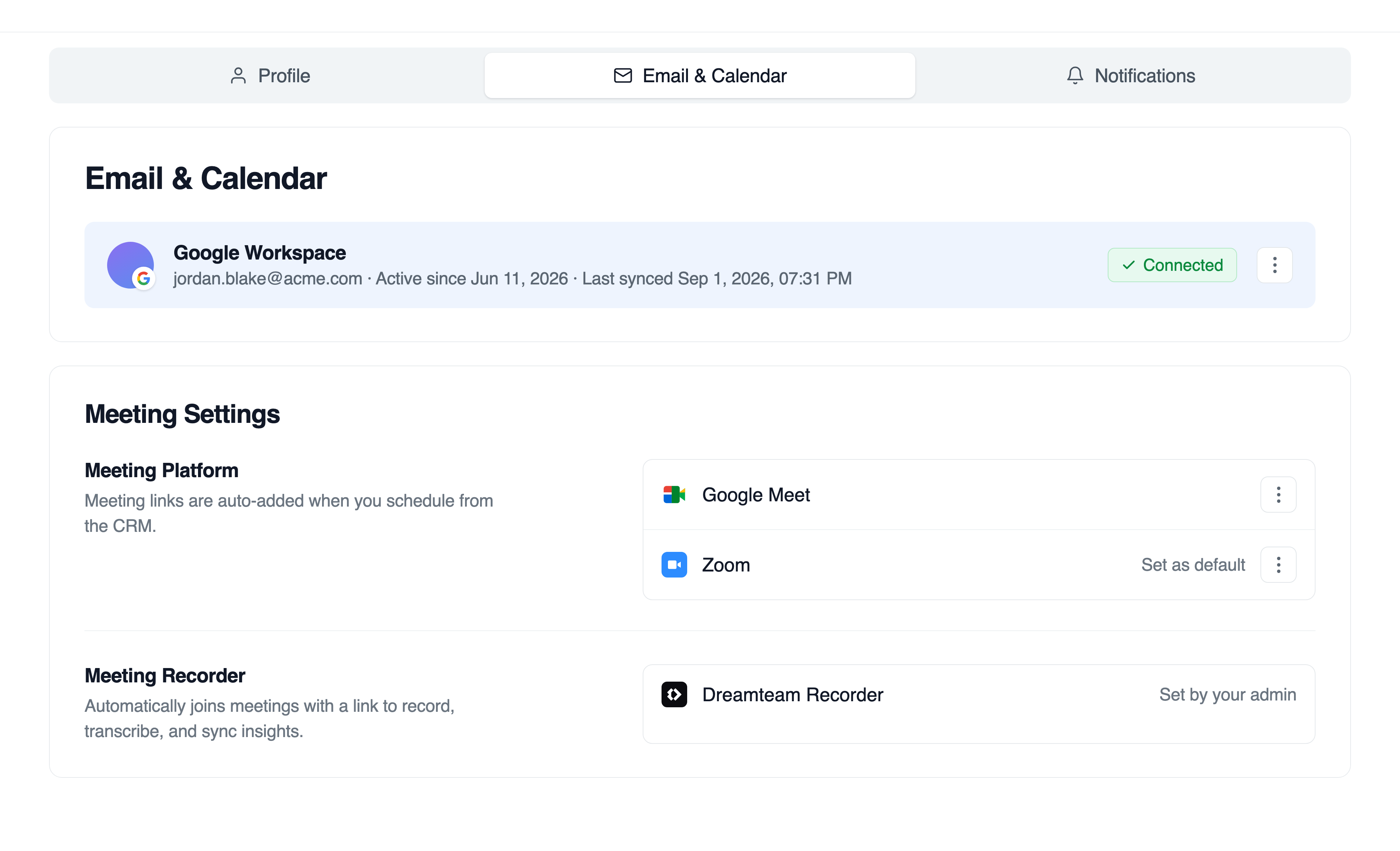
Google Meet - included. The calendar permission you grant already covers meeting access, so the Dreamteam Recorder can join your Meet calls with nothing further to set up.
Signing in
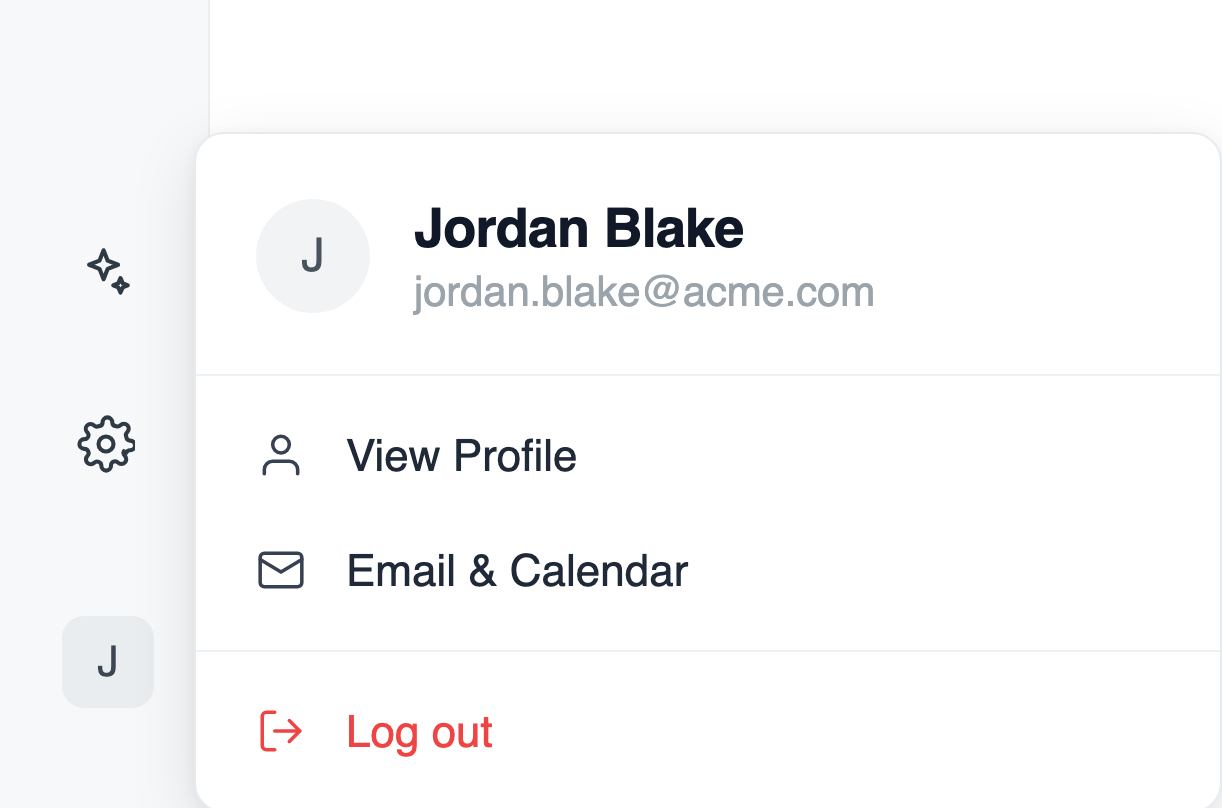
In the CRM, click your avatar in the bottom-left corner and choose Email & Calendar.
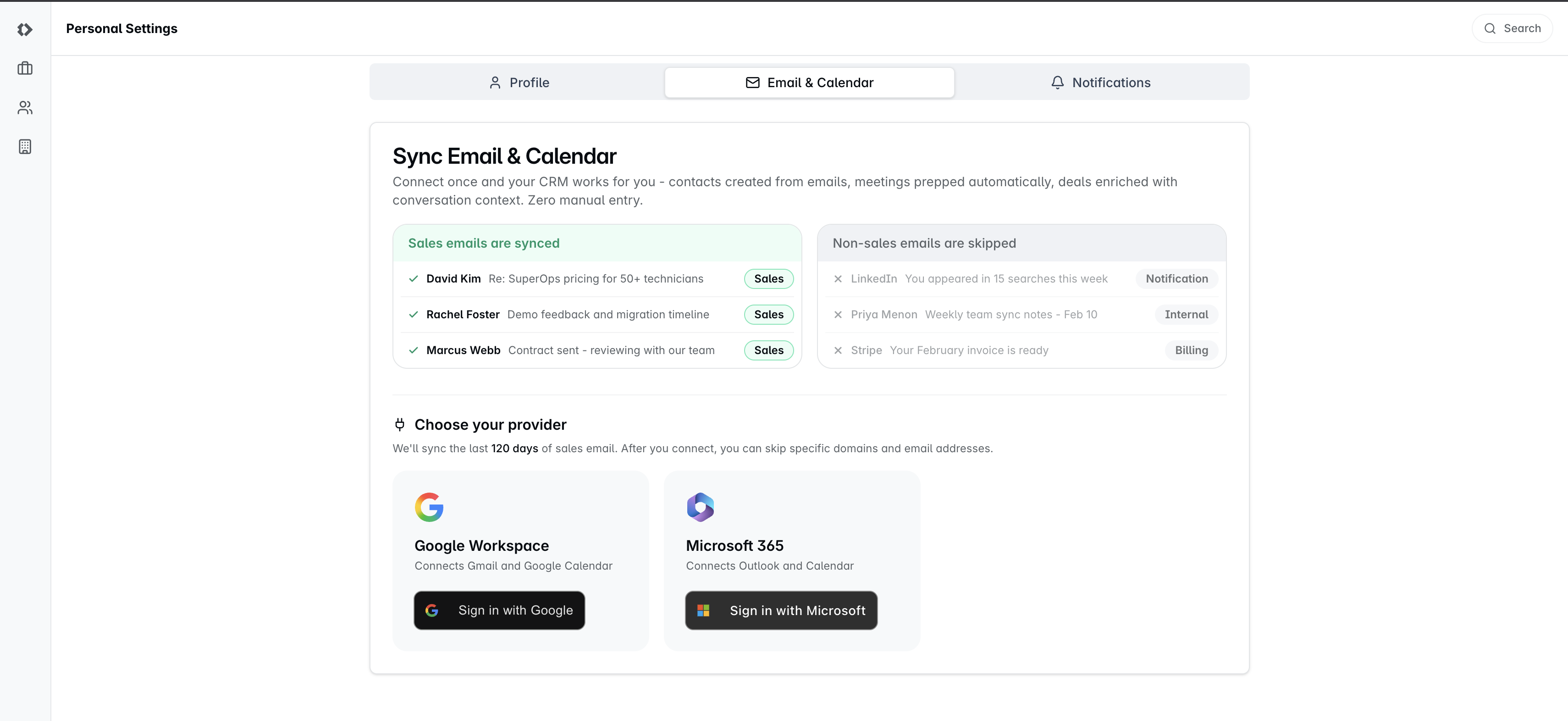
Under Choose your provider, click Sign in with Google on the Google Workspace card.
Sign in and accept the permissions Google asks for.
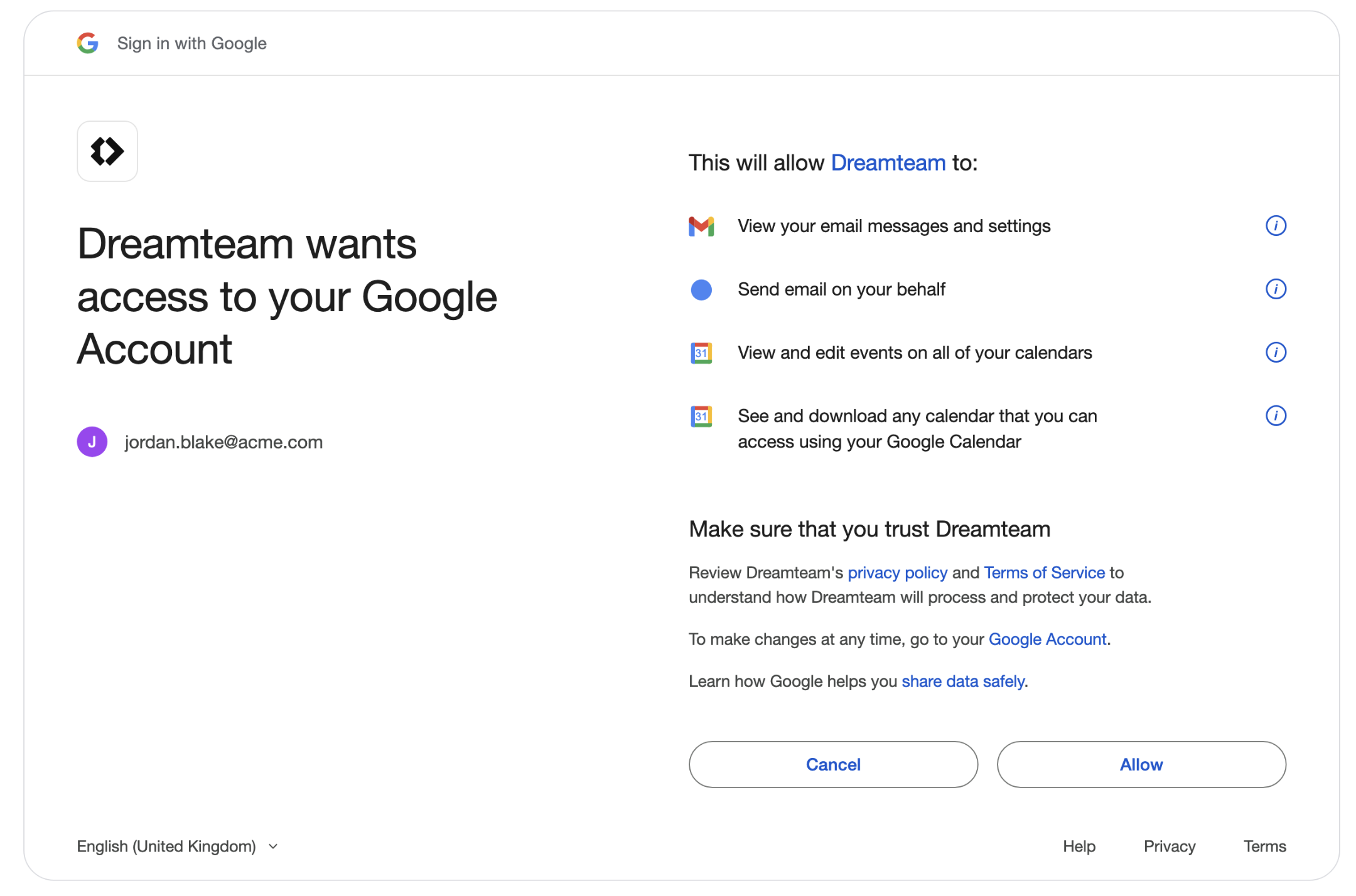
Google shows you exactly what Dreamteam is asking for before you agree - your Gmail and your calendar, nothing wider. Accept it and you land back in the CRM with the sync already under way - there is nothing further to press, and you will get an email once the first sync has finished.
FAQs
Do I need to approve the calendar separately?
No - calendar access is part of the same Google sign-in. If Dreamteam ever shows a Calendar permission missing note, one click on Grant permission tops it up.
Nothing happened when I clicked connect.
Your browser is holding back the sign-in window. Allow popups for Dreamteam and it opens.
Can I choose how far back it reaches?
No. Your admin sets one import period for the whole workspace, and the connect screen shows you what it is. Admins can change it in Email preferences.
Does my whole inbox go into the CRM?
No. Dreamteam syncs sales email and skips the rest, and you can narrow it further yourself under Skip emails from.
What happens if I disconnect?
New email and calendar activity stops syncing. What is already in the CRM stays, and reconnecting picks up from where it stopped.
I use Outlook, not Gmail.
See the Connecting your Microsoft 365 account article instead - Microsoft 365 is the other card on the same screen.
If you need help or assistance, reach out to us at gethelp@dreamteam.co.