Filtering your data - the "Smart Way"
Last updated: September 9, 2026
Dreamteam CRM ships with an AI-powered natural language filter that lets you find exactly what you need by simply typing a question. No more picking fields, choosing operators, or stacking conditions - just describe what you're looking for, and the AI translates it into the right filter for you.
Beyond the usual fields like deal name, amount, or owner, you can also filter on the AI-derived signals Dreamteam captures behind the scenes - confidence, momentum, risk, multi-threading, forecast category, next steps, recommended stage, and more.
Using the AI Filter
Click AI Filter, type your question in plain English, and hit Enter. The AI picks the right fields, applies the conditions, and returns matching results - works on both list view and kanban view.
Everyday hygiene checks
"Deals where the deal name is empty"
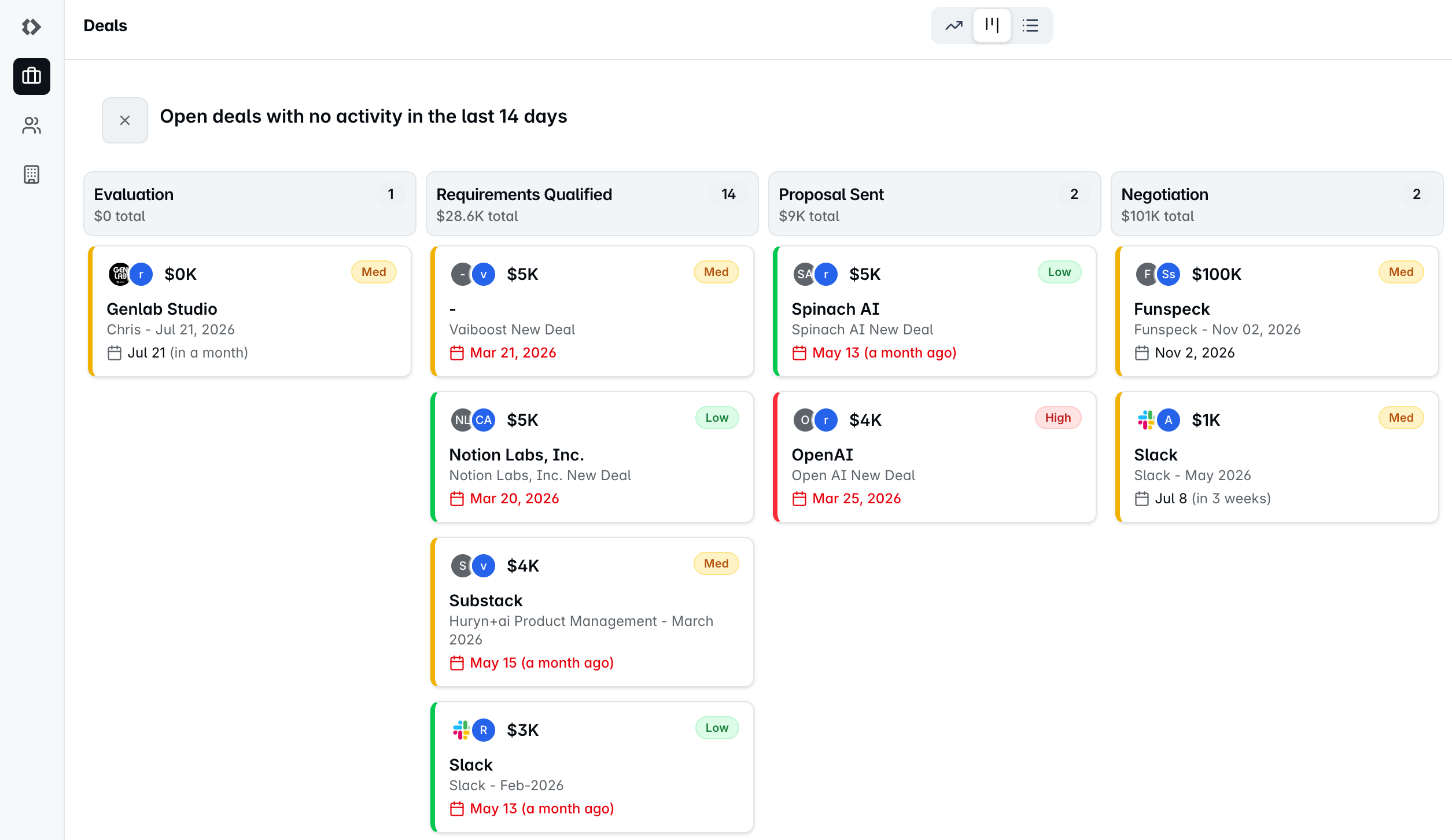
"Open deals with no activity in the last 14 days"
Filtering on AI-derived signals
"Deals where confidence is low and multi-threading is Single-Thread"
"Commit forecast deals where risk is high"
"Deals where AI has flagged a stage mismatch"
"Deals with Emerging Multi-Thread but low confidence"
Queries like these are where the AI Filter really earns its keep - one sentence, multiple AI-derived fields, no manual setup.
Shortcut to initiate AI Filter: "/" (backslash)
Conventional Filters
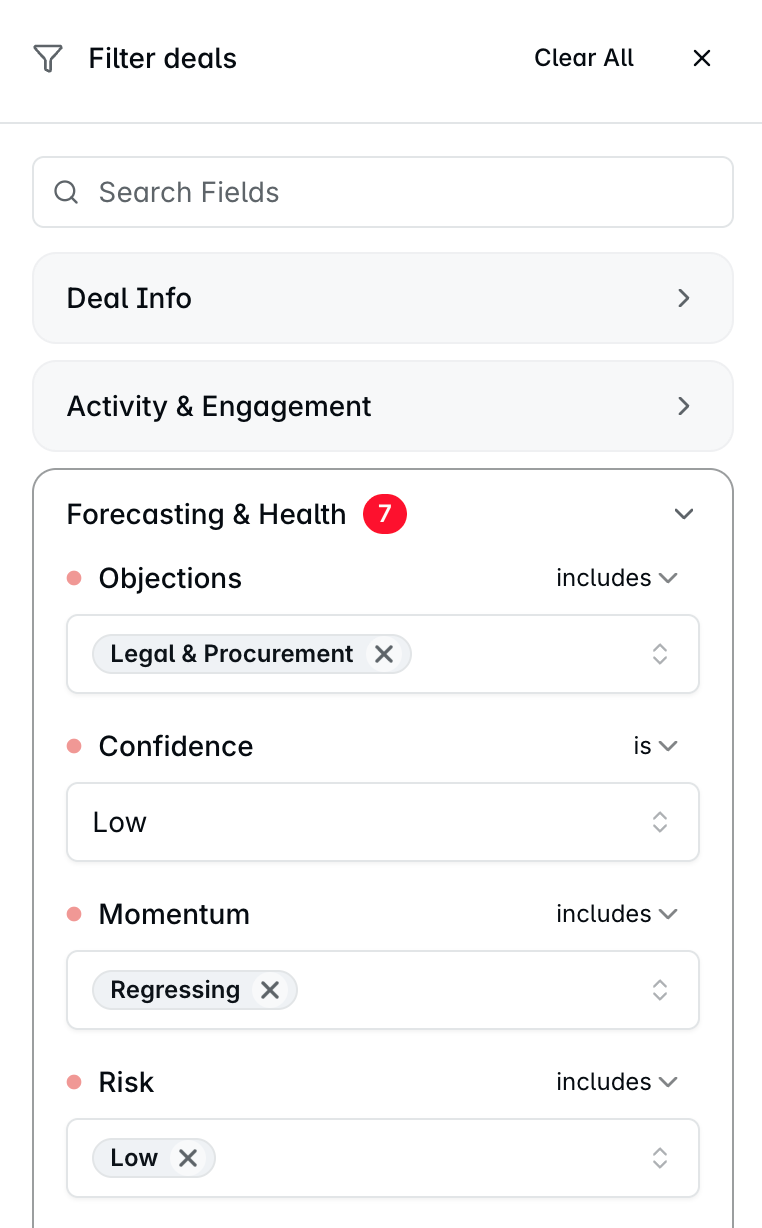
The AI Filter handles the bulk of what you need, but alternatively, if you want surgical control over a specific field condition or in case you want to do it from scratch, click Filters and add a conventional filter on top. Search for a field (deal name, owner, close date, etc.), apply conditions like contains, starts with, or ends with, and stack as many as you need.
Use this when you want pixel-level precision - for example, AI Filter narrows the list to "deals where confidence is low and multi-threading is Single-Thread," and a conventional filter tightens it further to a specific owner or close-date window.
Saving Views
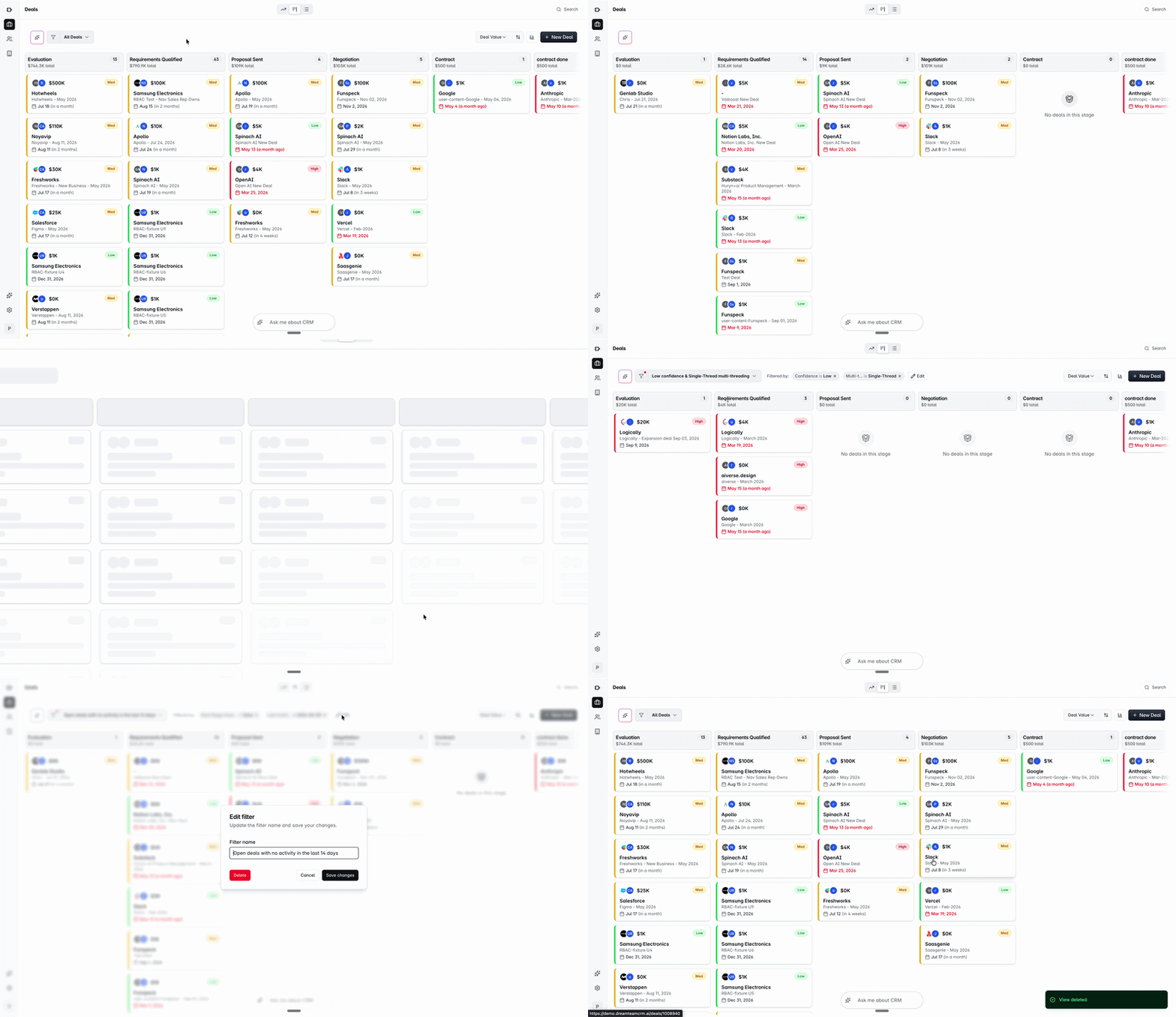
Once you've landed on the right combination - AI, conventional, or both - save it as a view. Click Save View, name it, and it appears as a tab at the top. Switch between saved views anytime without rebuilding your filters from scratch.
A few that work well as saved views:
"My commit deals at risk"
"Single-Thread deals over 50k"
"Deals with stage mismatch"
"Open deals missing next steps"
Tips
Tip | Why |
|---|---|
Lead with the AI Filter • it's faster than building filters by hand | One sentence replaces five drop-downs. Especially powerful when filtering on AI-derived fields. |
Use natural language the way you'd describe it to a teammate | "Find deals where risk is high and multi-threading is Single-Thread" works just like you'd say it aloud. |
Save views you check daily | One click to get back to your filtered list instead of retyping the query. |
Add conventional filters when you need surgical control over a specific field | AI Filter handles the heavy lifting; conventional filters give you the last mile of precision. |
If you need help, reach out to us at gethelp@dreamteam.co.