Working through the "My Day" dashboard
Last updated: October 13, 2026
If your idea of a productive day is working out which inbox to open first, this is for you.
My Day is the page your AI assistants keep writing to. They are not running a nightly batch and handing it over at nine - they watch your mail, your calendar and your calls as the day runs, and add what needs you to a single queue. The list you open after lunch is not the one you left first thing.
You don't plan your day. You open My Day, and the day is already laid out.
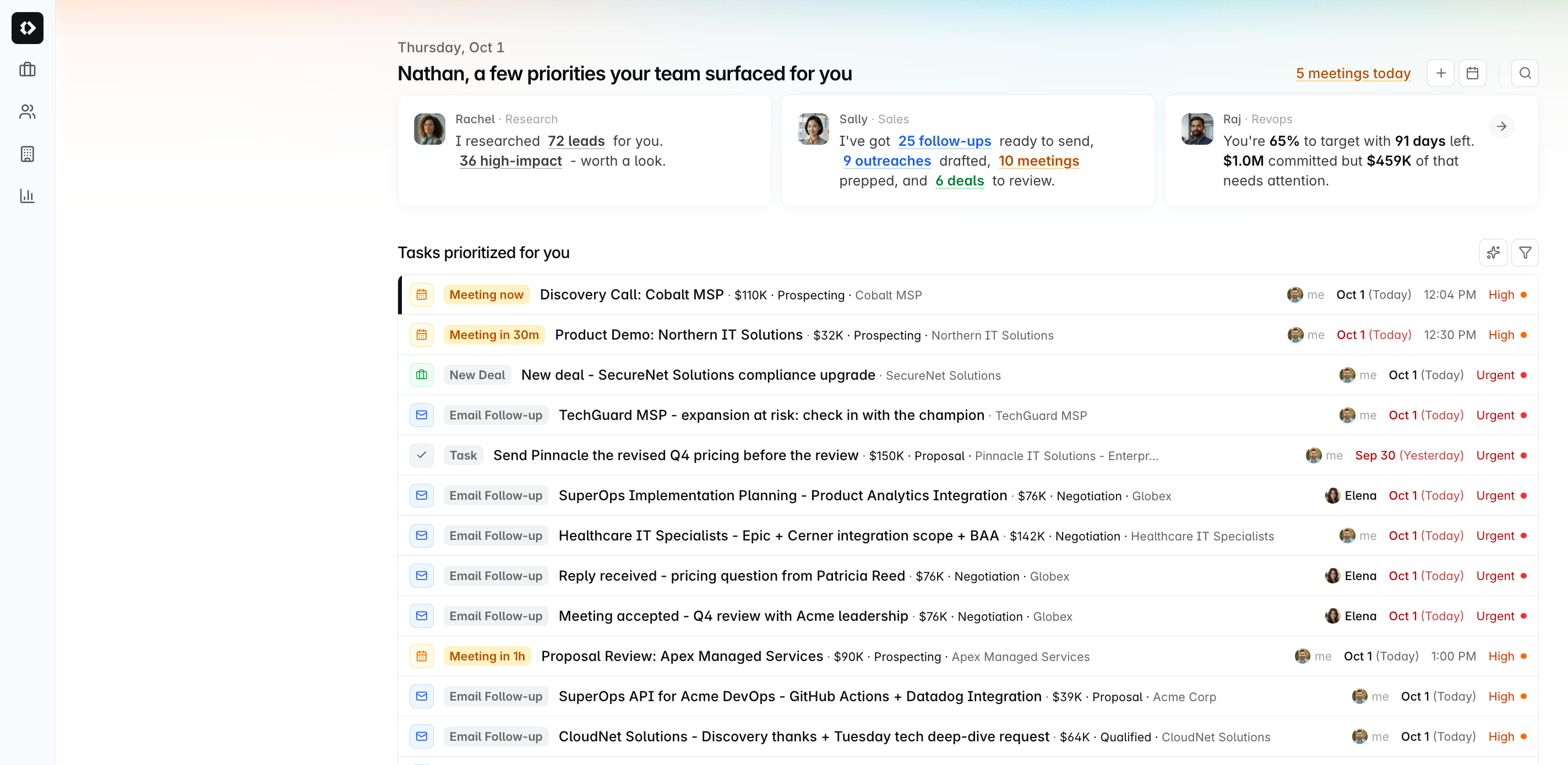
Tasks prioritized for you
Between two calls, with ten minutes. Instead of "what do I tackle first?" you scroll once and the answer's already there.
The middle of My Day is your task queue - a single list of everything you need to act on, auto-sorted so the most time-sensitive items sit on top. Leads, emails, meetings, deals, and follow-ups all live in the same view.
Each item shows the type, account, due date, and a priority label (High, Medium, or Low).
Two controls at the top right let you reshape the list:
Sort / group - by priority, type, account, or due date
Filter - to just meetings, just emails, or one account
Meet your AI team
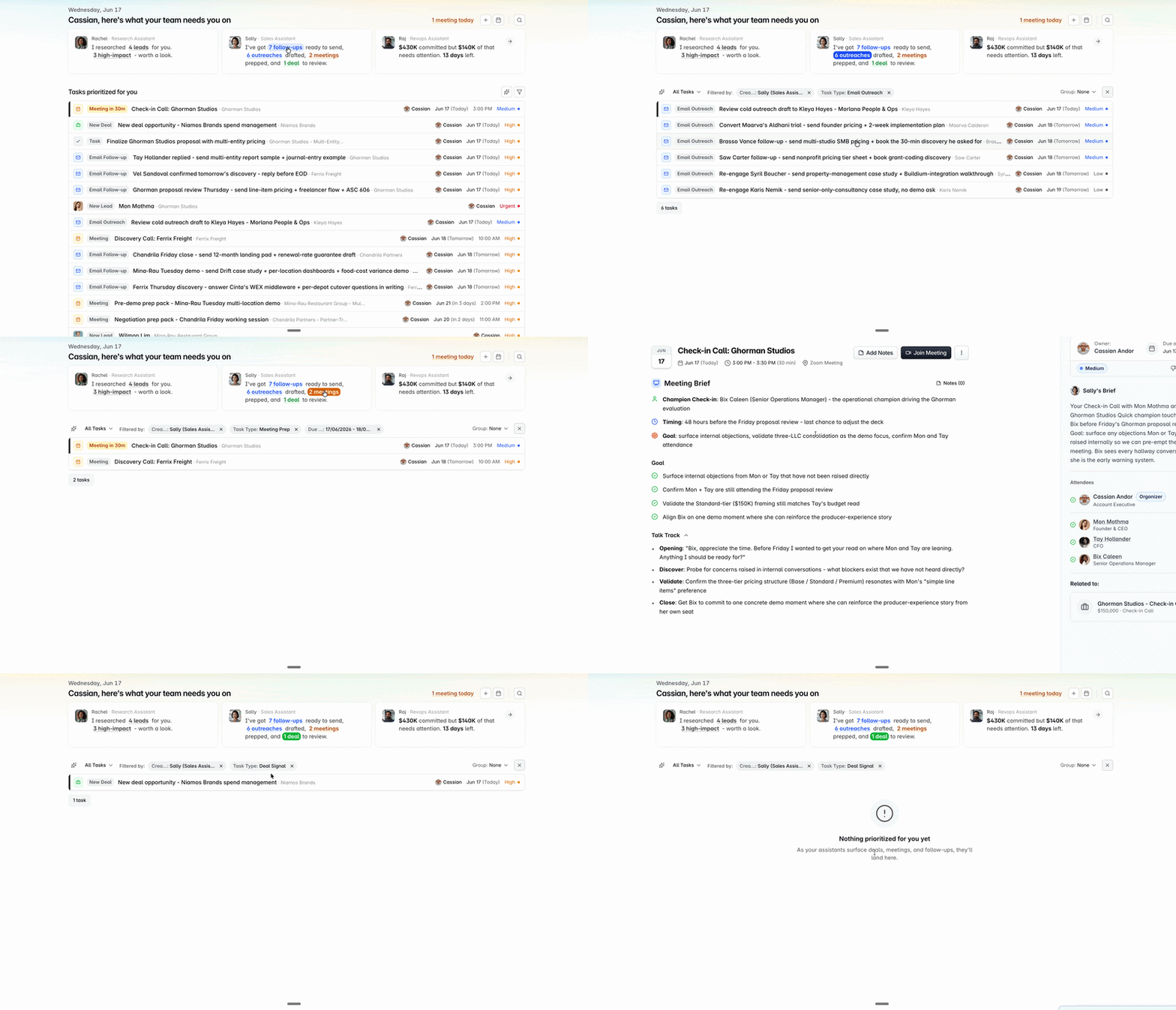
Sally runs in the background and populates the queue for you. Her summary sits at the top of My Day so you can scan what is waiting before you dive in. Every number on her card is clickable - tap 2 follow-ups or 6 meetings and the queue below filters to that slice of your day.
Sally, Sales Assistant
Sally watches your inbox, calendar, and call activity through the day. What she adds to your queue:
Email drafts - replies to prospects, written in your voice
Meeting prep packs - account history, recent emails, open objections in one place
Deal suggestions - when she picks up signals in your calls (a price-quote ask, a go-live date, anything that implies an opportunity is forming)
Tasks and reminders - if a thread or meeting note implies a follow-up, she creates the task so you don't have to remember
In practice - email reply: You come off a discovery call with Ferrix Freight where Cinta asked about per-depot pricing. Sally reads the transcript and drafts the follow-up answering Cinta's question with the right pricing tier and attached the case study from a similar customer. You review, edit a line, send.
In practice - deal suggestion: On your call with Mina-Rau, the prospect mentioned a Q3 go-live across 12 locations. Sally surfaces a suggestion to create a deal, with the stage and estimated value pre-filled from similar closed-wons. One click and the opportunity is in your pipeline.
What you do: Open her card, review the queue, send / approve / edit. Nothing goes out until you've cleared it.
The admin that used to pile up between calls - inbox triage, follow-up drafting, reminders - is done before you get to it.
For admins: Raj, your Revops Assistant
Quarter-end is two weeks away. You want to know if you're going to hit or miss before the leadership meeting.
Admins get an extra card on My Day from Raj, the Revops Assistant. From the top of the page, he surfaces a one-line read of where the forecast stands - for example: "$430K committed but $140K of that needs attention. 20 days left."
Click into the card for the full pipeline view.
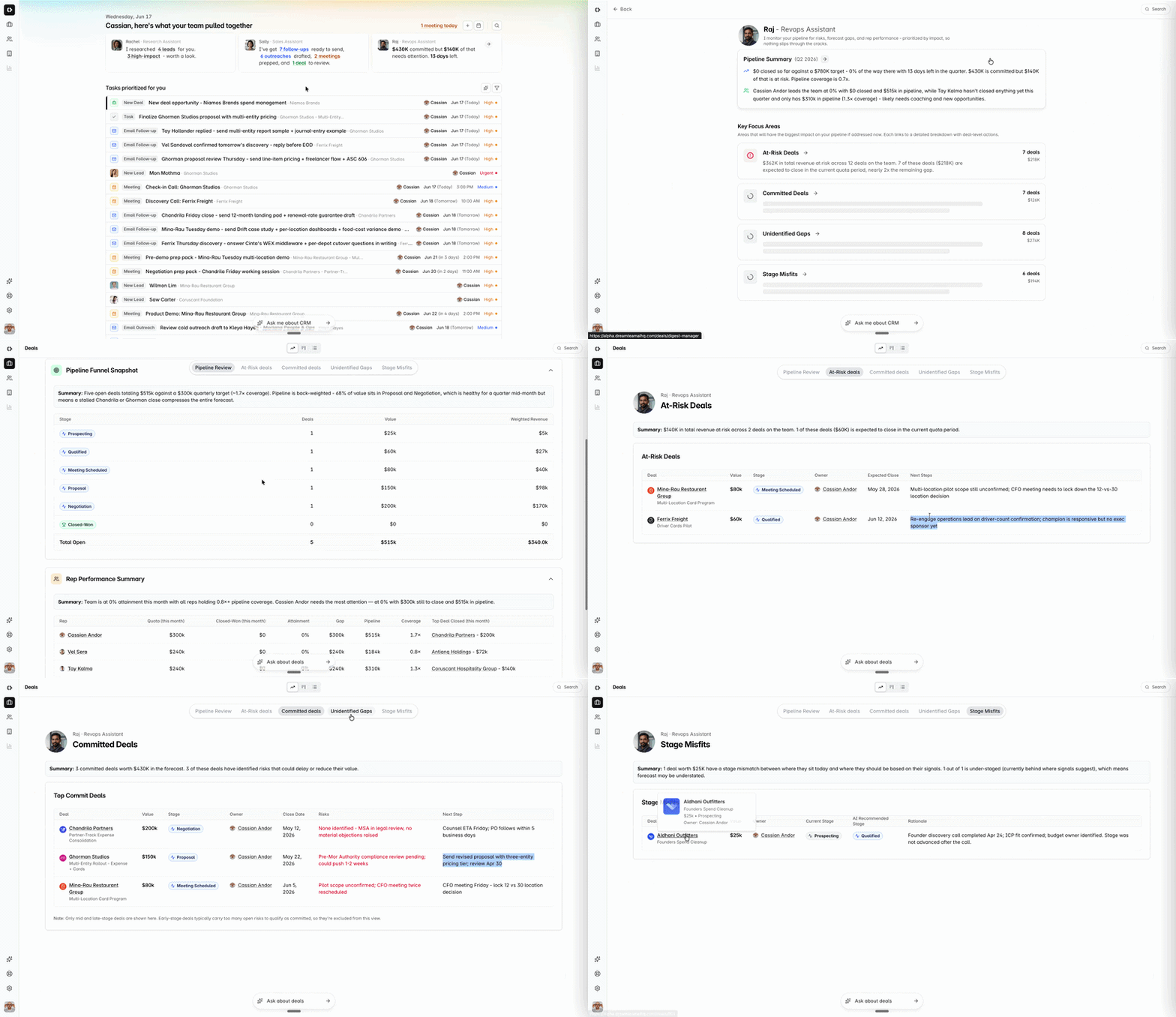
You get a quarter-at-a-glance summary, a rep performance snapshot, and the key focus areas Raj has flagged as the biggest levers on your forecast. Each focus area links through to a deal-level breakdown.
Raj is only visible to users with admin access.
Quick wins
Do this | Because |
|---|---|
Come back to My Day through the day | The queue is rebuilt as things happen, so it is rarely the same list twice. |
Click the numbers, don't scroll | The counts on Sally's card are filters - one tap and the queue narrows to that task type. |
Trust the drafts, edit lightly | Sally writes them well; most are close to send-ready. |
Skip the "I'll remember to follow up" lie | Sally already created the reminder. You won't remember. |
Stop opening four tabs to prep for a call | Sally's prep pack has it all in one place. |
Admins: check Raj daily | Forecast shifts through the quarter - daily checks prevent end-of-quarter surprises. |
If you need help, reach out to us at gethelp@dreamteam.co.