Meetings and Dreamteam Recorder
Last updated: September 10, 2026
Meetings and Dreamteam Recorder
You've just come off a good call. Somewhere between the next meeting and lunch, you'll write it up - or you won't.
Dreamteam captures meetings from two directions at once, so you don't have to: it syncs the meeting from your calendar, and it sends the Dreamteam Recorder to record and transcribe the call. Both halves get filed against the right people, companies and deals - without you filing anything.
Before you start
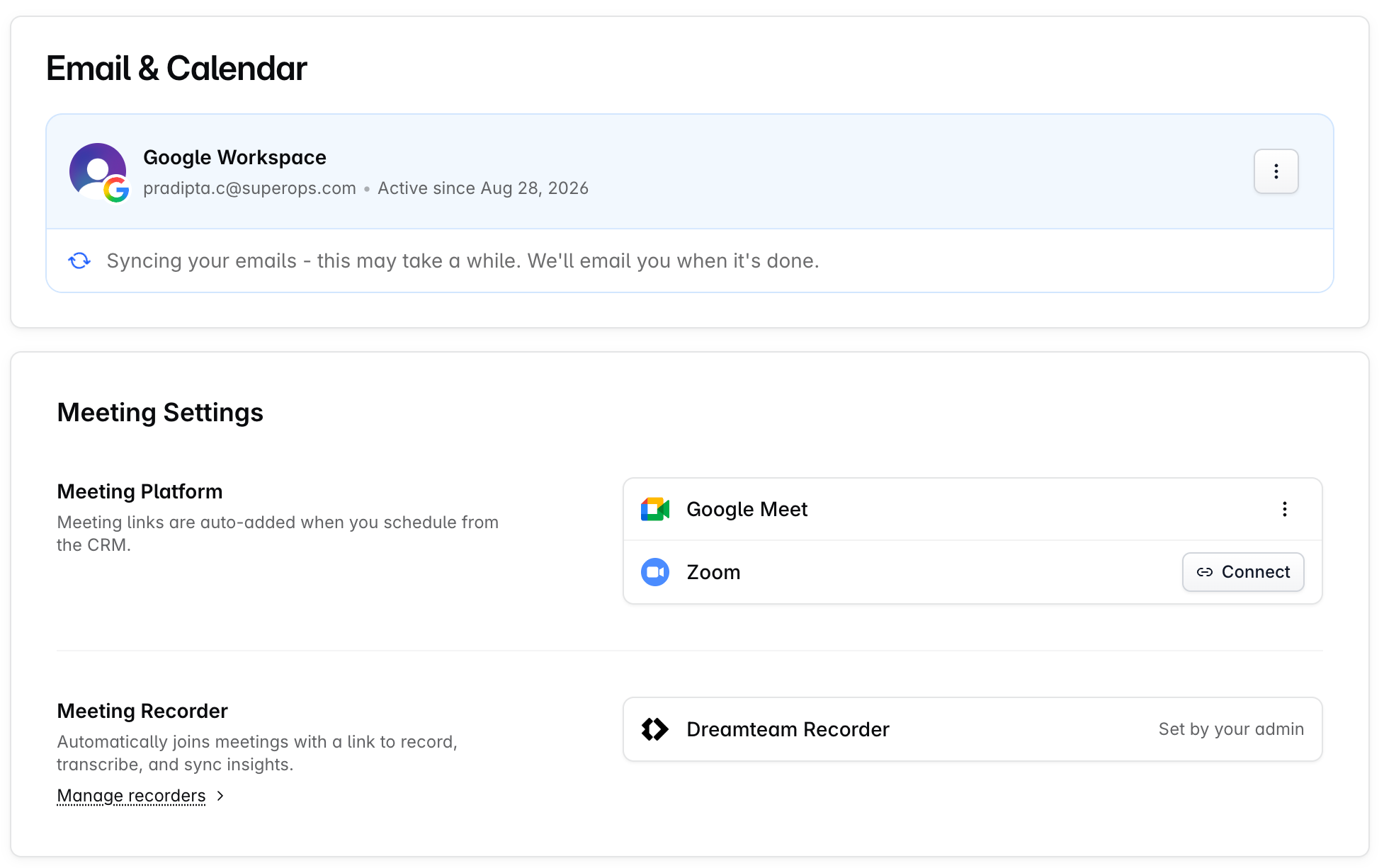
Connect your Google/Microsoft account - your email and calendar come together in the same step. Any user can connect their own; no admin needed.
How meetings land in Dreamteam
Calendar sync does the work. Connect Google/Office 365 and events flow in on their own.
Never twice. Meetings match on the calendar event's own ID, so one invite shared by five teammates lands as a single meeting, not five.
A re-sync won't overwrite your work - it updates only the fields your calendar owns, leaving the recording, AI notes and owner exactly as they were.
Prefer to start in Dreamteam? Create the meeting here and it goes straight onto your connected calendar.
The conference link decides where the call lives - Zoom, Google Meet, Teams, or Paste link for one you're adding by hand.
External or internal - the flag that decides everything
Dreamteam reads the guest list: anyone from outside your workspace makes it external.
When it can't tell, it assumes external rather than miss a customer call.
The Recorder only joins external meetings. Internal syncs are never recorded.
External is sticky. Once a meeting is external it stays external, even if the outside guest drops off the invite.
What a meeting rolls up to
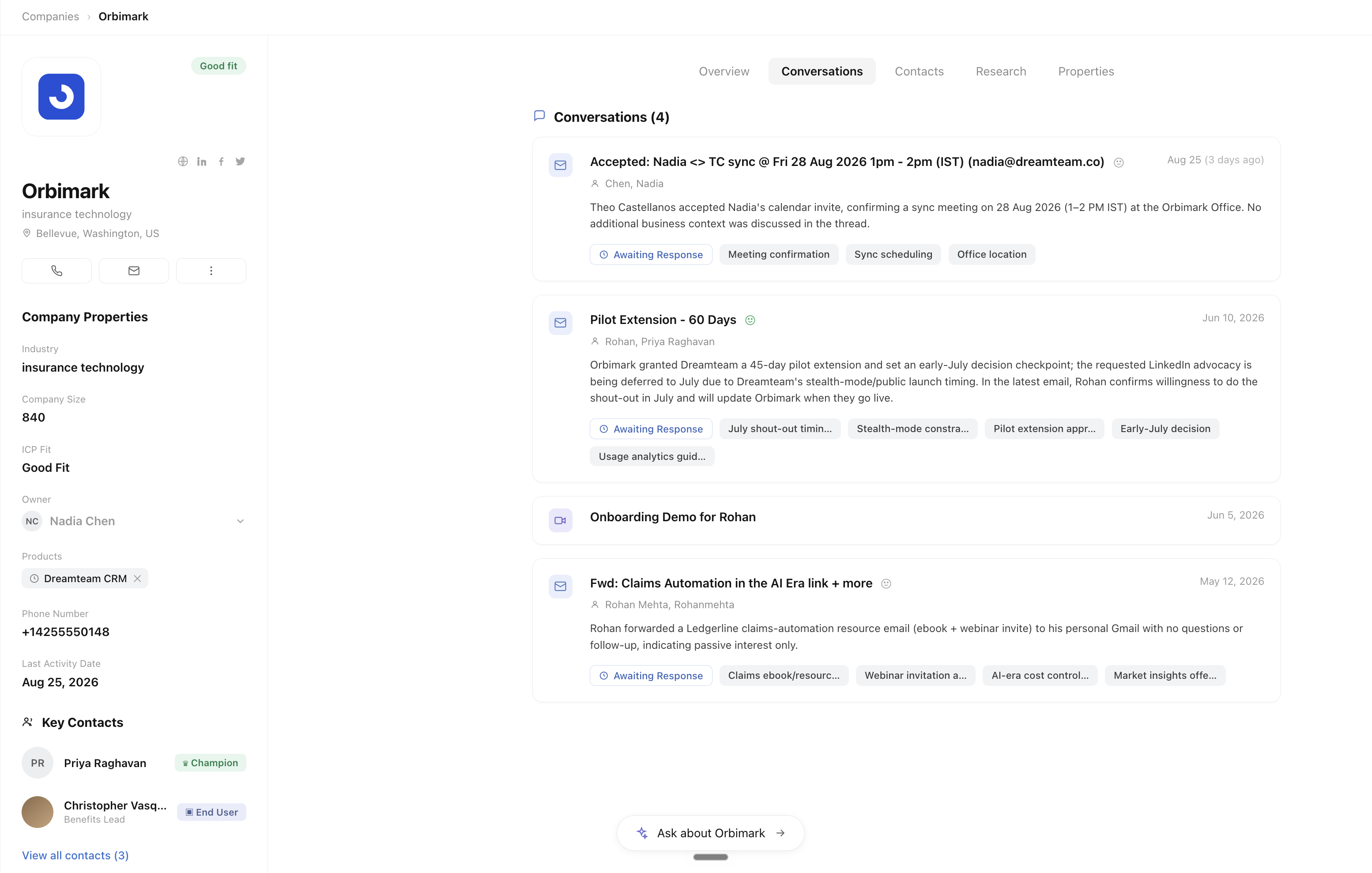
A meeting has no company field and no deal field. Nothing for you to pick, nothing to tag - Dreamteam works those out from the people on it.
Follows the contacts on the invite into their company and their open deals
Files the meeting on each of those timelines automatically
Keeps the teammates who were on it - an organiser, plus attendees
Ownership: a brand-new contact with no owner is claimed by the first person to engage them - the meeting's organiser, or whoever emailed them first. Once a contact has an owner, nothing reassigns it automatically.
The AI layer
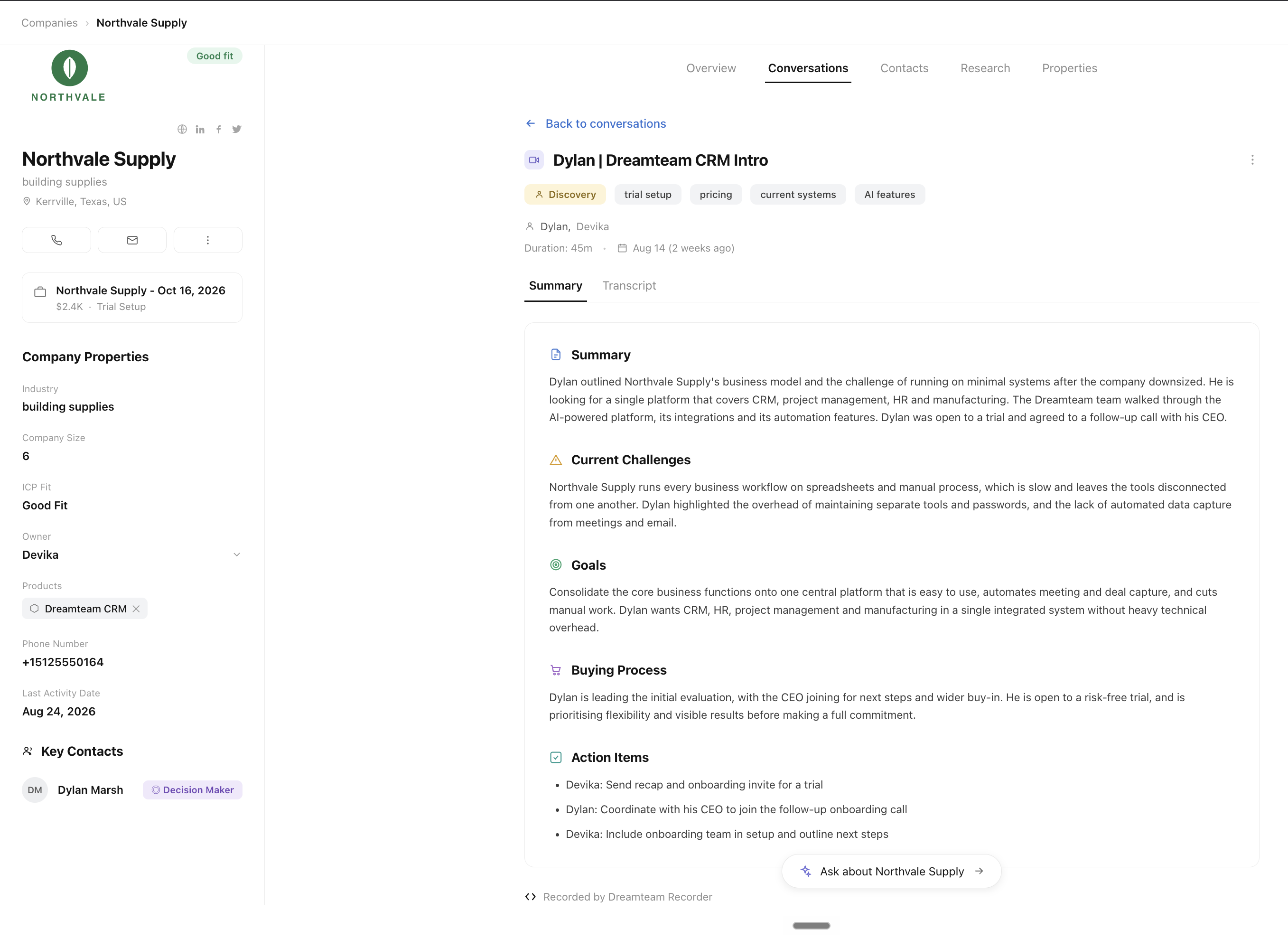
Once a meeting has a transcript, you get:
Summary - broken into sections that suit the call (a discovery call is split differently from a demo, a proposal or a check-in)
Highlights
Post-meeting brief
Conversation starters for your follow-up
Plus topic tags and the call duration
All of it is read-only - a record of what the transcript said, not a notes field.
No transcript means no post-meeting AI - no summary, highlights, brief or conversation starters.
Your pre-meeting brief is the exception. It's built from the invite and what's already in your CRM, so it's there whether or not the call gets recorded.
Dreamteam Recorder - what happens on the call
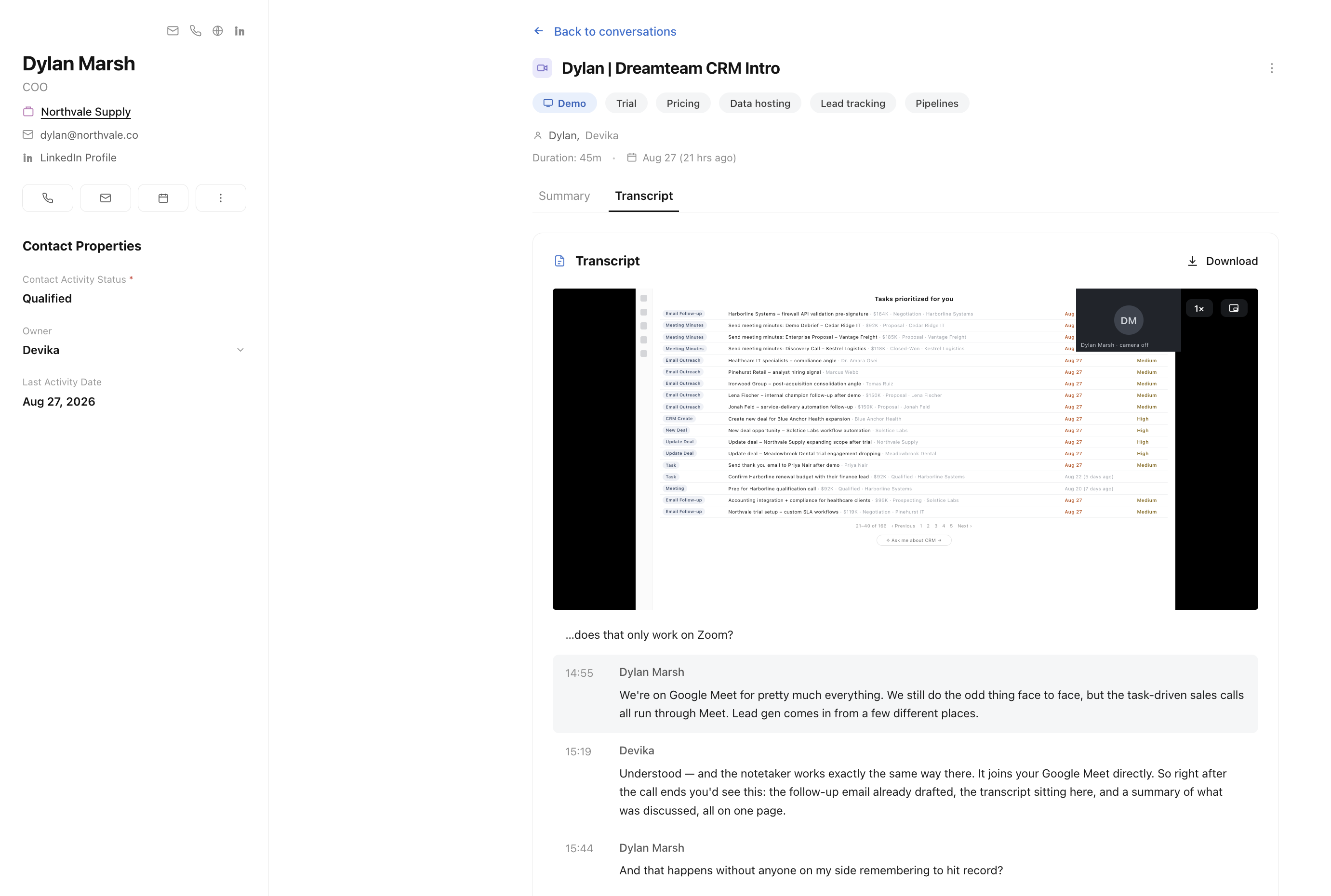
It joins like any other participant - visible to everyone in the room, and nothing for you to run.
Joins the call - you'll spot the Meeting Recorder in the participant list
Records through the call
Processes - the recording attaches to the meeting
Transcribes - the transcript follows, then the AI summary
Nothing appears the moment the call ends. Processing and transcription take a little time; the transcript arrives time-stamped and speaker-labelled, so you can jump to any moment.
Where the Recorder stands - and taking over
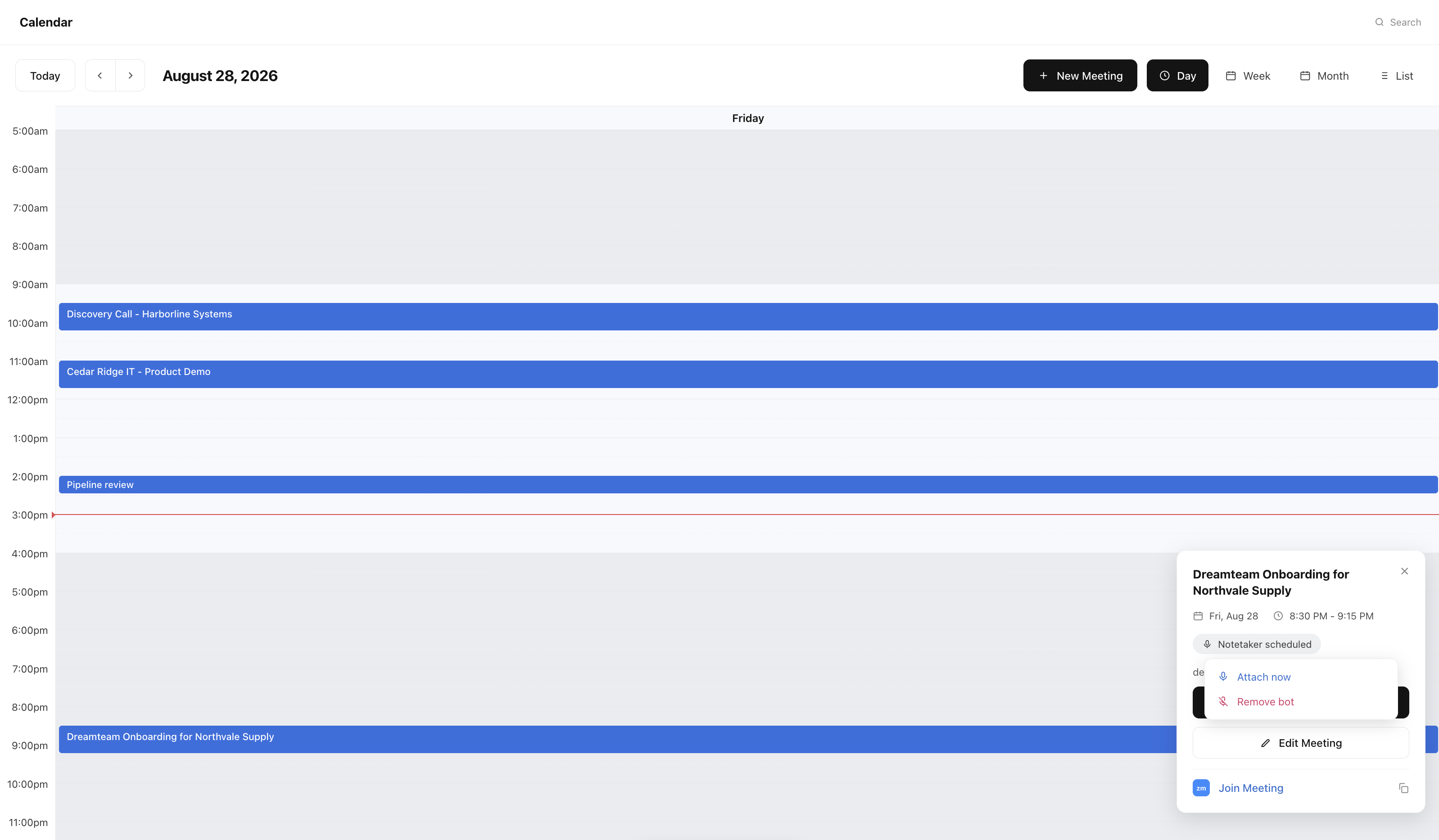
Click a meeting on your calendar and the popover carries a status pill.
Pill | What it means |
|---|---|
Notetaker scheduled | Set to join automatically |
Notetaker in call / Recording in progress | It's in the call (both green) |
Notetaker finished | Done |
Notetaker not assigned | No Recorder on this one - hover to see why |
If it says "not assigned," hover to see why. The usual reason is no conference link - add a video meeting link and the Recorder can join.
The same pill is where you take over:
Attach now - send the Recorder in right away, whether you're catching a call that starts in minutes or recovering one the bot didn't join
Remove bot - stand the Recorder down for a meeting you'd rather not record
Both controls live only on the calendar popover, not on the meeting record. They appear once the meeting has a conference link.
Why didn't the Recorder join my meeting?
Almost always one of these:
The meeting was internal - no outside guests, nothing to record
No meeting link, or the meeting details were incomplete
No start time, or the call had already been running more than about ten minutes when the Recorder was asked to join
The invite went out too close to the start - Dreamteam picks meetings up from your calendar on a periodic sync, so an event created less than about ten minutes before it begins may not be seen in time
Booking a call that starts very soon? Give the invite a little lead time and the Recorder will handle the rest.
When "Attach now" brings the Recorder in
Three of these are recoverable while the call is still running, and the fix is the same one in each case:
No Recorder was ever scheduled because the invite was created too close to the start
The call had already been going more than about ten minutes before the Recorder was asked to join
The Recorder joined, nobody spoke for the first ten minutes, and it left again. That is a deliberate limit in the recording service so that empty calls are not recorded, and it cannot be extended or switched off
What to do, in all three: open the meeting on your calendar, click the status pill, and choose Attach now. The Recorder joins from that moment and records the rest of the call. Anything said before it arrives is not captured.
It will not help when the Recorder had nothing to join in the first place: an internal meeting, a missing link, a link it cannot read, or a Zoom call it is never admitted to.
Rescheduling a call that has already been recorded
This is expected behaviour rather than a fault. If a call has been recorded and you then move that same calendar event to a new date or time, the Recorder joins the rescheduled call, and its recording and summary take the place of the first one on that meeting.
Want to keep both recordings? Create a new event for the new time instead of rescheduling the original. Each event then holds its own recording, transcript and summary.
FAQs
Our Zoom invitations use our own web address. Why does the Recorder never join?
Some organisations hand out Zoom invitations on a personalised or vanity address of their own - a link shaped like https://yourcompany.com/zoom rather than a standard zoom.us address. Dreamteam does not read those as meeting links, so the Recorder has nothing to join and Attach now will not bring it in either.
There is no way around this one today. The invitation has to carry the standard Zoom link for the Recorder to attend.
Our Zoom calls only admit registered participants. Will the Recorder get in?
No. With that Zoom setting switched on the Recorder is never admitted, so it leaves again without recording.
Turn the setting off for the calls you want recorded.
Who is the extra guest on my Google Meet invite?
That is the Recorder. On Google Meet, Dreamteam adds it to the calendar invite as a guest, and that is what tells it to join the call. Nothing has gone wrong and there is nothing to remove.
If you would rather a particular call was not recorded, open it on your calendar, click the status pill and choose Remove bot.
Can the Recorder wait longer than ten minutes on a quiet call?
No. Ten minutes of silence is a fixed limit in the recording service, so that empty calls are not recorded. It cannot be extended or switched off.
If the call gets going after that, Attach now sends the Recorder back in and it records from that moment on.
If you need help, reach out to us at gethelp@dreamteam.co.