Getting around Dreamteam - and why you'd want to!
Last updated: October 1, 2026
Most navigation guides walk you through the menu - "Contacts live here, Companies live there." Useful when you're lost, but never tells you why you'd actually go there. This one's organised around what you're trying to get done - prep for a meeting, find a deal, check pipeline health - and points you at the part of Dreamteam that handles it.
The Sidebar
Four spaces you'll live in:
My Day - your morning workspace
Contacts - everyone you talk to
Companies - the accounts behind them
Deals - your pipeline
Settings, help, and profile sit at the bottom and stay out of your way.
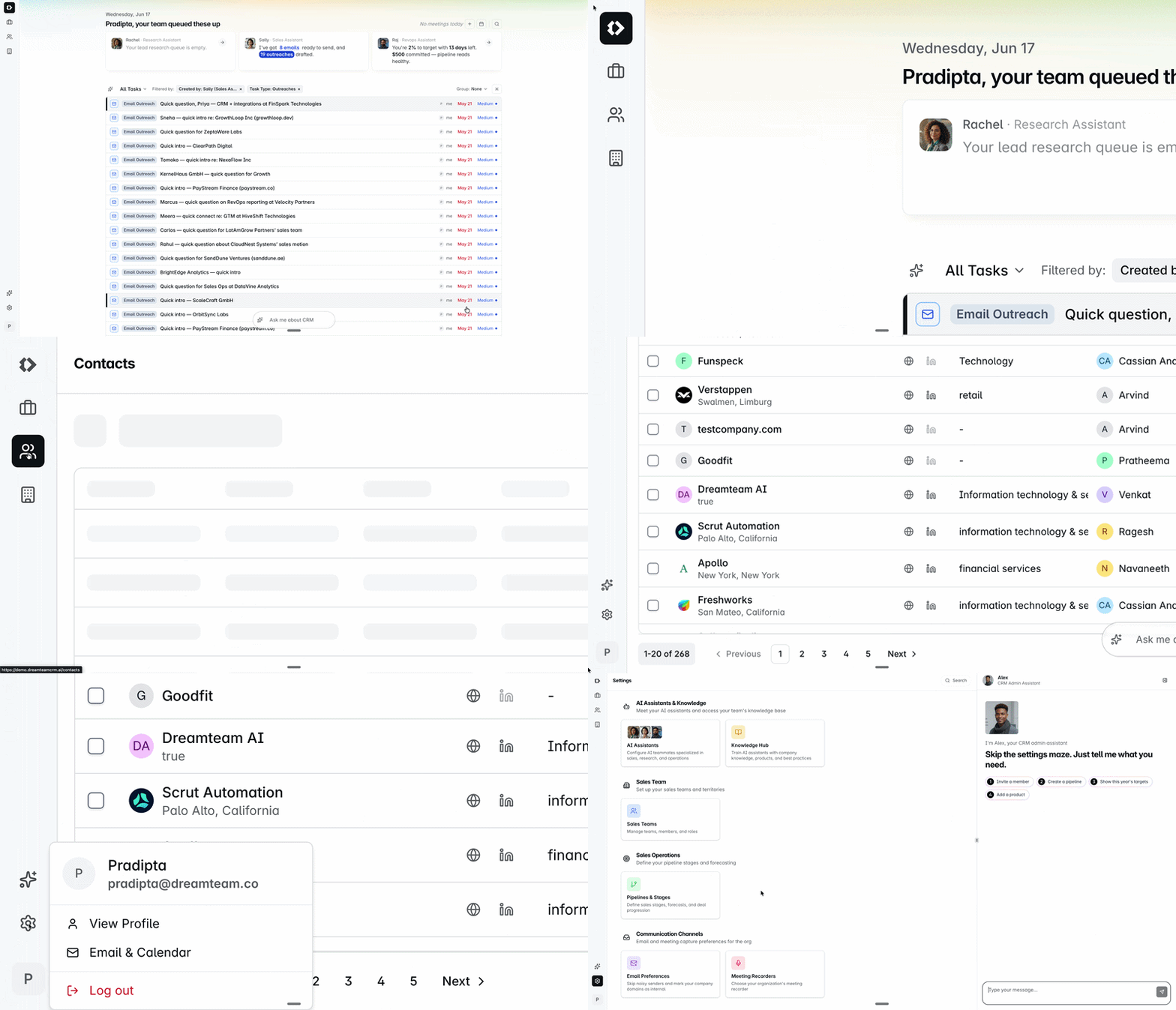
My Day - your homepage when you log in
You open your laptop at 9 AM and your day's already lined up. Sally pulled the night shift.
My Day is the page you land on every morning. It surfaces:
Tasks Sally has prioritised for you - drafted emails, prep packs, deals to review
New leads Rachel researched while you were offline
A pipeline summary from Raj (admins only) - what's on track, what's at risk, where the gaps are
For the full walkthrough, see Working through the "My Day" dashboard.
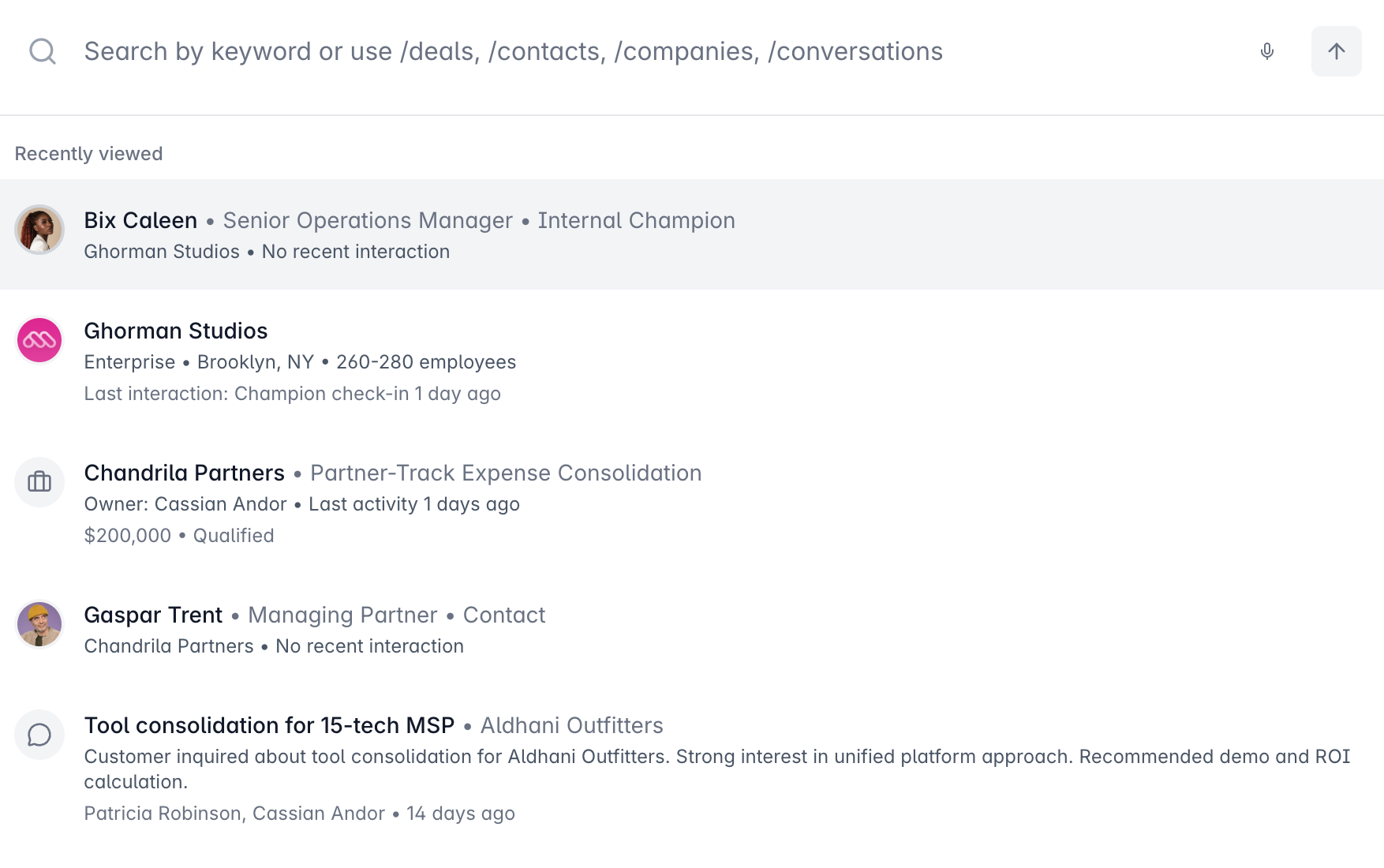
Quick Search - because you don't remember where you put it
You remember the deal name. You don't remember the company. You're already three clicks deep.
Power user move: Cmd+K opens Quick Search - find contacts, companies, deals, and conversations without leaving the keyboard. Use slash commands to scope it:
/deals- pipeline only/contacts- people only/companies- accounts only
Recently viewed sits right below the search bar so the thing you opened five minutes ago is one click away.
Working through your core modules
Contacts, Companies, and Deals are the three modules where you'll spend most of your day. They share the same shape - a list view for finding what you need, a detail page for understanding it. What changes is what each detail page is built to answer.
The List View
Monday morning, coffee on, half a thought formed. You want to see which deals haven't had activity in a week. Filter, sort, save the view. Tomorrow it's one click away.
Works the same in all three modules: sort, filter, group, and save the views you check often. The real lift is filtering on AI-derived fields - confidence, momentum, multi-threading, risk - signals you'd otherwise piece together yourself. (AI Filter article has the details.)
The detail page
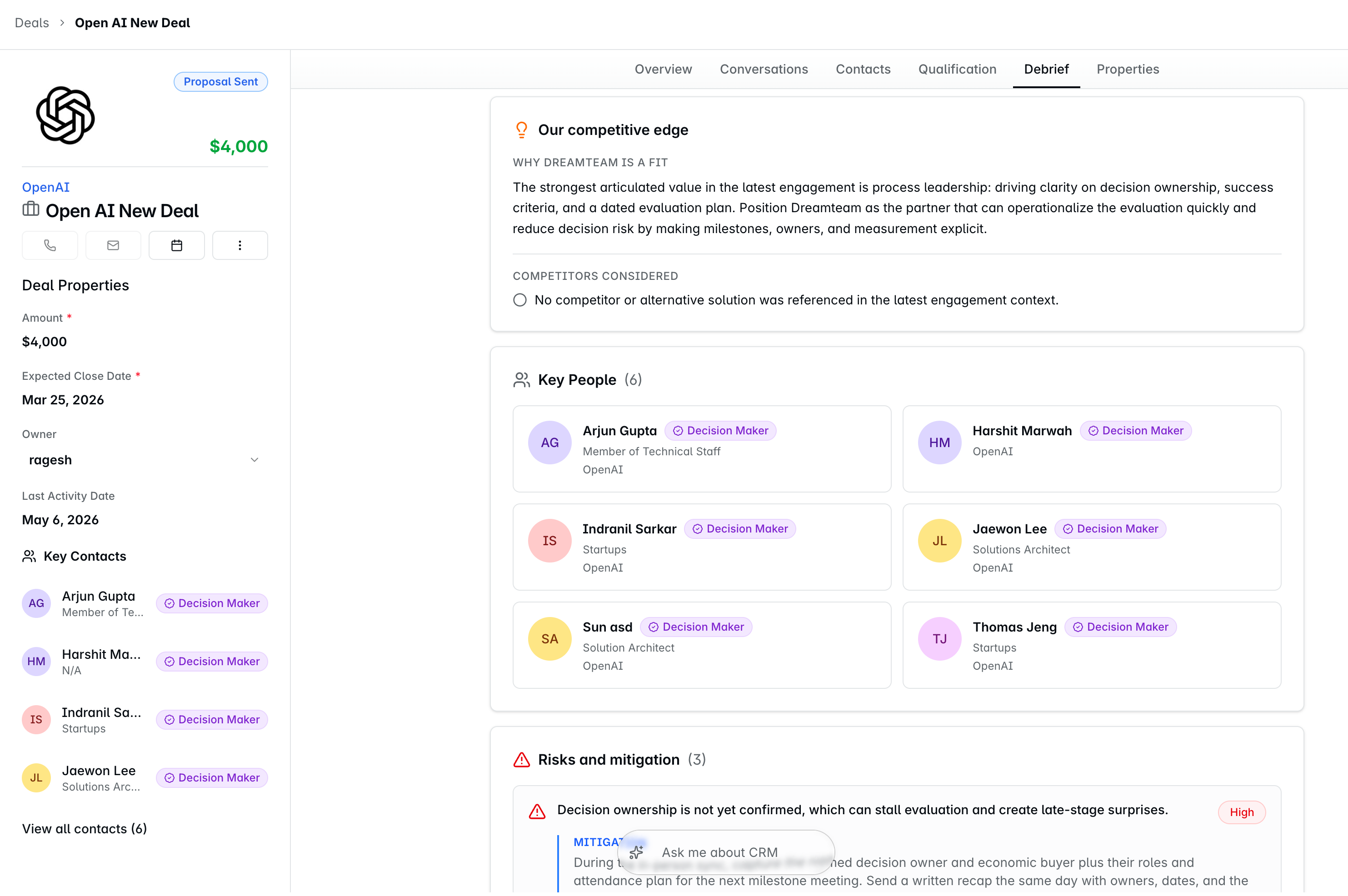
Every detail page opens with an Overview tab that leads with an AI-generated executive summary - one paragraph that catches you up on the record in 30 seconds.
Your VP slacks you five minutes before a call: "how are we doing on Ferrix?" You haven't looked at Ferrix in three weeks. Open the record, scan the Overview, you're caught up before you join.
What sits next to the Overview changes by module:
Tab | Available in | What it gives you |
|---|---|---|
Research | Contacts, Companies | Web context Rachel pulled after the record was created - company background, recent news, role context. Prepping for a first call? Skip the five Crunchbase tabs. |
Qualification | Deals | Where the deal stands against your qualification criteria - solid here, thin there, missing that. Pipeline review in an hour? See Economic Buyer is missing, you know what to fix. |
Debrief | Deals | AI deal intelligence: deal summary, origin (pain points, why now, what they're replacing), competitive edge, key decision-makers, risks with mitigations, key moments, next steps with owners. Walking into a deal review? The Debrief is the write-up you'd otherwise spend an hour piecing together. |
Conversations and Properties work the way you'd expect - every email, call, and note in one timeline; standard fields where you'd find them anywhere.
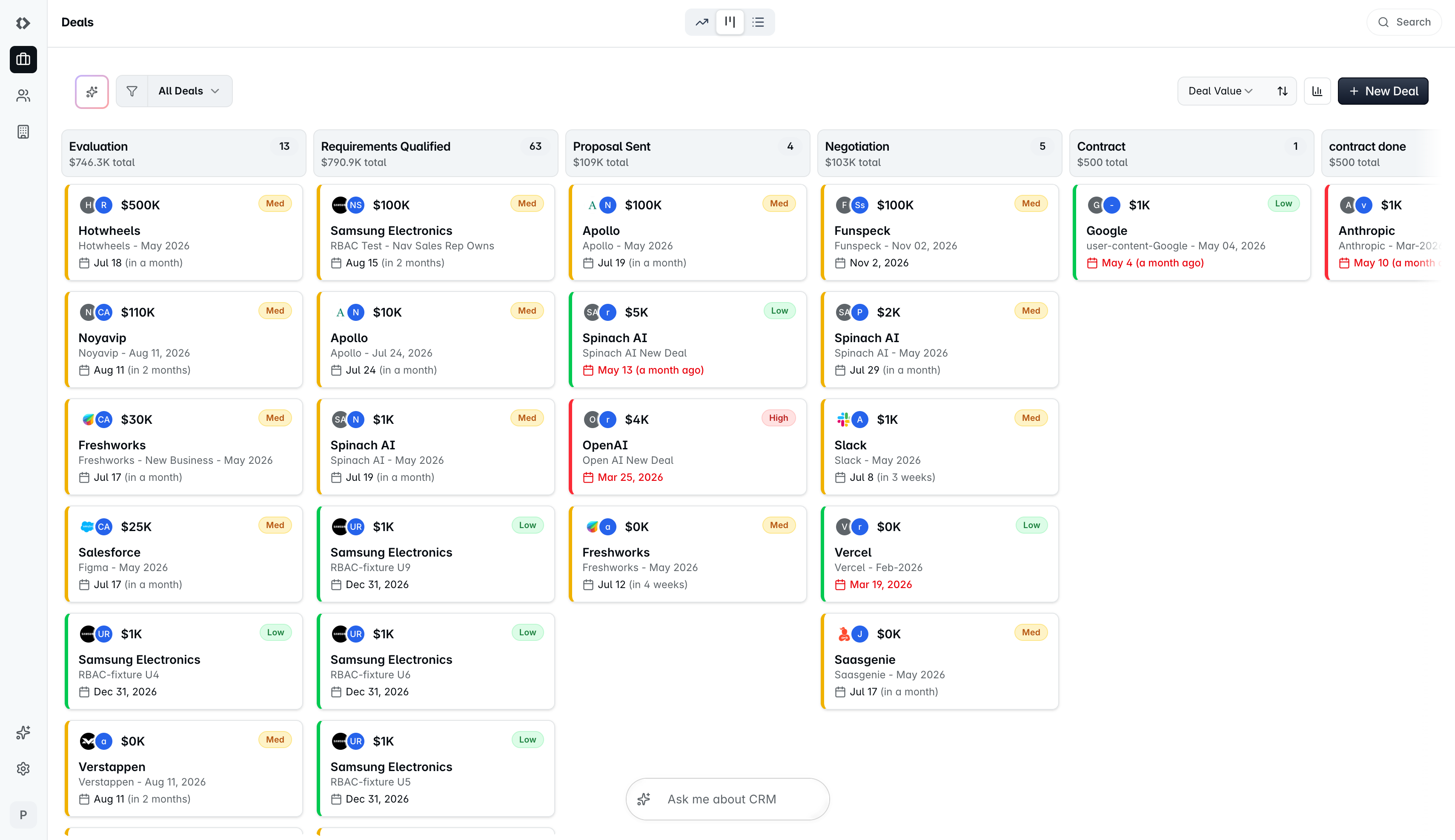
Kanban view (Deals only)
Last week of the quarter. You want to see where pipeline is leaking. Switch to Kanban - Negotiation is empty, Discovery has 12 deals piling up. You know exactly where to push.
Pipeline laid out by stage - cards in columns, totals on top. Drag a card to a new stage to update it.
Fastest way to spot:
Bottlenecks - stages where deals are piling up
Dry stages - coverage is leaking
Stuck deals - cards that haven't moved in weeks
Habits worth building
Tip | Why |
|---|---|
Use Quick Search instead of clicking around | Cmd+K + a few characters beats three menu clicks every time. |
Start with the Overview tab | The AI summary catches you up in 30 seconds. |
Skip the "I'll remember to follow up" lie | Sally already created the reminder. You won't remember. |
Switch to Kanban before pipeline reviews | The visual catches what the list buries. |
Read the Debrief before your next call | Two minutes of context prevents a repeat conversation. |
If you need help, reach out to us at gethelp@dreamteam.co.