Setting up your Sales Pipeline and Stages
Last updated: September 7, 2026
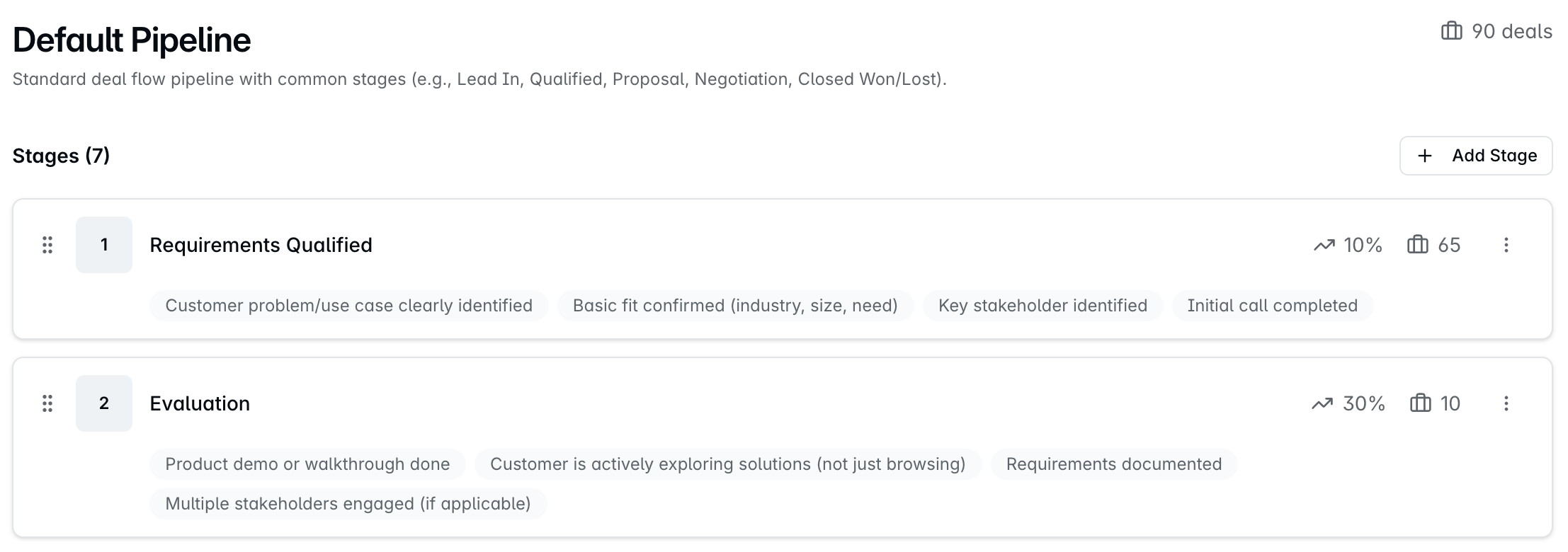
A sales pipeline shows how your deals move from start to close. Each stage is one step in that journey. Setting up the right stages helps your team track deals clearly and forecast revenue accurately.
Dreamteam gives you a single default pipeline with pre-configured stages. You can customise it to fit your sales process.
Before You Start:
1. You need to be an Admin to configure pipelines and stages.
2. Closed Won and Closed Lost are system stages. They cannot be deleted or rearranged.
To navigate to the pipeline settings, click the Settings icon (gear icon) on the bottom-left corner. Under Sales Operations, select Pipelines & Stages.
Stage Settings
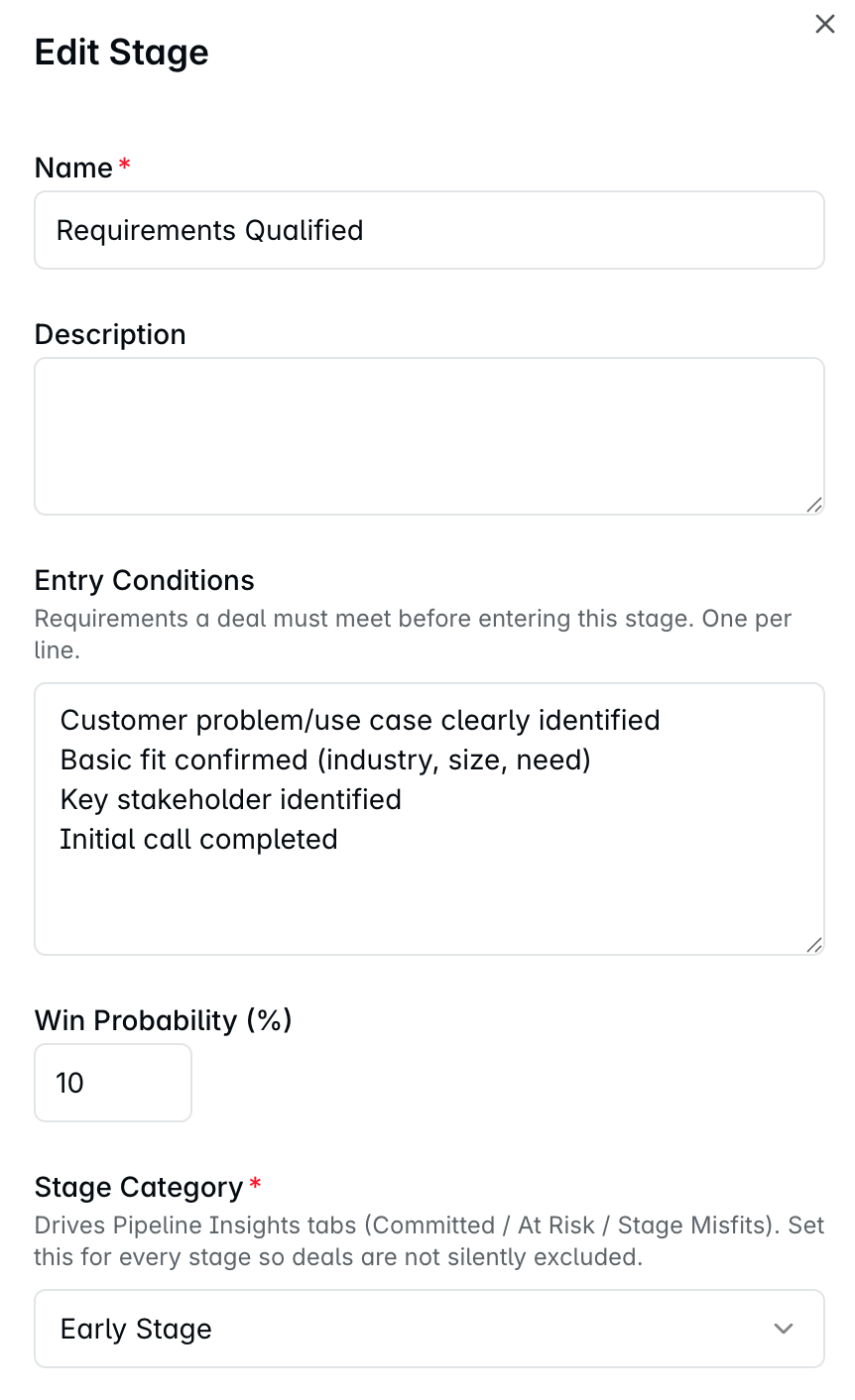
Click on any stage to edit it. Each stage has the following settings:
Setting | Description |
|---|---|
Stage Name | Display name of the stage. |
Description | What this stage means in your sales cycle. |
Entry Conditions | What a deal must meet before entering this stage. |
Instructions | What reps should do while a deal is in this stage. |
Win Probability | Likelihood (%) that a deal in this stage will close. Used for forecasting. |
Stage Category | Early, Mid, or Late. This powers Pipeline Insights - controls whether deals show as committed, at risk, or at-miss. If set incorrectly, deals may be excluded from insights. |
Managing Stages
Here are the actions you can take on a stage:
Add a stage - Click Add Stage, fill in the settings, and save.
Edit a stage - Click on the stage name. A right pane opens with Edit Stage - update any of the fields and save.
Rearrange stages - Drag and drop stages to reorder them. Closed Won and Closed Lost cannot be moved.
Delete a stage - Click the three-dot menu (⋯) next to the stage and select Delete.
The menu also shows the number of active deals in that stage.
You cannot delete a stage that has active deals. First move those deals to another stage from the Deals list view, then delete the stage.

You will get an error if you try to delete a stage which has active deals: "Cannot delete stage: x deals still reference this stage. Move the deals to another stage or delete them first."
Closing a Deal
When a deal moves into Closed Won or Closed Lost, Dreamteam fills in the deal's Deal Close Date for you. Nobody has to type it in. This happens wherever the stage changes - dragging the card on the Deals board, editing Deal Stage on the deal record, an import, the API, or accepting one of Sally's update-deal tasks.
What happens | What Dreamteam does |
|---|---|
Move a deal into Closed Won or Closed Lost | The Deal Close Date is set to the moment of the move. |
Move a closed deal back to an open stage | The Deal Close Date is cleared. The deal is open again, so it has no close date. |
Switch a deal between Closed Won and Closed Lost | The Deal Close Date does not change. It records when the deal closed, not how it was later reclassified. |
Supply your own close date in the same save (an import that carries the real date, for example) | Your date is kept. A date you set wins over the automatic one. |
Deal Close Date is not the same field as Expected Close Date. Expected Close Date is the forecast you set when the deal was created, and closing never changes it - so the date you were aiming at and the date you actually closed sit side by side on the deal's Properties tab. You can edit the Deal Close Date there at any time: the date Dreamteam fills in is a starting value, not a lock.
A deal created straight into a closed stage is dated the same way. Deals that were already closed before this was introduced keep whatever close date they had, because existing deals are not backfilled. A bulk import that creates records already closed is left alone too, so a migration does not date a year of history to the day it ran.
Tips
Tip | Why |
|---|---|
Use clear, action-oriented stage names | "Proposal Sent" is better than "In Progress." |
Set entry conditions | Prevents deals from moving ahead without the right information. |
Assign the correct stage category | Wrong categories lead to inaccurate Pipeline Insights. |
Align stages with your sales playbook | If you use MEDDPICC or BANT (set up in the Knowledge Hub), your stages should match key checkpoints from those frameworks. |
Keep it simple | Fewer stages make the pipeline easier to use. Focus on key milestones only. |
If you need help, reach out to us at gethelp@dreamteam.co.