Email preferences - Control the syncs across all Users
Last updated: September 9, 2026
Connect a mailbox and Dreamteam starts building contacts from who your team emails. Left alone, that means your CRM fills up with your own colleagues, your accountant, and whoever sends the Monday newsletter. Email Preferences is where an admin draws the line for the whole team at once.
Find it in Settings under Communication Channels > Email Preferences. There are three controls.
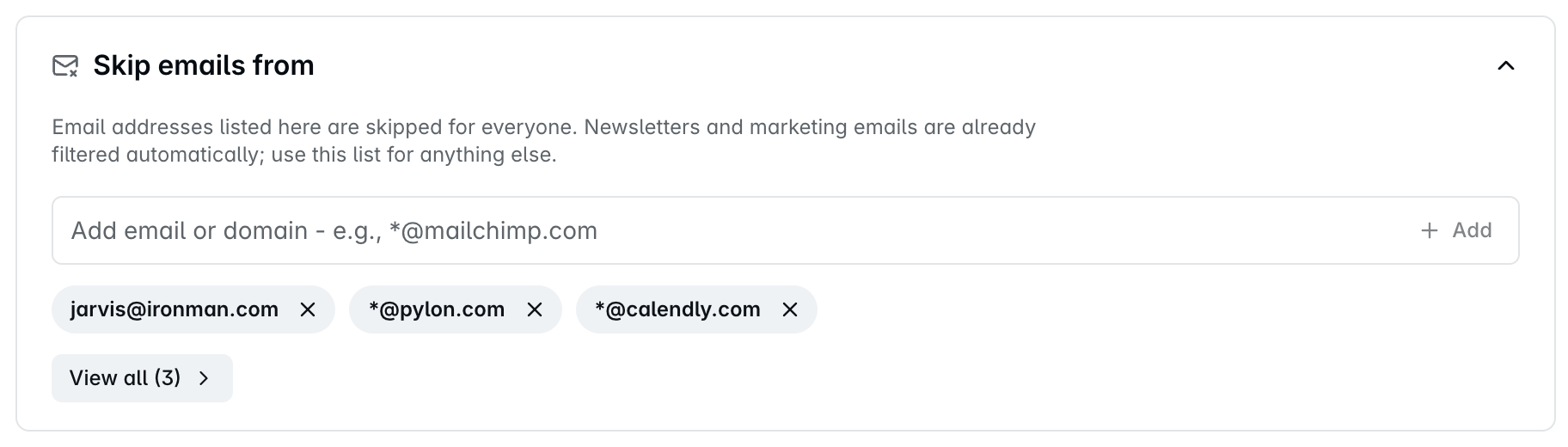
Skip emails from
A list of addresses and domains Dreamteam ignores. Nothing from them syncs, and no contact is created.
What you add here applies to everyone in the workspace. There is no per-user version of this list - what you set is what the whole team gets.
Newsletters and bulk marketing senders are already filtered automatically. This list is for everything that slips through.
Add a whole domain with a wildcard - *@mailchimp.com - or a single address like noreply@mailchimp.com. Dreamteam sorts each entry into a category so a long list stays readable: Marketing, Notifications, Sales tools, Calendar & meetings, HR & payroll, Billing & finance, and Other.
Good candidates: your ticketing and alerting tools, recruiters, your own outbound platforms, and anything transactional that generates a contact nobody will ever sell to.
Your domains
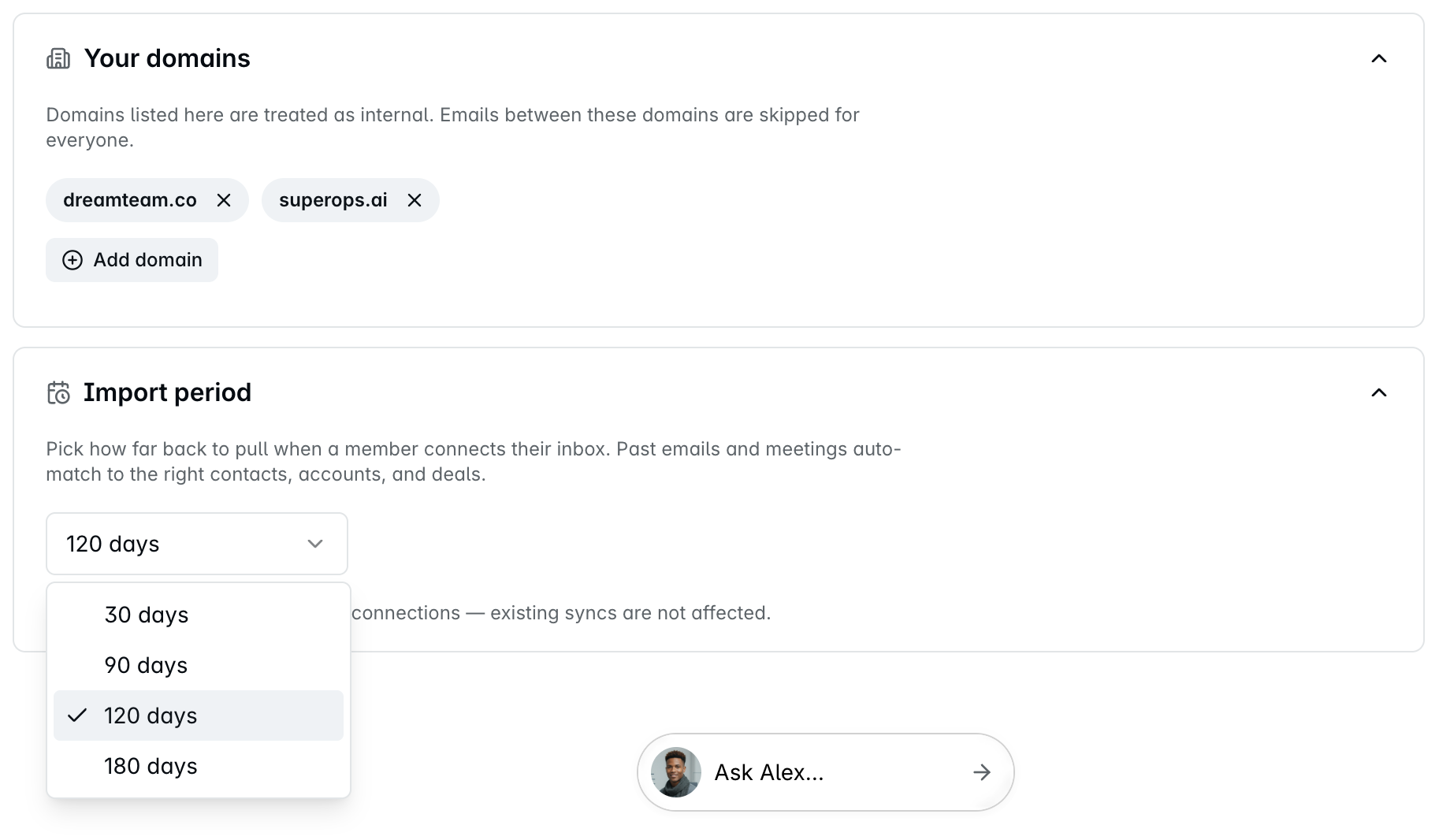
The domains your company owns. Anything sent between these domains is treated as internal and skipped for everyone - so colleagues emailing each other never turn into CRM contacts or clutter a customer timeline.
Add every domain you actually send from, including the ones you only use occasionally. Format is plain - superops.ai, not a URL or an address.
This is the single highest-value setting on the page. Miss a domain and your own team starts appearing as prospects.
Import period
How far back Dreamteam reaches when somebody connects their inbox for the first time. Choose 30, 90, 120 or 180 days. Past emails and meetings are matched automatically to the right contacts, companies and deals as they come in, so a longer window means a fuller history on day one.
Changing this only affects new connections. Mailboxes already connected keep whatever window they were set up with - changing it here will not backfill them.
180 days is the maximum. If you want the deepest history, set this before asking the team to connect their mailboxes, because you only get one shot per inbox.
FAQs
Does this apply to everyone, or just me?
Everyone. Your skip list and your domains apply across the whole workspace, and the import period is applied to each member as they connect their mailbox - nobody picks their own. Each person does also keep a personal skip list, in Profile - Email and Calendar, which sits on top of this one. Removing a sender from this page does not remove it from anybody's personal list.
A contact I do not want keeps reappearing. Why?
Every new email from that sender recreates them. Add the address or their domain to Skip emails from. Deleting the contact does not do this for you - the delete dialog has no exclusion-list option, and says nothing about future email. Add the sender here as a separate step.
My mailbox was disconnected for a while. Do I lose those emails?
Usually not. When you reconnect, Dreamteam syncs the gap - disconnected for two weeks, it fetches those two weeks. The limit is 180 days: if the mailbox was disconnected for longer than that, the reconnect reaches back 180 days and anything older stays missing.
I already connected my inbox and want more history. Can I change the import period?
No, and reconnecting will not do it either. A reconnect is a catch-up, not a fresh import: it picks up from the moment the mailbox disconnected and fills the gap. It does not reach further back than the mailbox already had.
Will skipping a domain delete contacts already created from it?
No. It stops future syncing and future contact creation. Anything already in the CRM stays until you delete it.
Can a sales rep change these?
No - this is an admin-only page, and a rep cannot open it at all. The only part of this a rep controls is their own personal skip list, in Profile - Email and Calendar.
If you need help or assistance, reach out to us at gethelp@dreamteam.co.