Setting up sales teams
Last updated: September 1, 2026
Teams do one job in Dreamteam, and it is easy to miss: when record visibility is set to Team, they decide who sees whose records. Set them up before you switch, not after.
Creating a team
Go to Settings > Sales Team and switch to the Teams tab.
Click New Team.
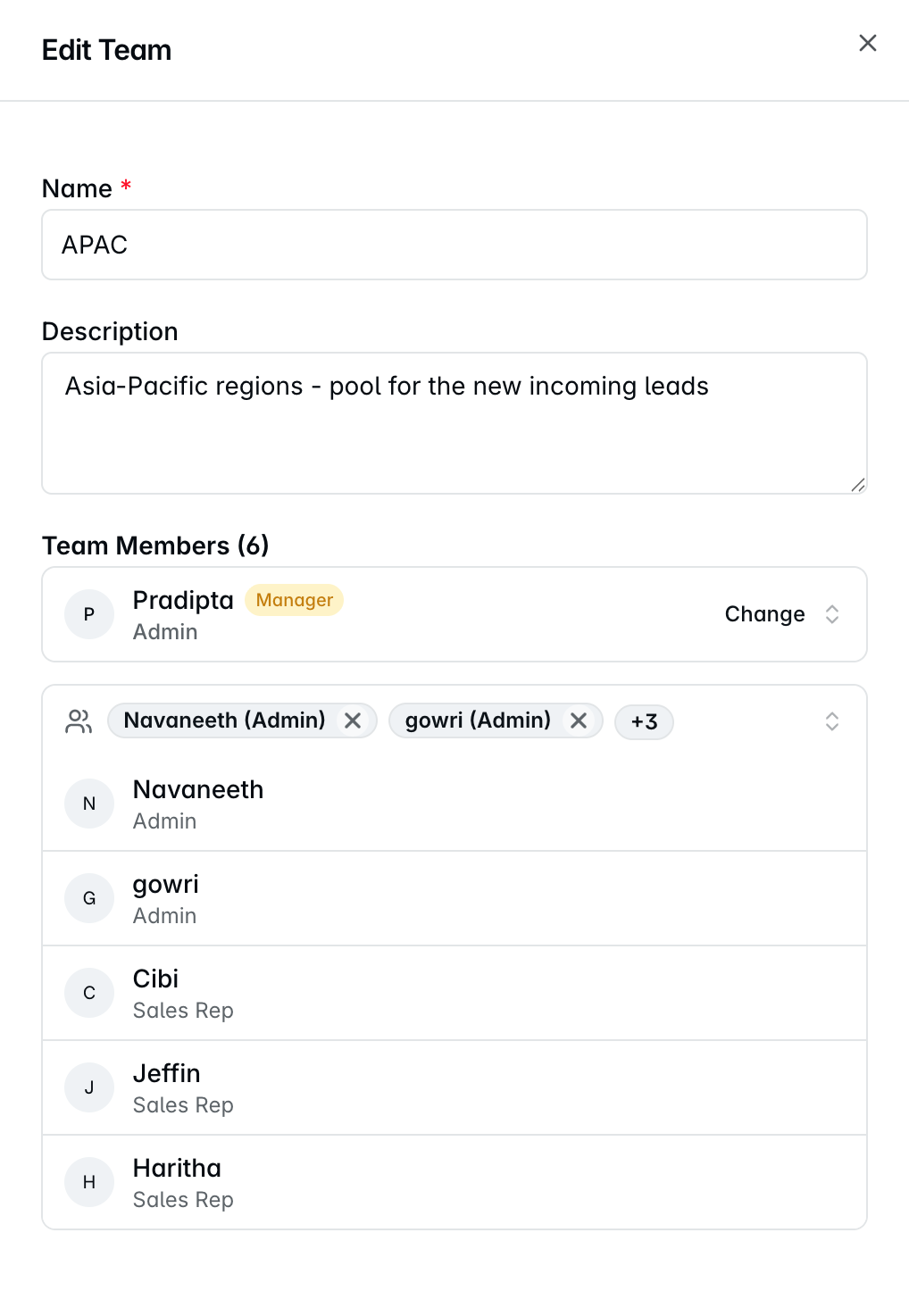
Fill in the panel and save.
The form is short:
Name - required.
Description - optional. The placeholder asks "What does this team focus on?", which is the right level of detail: territory, segment, or product line.
Manager - required. One person, naming who runs the team.
Members - everyone else on the team. Deactivated users cannot be added.
Editing and deleting
Open a team to change its name, description, manager or membership. Adding somebody to another team is an edit on that team - they stay on the first one too.
Deleting a team does not delete anyone. Everyone in it stays a user and keeps their records. They just stop belonging to that team, and stay on any other team they are part of. You cannot undo the delete, but nothing is lost - you can create the team again and add the same people back.
One thing to watch: if your workspace uses Team record visibility, anyone who is no longer on any team can only see their own records. Add them to another team before you finish.
FAQs
Can somebody be on more than one team?
Yes. Add them to each team you want them on.
Can a team have two managers?
No. A team has one manager.
What happens to a team's records if I delete the team?
Nothing - records belong to people, not teams. Ownership is untouched. Only the grouping goes, along with any visibility that depended on it.
How do I add people in the first place?
See Inviting Your Sales Team to Dreamteam CRM. Add the members first, then group them into teams here.
If you need help or assistance, reach out to us at gethelp@dreamteam.co.