Inviting Your Sales Team to Dreamteam CRM
Last updated: August 30, 2026
To get the most out of Dreamteam CRM, your whole sales team should to be added to it as users. Each sales person connects their own inbox and calendar, so the CRM builds a full picture of every customer relationship - not just one person's view. Sally surfaces tasks and meeting briefs for each agent individually, and Raj can only show pipeline health across the team if everyone is in the system.
Before You Start:
1. You need to be an Admin to invite team members.
2, The number of members you can add depends on the seats your team has purchased.
Adding a New Member/User
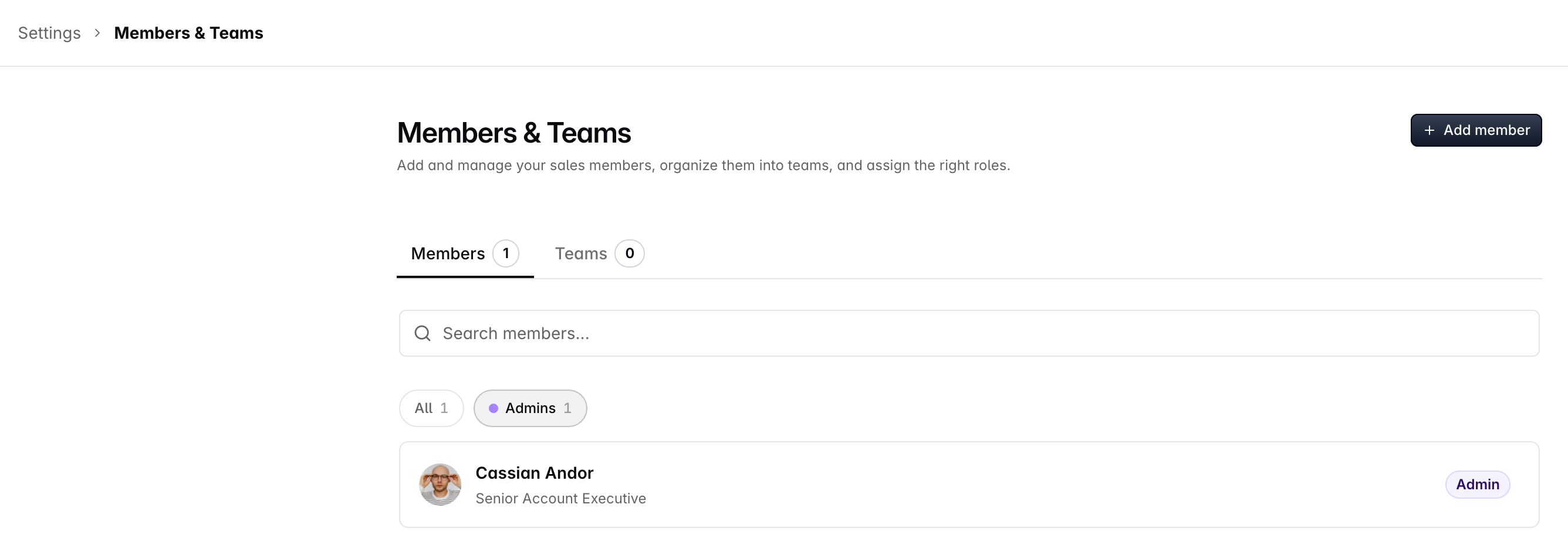
Click the Settings icon (gear icon) and go to Sales Teams.
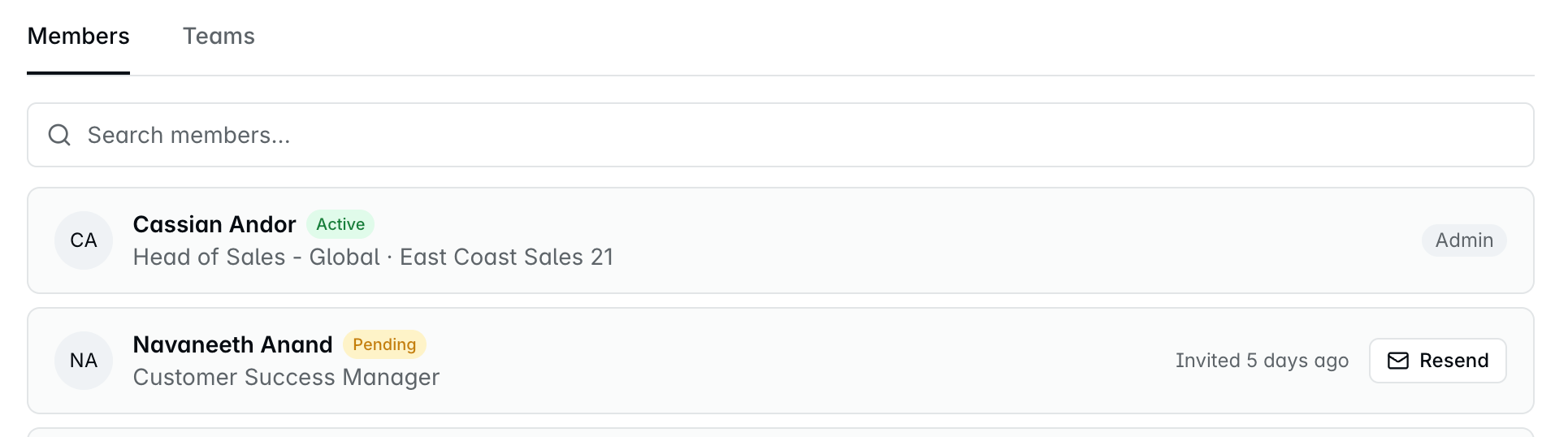
You will see two tabs - Members and Teams. Stay on the Members tab.
Click New Member.
A form will appear asking for the member's First Name, Last Name, Email, Job Title, Role and the Team that the member would belong to. First Name and Email are required fields.
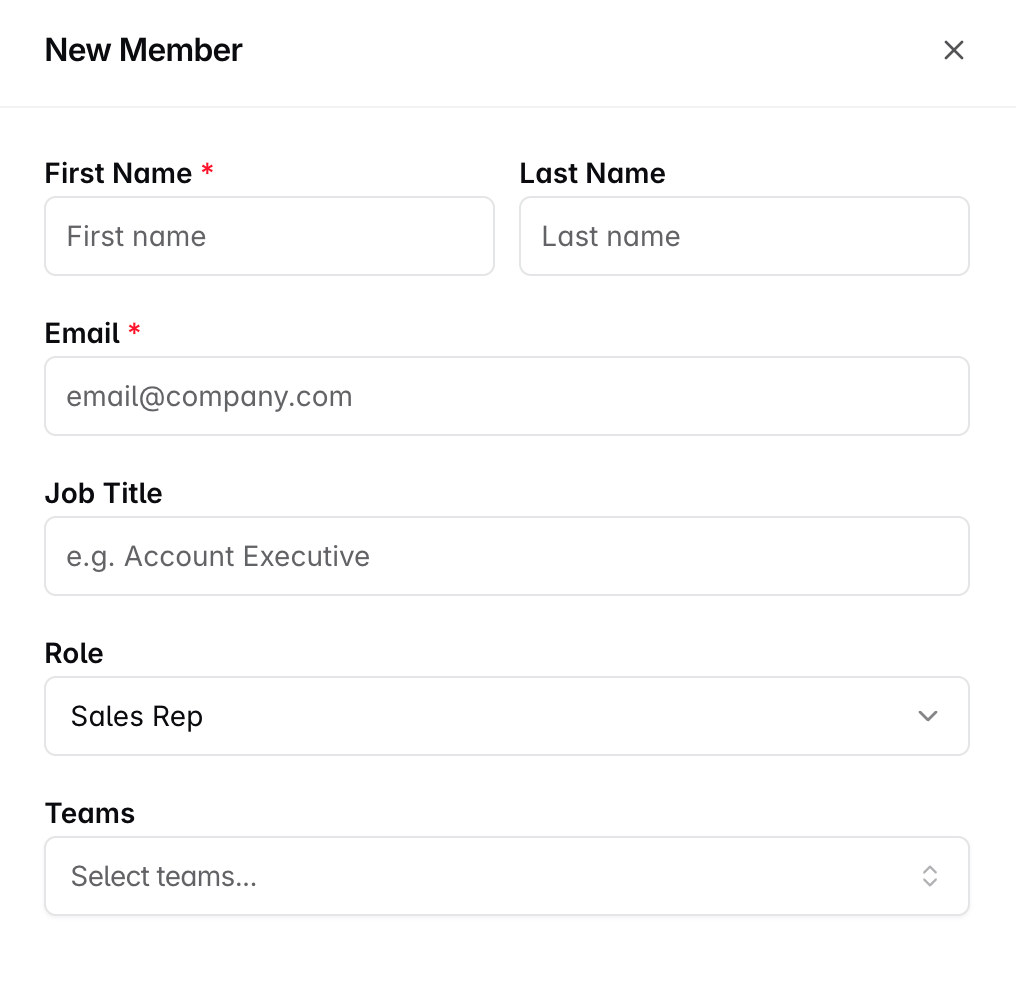
Roles
There are two roles to choose from:
Admin - Can access and change settings across the CRM.
Sales Rep - Can work on their contacts, companies, and deals.
Once done, click Add Member. If you change your mind, click Cancel.
Tracking Invite Status
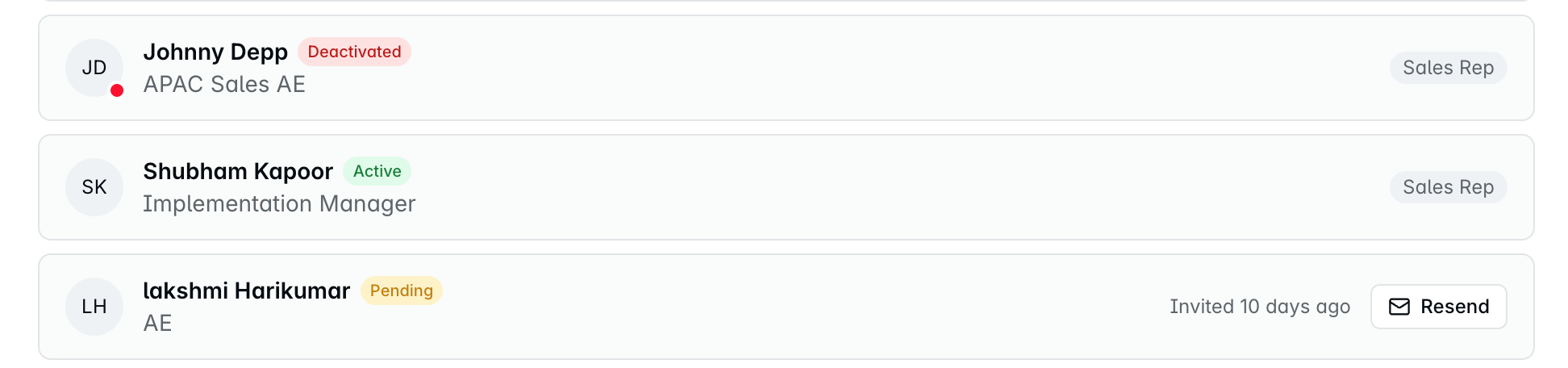
Once an invite is sent, you can see who has accepted and who hasn't from the Members tab. Each user shows a status tag - Active for those who have set up their account, and Pending for those who haven't accepted yet.
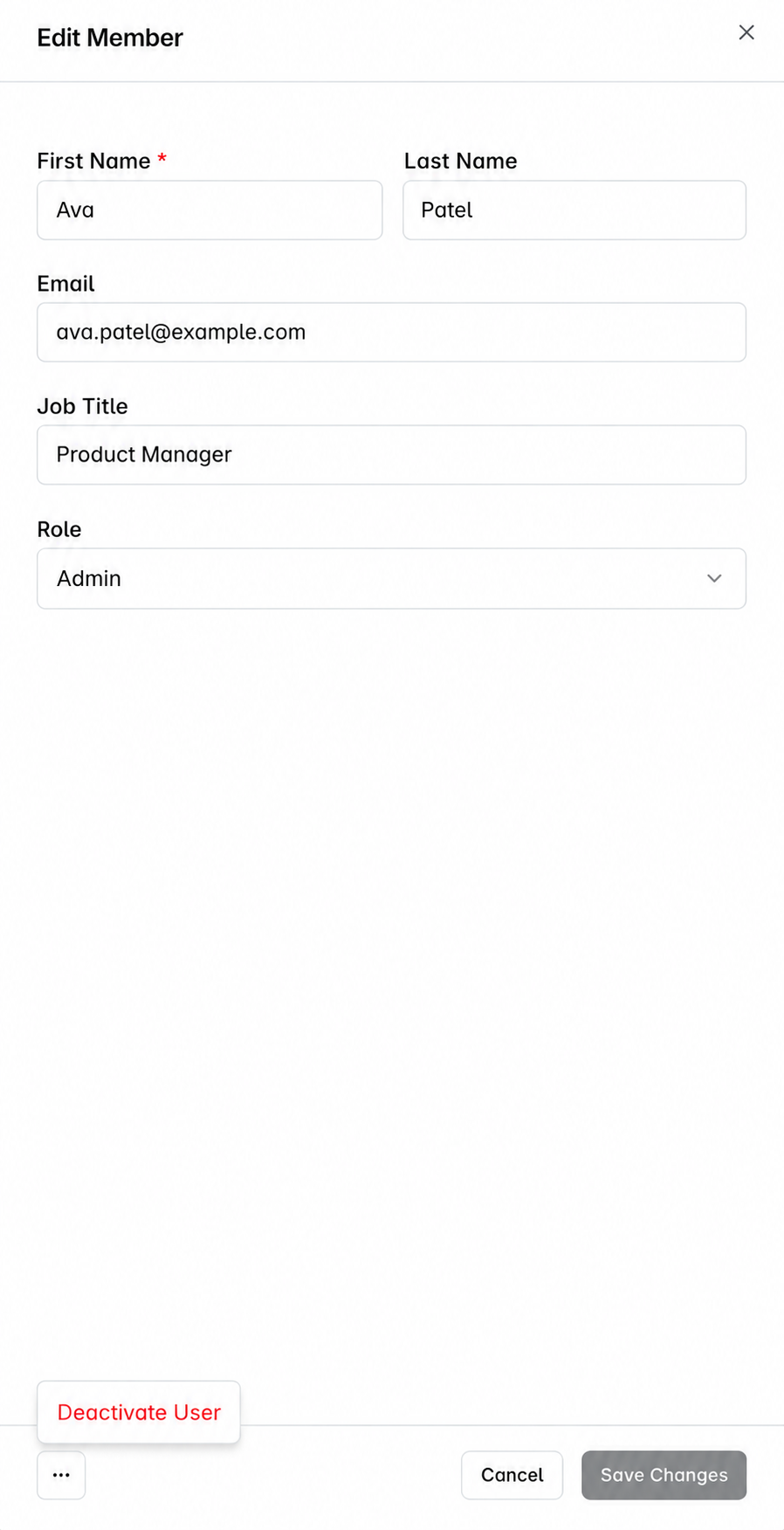
If you would like to deactivate a user, you can click on the User and using the three dots in the bottom, you can choose the "Deactivate" option. The user would move to the "Deactivated" status.
What Happens Next?
The new member will receive an email from Dreamteam (hello@dreamteam.co) with the subject "You are invited to join Dreamteam".
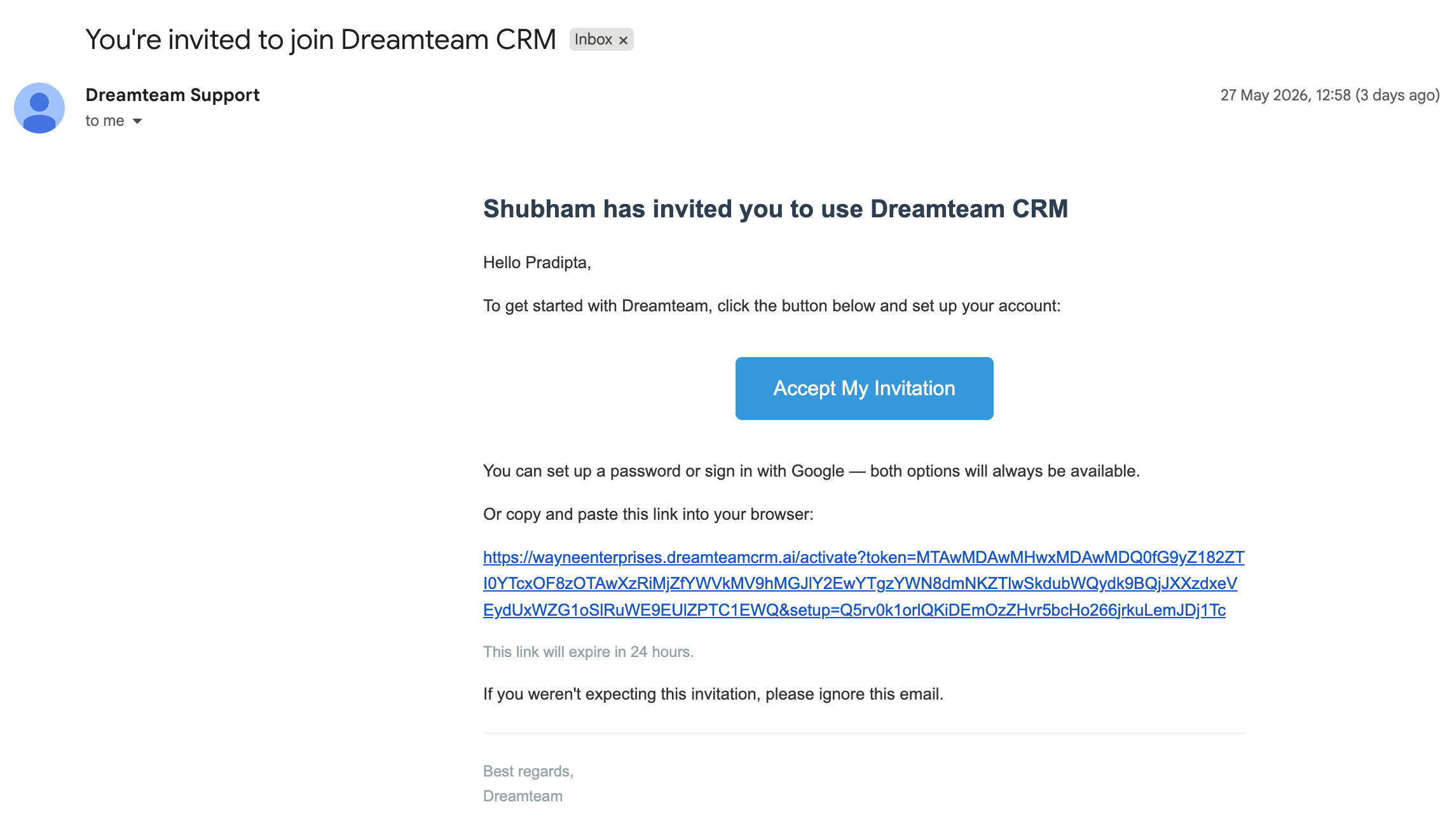
They can click Accept my invitation in the email to set up their account - either by creating a password or signing in with Google.
That link is good for 24 hours. After it expires, Accept my invitation stops working and the member stays on Pending - they cannot set up their account from that email. Send them a fresh link with Resend, below.
FAQs
What if a member does not receive the invitation email?
Ask them to check their spam or junk folder. The email comes from hello@dreamteam.co with the subject "You are invited to join Dreamteam". If it is still missing, you can resend the invite from the Members tab.
The invitation link has expired. How do I send a new one?
Invitation links are valid for 24 hours. Once that window passes, clicking Accept my invitation does nothing and the member stays on Pending.
Go to Settings > Sales Teams > Members and find the member with the Pending tag. Their row has a Resend button, next to a note of how long ago they were invited. Click it and they will receive a new email with a new 24-hour link.
You can also do this from their profile - open the member and choose Resend Activation.
Can I change a member's role after they have been added?
Yes. Go to Settings > Sales Teams > Members, find the member, click edit, and update their role. There are only two roles - Admin and Sales Rep.
Can a Sales Rep access Settings?
No. Only Admins can access and change settings. Sales Reps can work on their own contacts, companies, and deals.
If you need help or assistance, reach out to us at gethelp@dreamteam.co.