Magic Apps - build your own reports and dashboards by asking
Last updated: November 16, 2026
Magic Apps - build your own reports and dashboards by asking
Every Monday morning you want the same handful of numbers. What is still open, what closed last week, which deals are slipping, and who on the team is behind. All of it is already in Dreamteam. Getting it in one place means opening five screens and copying the answers into a spreadsheet.
A Magic App is that one screen. You describe what you want to see in plain English, and Dreamteam builds it from your live CRM data. There is no report builder to learn, no formulas, and nothing to connect.
Your app reads your data fresh every time someone opens it. You build it once; after that it is simply a screen that always shows today's numbers.
Who can build an app
Magic Apps appears in the left sidebar. If you cannot see it there, your role does not include it.
Your role | Can build apps | Can share an app with the whole workspace |
|---|---|---|
Admin | Yes | Yes, for apps they built themselves |
Sales Rep | Yes | No |
Viewer | No | No |
A Viewer has read-only access to Dreamteam, so Magic Apps does not show in their sidebar at all.
Build your first app
Click Magic Apps in the left sidebar.
Click Create app. You get an empty app called Untitled app, and the builder opens.
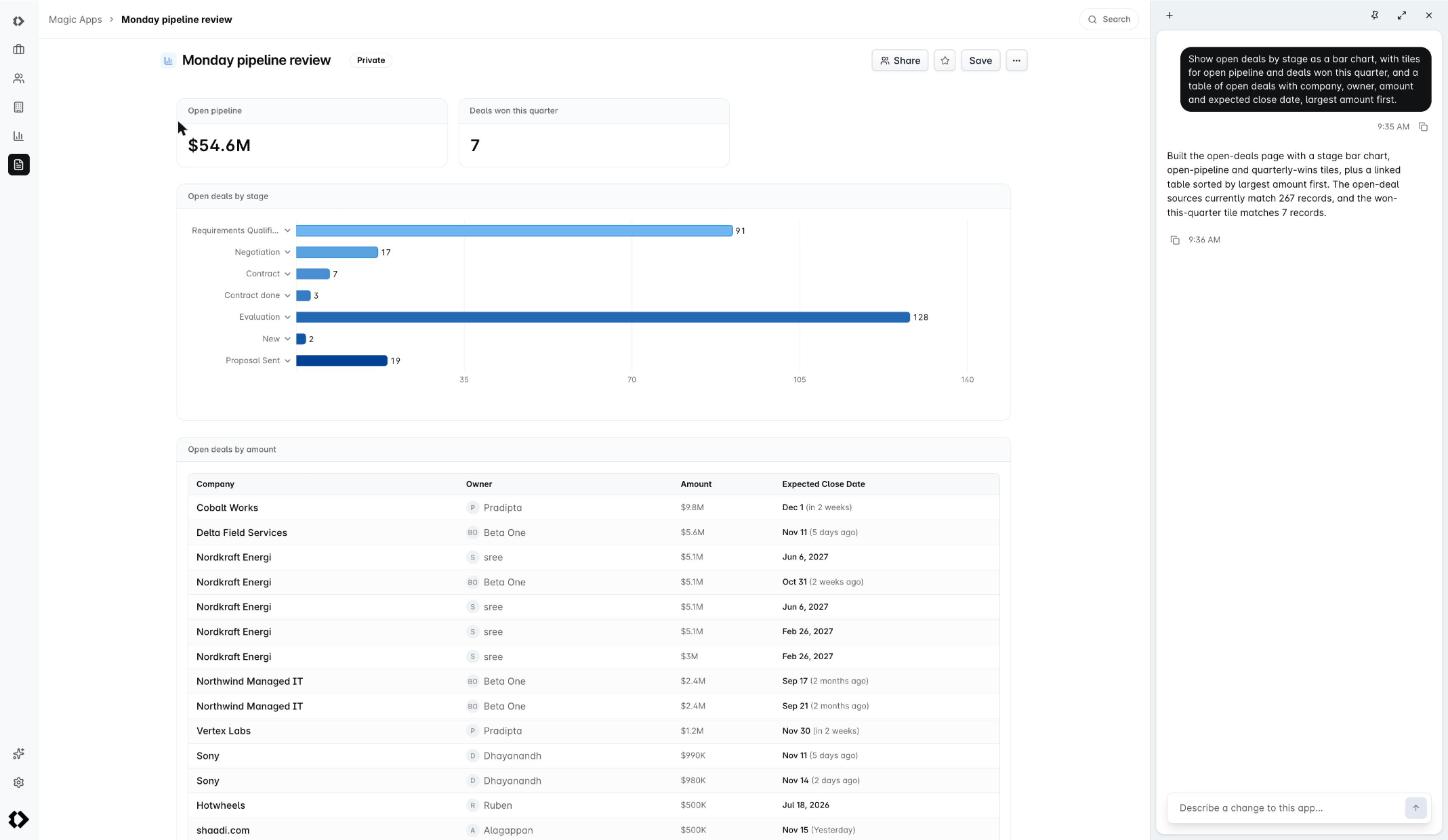
Tell the App builder what the app should show, in your own words. Describe it the way you would explain it to a colleague.
Watch the preview beside the chat. Ask for changes until it looks right.
Click Save, at the top right of the app.
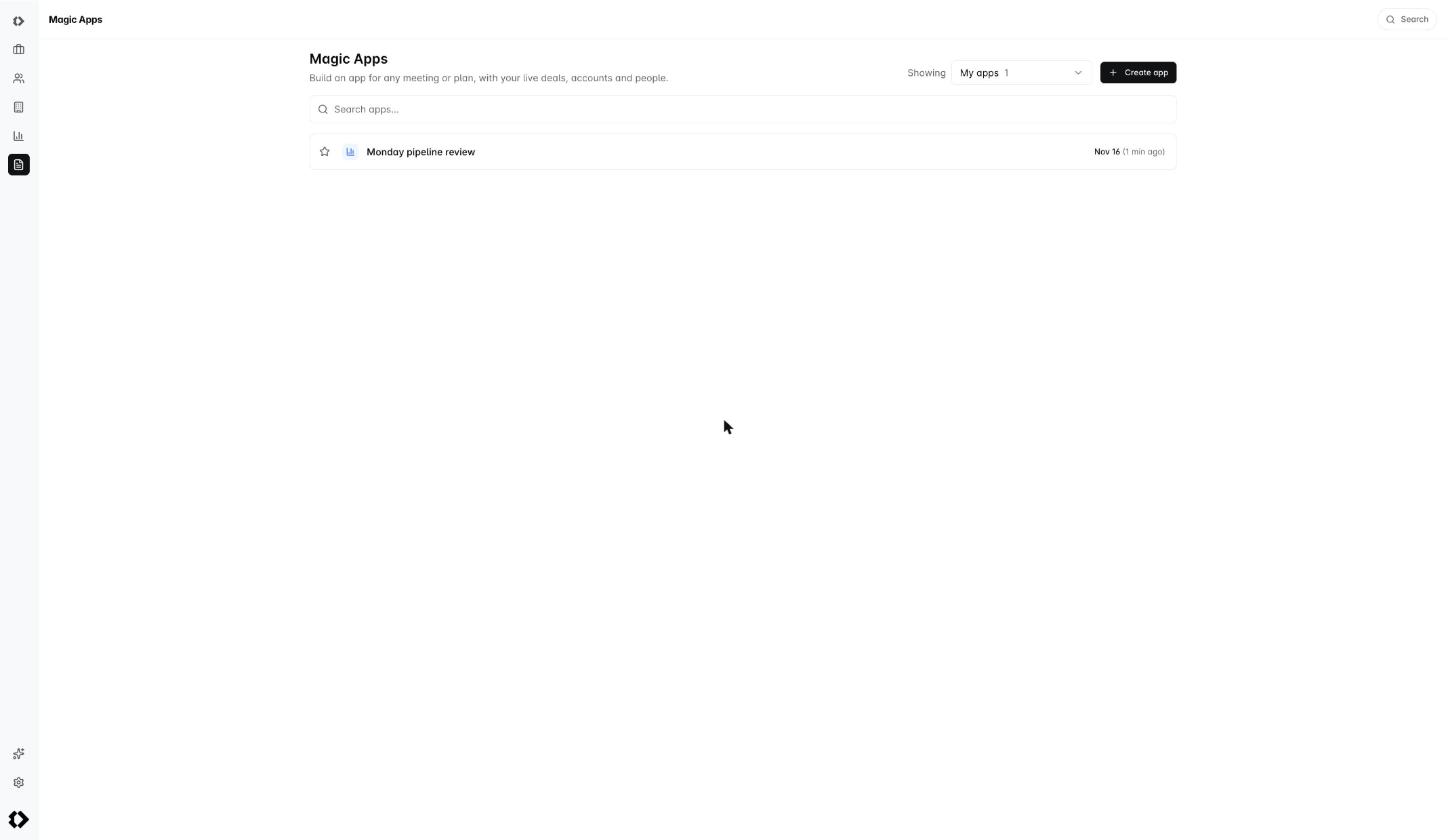
That is the whole loop. Keep talking to the builder whenever you want something changed, and save again.
Be specific about the time period and who the records belong to. "Open deals closing this quarter, by owner" gives you a far better first draft than "a pipeline report".
Four starters, if you would rather not begin from a blank page
The builder offers these when you open a new app. Pick one and then change it.
Show me my team's open, overdue and completed tasks
Show me the forecast for this quarter
Prep me for a 1:1 with a rep
Show me the deals we won and lost this quarter
What an app can show
The builder puts your app together from a fixed set of parts, so you can ask for any of these by name:
Tiles for a single number, such as open pipeline or deals won.
Charts - bar, line and doughnut, including stacked bars that split one column by owner, stage or forecast category.
Tables and lists of records, with the columns you ask for, sorted how you ask, and paged when there are a lot of rows.
Filters across the top, such as a deal owner or a date period, which the reader changes while they are looking at it.
Tabs, so one app can hold several views without becoming a wall.
Rows link back to the CRM. Click a deal in your app and the deal opens, so an app is a way into your records rather than a dead end.
What each person sees
An app never widens anyone's access. When a teammate opens a shared app, every number and every row is recalculated against what they are allowed to see. Two people can open the same app and read different totals, and that is correct.
For the same reason, a record that somebody cannot open is not shown to them as a link they cannot follow. It simply is not there.
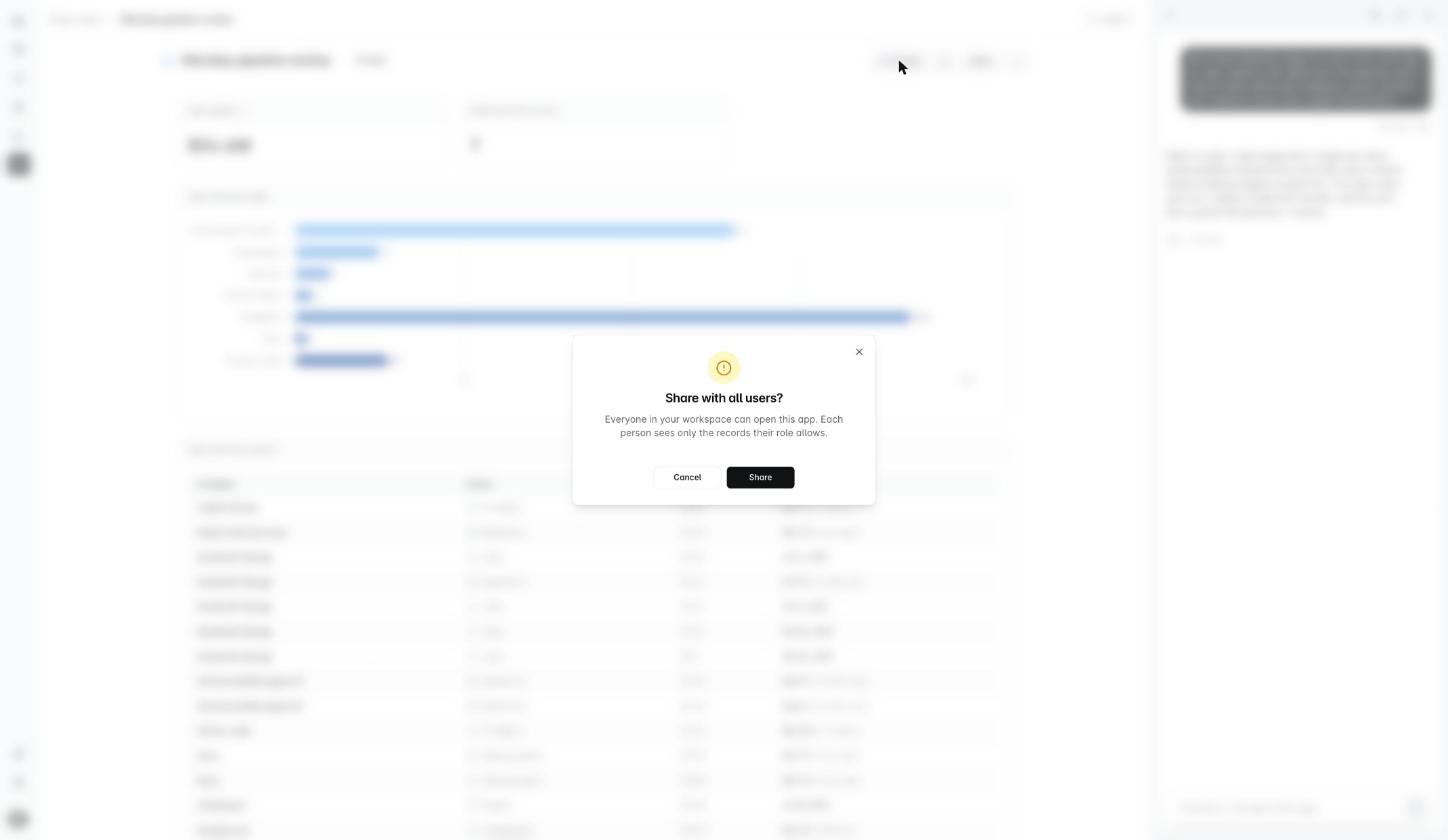
Every app carries a line that reads You see only the records you have access to. That is the rule above, stated on the screen.
A saved app also gets a web address of its own, and a line under the title telling you who owns it and when it was last changed. Bookmark the address if it is something you open every week.
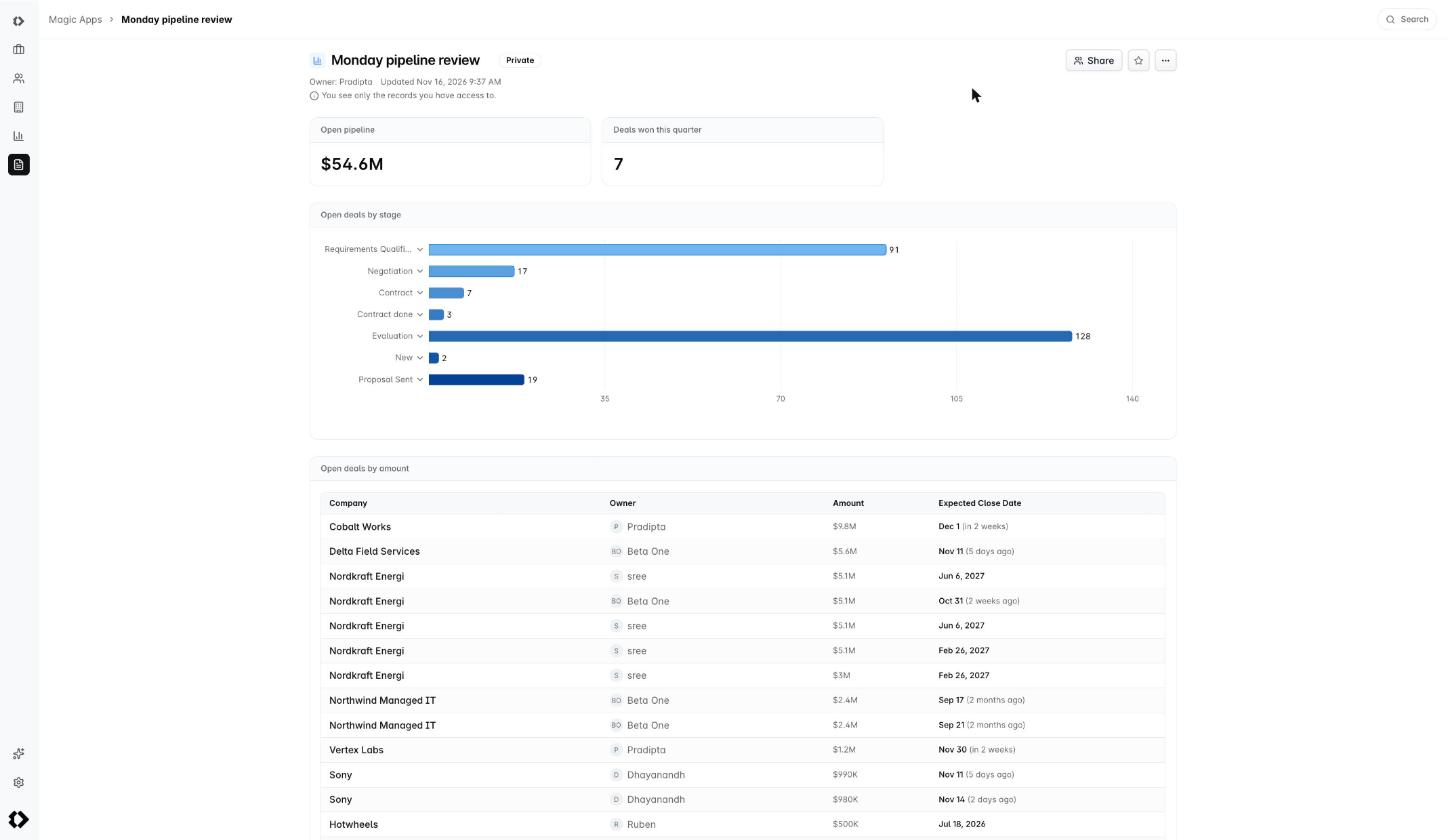
Private apps, and sharing one with everybody
Every new app is Private. Only you can open it, and it shows under My apps.
An admin who built an app can share it. Open the app, click Share, and confirm. The app is then marked Shared, and everyone in the workspace finds it under Shared with me. Make private reverses it, and anybody else loses access at once.
Sharing belongs to the admin who built the app. A Sales Rep can build as many apps as they like but cannot share one, and an admin cannot share an app that somebody else built. If your team needs a shared app, have an admin build it.
Finding an app again
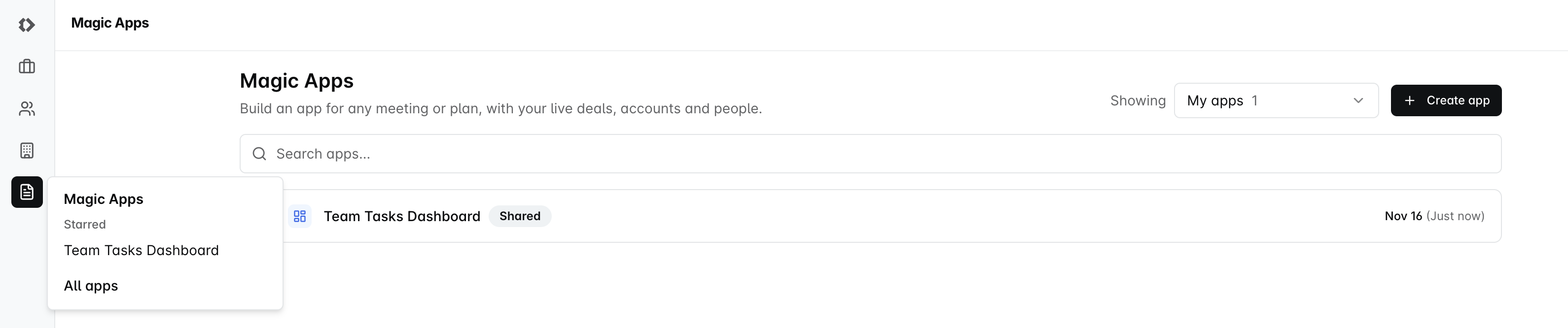
Hover Magic Apps in the sidebar and a small panel opens beside it, listing the apps you opened most recently and a link to All apps. Click the star on an app and the panel lists your Starred apps instead, which is the faster route to the two or three you live in.
The Magic Apps page itself lists them in full, with a search box and these views:
View | What it holds |
|---|---|
My apps | Everything you built, private and shared |
Shared with me | Apps an admin has shared with the workspace |
All apps | Every app in the workspace. Admins only |
Every row shows when the app was last updated, and in Shared with me and All apps it shows who owns it too, so you can tell a fresh app from one nobody has touched since spring.
Saving, and going back
Each time you click Save, Dreamteam keeps that state as a version. Open Version history from the app's More actions menu to see them, with who saved each one and when.
Restore puts an older version back. It becomes the current version for everyone who can open the app, and it replaces whatever is in the builder, so save anything you still want before you restore.
Renaming, icons and deleting
To rename an app, click its title and type over it. To change its icon, click the icon to the left of the title and pick from the fourteen on offer. The icon is what you will recognise in the sidebar panel, so it is worth setting.
The More actions menu beside Save holds the other three: Open app, Version history and Delete app.
Delete app removes the app and its whole version history. Only the person who built it can delete it, anyone it was shared with loses it immediately, and it cannot be brought back. The dialog asks you to confirm before it goes.
Common questions
Does the AI read my customer data to build the app?
No. While you are building, the builder works out the shape of the app - which tiles, which charts, which columns. It is told how many records match, never the names, amounts or any other value in them.
Once the app is saved, opening it does not involve AI at all. The app reads your CRM directly, which is also why it opens quickly.
My colleague opens the same app and sees different numbers. Is it broken?
No, that is working as intended. An app is recalculated for whoever opens it, against the records that person is allowed to see. If the two of you have different access, you will read different totals.
Can I build an app about a custom object, not just deals and contacts?
Yes. Ask for it by the name your workspace gave it, and the builder will tell you if it cannot reach something you asked for.
Somebody deleted a field my app used. What happens?
The part of the app that used it stops working rather than showing a wrong number, and the app tells you so. Open it, tell the App builder what is missing, and ask it to repair that section.
How many apps can we have?
A workspace can hold 100. If you reach that, deleting an app you no longer open frees up a slot.
I shared an app and now I want it back to myself.
Open it and choose Make private. Everyone else loses access straight away. Nothing in the app itself changes, so you can share it again later.
Still stuck, or built something you think the rest of us should see? Write to us at gethelp@dreamteam.ai and we will take a look.