Alex - your CRM admin assistant
Last updated: September 3, 2026
You know what needs to change. You just don't want to hunt for the setting.
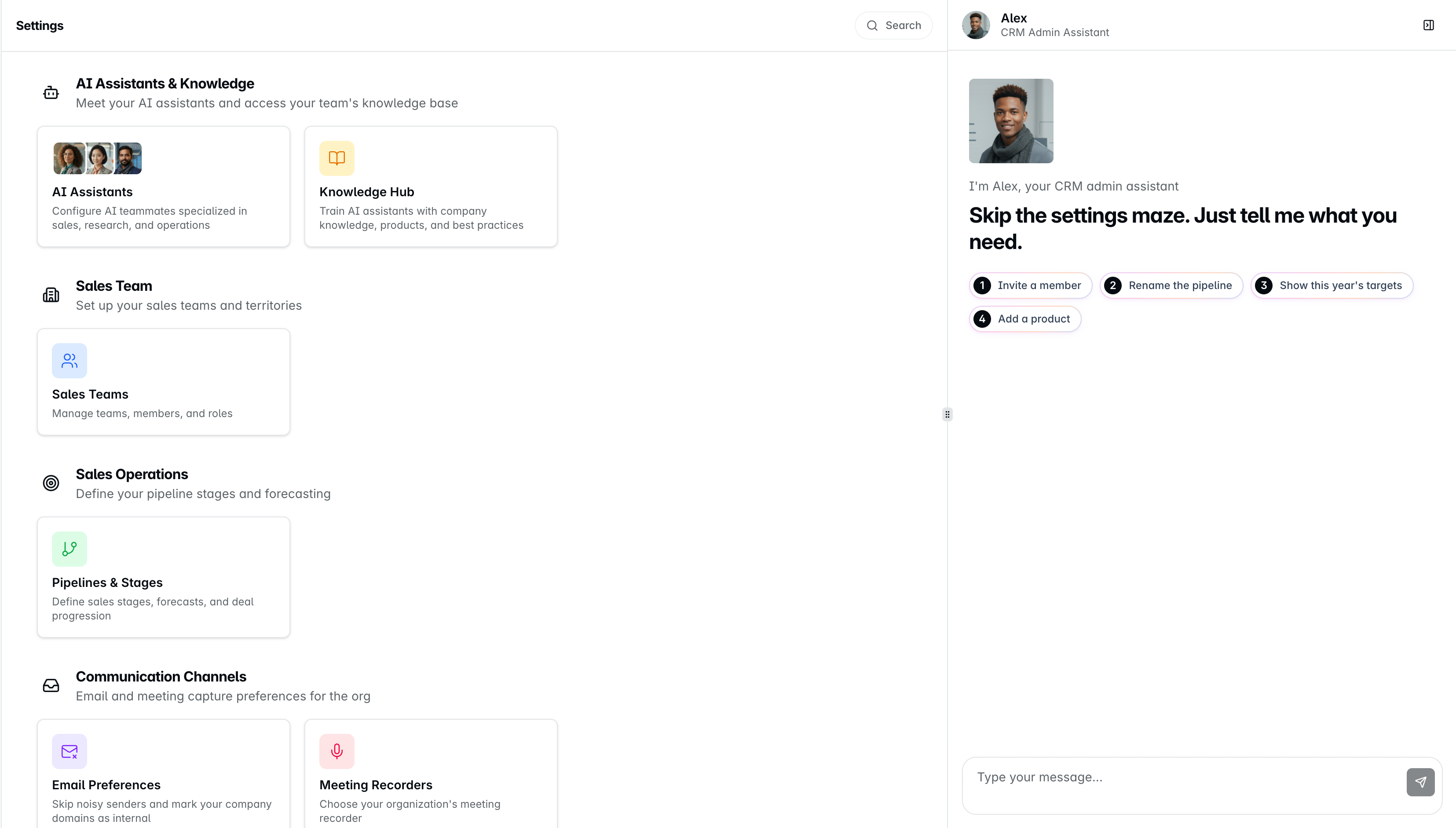
Alex is the AI assistant that lives in your admin settings. Instead of clicking through nested menus to figure out where record visibility is configured (or how to invite five new reps at once), you tell Alex what you need in plain English - and Alex either does it for you or points you to the right place.
Think of Alex the way you think of Rachel and Sally, except Alex handles the setup side of the CRM instead of the selling side.
Where to find Alex
Alex shows up automatically the moment you head into Admin Settings - the chat panel opens on the right side of the page. From there you can:
Chat away - type any question or request into the input box.
Clear the conversation - if you want a fresh thread.
Collapse the panel - if you'd rather work in Admin Settings without Alex in view.
Alex won't take any action without your confirmation, so there's no risk in exploring what it can do.
Ask Alex anything about your CRM
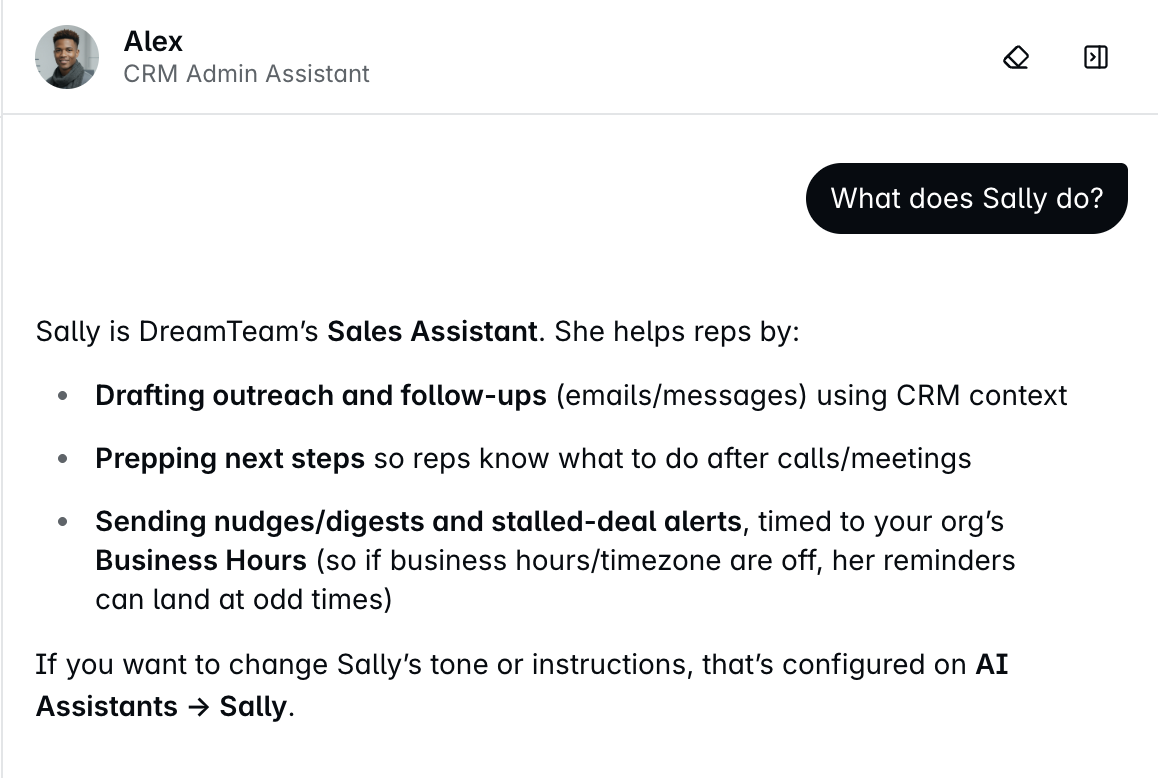
You're onboarding a new admin and they ask "what does Sally actually do?" You could go dig - or you could just ask Alex.
Alex knows the CRM inside out - the assistants, the settings, the fields, the safeguards. If you'd normally search the help center, ask Alex instead:
"What does Sally do?" → Alex explains she's the sales assistant, drafts outreach and follow-ups from CRM context, sends nudges and digests, and respects your org's business hours.
"What can Rachel help me with?" → Alex explains she's the research assistant, pre-briefs incoming leads with company and role context so reps walk in prepared.
"How many reps do we have?" or "What are the stages in my pipeline?" → Alex reads your workspace and answers.
"How do I import contacts?" → Alex walks you through it, or opens the right settings page for you.
If you ask something that isn't a settings question (e.g., pipeline reports, deal specifics), Alex routes you to the right page instead of dead-ending.
Ask Alex to do it for you
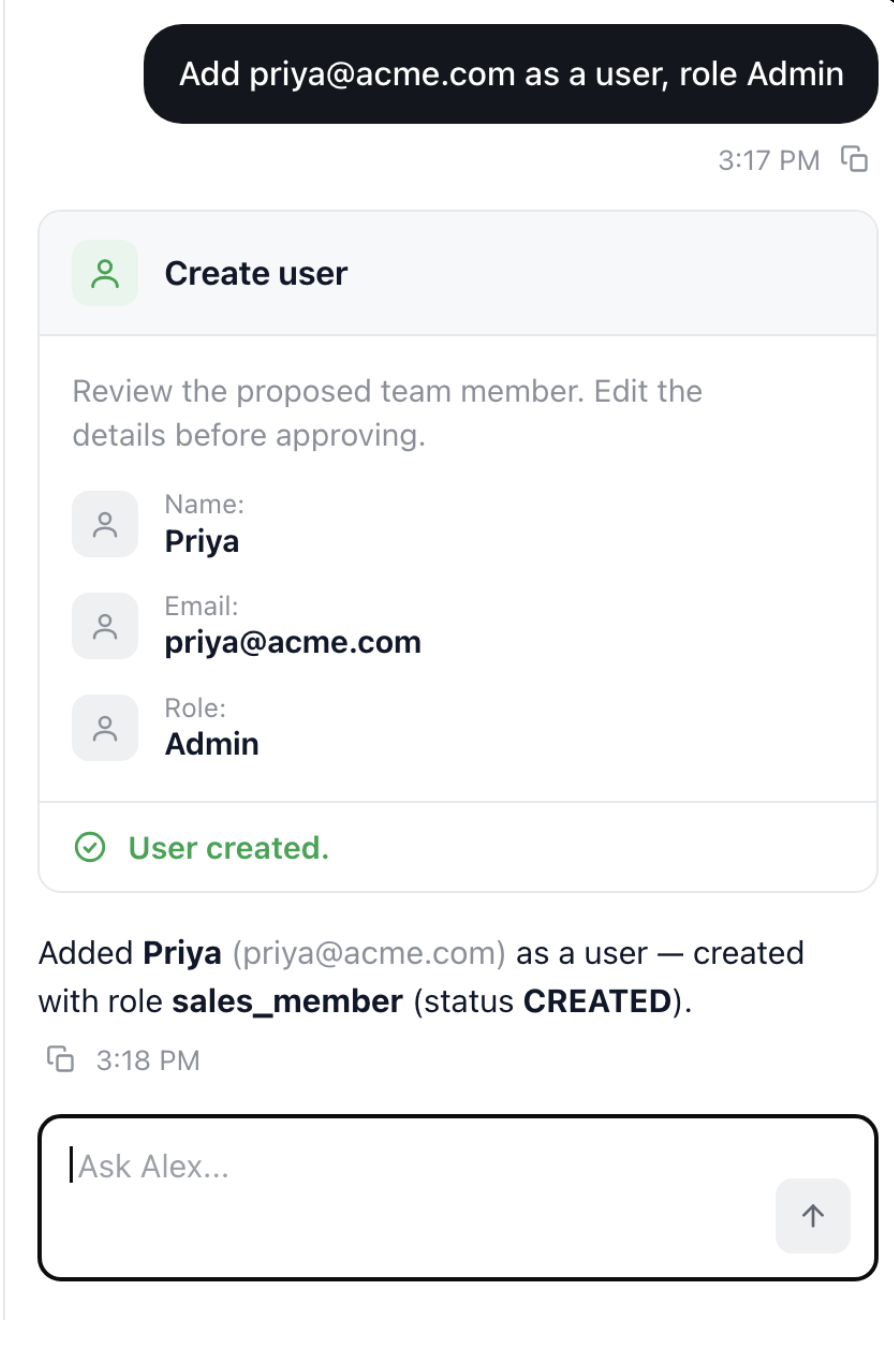
A new rep starts Monday. Instead of clicking through Settings → Users → Invite, tell Alex "Add Priya as a rep, priya@..." - she's provisioned.
Almost every setting you'd configure manually, Alex can configure through chat. A (non-exhaustive) list of what you can ask for:
Members & Teams - invite people one at a time or in bulk, promote to admin, move reps between teams, deactivate users.
Pipelines & Stages - view the setup, add or rename stages, reorder them, adjust win probabilities.
Email Preferences - add or remove skip rules, add company-owned domains, change how far back email is imported.
Meeting Recorders - check what's set up, confirm recorder status, diagnose why a specific call didn't record.
Knowledge Hub - create, edit, or restructure knowledge cards for Products & Services, Sales Process, and Customer Stories. Run audits for outdated or contradictory content.
AI Assistants (Sally, Rachel, Raj) - see current instructions, refine behaviour with a preview, or reset an assistant to default.
Account Settings - change record visibility with an impact preview before applying.
Every change is confirmed first. Alex fills out the form on your behalf, shows you what's about to happen, and waits for you to approve, edit, or cancel. Nothing gets saved without your OK.
Good to know
Every change is confirmed first - Alex always shows a preview of what's about to happen. Approve, edit, or cancel.
Built-in safeguards - Alex won't remove your last admin, won't delete a pipeline stage that still has deals in it, catches invalid or duplicate email invites, and rejects out-of-range values (like a 150% win probability).
If you need help, reach out to us at gethelp@dreamteam.co.