Ask Dreamteam - the AI chat in your CRM
Last updated: October 13, 2026
Ask Dreamteam - the AI chat in your CRM
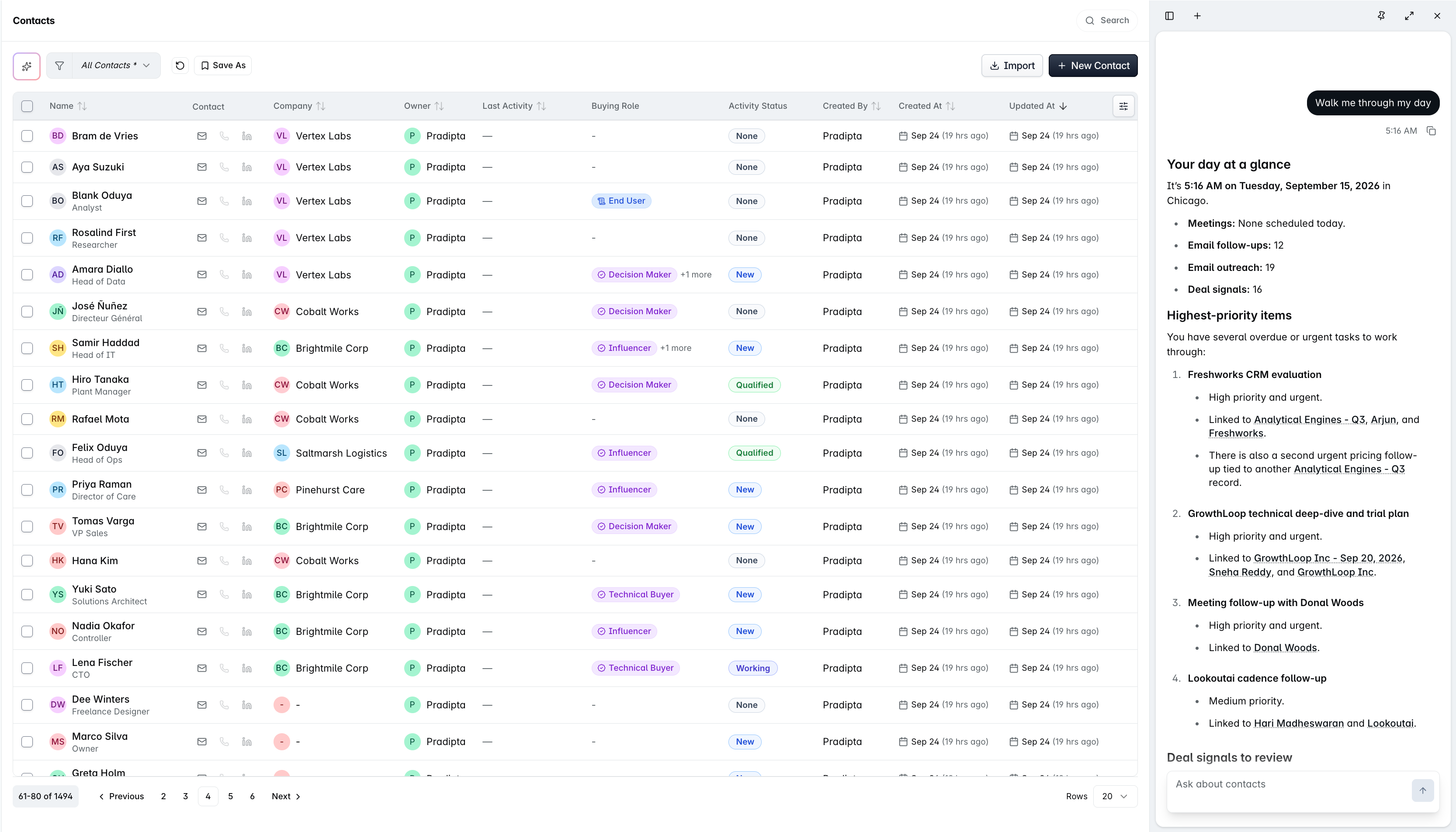
You know the answer is somewhere in the CRM. You just do not want to build a filter to get at it. That is what the Ask me about CRM bar at the bottom of the screen is for. It is called Ask Dreamteam, and it answers from your own records.
You meet it in two places. They are the same assistant reading the same conversations, not two different tools:
Where | What it is for |
|---|---|
The docked chat bar | Follows you around the CRM and knows which record you are looking at. Best for a quick question about what is in front of you. |
The fullscreen chat page | The same assistant with more room, and every conversation you have had. Best for longer work and for finding something you asked before. |

What you can ask
Ask about anything in your CRM in plain language - contacts, companies, deals, tasks, meetings, notes, emails, calls, leads, even the custom objects your admin has added. Instead of building a filter, just say what you want:
"Which enterprise deals slipped this quarter?"
"Who at Acme have we not spoken to since June?"
"Show me my open deals over 50k, biggest first."
Answers come back formatted - tables where a table helps, and clickable links straight through to the records so you can carry on working.
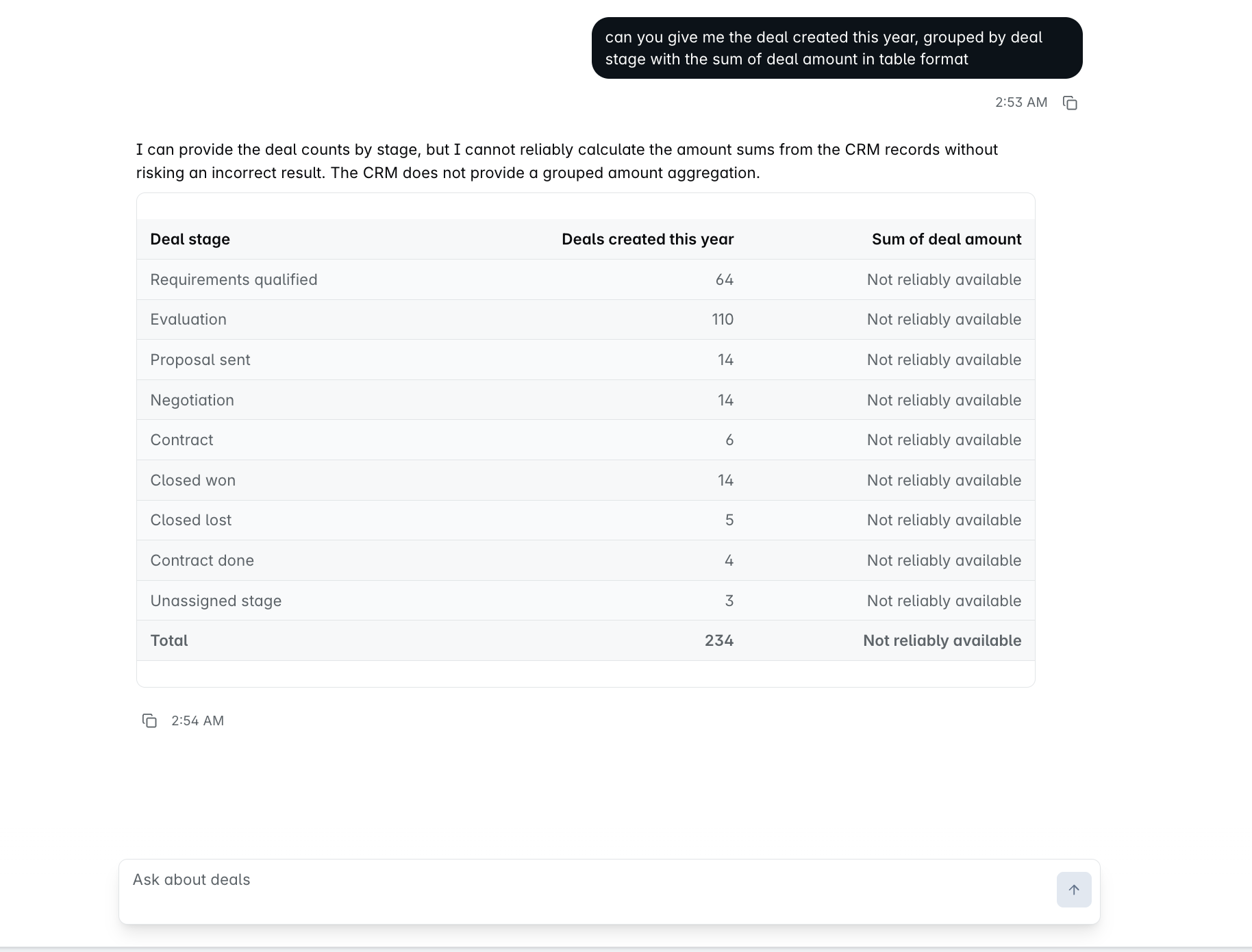
It also answers questions about the product itself - how something works, where a setting lives, whether a thing is possible at all. When the honest answer is that Dreamteam cannot do what you asked, Ask Dreamteam says so plainly, points you at the nearest thing that does work, and offers to raise it as a feature request rather than inventing a screen that does not exist.
Charts, not just tables
What you get by default
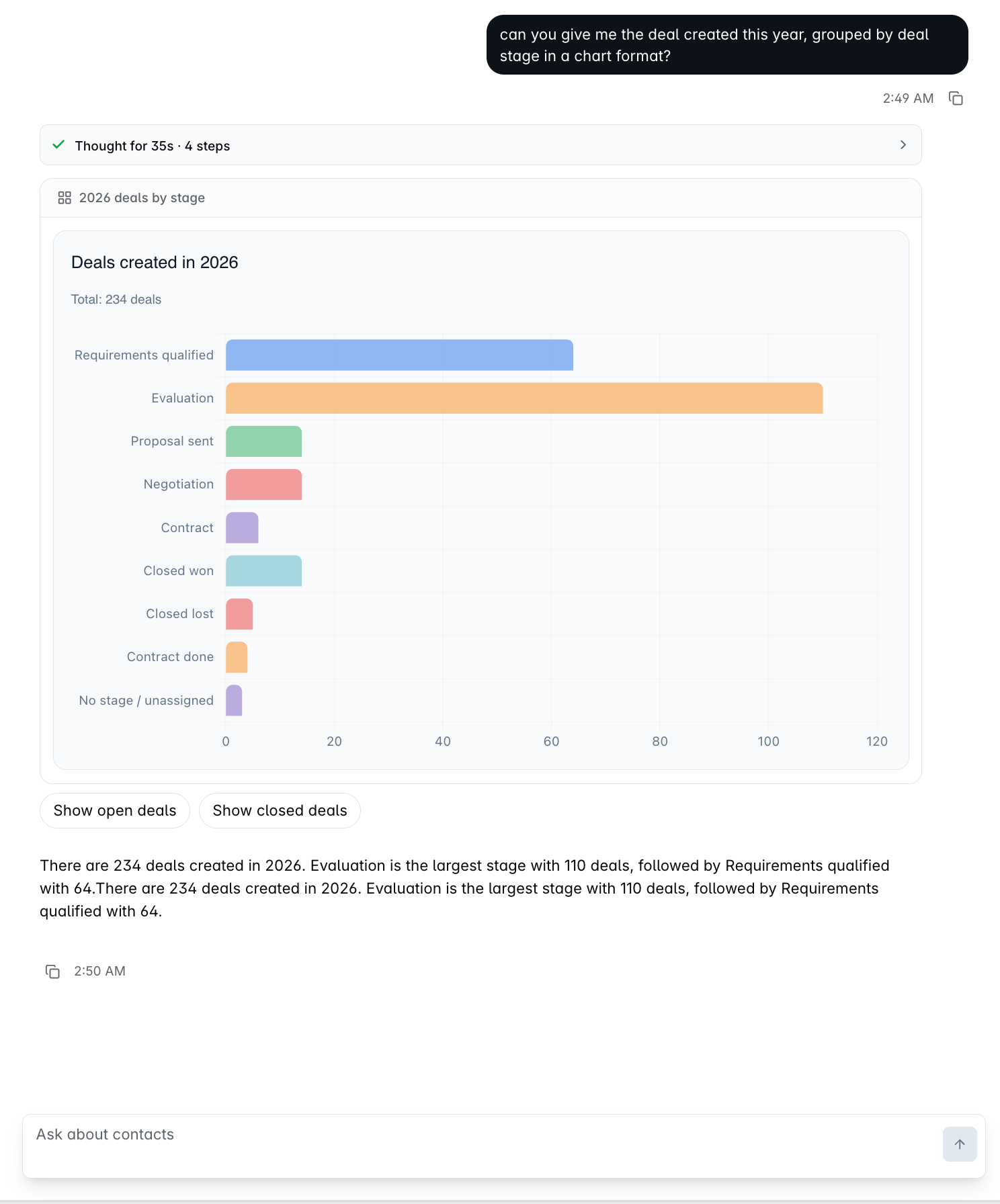
Ask for a count over time and Ask Dreamteam can answer with a chart rather than a table. "Get me the graph grouped by month" turns a list of leads into a titled bar chart - "Leads created by month in 2026" - with a headline total, the date range it covers, and a month per bar.
The numbers come with it. The figures are printed as plain text underneath - "Monthly counts: Jan 46, Feb 20, Mar 20, Apr 84 ..." - so you can copy them into a deck or a spreadsheet instead of reading them off the bars.
Seven other shapes, on request
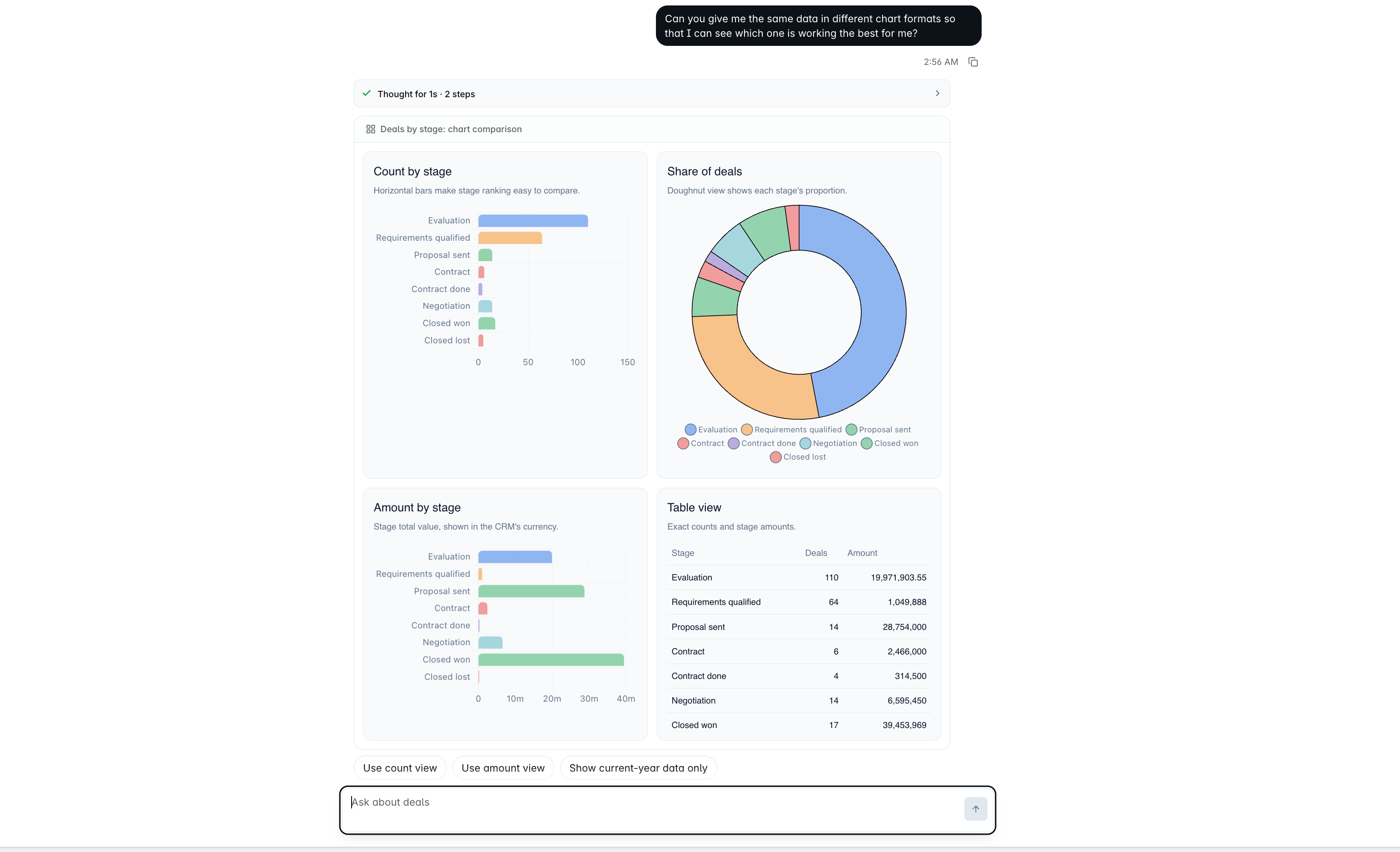
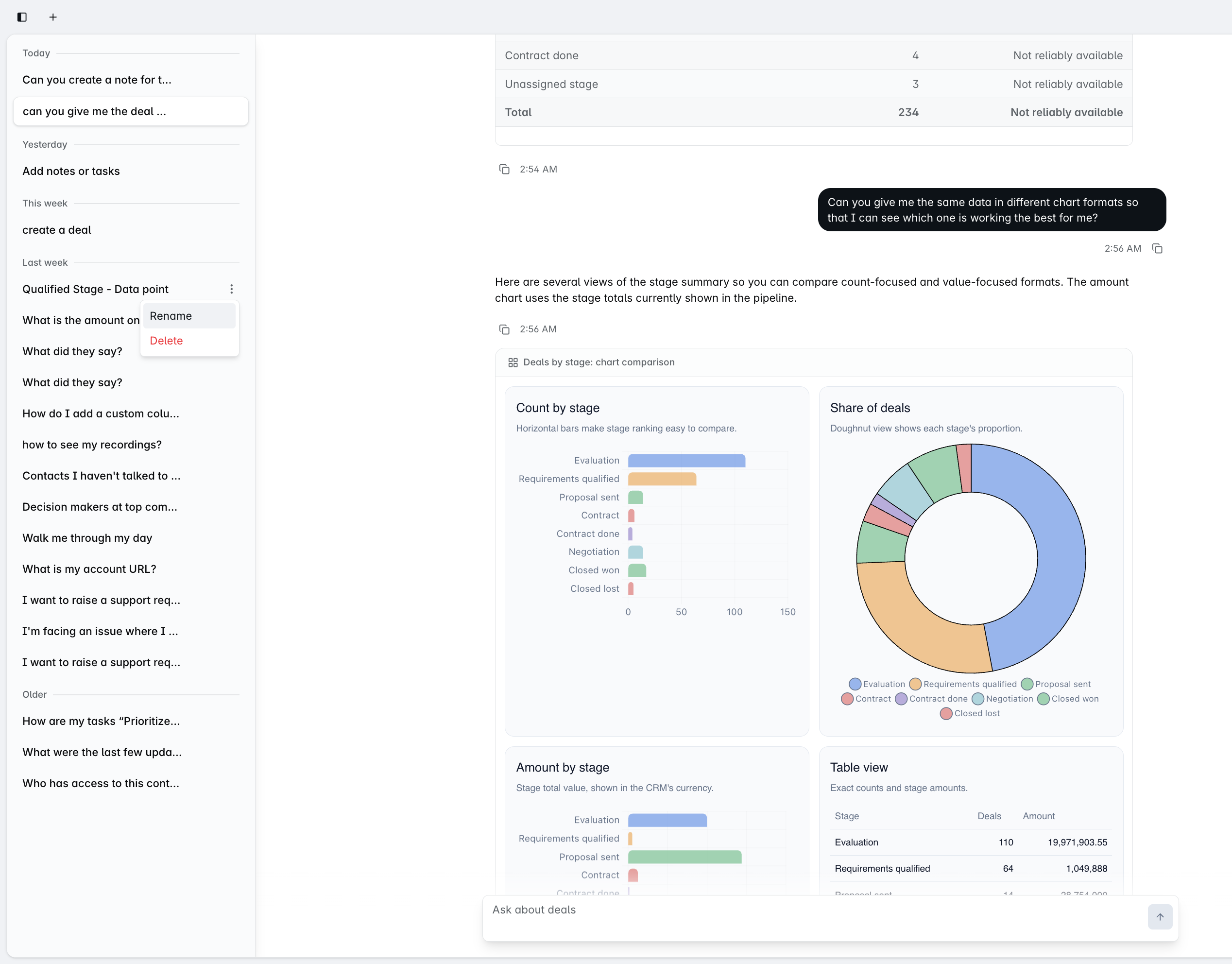
A vertical bar chart is what you get by default. Ask for a different one and it redraws the same data as any of these:
Shape | What it shows |
|---|---|
Vertical bar (default) | One bar per period. The general-purpose answer. |
Line | The trend over time. |
Cumulative line | How the year-to-date total built up. |
Area | Cumulative volume and momentum. |
Horizontal bar | Easier to read when the labels are long. |
Doughnut | Each period's share of the total. |
Heatmap | Intensity by period. |
Metric cards | The headline figures on their own: total, highest month, monthly average. Not a chart, but it is on the same menu. |
You do not have to pick blind. Ask which would suit and it recommends one for the data in front of it - "for this data, a line chart or cumulative line chart would best show the trend."
The last bar is usually a part-month. A chart that runs to today ends short. On a chart drawn on 9 September, September shows 68 against August's 303 because the month is nine days old - not because anything collapsed.
What a chart is not
This is the closest thing to ad-hoc reporting in Dreamteam today, and it is worth knowing what it is not: a chart is an answer inside a conversation. Nothing schedules it, refreshes it, or pins it to a dashboard. What you can do is come back to it - the conversation is kept as a thread on the fullscreen chat page and every thread has its own address, so a chart you built on Monday is one click away on Friday. It re-runs as a question rather than sitting somewhere as a report.
It knows the page you are on
Open a contact, company or deal and the docked bar changes its own label - "Ask about this contact" - and scopes itself to that record. A question, or a "create a contact here", ties itself to whatever is in front of you without you having to name it. The fullscreen chat page is the same assistant without that page context.
Creating, updating and deleting records
Ask Dreamteam writes to contacts, companies and deals as well as reading them. All three kinds of change work the same way: you say what you want, and what comes back is a card to check, not a confirmation that it is already done.
What you asked for | What the card shows you | Buttons on it |
|---|---|---|
Create | A preview of the whole record it is about to write. | Edit Details, Reject, and the confirm button |
Update | The whole resulting record, not only the field you named, with the change picked out in green. | Edit Details, Reject, and the confirm button |
Delete | Enough of the record to identify it - name, record number, email and company. | Reject and Delete only. There is nothing to adjust |
Nothing is saved until you confirm. A create, an update and a delete all arrive as a card, and rejecting one leaves the CRM exactly as it was. There is no phrasing of a request that skips the card.
Creating a record
Creating a contact is the most polished of the three. In order, it:
Asks for the email first.
Works out the first and last name from your message - or from the email address if you did not give them.
Spots whether the domain is a company domain or a personal one (gmail, outlook and the like), and links or creates the company accordingly.
Shows you a preview card of everything it is about to write.
Companies and deals follow the same confirm-before-write pattern.
Updating a record
An update works exactly like a create: you say what you want - "update the deal value to $149" - and a card comes back showing the whole resulting record, with the field you changed picked out in green. An existing company is flagged Existing, so you can see it is not about to create a second one.
Deleting a record
Ask it to delete the record you are on and you get a confirmation card carrying enough of the record to see exactly who is about to go.
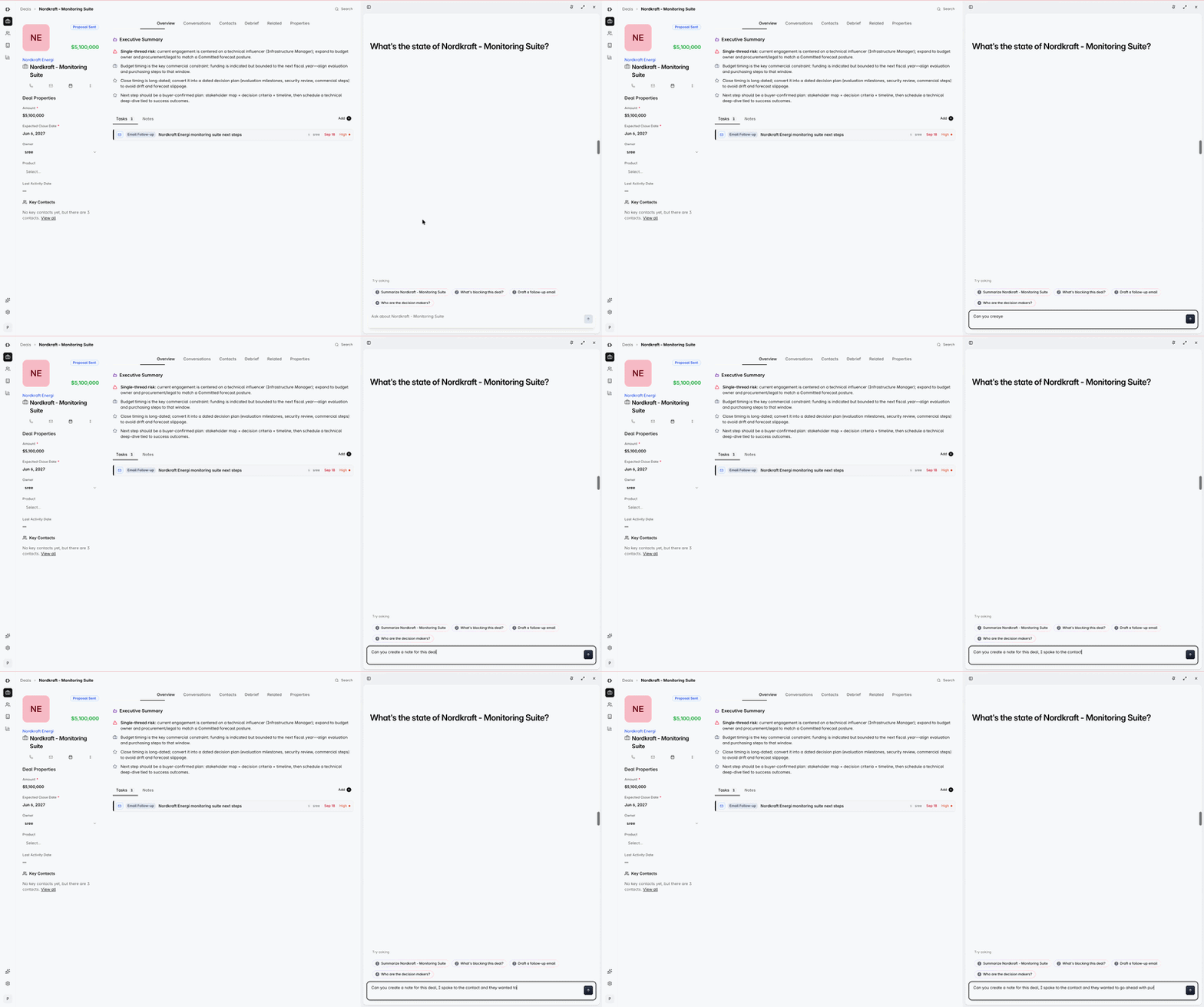
The chat card is a lighter gate than the one in the app. Deleting from the record itself makes you type DELETE into a confirmation box; the chat card asks for a single click. What happens afterwards is identical either way - the delete is permanent, there is no undo, and the record's notes and conversations go with it.
Where your conversations live
Everything you ask from the chat bar is kept as a thread, and the fullscreen chat page is where those threads live. It is not a second assistant and not a hub for the other AI co-workers - it is the same chat with more room. The bar and the page read the same list of conversations, so a chat you started from a deal yesterday is waiting for you when you open the page today.
Threads are listed down the left, most recently used first. Each row has a menu with two actions:
Rename - give a thread a name you will recognise in a fortnight.
Delete - remove it. Deleting the conversation you currently have open drops you into a fresh one.
New chat starts a clean thread on a welcome screen with a few starter prompts. Opening a thread gives it its own address, so a particular conversation can be linked to and come back to.
Common questions
Is the fullscreen page a different assistant from the chat bar?
No. It is the same assistant with more room and your full history. Both read the same list of conversations, so anything you started in the bar is on the page, and the other way round.
Can it see records I am not allowed to see?
No. Ask Dreamteam answers only from records you can already open yourself. Your workspace's Record Visibility setting is applied before the assistant ever sees the data, so asking is not a way round it.
Do Sally, Rachel and Raj have pages of their own?
Only Raj does. The fullscreen chat page holds chat conversations only; Raj has a page of his own, which his My Day card opens. Sally's work surfaces on My Day and on the deal, and Rachel's on the record's Research tab - neither has a page to send you to.
Will it change something without telling me?
No. Anything it is about to write is shown to you as a preview card, and nothing is saved until you confirm it.
Can I save a chart, or have one sent to me every week?
No. There is no report builder, no custom dashboards, and nothing that can be scheduled or emailed. A chart lives in the conversation that produced it - reopen that thread and ask again. If you need the underlying rows in a spreadsheet, filter the list and use Export instead.
Still stuck? Write to gethelp@dreamteam.co and we will take a look.