Logging a past meeting - it still gets a summary
Last updated: October 7, 2026
You took the call on your mobile on the way to the airport. Or it was a corridor conversation at a conference, or a call on a platform Dreamteam was never invited to. It happened, it mattered, and right now the only record of it is in your head.
Logging it takes a minute, and Dreamteam then treats it as a real meeting rather than a note about one. Same summary, same topic tags, same follow-up.
Logging the meeting
Open the contact you spoke to, or go to My Day if that is quicker. You do not have to find the contact first.
Click the calendar button in the contact's left-hand action row, which reads Schedule Meeting on hover. On My Day it is the + in the top right, which reads Create meeting. Both open the same box.

Switch the tab at the top from Upcoming to Past. The dialog retitles itself Log Meeting.
Give it a Title. This is required, and a short line on what the meeting was about is enough.
Check the Attendees. If you came from a contact, that person is already there. Add anyone else who was on the call.
Set the Date and start time. Both are required and both are pre-filled with now. The date has a picker; the time does not, so select the hour, then the minute, and type over it. Times are read in your own timezone, which the dialog names at the foot of the form.
Write the Transcript if you have one. This is optional. Paste a real transcript if another notetaker produced one, or simply write what you remember.
Click Log Meeting.
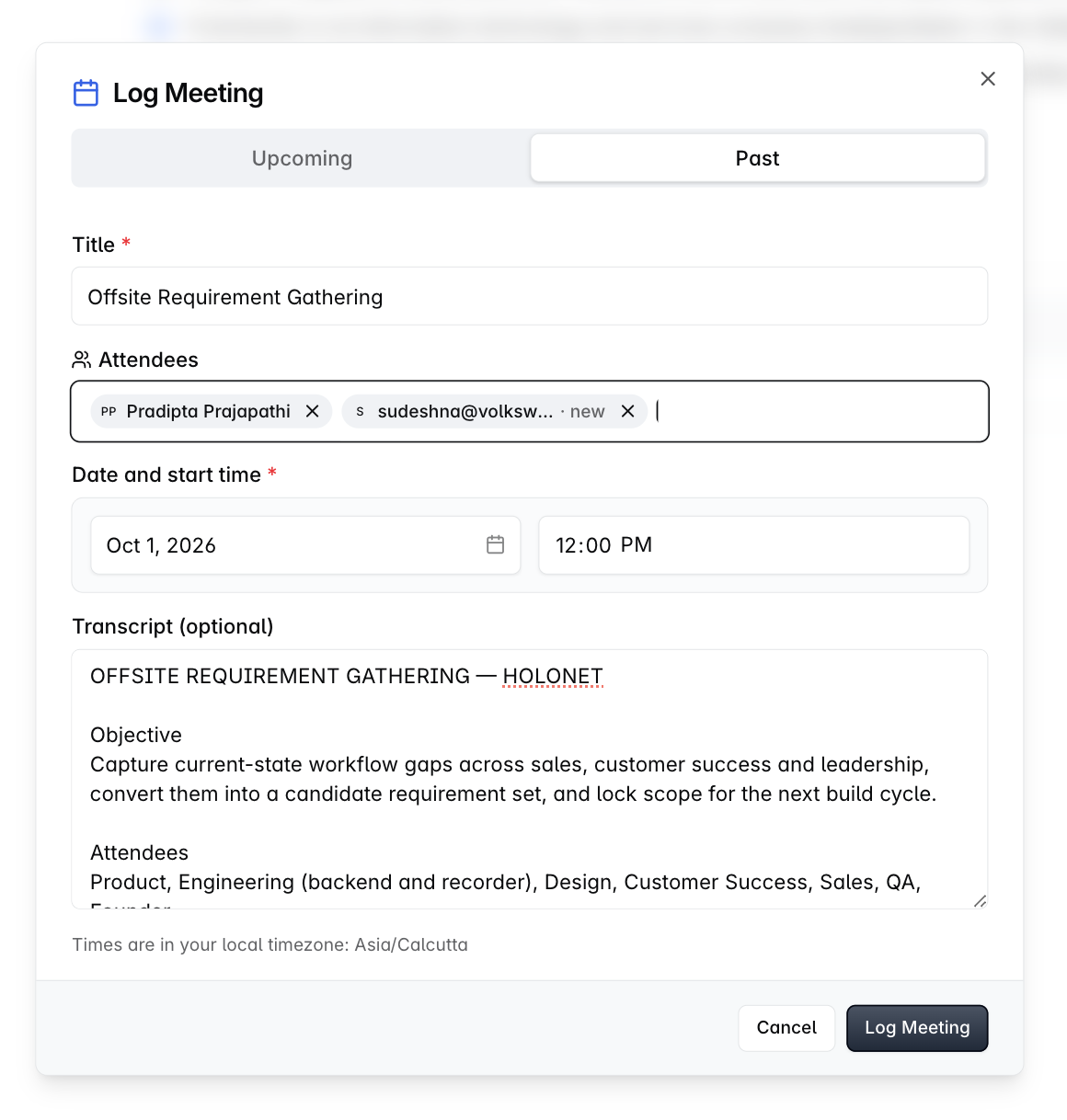
Nothing goes on your calendar and no recorder is involved. This is a record of a conversation that is already over, so there is nothing for a bot to join.
There is a second way in. On the Calendar, clicking a slot that is already in the past opens the same dialog already on Past, because a time that has gone cannot be scheduled.
What you get back
The machinery that runs on a recorded call runs on this one.
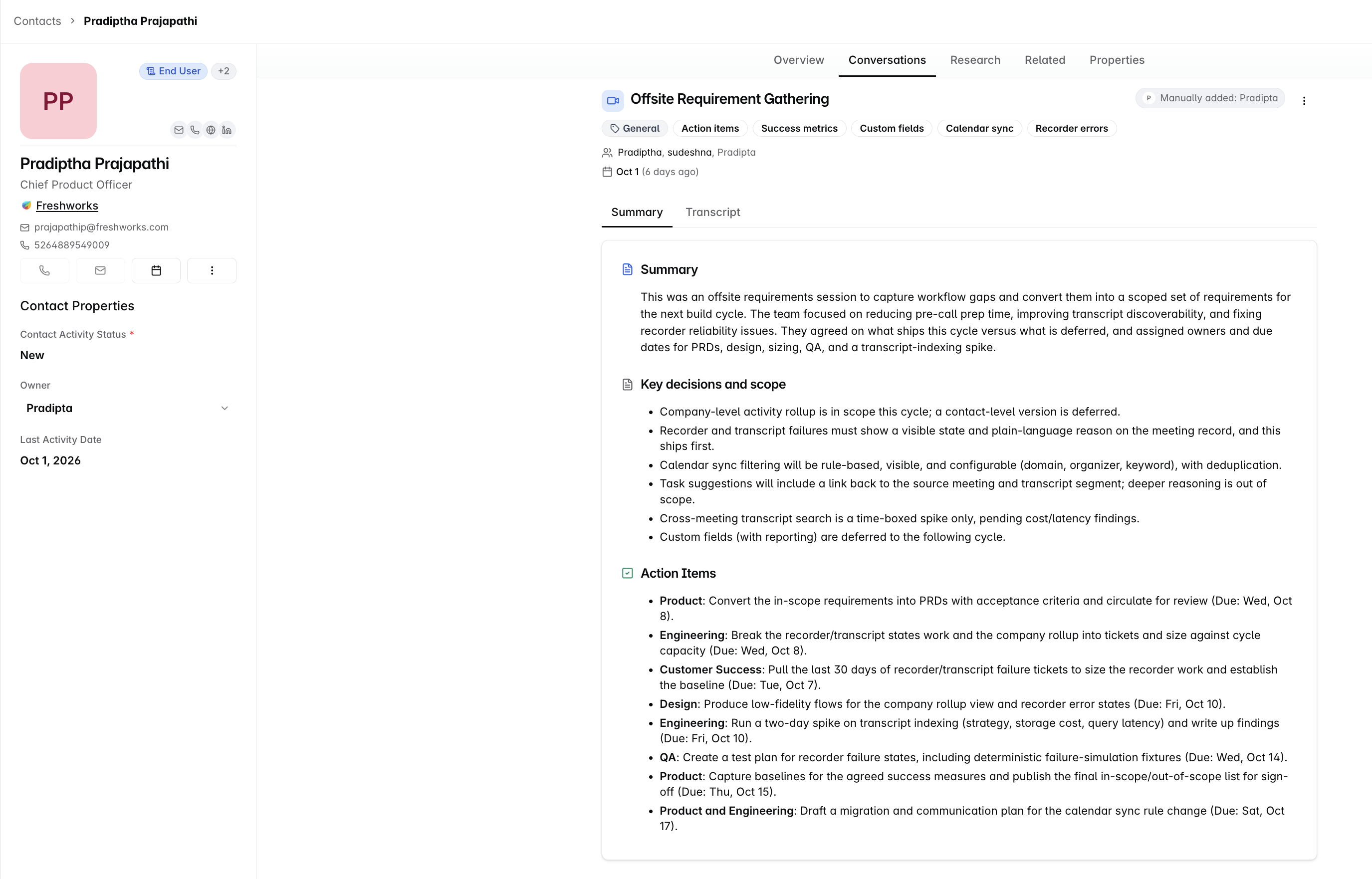
It appears on the contact's Conversations tab straight away, carrying a Manually added badge with the name of whoever logged it. A hand-entered meeting is never passed off as a recorded one.
The contact's Last Activity Date moves to that meeting's date. Logging a meeting counts as activity.
What you typed becomes the meeting's Transcript, word for word.
A Summary is written from it, sectioned the way a recorded call's is, along with the call's topic tags and a rewritten Executive Summary on the contact.
Sally queues the follow-up she would have queued after a recorded call, drawn from the next steps in what you wrote.
Ask Dreamteam can answer questions about it, exactly as it does for a recorded call.
The only real difference is where the words came from. A recorded meeting gets its transcript from the bot; this one gets it from you. Which is why a few honest lines beat an empty box, because everything above is written from what you typed.
Opening it afterwards
Click the meeting on the contact's Conversations tab and it opens like any other, with two differences you will notice.
The Manually added badge, with the name of whoever logged it, stays on the meeting itself and not only on the list. Anyone reading it later can see where the words came from.
There is nothing to play. No bot was on the call, so there is no recording and no audio.
Two tabs sit underneath:
Summary is written from what you typed, broken into sections, with the call's topic tags along the top.
Transcript is exactly what you typed, word for word.
Changing one you logged
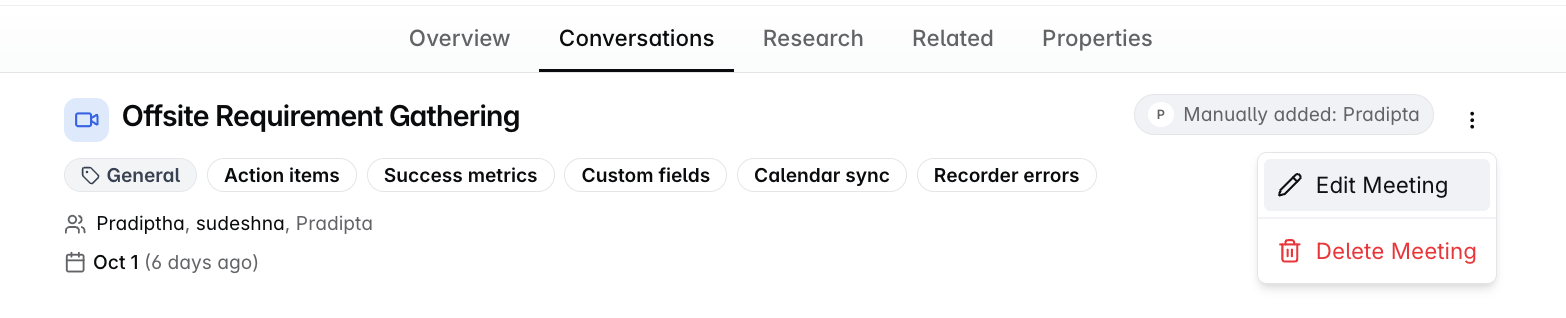
You wrote it, so you can change it. The three dots in the top right of the meeting offer Edit Meeting and Delete Meeting.
Edit Meeting opens the same box you logged it in, this time headed Edit Meeting, with the same Title, Attendees, Date and start time and Transcript. Change what you need and click Save Changes.
If the write-up is the only thing you want to change, the Transcript tab has an Edit write-up button that takes you straight to it.
Either way, saving re-runs the write-up through the same machinery, so the summary, the topic tags and the follow-up are rebuilt from what you now say happened. That is also how a meeting you logged in a hurry with the box left empty gets all of it later: go back and write it up.
Delete Meeting asks you to confirm first, and tells you plainly that the action cannot be undone. The meeting and everything written from it are permanently removed, so it is for a duplicate or a mistake rather than for tidying up.
Adding someone who is not in the CRM yet
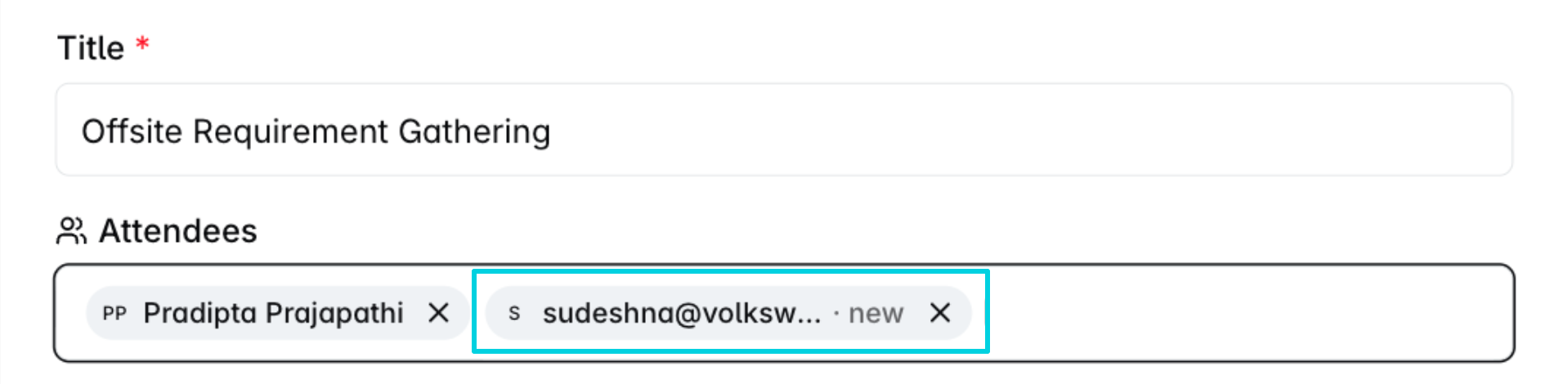
Type their email address into Attendees even if they have never been in Dreamteam. The address is tagged new as soon as you add it, so you can see before you save that a contact is about to be created. It is created when you log the meeting, so you do not have to go and add them first. Addresses belonging to your own teammates are matched to their user account instead.
If Dreamteam asks whether it is a duplicate
If a meeting already exists with the same title and at least one attendee in common, Dreamteam stops and asks:
A meeting with the same title and an attendee already exists. Log it anyway?
Both of those have to be true, so a title you reuse every week is only queried when the same person is on it. If this really is a separate conversation, confirm and it logs.
Common questions
Will a recorder join a meeting I log?
No. Logging is for a conversation that is already over, so there is nothing to join. Nothing is written to your calendar either.
The recorder is for meetings that have not happened yet, scheduled from the Upcoming tab with a meeting link on them.
Do I have to write a transcript?
No, it is genuinely optional and the meeting logs without one.
But the summary, the topic tags and the refreshed executive summary are all written from that text, so an empty box gives you a meeting on the record with none of them. A few lines on what was said and what happens next is enough to get all of it.
The person I met is not in Dreamteam. Do I have to add them first?
No. Type their email address into Attendees and the contact is created when you log the meeting.
How is this different from writing a note?
A note is a comment you leave on a record. A logged meeting is a meeting: it carries a date and a start time, it lists who was there, it gets a summary and topic tags, it moves the contact's Last Activity Date, and Sally follows it up.
Use a note for an update with no conversation behind it. Use this for a conversation.
Can I correct the write-up afterwards?
Yes. Open the meeting and either click Edit write-up on its Transcript tab, or choose Edit Meeting from the three dots in the top right if you also want to change the title, the attendees or the date.
Saving re-runs it, so the summary, the topic tags and the follow-up are rebuilt from what you now say happened. A meeting you logged in a hurry with the box left empty gets the whole lot on that first edit.
I logged the same meeting twice. How do I remove one?
Open the one you want gone, click the three dots in its top right and choose Delete Meeting. You are asked to confirm before anything happens.
The meeting and the summary written from it are then permanently removed, and there is no undo, so check you have the duplicate open rather than the original.
I logged a meeting but nobody can see a recording.
That is expected. A logged meeting has no recording and no audio, because no bot was on the call. What it has is the write-up you typed, and the summary written from it.
If you need help, reach out to us at gethelp@dreamteam.co.