Capturing leads from your website forms
Last updated: October 13, 2026
Capturing leads from your website forms
Your website has a "Talk to us" form. Somebody fills it in on a Sunday afternoon. Right now that turns into an email in somebody's inbox, and whether it ever becomes a contact in your CRM depends on whether that person remembers to put it there on Monday.
A lead capture channel takes that step out. Your form sends each submission straight into Dreamteam, and the contact is waiting for your team when they log in.
You set up one channel for each form you want to collect from. There is no limit on how many you have.
What you need before you start
A form that can send its submissions to a web address. Most form builders call this a webhook. Typeform, Webflow, Jotform, Google Forms with an add-on, and a form built into your own website can all do it.
A test submission you can send. You fill in your own form once, as though you were a real visitor. Dreamteam has to see one before it can set anything up. We explain why below.
A form that sends its answers in a format called JSON. Nearly every form tool already does, and you will not have to change anything. If yours does not, the submission still reaches Dreamteam, but it cannot pull the individual answers out of it - and it will say so rather than leaving you guessing.
Setting it up
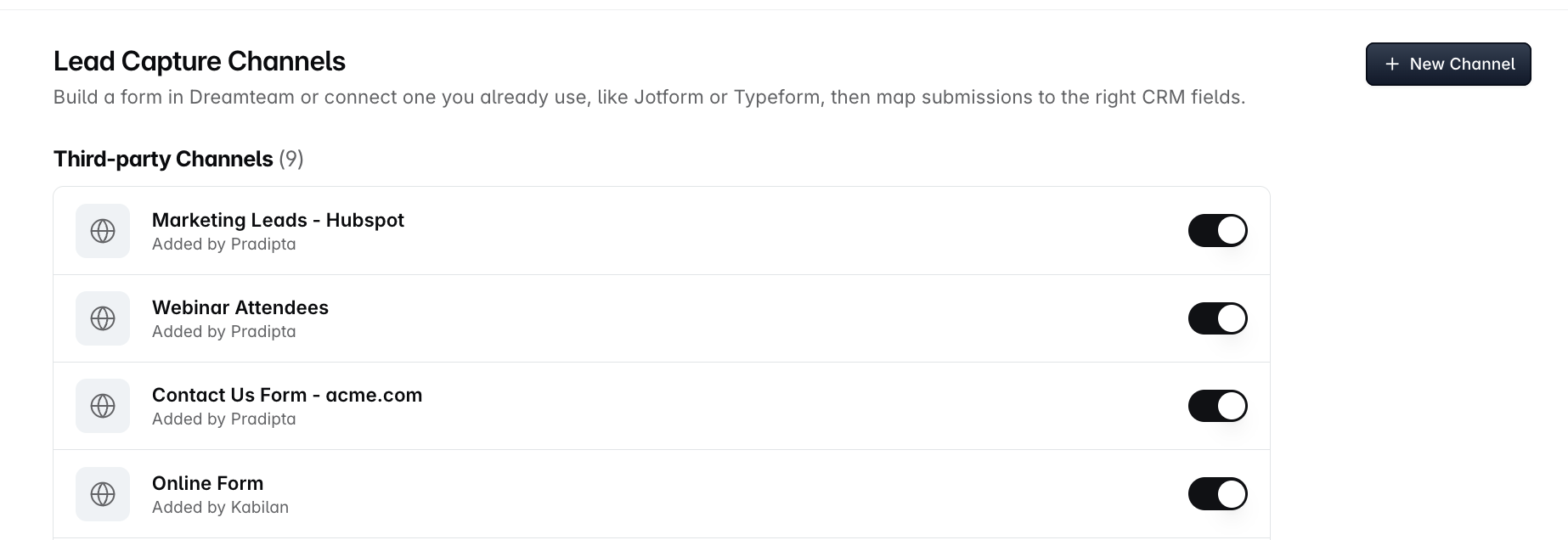
In Dreamteam, go to Settings, then Integrations & Data Sources, then Lead Capture Channels. That is the same menu that holds Integrations and Import.
Then five steps, in this order.
Create the channel. Give it a name you will recognise later, such as the name of the form itself. Choose what each submission should create, which is usually a contact. Then choose an owner: the person the leads from this form belong to.
Copy the web address Dreamteam gives you. Paste it into your form tool, wherever it asks where submissions should be sent.
Fill in your own form once and send it. Use realistic answers. This is your test submission.
Look at what Dreamteam suggests. It reads that submission, lists every field your form sent, and suggests where each one should go in Dreamteam.
Correct anything that is wrong, then save.
Why you have to send a test submission first
Every form is different. Yours might ask for "Company", while someone else's asks "Where do you work?". Dreamteam has no way of knowing what your form asks until it sees a real submission.
So rather than make you describe your form field by field, it waits for one and reads the answers out of it. That is also why a channel you have just created, and never sent anything to, has nothing to set up yet.
Fill the whole form in when you test it. Dreamteam builds the mapping from that one submission, so a question you leave blank may not reach it at all and never gets a row to map. Answer every question, including the optional ones, and you get the complete list in one pass. If you do miss one, send another full test submission and the field list updates.
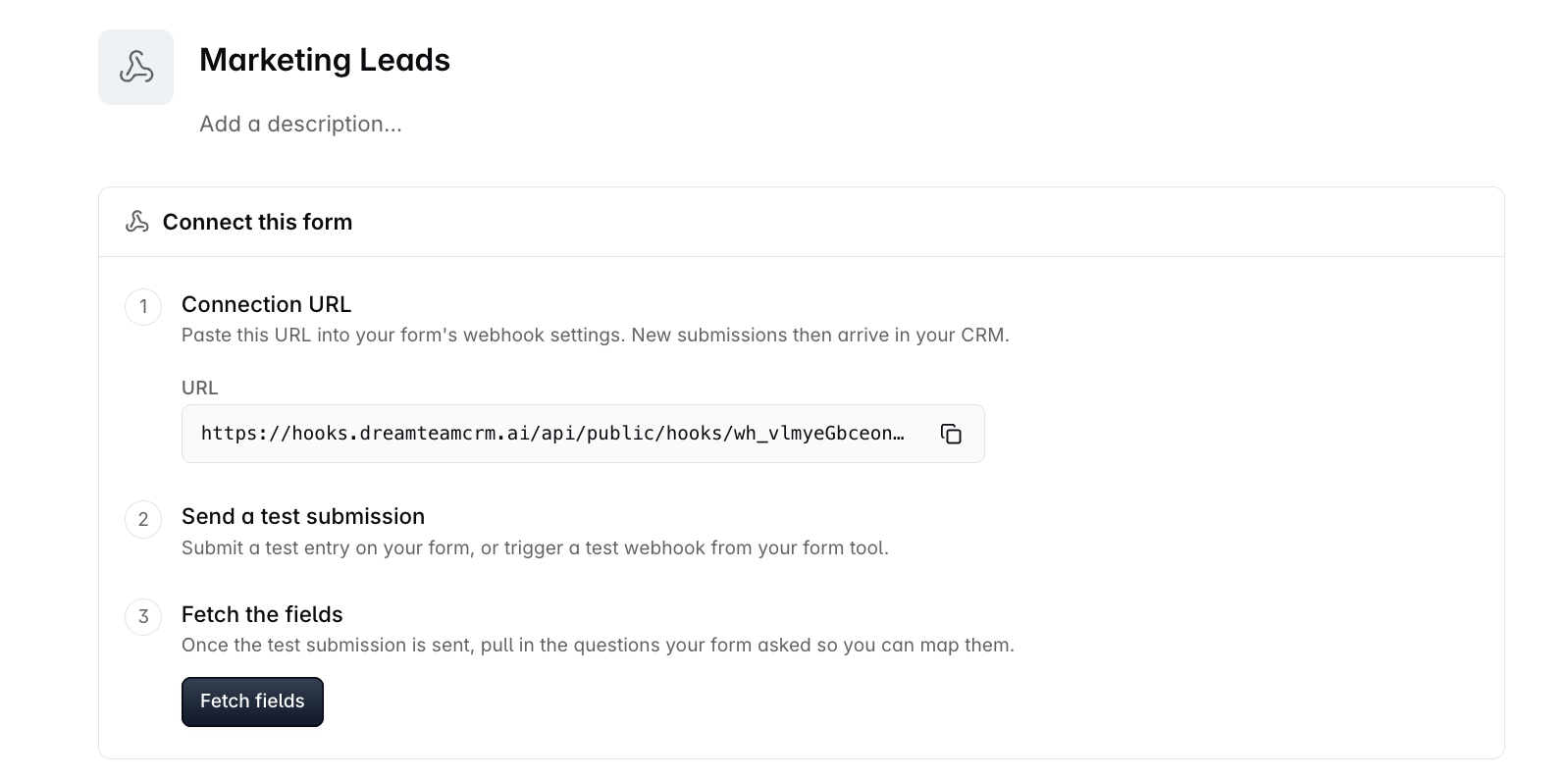
There is a useful side effect. Because Dreamteam has a real submission, it shows you the actual answer underneath each field name. If a field name is not obvious on its own, the answer sitting under it tells you what that field really is.
The mapping screen
This is where you tell Dreamteam where each answer should be saved.
There is one row for every field your form sent, and every row says the same thing: take this answer from my form, and put it in this field in Dreamteam.
The left side is your form. The right side is Dreamteam.
Form field - what your form called it, with the answer that came through printed underneath. For example
Email, and below itkenadams@acme.com. Seeing the real answer means you do not have to go back to your form to work out which field is which.CRM field - where that answer will be saved in Dreamteam. It is a dropdown, so if the suggestion is wrong, pick the right one.
Beside each field on the right you will see either (Contact) or (Company). That tells you which record the answer is saved on.
A lead capture saves a person, and it also records the company that person works for. Most rows therefore say (Contact), because most of what a form asks is about the person. A row saying (Company) is filling in something about their employer instead, such as the company name.
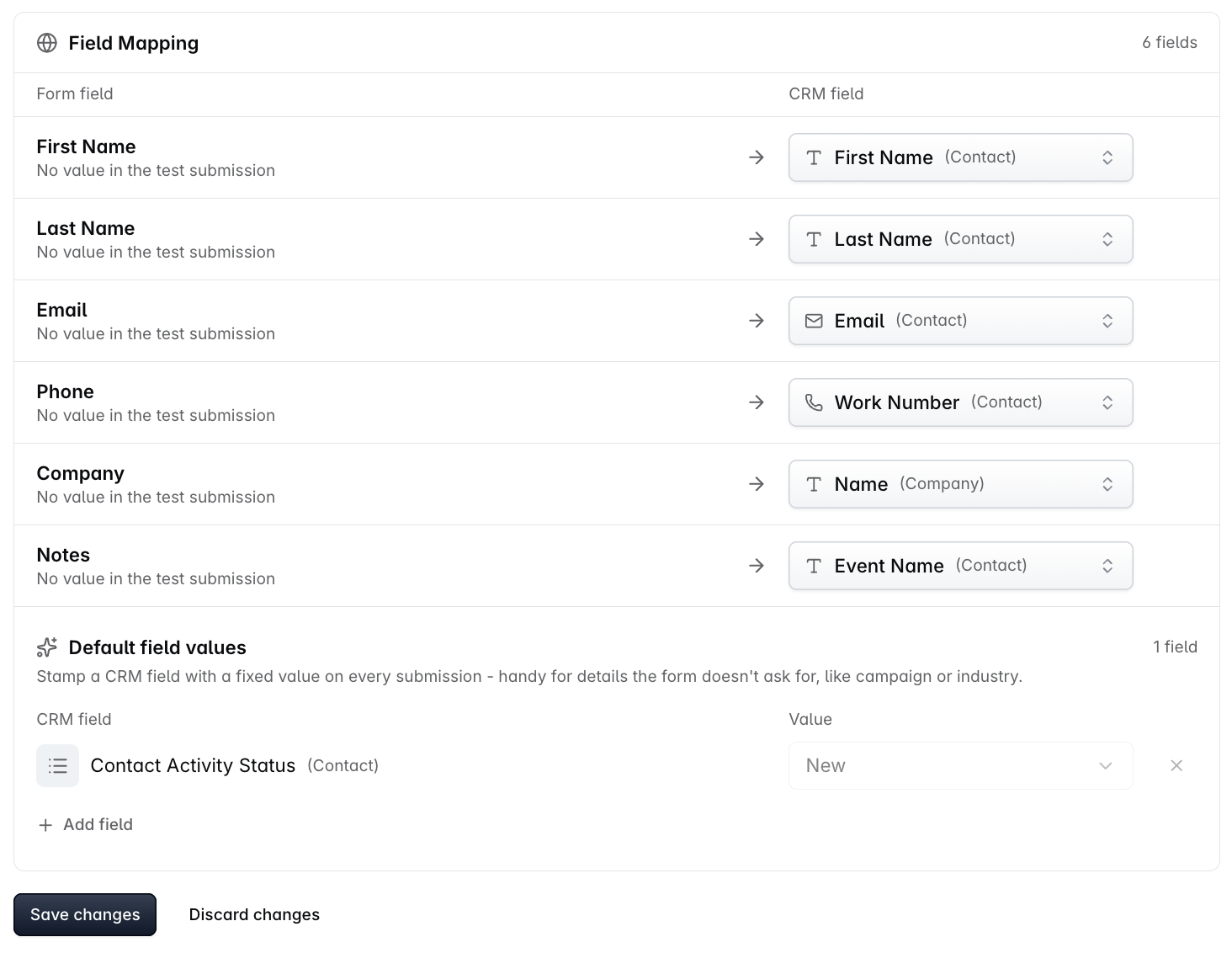
Save changes and Discard changes are at the bottom of the screen. Nothing is saved until you press Save changes.
A few things worth knowing
The suggestions are only suggestions. Change any of them, or clear one so that answer is not saved anywhere.
The dropdown does not list every field in Dreamteam. It leaves out fields you would not be allowed to edit by hand anyway, and fields Dreamteam fills in itself.
Dreamteam checks your mapping when you press Save, not later. If two answers point at the same field, or an answer points somewhere it cannot go, or something required has been left empty, it refuses to save and tells you which one. That is on purpose. If it waited until real leads started arriving, each one would simply be turned away, and you would only notice days later when the list was empty.
Adding the same value to every lead
Underneath the mapping you will find Default field values, with an Add field button.
This fills in something your form never asks about. Say every lead from this form came from the same trade show: add the field, type the value once, and every contact this channel creates will carry it.
Two things you cannot do here.
You cannot set the Source. Source is the field recording where a contact came from, and Dreamteam fills it in itself: anything arriving through a channel is always set to Website Form.
You cannot pick a field one of your answers already fills. The fixed value and the answer would only overwrite each other.
The company behind the lead
When a channel saves a contact, it fills in the company that person works for as well.
A company in Dreamteam is identified by its domain - the part of a web address or an email address that identifies the business, like acme.com.
Dreamteam tries these three in order, and stops as soon as one works.
What it looks at | What happens |
|---|---|
A website or domain your form collected | It uses the company with that domain, or creates a new one |
The domain of the person's email address | Used when it is a work address rather than a personal one such as gmail.com |
A company name your form collected | Only used when exactly one company in your CRM has that name. If two do, Dreamteam cannot tell which you meant, so it leaves it alone |
Three rules worth knowing.
A new company can only be created from a domain. If your form collects a company name and nothing else, Dreamteam can match a company you already have, but it cannot create a new one - it has no domain to give it.
Nothing you already have is overwritten. If the company is already in your CRM, everything it already says stays exactly as it is, and the form only fills in the blanks. A form saying a company has 50 staff will not change a record that already says 200.
If the company cannot be worked out, you still get the person. The contact is saved either way. It just will not be linked to a company.
An example. Ken Adams fills in your webinar form with kenadams@acme.com and the company name "Acme". Your form does not ask for a website, so Dreamteam takes acme.com from his work email address, finds the Acme record already in your CRM, and links Ken to it. Everything Acme already says stays as it was.
When your form changes
If you add or rename a field on your form, the channel does not notice on its own. It is still using the mapping it learned from your first test submission.
Open the channel and press Re-map this form. The next submission that arrives is held for you to look at, instead of being turned into a contact against the old mapping. Send one through, check what Dreamteam now suggests, and save.
Changed your mind? Cancel the re-map and the channel goes straight back to work with the mapping it already had. You lose nothing.
Turning a channel off
A channel is either Active or Disabled.
Disabling one stops it from accepting submissions but keeps the mapping you built. So a form you only run twice a year can be switched off in between, and switched back on later without being set up again.
What this does not do
Build the form. Dreamteam takes in the submissions. The form itself stays in the tool you made it in.
Read a form that does not send JSON. The submission still arrives, but Dreamteam cannot pull the separate answers out of it.
Common questions
My form tool is asking for a webhook URL. Is that the same thing?
Yes. The web address Dreamteam gives your channel is what goes in that box. Different tools call it a webhook URL, an endpoint, or a POST URL. They all mean the same thing.
I set the channel up, but nothing is appearing in Dreamteam.
First check that you actually saved the mapping. While a mapping is being set up or redone, submissions are held rather than turned into records.
If it is saved and leads are still not appearing, check that your form tool is really sending to the address. Fill in your form once and see whether the field list updates.
Can one channel handle several forms?
No. A channel learns its fields from one form, so a second form asking different things would not match up. Set up a separate channel for each form.
Can I change the mapping later?
Yes. Open the channel and edit it. While you are partway through, submissions are held for you to look at rather than being saved against a mapping you are in the middle of changing.
Why can I not choose the Source on the contacts this creates?
Because Dreamteam fills it in. Contacts arriving this way are always set to Website Form. If you want to tell one campaign from another, use Default field values to fill in a different field instead.
My form does not collect something Dreamteam insists on. What happens?
Dreamteam refuses to save the mapping and tells you which field is missing. You can either add that question to your form, or use Default field values to fill it in with the same value every time.
How is this kept secure? There is no API key or password.
The web address itself is the key. It is generated randomly, it is not something anyone could guess, and it is the only thing that lets a submission in. So treat it like a password: paste it into your form tool and nowhere else. Keep it out of public code repositories, shared documents, and anywhere else people can read.
There is no API key and no sign-in step because nothing here reads anything out of your CRM. The connection only runs one way - your form sends submissions in. That is also why this takes a couple of minutes to set up, where the same thing in most other CRMs does not.
What could somebody do if they got hold of the web address?
They could send submissions to it, which would create records in the same way your own form does - following the mapping you set up, and nothing beyond it.
They could not read anything out of your CRM, reach any other part of it, or change the channel.
Every submission that gets through creates a record, so the records themselves show you what has been arriving.
How can I see how many leads a form has brought in?
Every submission that gets through becomes a record in Dreamteam, so your contact list is itself the record of what has arrived.
A contact that came in this way always has its Source set to Website Form. Filter your contacts on that and you have everything that arrived through a form, from every channel.
To tell one form from another, add a field of your own for the form name - Form name, say - and set it under Default field values on each channel. Every record that channel creates is then stamped with that form's name.
Filtering on Source is Website Form and Form name is Pricing page then gives you the count for that one form. It is also how you work out which form unwanted submissions are coming in through.
Unknown or spam leads are arriving through a channel. What should I do?
Assume the web address has got out, and replace it. Turning the channel off on its own is not enough, because a channel keeps the same address and switching it back on reopens the same hole.
1. Disable the channel. That stops anything further arriving straight away.
2. Create a new channel for the same form. It is given a brand new web address.
3. Paste that new address into your form tool, replacing the old one.
4. Leave the old channel disabled, and delete the records that came in while it was exposed.
Your real submissions then arrive on the new channel, and anything still posting to the old address gets nowhere.
Can I change a channel's web address without setting it up again?
No. The address is fixed for as long as the channel exists. To get a new one, create a new channel and paste its address into your form.
I have lost the web address. Where do I find it again?
Open the channel. The Connection URL is at the top, with a button to copy it. It does not expire, and it is the same address it has always been.