Custom objects - building a new kind of record
Last updated: October 22, 2026
You sell subscriptions, or manage properties, or track shipments. None of those is a deal, a contact or a company. So it sits in a spreadsheet beside the CRM, where nobody can tie it to the account it belongs to, and nobody looking at that account can see it.
A custom object is a new kind of record you build yourself. Once it exists, the thing you track lives in Dreamteam alongside everything else.
Understanding an Object and a Field
Dreamteam starts with three kinds of record, and each kind is called an object: Deals, Contacts and Companies. Every record of a kind carries the same boxes, and each box is a field.
A custom object is a fourth kind of record, with its own fields, that you define. They live in Objects Studio.
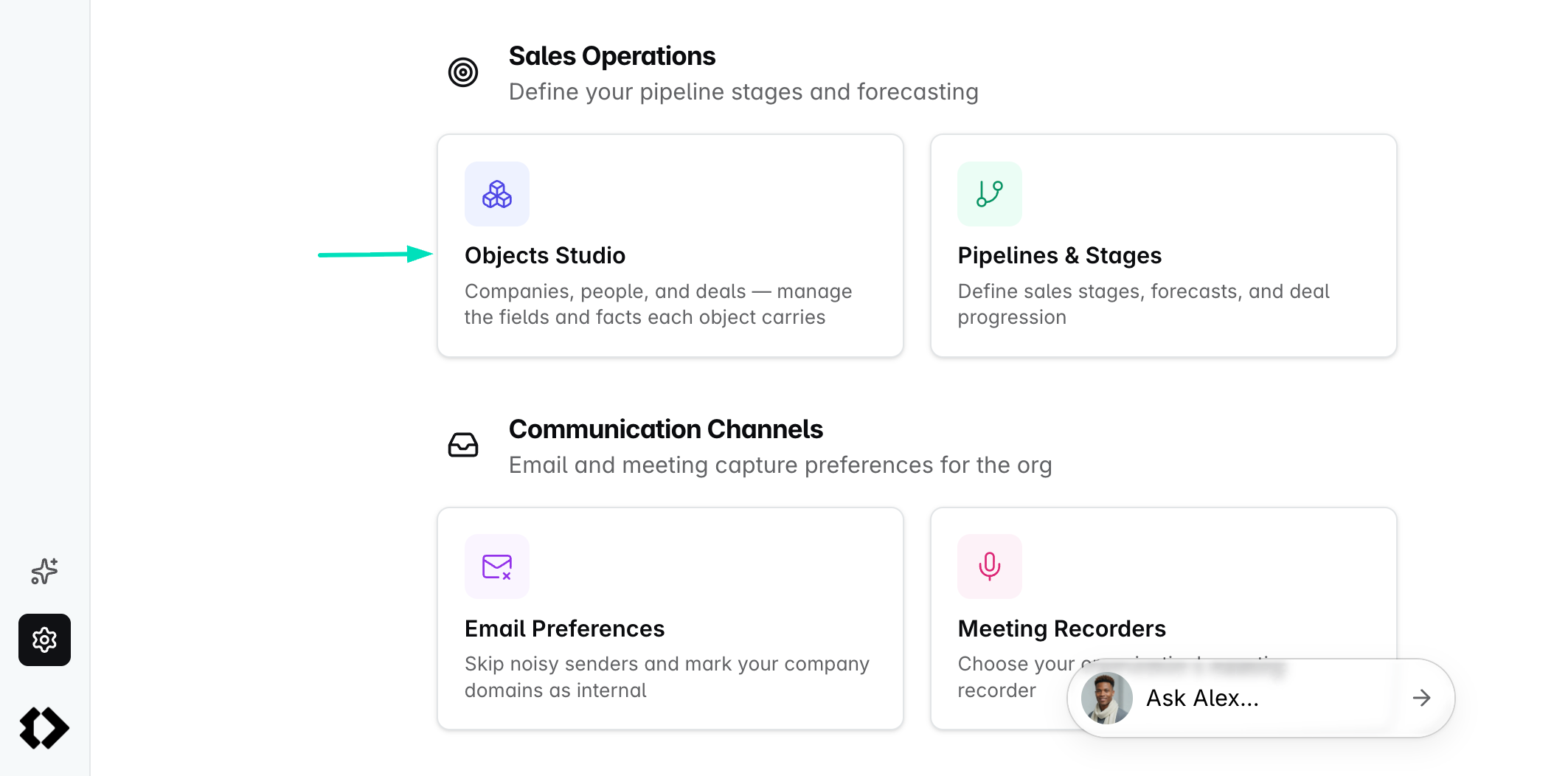
To get there: click Settings, then under Sales Operations, click Objects Studio. Your own objects appear in a Custom group under the three standard ones, and each group is headed with its own count.
Only need an extra box on a deal or a contact? That is a custom field, and it is a smaller job than this one. See Custom fields - tracking your own information on a record.
Building an object of your own
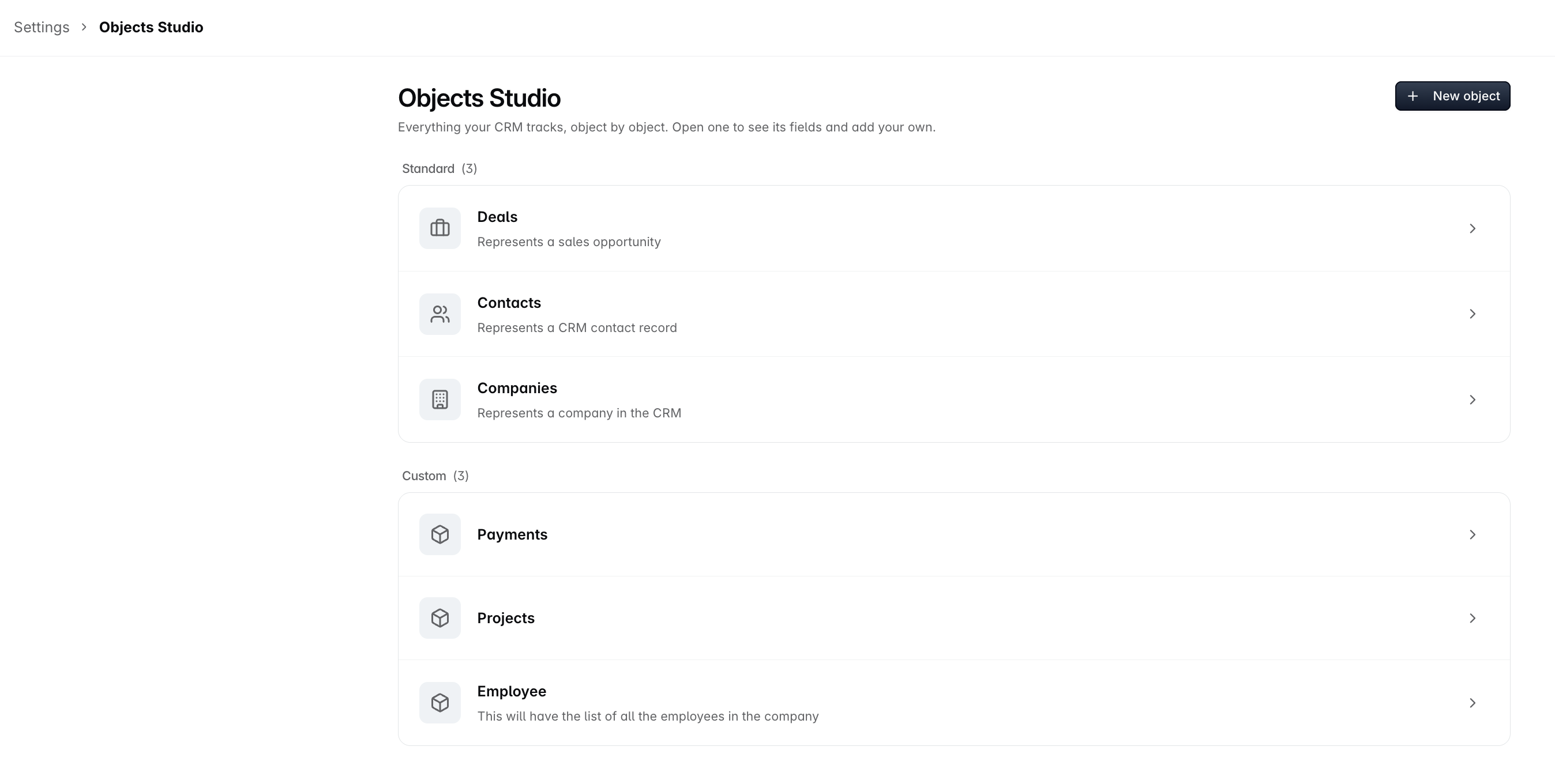
New object is at the top right. You can keep five. At five the button stops working, and deleting one frees a slot.
The sheet asks four things.
It asks | What to put |
|---|---|
Name | What you want to call these, in the plural. Subscriptions, Properties, Shipments |
Description | What this object is for. Optional, but it is what tells everybody else what belongs in here |
Icon | Picked from a grid. It is the mark your object wears everywhere it appears |
Related to | Which of Deal, Contact and Company it attaches to, and how. Add relationship adds a row and the cross removes one. You get one relationship per target, and those three are the only choices here, so three is the most you can add |
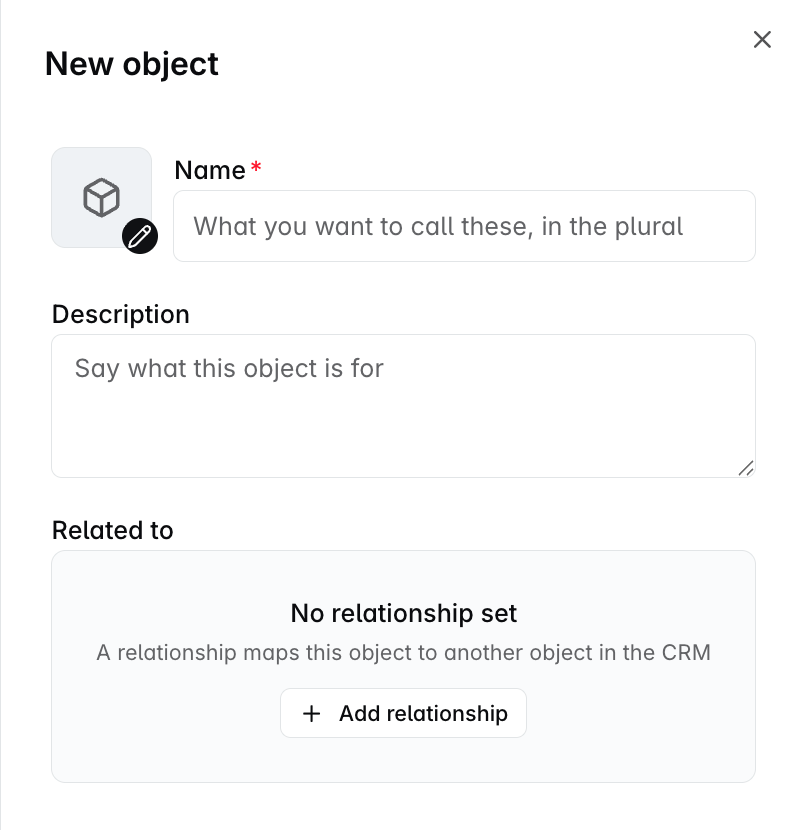
Give it at least one relationship, even though nothing stops you leaving it blank. An object with no relationship has nowhere to appear, so nobody on your team will ever see it.
Dreamteam does hold you to it at the other end: once an object has a relationship, you cannot remove its last remaining one.
The object and its relationships are built in one go. If one of the relationships cannot be made, nothing is created at all, so you are never left with an object half wired up. When it works, the new object opens straight away so you can start adding fields.
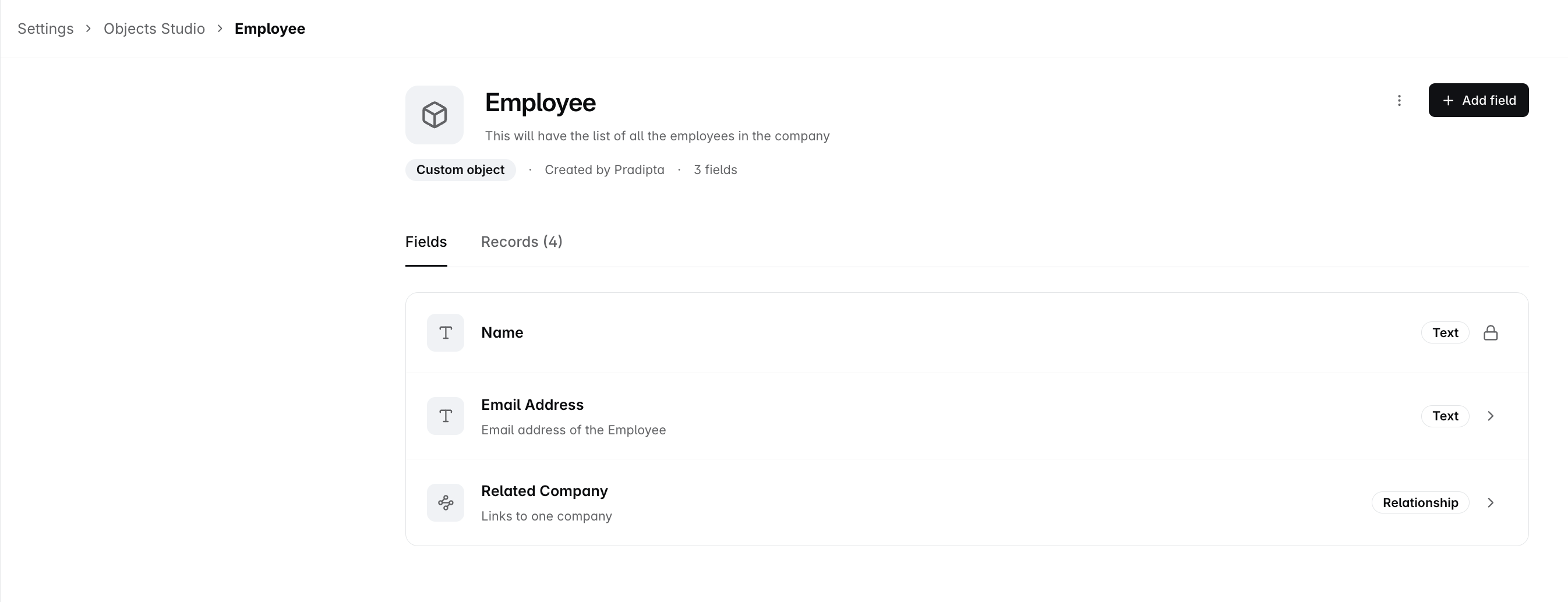
It arrives with one field already on it
An object you built yourself is not entirely yours. It comes with a field called Name, carrying the same padlock as a built-in field on Deals.
It is a text field, every record has to fill it, and it cannot be renamed, retyped or deleted. Everything you add sits underneath it.
No two records of the same object may share a name. Name is unique as well as required, and there is no way to switch that off. Try to save a second Employee called Jordan Blake and it is refused:
"Field 'name' must be unique. Value 'jordan blake' already exists for this employee (conflicting record ID: 10427)."
Three things follow from that.
Capitals are ignored. Jordan Blake and jordan blake count as the same name.
The rule is per object. An Employee and a Payment can both be called the same thing. Two Employees cannot.
You cannot move it to a field of your own. There is no unique setting when you add a custom field, so an Employee ID field cannot take the job instead.
If two real people share a name, put something distinguishing in the Name itself: Jordan Blake (New York), Jordan Blake - EMP-1043. Adding a separate field will not satisfy the rule, because it is the Name that has to differ.
Adding fields of your own
Your object gets the same nine field types and the same allowance of twenty custom fields as Deals, Contacts and Companies. All of that is covered in Custom fields.
The form asks three things on an object you built. The name, the type and a description, and the description is optional. Fields on your own object are kept up to date by your team.
Your twenty are your own. The allowance is per object, so your object's twenty are separate from the twenty on Deals, and from the twenty on every other object you build.
Relationships: joining two objects up
A relationship is the link between your object and the rest of the CRM. It is what puts your records in front of your team, so it is worth getting right.
You set the first ones up when you create the object. To add more later, add a field and choose the Relationship type. The form then asks three things.
It asks | What it means |
|---|---|
Maps to | Which object the link points at. Every other object is offered, the standard ones and your own alike. Only the object you are editing is left out |
Relationship type | One to many, Many to one or Many to many. Hover over one and Dreamteam draws the shape and says it in words, so you do not have to hold it in your head |
Field on the other object | Required. A relationship creates a field on both sides at once, and this is what the far side is called. It is also the heading your team sees, so name it the way they would say it |
The field's own Name is optional. Leave it blank and it takes the name of the object it points at.
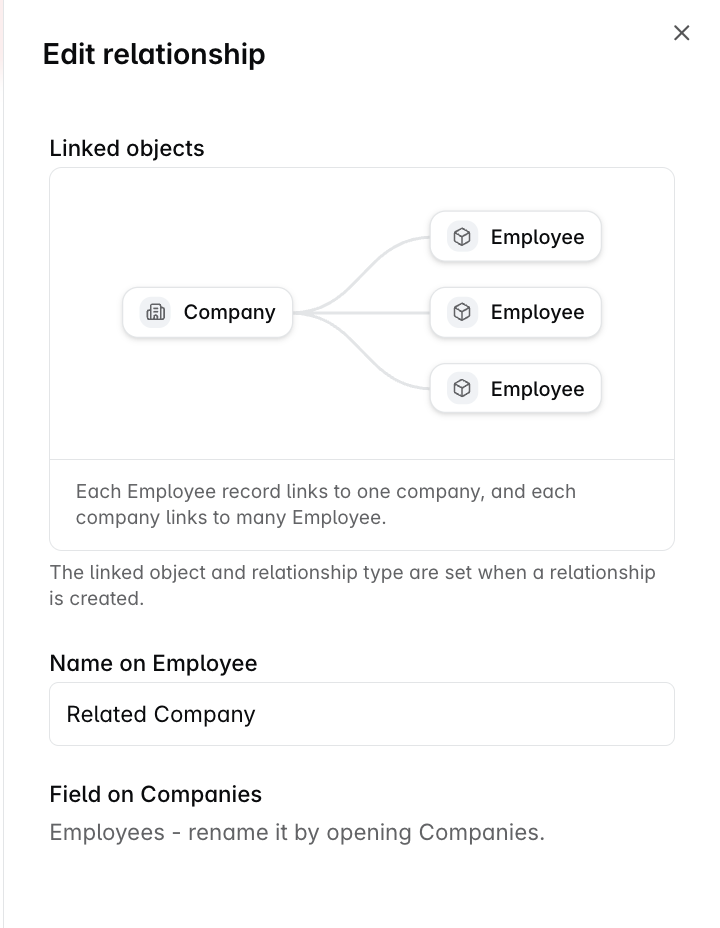
What it links to, and the shape, are fixed once you create it. What you can change is the two names: what the relationship is called here, and how it appears inside the related object, which you rename by opening that object.
Removing a relationship takes it away from both ends, and both objects stop showing that row. No records are deleted by it.
The one you cannot remove is the last one on an object you built. An object created with no relationships at all is fine, and works as you would expect. What Dreamteam stops is taking an object that has one back down to none, because then it has nowhere to appear.
Where your team sees it
Here is one object followed all the way through.
Worked example. You sell annual plans, so you build an object called Subscriptions and relate it to Company. For Field on the other object you type Active plans, because that is what your team calls them.
A rep opens Acme Corp and goes to its Related tab. There is a section headed Active plans with a + Add button on it. They add one, fill the plan in and save. It sits on Acme Corp from then on, for anybody who opens the company.
Nothing on that page says "Subscriptions", because the section carries the name you gave the field.
Two screens show your object, and they are meant for two different people.
The Related tab, where your reps work
Every contact, company and deal already has a Related tab. Until one of your objects points at that record it reads No related records.
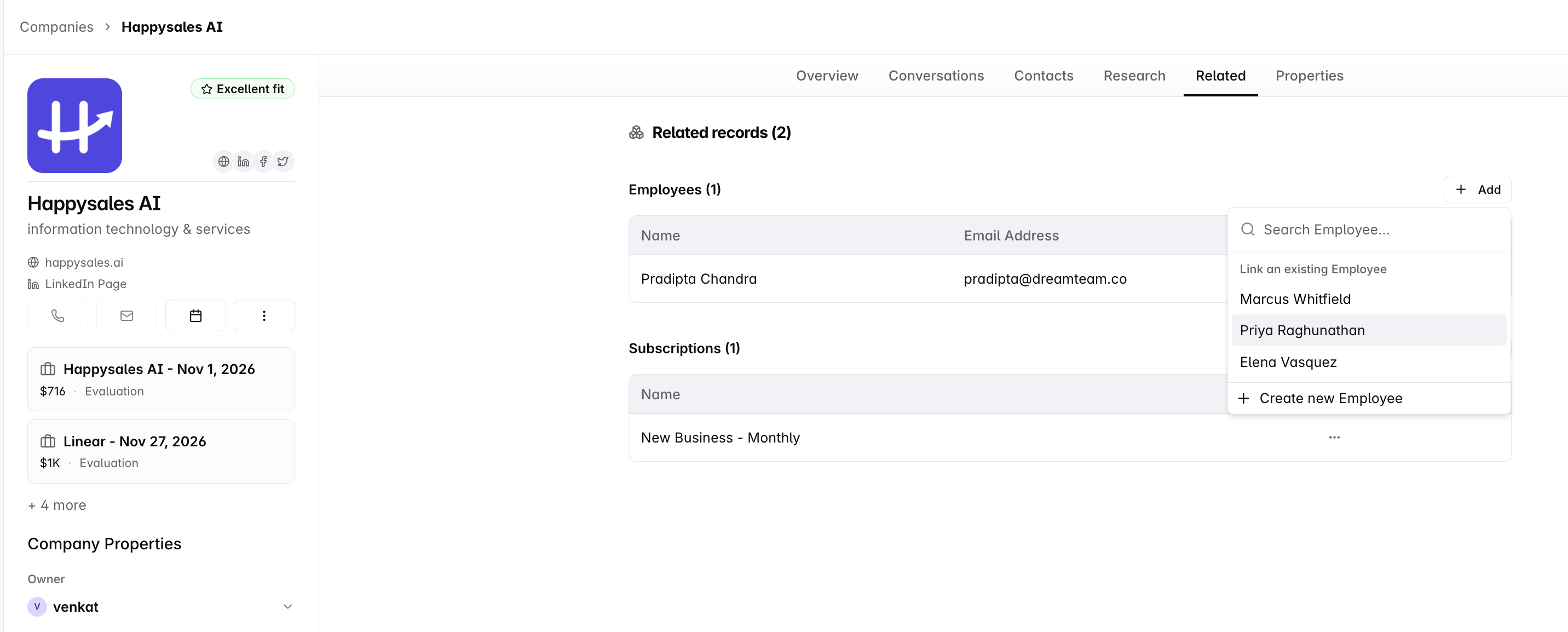
+ Add is how a record gets there. It opens the records you already have, with a search box, under Link an existing Subscription, and Create new Subscription at the bottom. Create new opens a form built out of your object's own fields, so nobody has to leave the account they are working on.
Every row carries a menu.
Open brings the record up in a form you can edit, not a page to read.
Remove from company breaks the link only. The record itself is left alone, and can be linked somewhere else.
Delete removes the record itself.
Two things your reps meet depend on the shape you gave the relationship.
If you said | Then on the Related tab |
|---|---|
A subscription belongs to one company | Linking a subscription that already sits on another company moves it here, and off the one it was on. Nothing is copied |
A company holds one subscription | + Add goes grey once there is one, and hovering it tells you why: This links to one Subscription. Remove the current one to link another. |
The Records tab, where you work
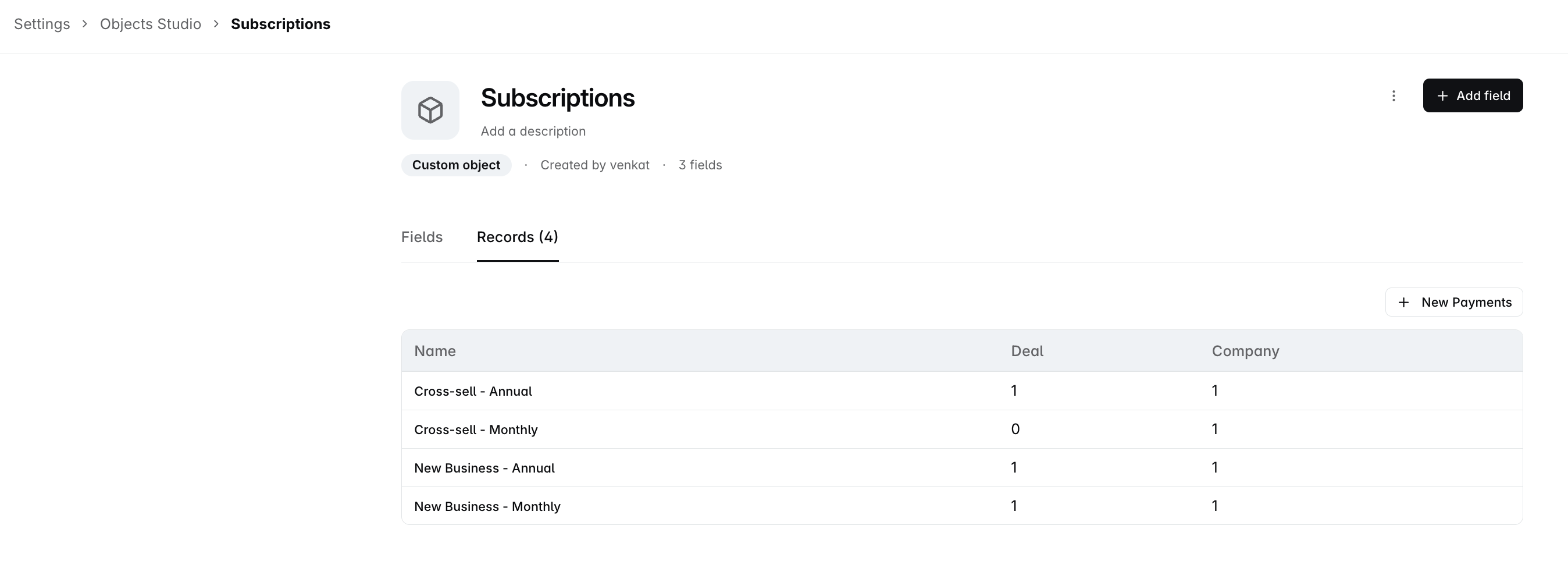
Back in Objects Studio your object gets a Records tab beside Fields, so you can see everything in it in one list. Standard objects show Fields only, because their records already have Deals, Contacts and Companies to live in.
This tab is not read-only. It carries a button named after your object, such as New Subscription, and it opens the same form Create new opens on the Related tab. Two things to expect from it.
The form holds your object's own fields and nothing else. There is no way to attach the record to a company or a deal while you are creating it, so a record made here belongs to nobody until somebody links it from a Related tab.
A related object shows as a count, not a name. A Related Company column reading 1 tells you the record is linked to one company, not which one.
Deleting an object of your own
The three-dot menu on your object's header carries Delete object, and it asks you to confirm in writing before it will do anything, so it cannot happen on a stray click.
What it tells you before you confirm:
The object and every record in it is deleted, along with its fields. There is no way to recover them.
Every relationship to it is removed, so the objects on the other side stop showing that row.
Anything pointing at it, such as a workflow, a filter or a saved view, stops working.
The three standard objects have no such menu. Deals, Contacts and Companies cannot be deleted.
FAQs
How many objects of my own can I build?
Five. At five the New object button stops working, and deleting one frees a slot straight away.
Do I have to relate my object to something?
You should, but nothing forces you. The New object sheet will create one with no relationships at all.
It matters because your object shows up for your team on the Related tab of whatever it is attached to. An object joined to nothing has nowhere to appear, so only an administrator will ever find it, in Objects Studio.
For the same reason, once an object does have a relationship you cannot remove its last one.
Can I relate one of my objects to another one of my objects?
Yes. Add a Relationship field on either of them and the other will be in the Maps to list, alongside Deals, Contacts and Companies. The only object missing from that list is the one you are editing.
Can I point a relationship at a different object later?
No. What a relationship links to, and whether it is one to many, many to one or many to many, are fixed when you create it.
Remove it and create another. Removing a relationship does not delete any records, it only stops the two objects showing each other.
Why does the section on my company say something different from the object name?
Because the heading is the Field on the other object you named when you created the relationship, not the name of the object.
So a company can carry a section headed Subscriptions for an object you called Payments. You can rename it by opening the object the field sits on.
Can I rename the Name field on my object?
No. Every object is given a Name field, every record has to fill it, and it carries the same padlock as a built-in field on Deals, so it cannot be renamed, retyped or deleted.
Do I have to be an administrator to build an object or change one?
Yes. Building an object, adding fields to it, wiring up its relationships and deleting it all happen in Objects Studio, which sits in Settings, and Settings opens for administrators only.
Working with the records afterwards is open to your whole team, from the Related tab on a contact, company or deal.
Can an AI assistant read and update my object's records?
Yes, both. If you have connected an AI assistant such as Claude to Dreamteam over MCP, which is the connection that gives that assistant a live login to your workspace, your own objects behave exactly like Contacts, Companies and Deals. It can list the records, search them, read one, create one, change one and delete one, and it is held to the same permissions you have yourself.
It can also join records up in either direction. Ask it to attach a partner to a deal, or to add the deal to the partner, and the same link is made either way, with both records showing it. Deleting a record clears that link from every deal it was on.
The rules you set on the object still apply. A field you marked unique is still checked, so the assistant is refused exactly as you would be.
For how to set that connection up, see Dreamteam MCP Documentation.
Can I export my object's records to a spreadsheet?
No. The Export button sits on the Contacts, Companies and Deals lists only. Your own objects have no export, on the Related tab or in Objects Studio.
If you need the records outside Dreamteam, an AI assistant connected over MCP can list them and lay them out as a table for you to copy into a spreadsheet.
If you need help, reach out to us at gethelp@dreamteam.co.