Custom fields - tracking your own information on a record
Last updated: October 13, 2026
Custom fields - tracking your own information on a record
The quarter closes and somebody asks why the deals that slipped, slipped.
You know the answers. They were said out loud on the calls and buried halfway down email threads. But nobody ever wrote them anywhere you can count, so finding out means reading back through twenty deals on a Friday afternoon.
A custom field is how you stop that happening again. It is a box you add to your records to hold something Dreamteam does not track on its own, and it can be filled in for you.
You can add one yourself in a few clicks, or ask Alex, your CRM admin assistant, to do it for you: describe what you want to track and Alex hands back a card with the field spelled out, for you to approve before anything is written.
Understanding an Object and a Field
Dreamteam starts with three kinds of record, and each kind is called an object: Deals, Contacts and Companies.
Every record of a kind carries the same set of boxes, and each box is a field. Deal Name, Amount and Expected Close Date are all fields on a deal.
A custom field is a box you add yourself. Custom fields live in a settings screen called Objects Studio.
To get there: click Settings, then under Sales Operations, click Objects Studio.
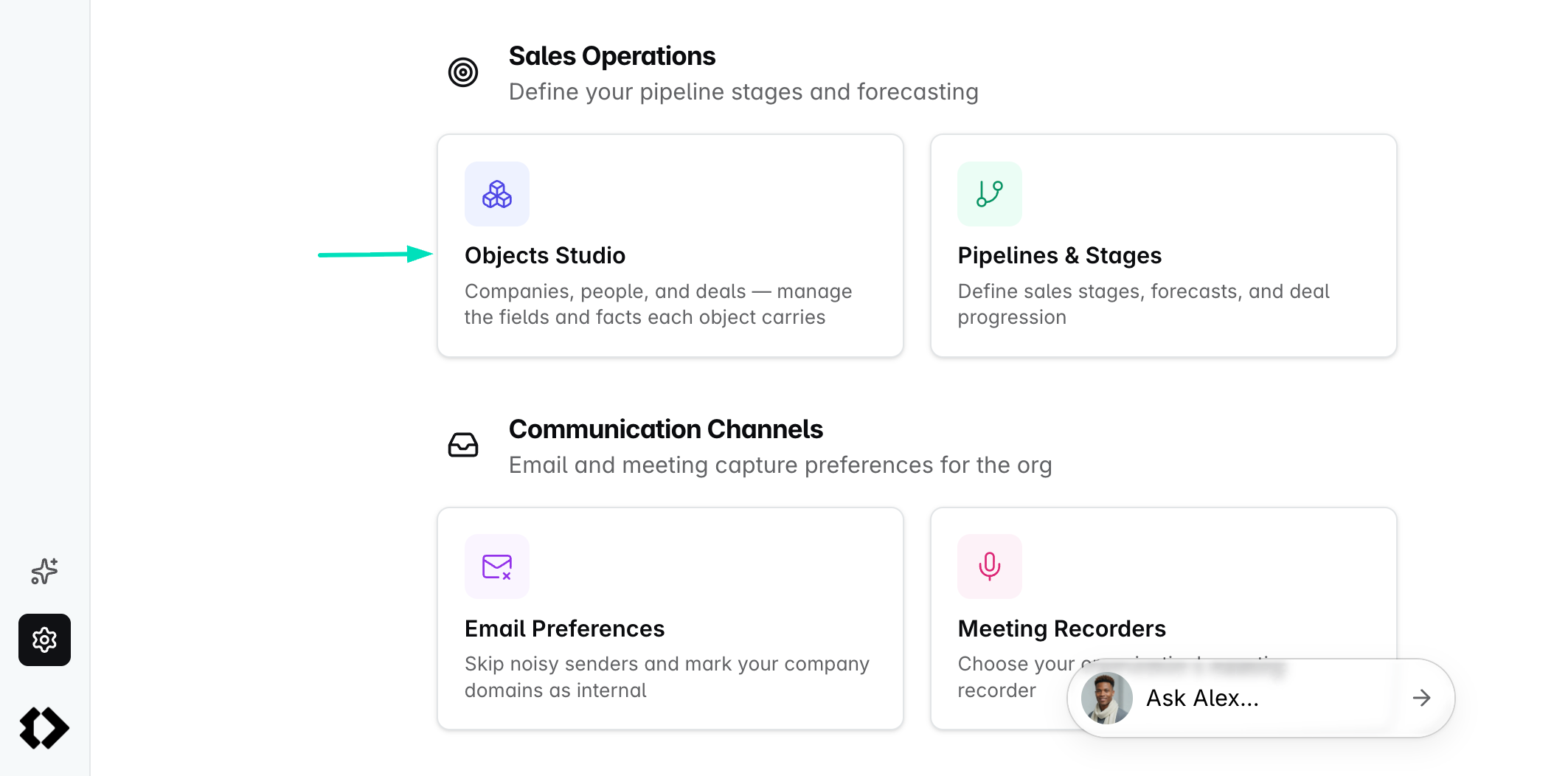
Need a whole new kind of record, not just an extra box? If what you track is not a deal, a contact or a company at all, such as subscriptions, properties or shipments, you can build an object of your own. See Custom objects - building a new kind of record.
What a record already tracks
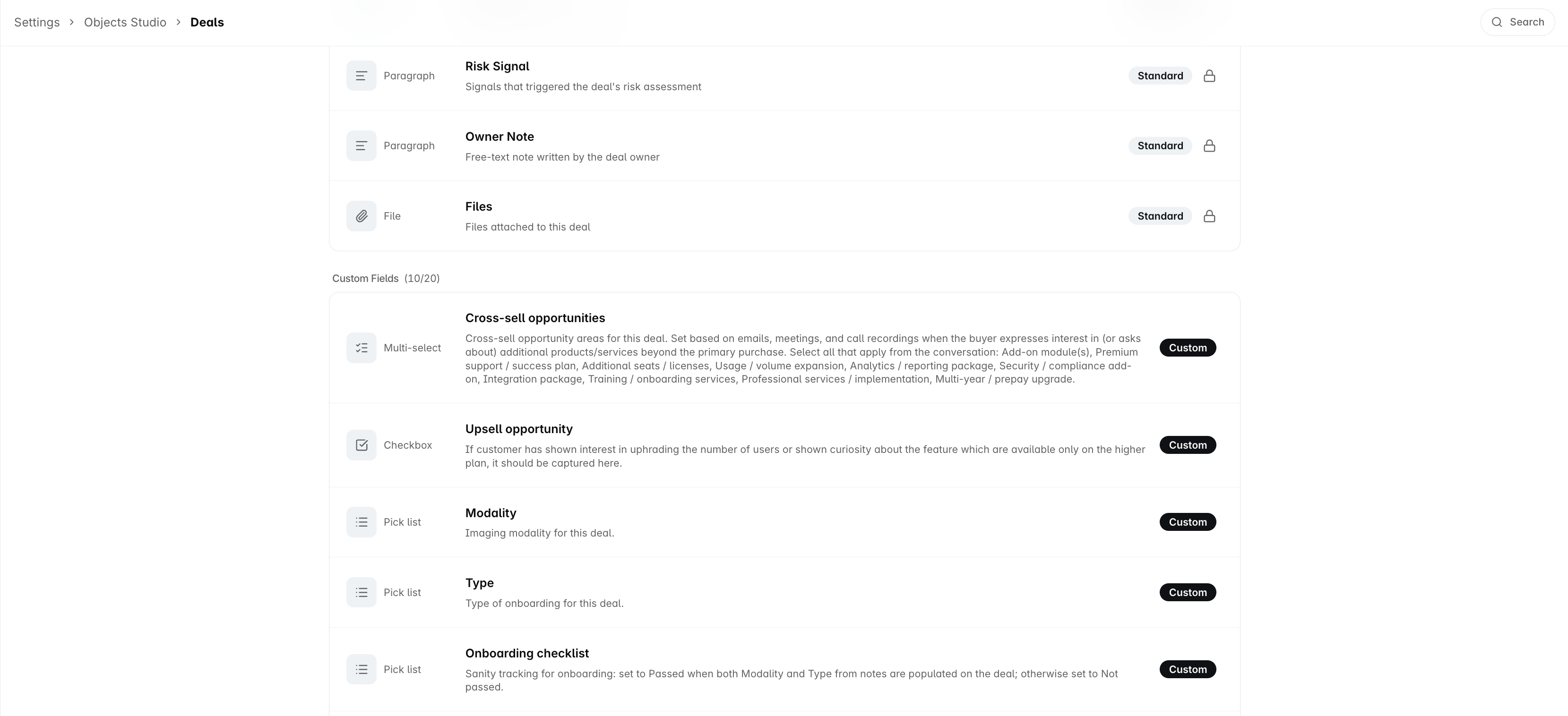
Click an object in the list, say Deals, and you get two lists.
List | What is in it |
|---|---|
Deals Overview | Everything that comes with the product. Each row shows what kind of value the field holds, what it is called, and a line saying what belongs in it |
Custom Fields | Yours. The heading counts what you have used against what you are allowed, as in Custom Fields (0/20) |
The first list is named after the object you opened, so it reads Contacts Overview on Contacts and Companies Overview on Companies.
Every row in the first list carries a padlock. Built-in fields cannot be renamed, retyped or deleted. You can open one to read how it is defined, and that is all.
You get 20 custom fields on every object, not 20 in total. Deals has its own twenty, Contacts has another twenty, and so does each object you build. When one is full the Add field button stops working and tells you to delete one to make room.
Adding a field
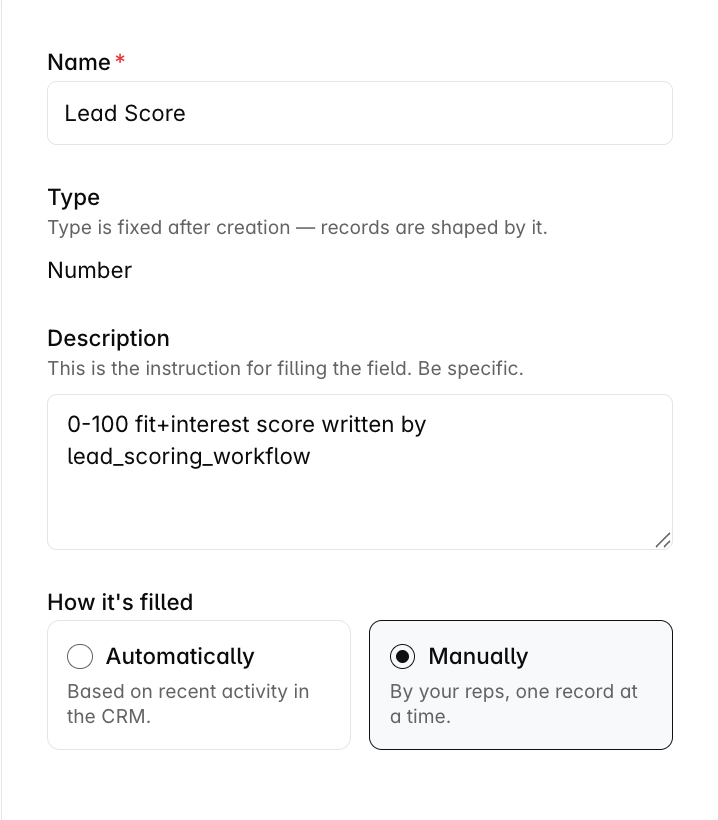
Click Add field, at the top right or in the middle of the empty card. The form asks four things.
That is the form on Deals, Contacts and Companies. On an object you built yourself it asks three things: the name, the type and a description, and the description is optional there. Fields on your own object are kept up to date by your team.
It asks | What to put |
|---|---|
Name | What the field is called on the record. Up to 100 characters, and no two fields on the same object can share a name |
Type | What kind of value it holds. This is the one thing you cannot change later, so take a moment over it |
Description | What belongs in the field. This does more work than it looks like, so there is a section on it below |
How it's filled | Automatically, or Manually by your reps |
The nine types
Type | What it is for |
|---|---|
Text | A single line. Names, titles, short answers |
Paragraph | Wraps and grows. Notes, summaries, context |
Number | Whole numbers. Counts, seats, scores |
Decimal | Numbers with decimal places. Rates, ratios, averages |
Date | A calendar date |
Pick list | One value from a list you write. A Values card appears: Add value adds a row, and the handle on the left of a row drags it up or down, so the order you leave them in is the order everybody sees. Each value can carry its own one-line description saying when that answer applies. Renaming a value later is safe, and every record already marked with it reads the new name |
Multi-select | Several values from a list you write, using the same Values card as a pick list |
Checkbox | Yes or no |
Relationship | A link to another record rather than a value of its own. Covered in Custom objects |
Automatically, or manually?
This is the choice that makes a custom field worth setting up.
Manually: Nothing fills the field. It sits on the record waiting for a person to answer it, like any other box. Right for anything only a human could know.
Automatically: Dreamteam fills it from what is already on the record, and the description you wrote is the instruction it follows. That is why the form will not let you save an automatic field without one.
So write the description the way you would brief a new starter. Not lost reason, but:
From the conversations on the deal, pick the closest reason we lost it, going by what the buyer said rather than what the rep thinks.
It runs when a conversation lands on the record, an email or a meeting, and reads that conversation, a meeting's transcript included, along with the records it is attached to: the contact, the company and the deal, with everything already on them. So an answer can draw on what the CRM already knows about the account, not only the words in the latest email.
Two smaller things worth knowing:
One pass over an email thread or a meeting fills the eligible fields on every contact, company and deal attached to it at once, so you are not waiting on three separate runs.
When the answer does not fit the field, a date it could not make sense of for instance, the value is dropped rather than written. You get an empty field rather than a mess.
Your reps can always overrule it
A field that fills automatically is still an ordinary box on the record. If the rep who was actually on the call knows better, they change it.
From that moment the answer is theirs, and Dreamteam stops writing that field on that record. Not after the next email, not after the next meeting, however strongly the conversation points somewhere else. The person who was in the room wins.
Three things follow from that.
It is one record at a time. The field carries on filling itself on every other deal, wherever nobody has stepped in.
Answers already there are left alone. Switch a field that already holds values over to Automatically and Dreamteam fills only the blanks, leaving every record that already says something exactly as it is. That makes it safe to turn on over data you have been keeping by hand.
Asking Dreamteam to set it counts as you setting it. Changing the value through the chat rather than typing it on the record is still your answer, and it locks the field the same way.
There is no button that hands a field back. Once a person has set the value on a record, clearing it does not reopen it either, because an empty answer is still an answer. If you need Dreamteam filling that record again, the way back is a new field.
Changing or deleting a field
Click any custom field to reopen it. Everything about the field lives on that one card, and so does the delete.
The name, the description, the list of values and the way it is filled can all change whenever you like. The type cannot. It is shown as plain text rather than a dropdown, because your records are already shaped by it. A field that should have been a pick list and was made Text has to be deleted and built again.
Switching a field from Automatically to Manually stops Dreamteam writing it from then on. Switching it back the other way starts it filling again, on the records where nobody has taken it over.
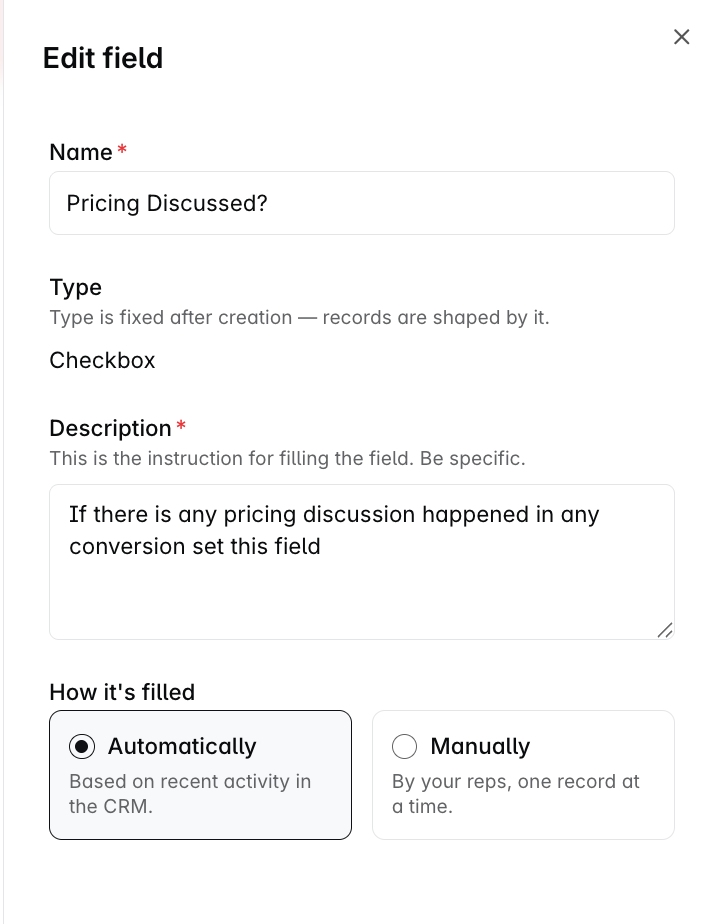
Delete is at the foot of the same card, in red. Before it does anything it tells you three things, and all three are worth reading.
The field, and every value your team has entered in it, is deleted. There is no way to get them back.
The records themselves are kept. They simply stop tracking that thing.
Anything pointing at the field, such as a workflow, a filter or a saved view, stops working.
Then it asks you to confirm in writing before the delete button will do anything.

FAQs
How many custom fields can I have?
Twenty on every object: twenty on Deals, twenty on Contacts, twenty on Companies, and twenty on each object you have built yourself.
Deleting a field frees its slot straight away.
Why can I not change a field type after creating it?
Because your records are already shaped by it. A field created as Text holds text on every record that has touched it, and reading those answers back as a pick list would not work.
The way round it is to create a new field of the right type and delete the old one. If the old field has answers you want to keep, export your records to a spreadsheet first.
I set a field to fill automatically and nothing has happened. Why?
A field fills when an email thread or a meeting lands on the record. Nothing runs on a timer, so a quiet deal will not fill until there is something new to read, and a note or a logged call will not set it off.
Two other things to check. If the record already had a value in that field, Dreamteam leaves it alone on purpose. And if the description is vague, there may be nothing specific enough for it to act on, so rewrite it as an instruction and wait for the next email or meeting.
Can my reps edit a field the AI fills?
Yes, and they should when they know better. It is an ordinary box on the record.
Once somebody changes it, that answer is theirs and Dreamteam stops writing that field on that record. It carries on filling the same field on everybody else.
Can I see which values the AI filled and which a person typed?
Not today. The record shows you the value, and not where it came from.
Why can I not filter on my Paragraph field?
Paragraph is the one type you cannot filter on. It is built for long free text that people read rather than sort by.
If you want to segment your list by the answer, use a Pick list or a Multi-select, so there is a fixed set of values to filter against.
Somebody deleted a custom field. Can we get the data back?
No. The field and every value entered in it are gone for everybody in the workspace, and there is no undo. That is what the typed confirmation is guarding against.
The records themselves are untouched. Only that one field and its answers are removed.
Do I have to be an administrator to change an existing field?
Yes. Adding a field, editing one and deleting one all happen in Objects Studio, which sits in Settings, and Settings opens for administrators only.
Filling a custom field in is open to your whole team, wherever the field appears on the record.
If you need help, reach out to us at gethelp@dreamteam.co.