Capturing inbound leads from HubSpot
Last updated: October 30, 2026
Somebody fills in your HubSpot form at half past ten on a Friday night. HubSpot records it. Your CRM hears nothing until someone carries it across on Monday, by which point the lead has spent a weekend going cold.
Ten minutes of setup, once, and every submission arrives in Dreamteam on its own.
Three steps:
Create a lead capture channel in Dreamteam, which gives you a web address.
Point a HubSpot workflow at that address.
Send one test submission, so Dreamteam can learn your form.
Step 1: Create the channel in Dreamteam
A lead capture channel is a door into your CRM. It has its own web address, and whatever is posted there becomes a record.
In Dreamteam, go to Settings.
Under Integrations & Data Sources, click Lead Capture Channels.
Add a channel, and name it after the HubSpot form so you recognise it later.
Choose what each submission should create. For a lead form, that is a contact.
Choose an owner. Leads from this form will belong to that person.
Copy the web address Dreamteam gives the channel.
The address looks like this:
https://hooks.dreamteamcrm.ai/api/public/hooks/wh_6734tg32brn9h823c97tx89u3x3Copy it exactly as it appears. You never need to build or change any part of it.
One channel is one form. The address belongs to the channel rather than to your workspace, so a second HubSpot form means a second channel. There is no limit on how many you keep.
Treat the address like a password. It belongs in HubSpot and nowhere else, because anyone holding it can post submissions into your CRM.
Step 2: Point a HubSpot workflow at it
Nothing to install. There is no HubSpot app to hunt for in Dreamteam's settings, because HubSpot already knows how to post a form submission to a web address.
In HubSpot, go to Automation > Workflows.
Create a new workflow, or open an existing one.
Set the trigger to Form submission, and choose your form.
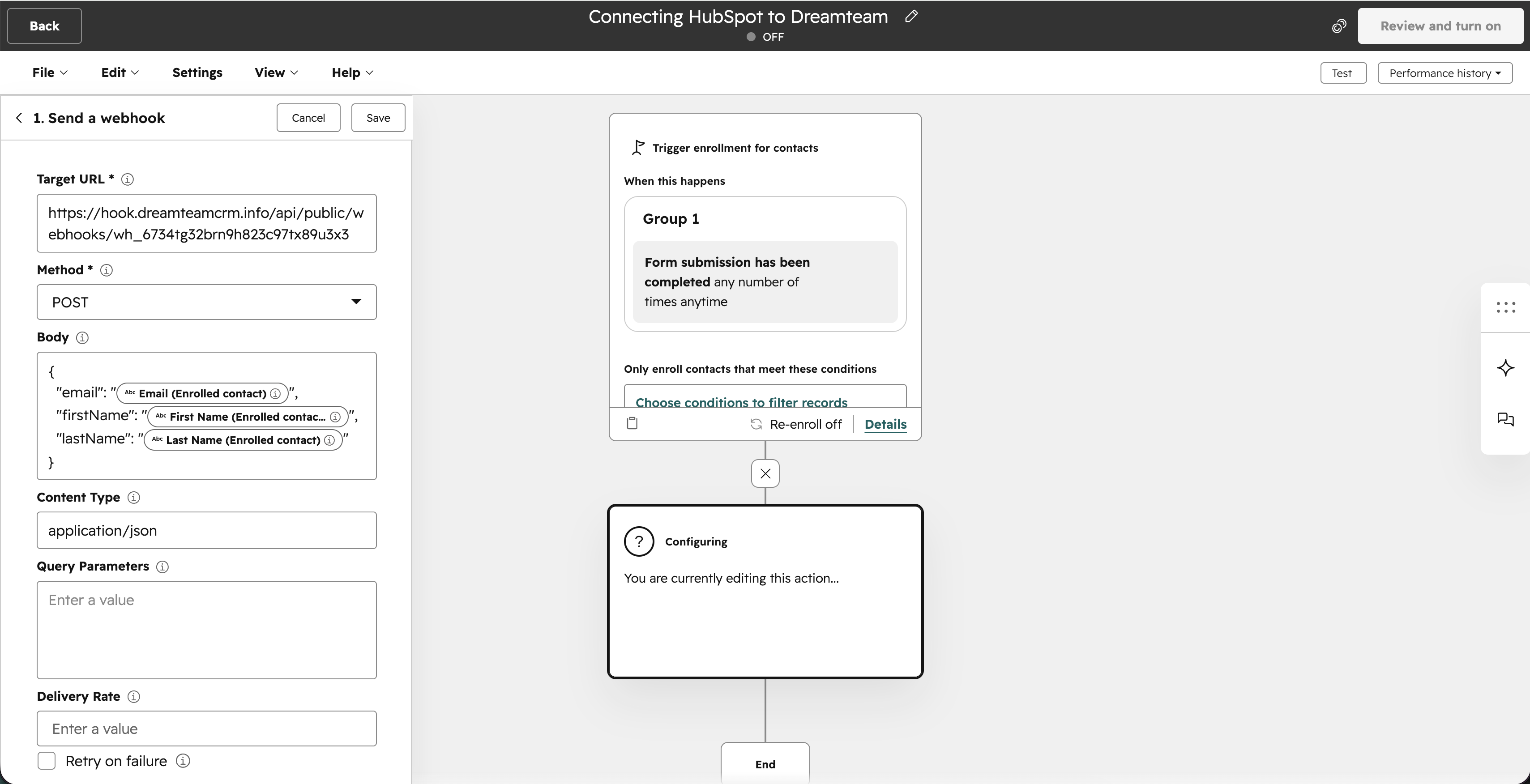
Add the action Send a webhook.
Set Method to
POST.Paste your Dreamteam address into Webhook URL. HubSpot prints
https://to the left of the box, so everything after that part goes inside it.Leave Authentication type set to None.
Set Content type to
application/json.In the Body field, paste the JSON below, using HubSpot's token picker to insert the right contact property for each value.
{
  "email": "{{contact.email}}",
  "firstName": "{{contact.firstname}}",
  "lastName": "{{contact.lastname}}"
}
A minimal example. Send whatever your form collects, named however HubSpot names it, including custom properties. You match each one to a Dreamteam field in the next step.
Save the workflow, but do not activate it yet. Dreamteam needs to see one submission first.
Step 3: Send a test, then map the fields
Dreamteam learns your form from one real submission, so test before you go live.
Run the workflow in HubSpot's test mode.
Open the channel. It lists every field your submission sent, with the value that arrived underneath each one.
Check the Dreamteam field suggested for each, change anything wrong, and press Save changes.
Back in HubSpot, activate the workflow.
That is the whole setup. The mapping screen, how Dreamteam works out the company behind a lead, and what to do if the address ever gets out are all covered in Capturing leads from your website forms.
Stamping every lead with the same value
Running the same form for a trade show and a webinar? Mark every lead from one channel without asking the visitor an extra question.
Underneath the mapping, find Default field values and click Add field.
Pick the field, type the value once, and every contact this channel creates carries it.
Two fields are off limits here: Source, which Dreamteam always sets to Website Form, and any field one of your mapped answers already fills.
What happens next
The contact is created in Dreamteam with the fields HubSpot sent.
Rachel, your research assistant, picks it up and starts gathering background context.
It appears in your leads view, owned by the person you set as the channel's owner.
No manual entry and no syncing delay. The lead is live the moment the form is submitted.
When you change the HubSpot workflow
Added a question, or renamed one? The channel is still using the mapping from your first test, so point it at the form again.
Open the channel and press Re-map this form.
Run HubSpot's test again. That submission is held for you to look at, instead of being saved against the old mapping.
Check what Dreamteam now suggests, and save.
Cancel the re-map and the channel goes straight back to the mapping it had. You lose nothing.
Two things worth getting right
Always map email. It is the primary identifier, and what Dreamteam uses to avoid creating the same person twice.
Send
firstNameandlastNamerather than onenamefield. A clean split is what lets Sally personalise outreach later.
If you need help, reach out to us at gethelp@dreamteam.co.