Files - keeping the paperwork with the record
Last updated: October 13, 2026
The documents that matter on a deal are almost never where the deal is. The signed order form is in somebody's inbox. The security questionnaire is in a shared drive nobody can find. The redlined contract is in a thread three of the people who need it were never on.
The Files tab puts those documents on the record itself. Attach them to a contact, a company or a deal, and the next person who opens it finds them without having to ask anyone. Each file shows who added it and when.
Where to find it
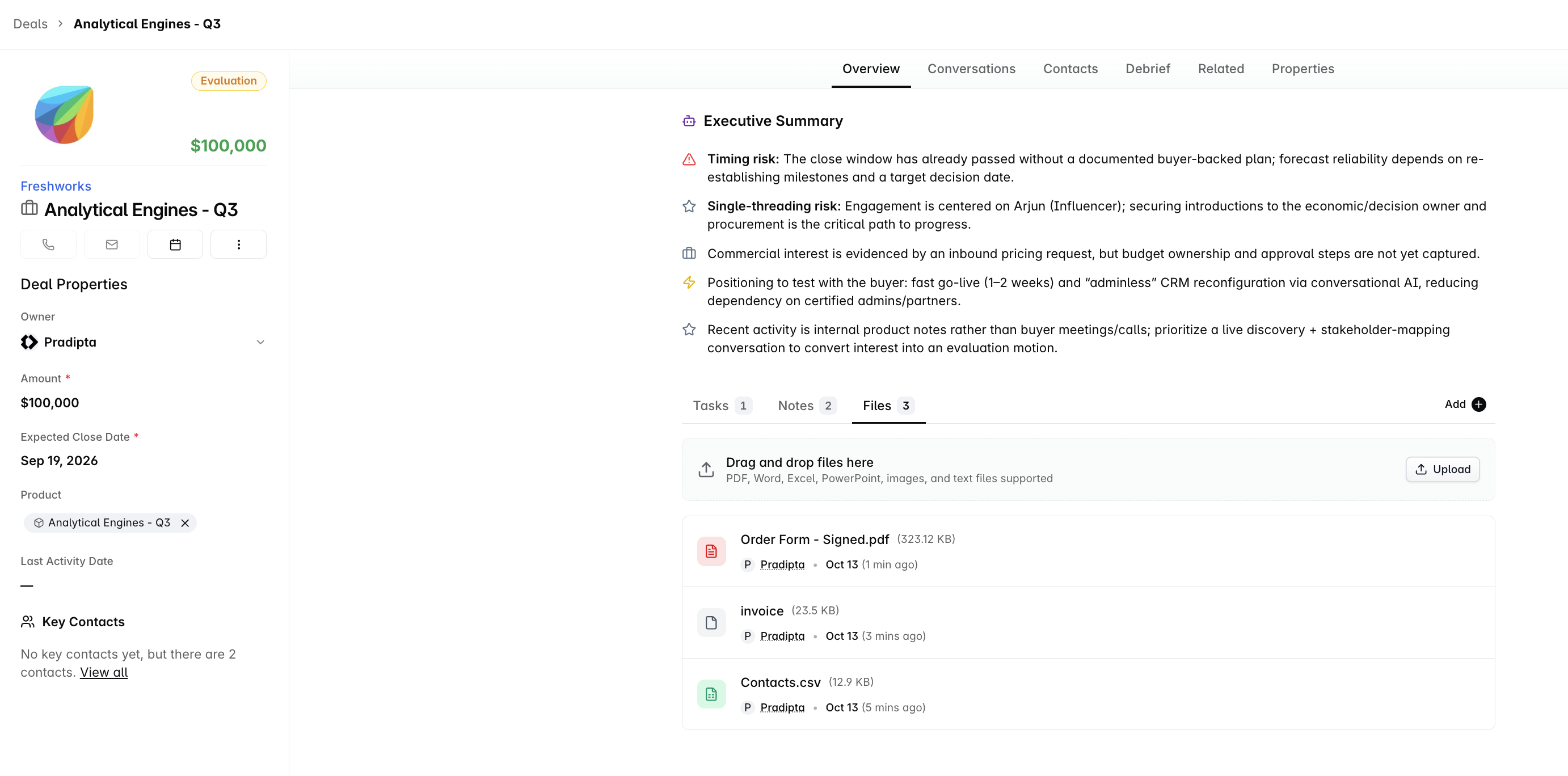
Open a contact, a company or a deal. On the Overview tab, under the summary, there is a strip of three tabs: Tasks, Notes, Files.
Files are not one of the record's properties, so there is nothing for them on the Properties tab. This is the only place they appear.
Adding a file
Three ways in, all doing the same thing:
Drag the file from your desktop onto the dashed panel at the top of the tab, the one that reads Drag and drop files here.
Click Upload on the right of that panel and choose the file.
Click the round + button at the far right of the Tasks / Notes / Files strip. On the Files tab it opens the file picker, rather than the add-a-note box it opens on the other two.
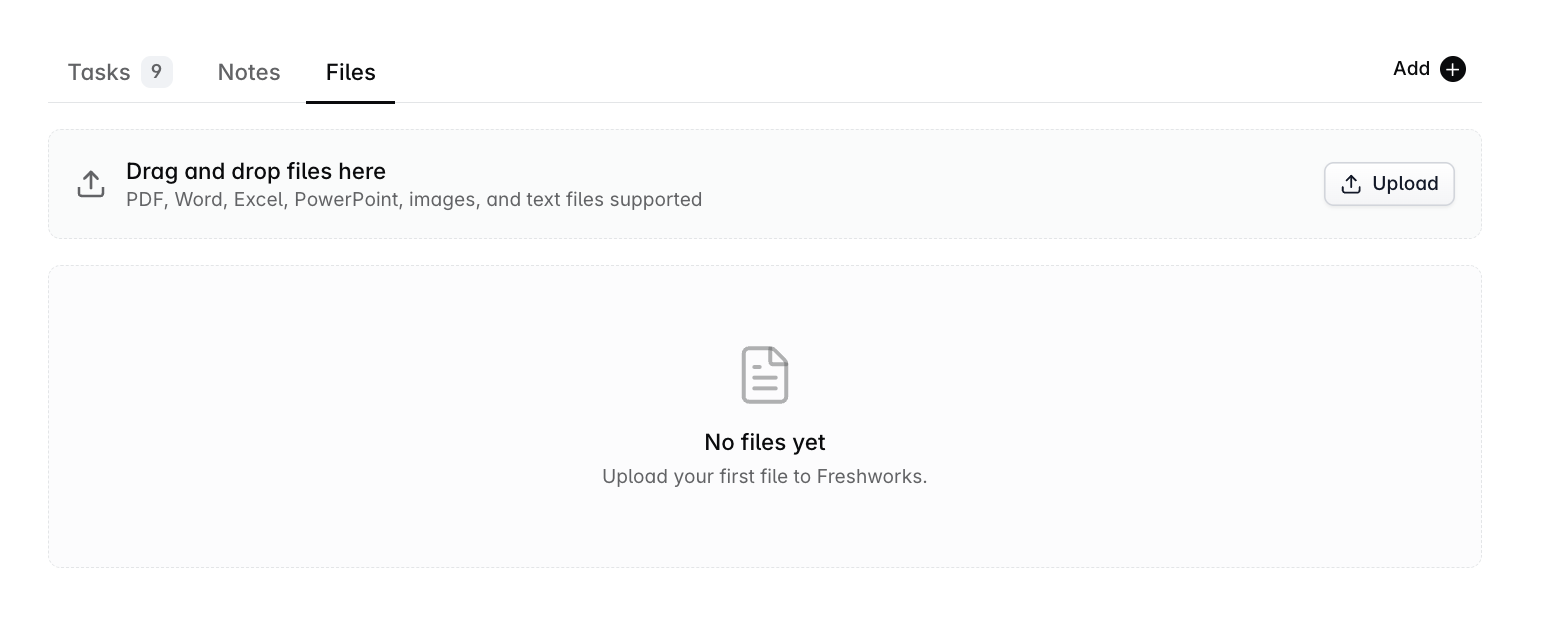
You can add several at once. Each shows as Uploading... while it is sent, and nothing is attached until that finishes, so leaving the page part-way through loses it.
The types listed on the drop panel are what people usually attach, not a closed list. Anything that is not refused below is accepted.
What each row tells you
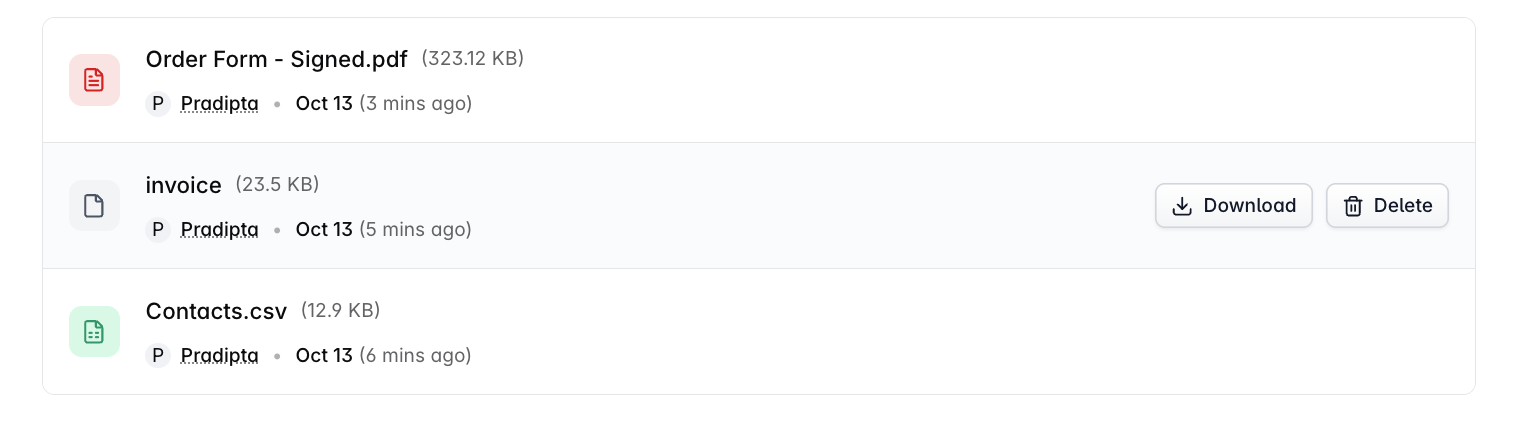
Each row shows the file name, its size, who uploaded it and when. The newest sits at the top.
Hover a row and two buttons appear on the right:
Download - saves a copy to your computer.
Delete - removes it from the record.
Downloading
Hover the row and click Download. Your browser saves the file under the name it was uploaded with.
There is no permanent web link to a file. The address your browser uses is created when you click and expires soon after, so there is nothing you can copy out and send to someone outside your workspace.
Deleting
Hover the row and click Delete, then confirm.
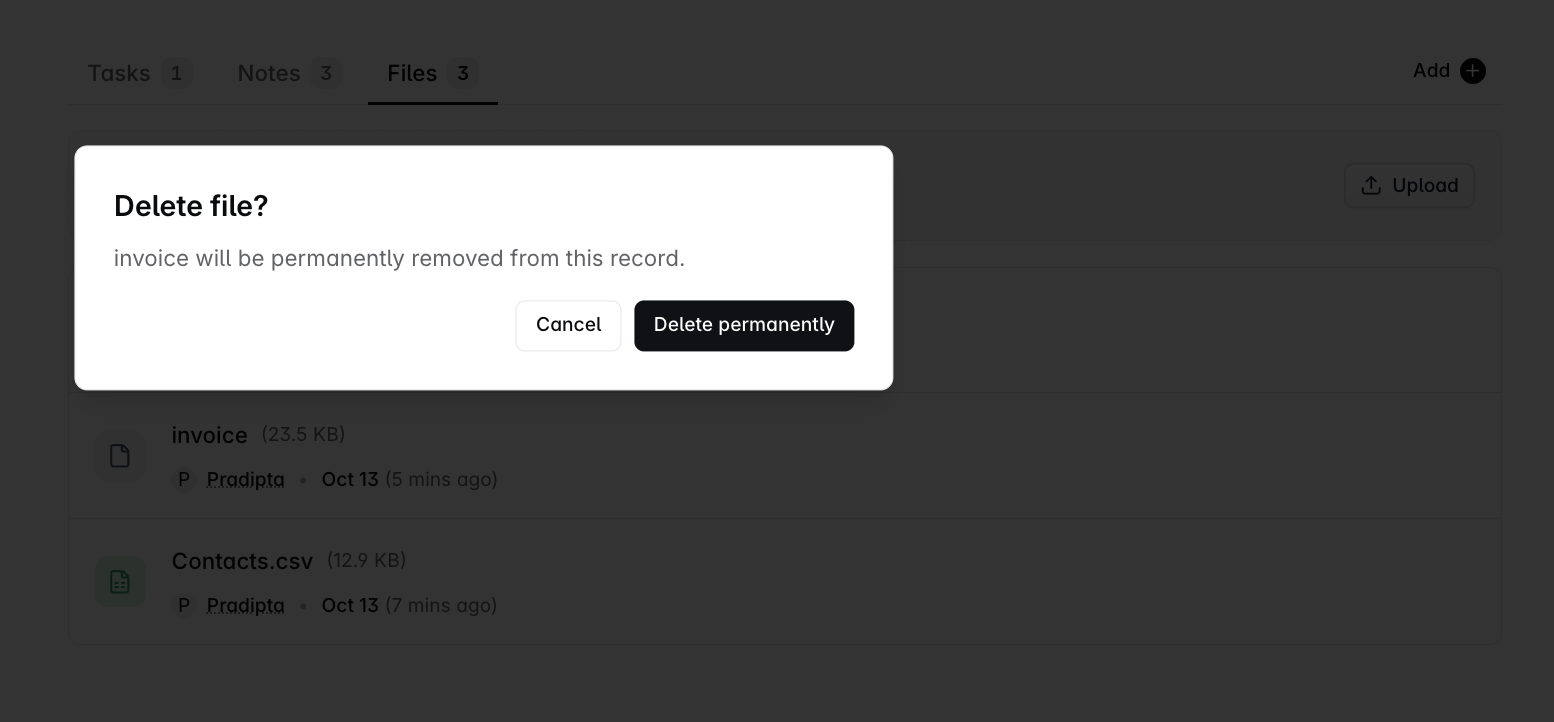
This one cannot be undone. There is no bin, no earlier version and no way for Dreamteam to bring the file back, and it goes for everyone, not just for you. If there is any chance you will want it, download a copy first.
What will not upload
Two refusals. Each names the file it applies to, and the rest of a batch still goes up.
Too large. A single file can be up to 25 MB. There is no limit on how many files one record holds.
A refused file type. Dreamteam will not accept file types that can run instructions on the machine that opens them. These are the fifty-three:
Group | Refused extensions |
|---|---|
Programs and installers | exe, com, scr, pif, msi, msp, mst, cab, appx, apk, jar, pkg, dll, jnlp, class |
Disk images | iso, img, vhd, dmg |
Scripts | sh, bat, cmd, ps1, vb, vbe, vbs, jse, wsf, wsh, wsc, sct, hta |
Web pages and code files | html, htm, svg, js, jsx, ts, tsx |
Shortcuts and system files | lnk, shb, scf, cpl, msc, ins, isp, chm, diagcab, reg, xll |
Access database files | ade, adp, mde |
The one that catches people out is SVG. It looks like an ordinary image, but an SVG file can carry instructions inside it, so it is refused along with the web page files. Export the image as PNG or JPG and it uploads.
Who can add and delete files
Access to a record's files follows access to the record itself. Record Visibility, the workspace-wide setting for which records each person can open, is what governs it:
Open a contact, company or deal and you can upload to it, download anything on it, and delete any of it - including files a colleague uploaded, who is not asked first or told afterwards.
If the record is outside what you can open, you never reach its files.
There is no separate permission for files - no administrator-only upload and no owner-only delete.
FAQs
Can I attach a file to a meeting, a note, a task, a product or a custom object?
No. Files attach to contacts, companies and deals only. That includes an object your team has built for itself: a custom object has no Files tab, and a file field is not one of the field types an administrator can add when building one, so there is no way to create the ability either. Put the document on the contact, company or deal the record belongs to, which is where anyone looking for it will go anyway.
Can I open a file without downloading it?
No. There is no viewer in Dreamteam, so nothing opens on the page - even an image. Clicking Download is how you look at a file, and it then opens in whatever you normally use for that kind of document.
Does Dreamteam read what is in my files?
No. A file is stored and handed back exactly as you uploaded it. Nothing summarises it, pulls text out of it or searches its contents, and no AI answer anywhere in the product is drawn from it. Asking Dreamteam about the contract you attached will not get you an answer about what the contract says.
Can I rename a file after uploading it?
No. A file keeps the name it was uploaded with. If the name matters, rename the file on your own computer, upload it again, and delete the first one. Bear in mind that deleting is permanent, so make sure the new upload has finished before you remove the old file.
Can I sort files into folders, tag them, or search them?
No. Each record has one flat list, newest first, and there are no controls on it - no folders, no tags, no sorting and no search. The file name is the only thing anyone has to go on, so on a record that will collect a lot of documents it is worth naming them before you upload: Acme - signed order form - March.pdf reads at a glance where scan_0142.pdf does not.
Why is an attachment from an email thread not in the Files tab?
Because they are two separate things. A file that arrives on an email belongs to that conversation and stays with it, where you read it alongside the message it came with. The Files tab holds documents people have deliberately attached to the record. Nothing moves between the two automatically. If you want an emailed document on the record as well, download it from the conversation and upload it to the Files tab.
If I upload a newer version, does it replace the old one?
No. Every upload adds a file, so you will have both, even if they have the same name. Delete the older one yourself if you do not want it there - and since deleting is permanent, check you have the version you meant to keep first.
Still stuck? Email us at gethelp@dreamteam.co.