Exporting records to a spreadsheet
Last updated: October 7, 2026
Exporting records to a spreadsheet
You have filtered the list down to exactly the records you want. Now someone needs them in a spreadsheet - for a board pack, a campaign upload, a quick pivot your CRM was never meant to do. That is what Export is for.
How to export
Export works the same way on Contacts, Companies and Deals, because all three open on the same kind of list.
Narrow the list first. Use the filters, or the AI filter, until the list holds the records you want. The count in the footer tells you how many matched.
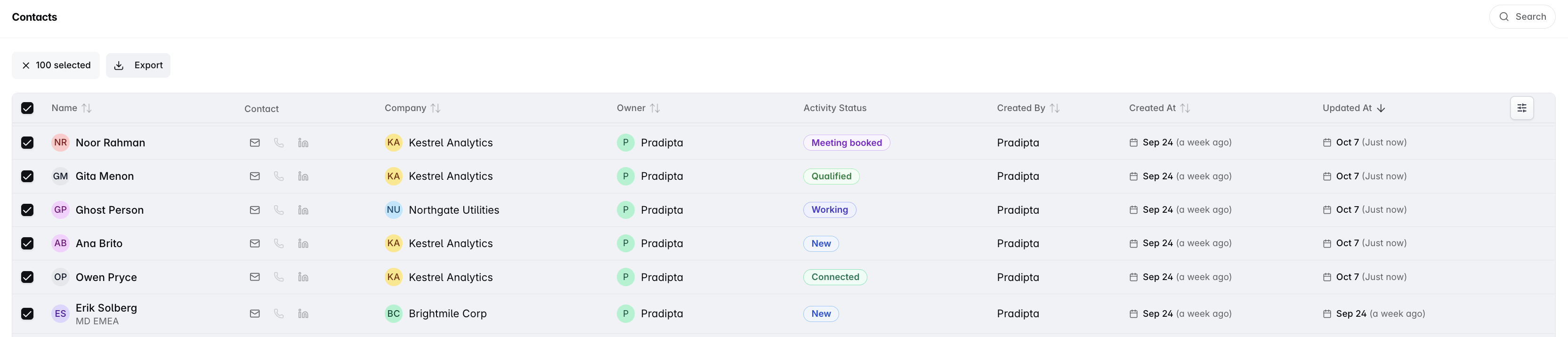
Tick the rows. Each row has a checkbox, and the checkbox in the header takes every row on the current page.
Click Export. A bulk-action bar appears as soon as one row is ticked, showing a running count of what you have selected and a single action: Export.
The selected records download as a CSV file, ready to open in Excel, Numbers or Google Sheets.
Filter before you select, not after. Export takes the rows you ticked - it has no idea what your filter was, so a tidy filter is what keeps the CSV tidy.
Who can export
Export is limited to admins and to anyone who manages a team. If you manage no team, you can still tick rows, but no bulk-action bar appears and there is no Export button to find.
You are not given the manager tier from a dropdown - it comes with the job. Naming someone as a team's manager in Settings is what grants it, and clearing that field takes it away again. If you think you should have Export and do not, ask your admin whether you are set as a manager of your team.
Exporting more than one page
The header checkbox selects the rows on the page you are looking at, not every record behind the filter. If your filtered list runs longer than the page, open the Rows selector in the footer and raise it to 100 before you tick the header box. Anything beyond that takes a second pass on the next page.
An export is not a backup
A CSV is a snapshot of the rows you ticked at the moment you ticked them. Nothing keeps it in step with the CRM afterwards, so a file from last Tuesday says what was true last Tuesday.
FAQs
Why can I tick rows but see no Export button?
Because the bulk-action bar is limited to admins and team managers. A rep who manages no team gets no bar at all. Ask your admin to check whether you are named as a manager on your team.
Can I export every record that matches my filter in one go?
Only up to a full page at a time. Raise Rows to 100 in the footer first, tick the header checkbox, and export - then page forward and repeat if there is more.
Can I export from the Deals board?
Export lives on the List view. Switch Deals to List, then filter, select and export from there.
Can I edit records in bulk and push them back in?
Not today - there is no bulk-edit action on a list. Editing the CSV and importing it back is not a substitute either: an import matches an incoming row to an existing record on email or domain and fills in fields that are blank, leaving values that are already there alone. It will not push your edits over the top. If bulk editing is something you need, tell us and we will pass it on as a feature request.
Still stuck? Write to gethelp@dreamteam.co and we will take a look.