Integrating Zoom with Dreamteam CRM
Last updated: September 10, 2026
Half your calls happen on Zoom. Let's make sure scheduling one doesn't take three tabs.
Connecting Zoom once means that whenever you schedule a meeting from inside Dreamteam, you can pick Zoom and have the link auto-generated and attached. No hopping over to Zoom, no copy-paste. (If you use Gmail, Google Meet is already connected for you.)
Connecting your Zoom account
Open Dreamteam and click your profile icon in the bottom-left corner.
Pick Email and Calendar from the menu.
Scroll down to the Meeting Settings section.
Next to Zoom, click the Connect button.
You'll land on Zoom's sign-in page - log in with your username and password, or use one of the SSO options if that's how you usually sign in.
Approve the permissions Dreamteam asks for, and you're set.
You'll be brought back to Meeting Settings with Zoom showing as Connected.

Scheduling a Zoom meeting
Once Zoom is connected, you can set it as your default in Meeting Settings so every new meeting uses Zoom automatically - or you can pick per meeting if you'd rather mix and match.
You can schedule a meeting from two places:
From a contact - open the contact and click Schedule a meeting in the left pane.
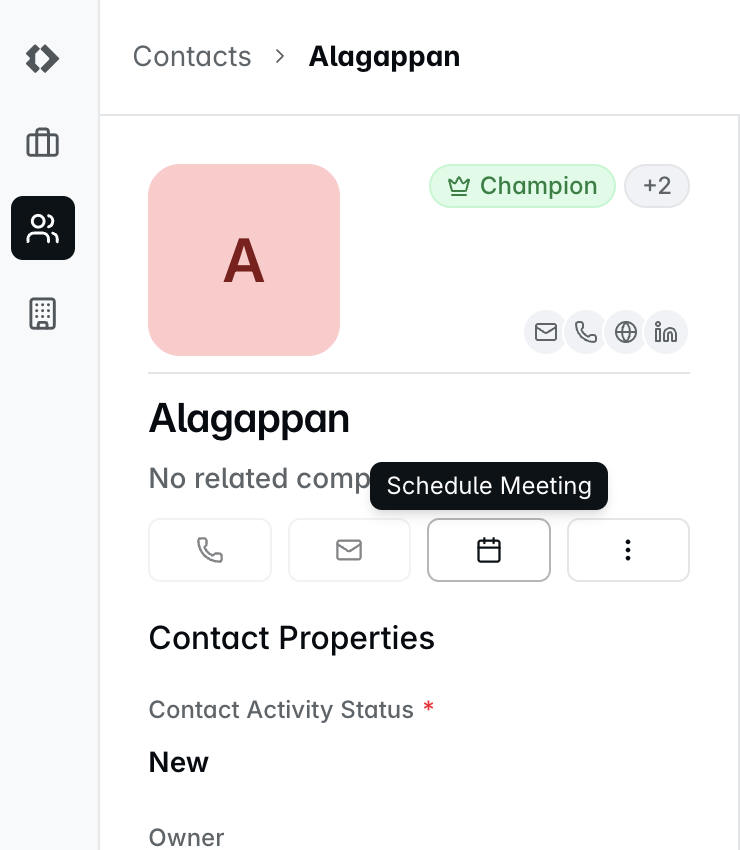
From My Day - the option's right on the dashboard.

Wherever you start from, the flow is the same:
Click Schedule a meeting.
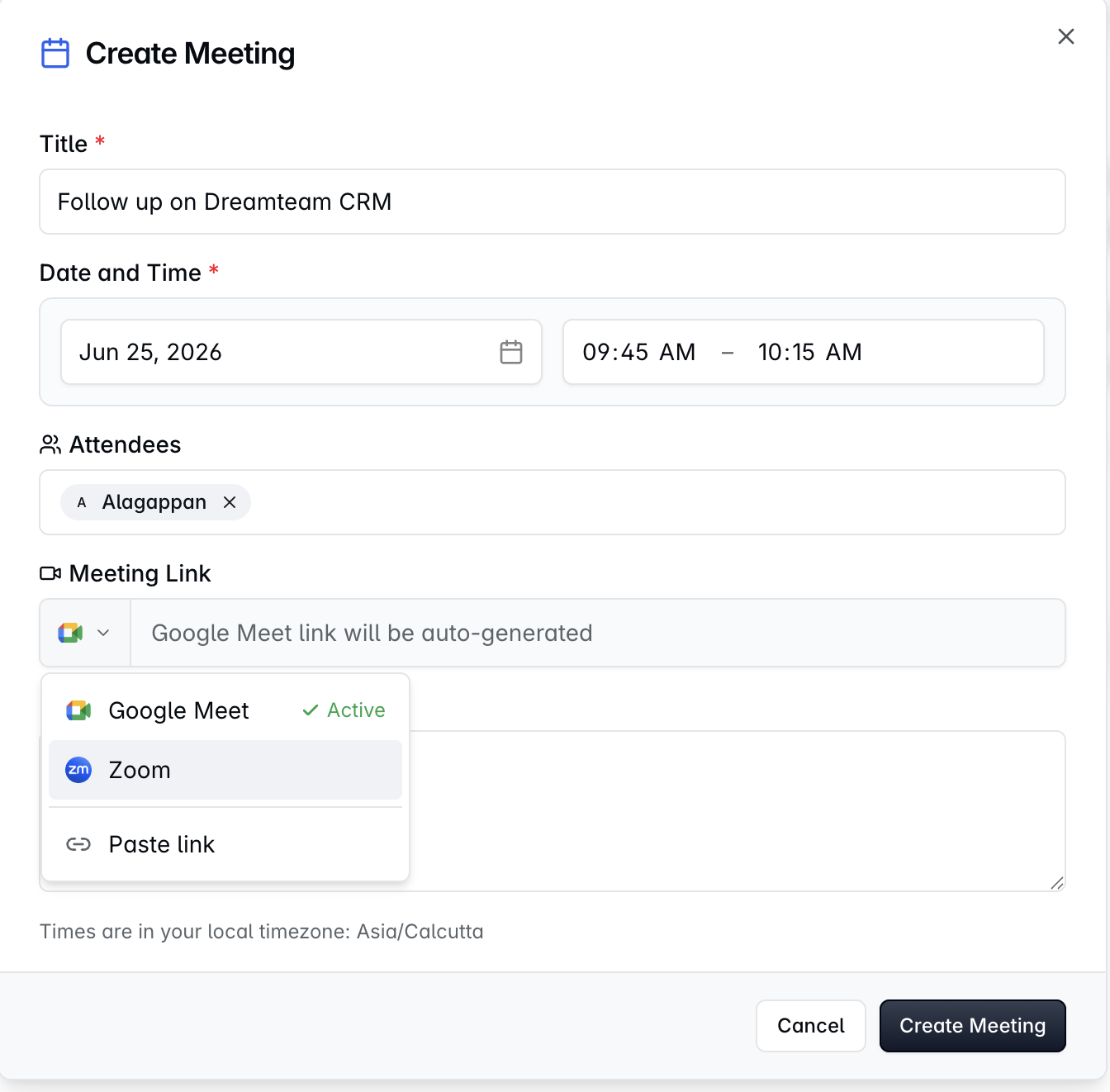
Where you see Add a meeting link, pick Zoom (or Google Meet).
Hit Create Meeting, and the Zoom link gets generated and attached automatically.
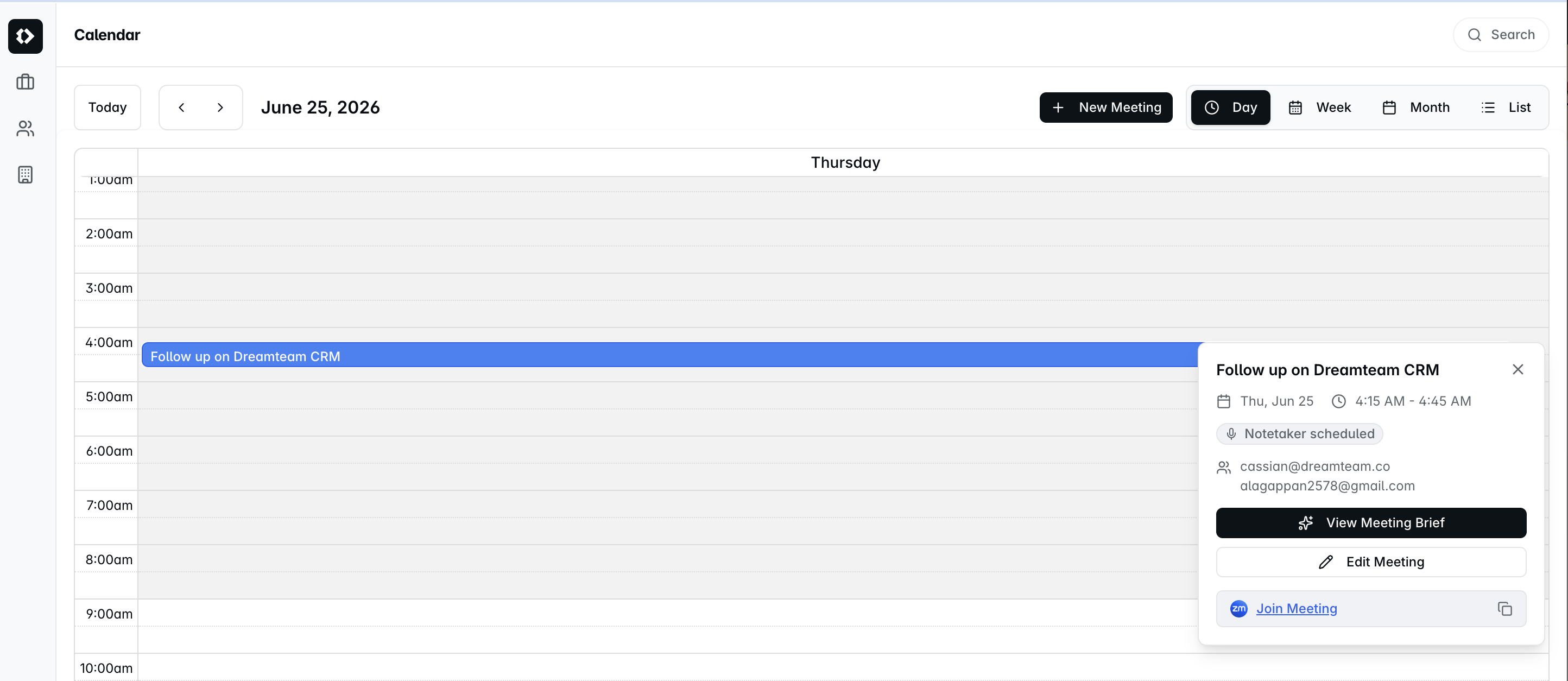
The meeting now lives on your calendar with the Zoom link baked in. When it's time, open the calendar event and click Join Meeting - you're in.
Disconnecting Zoom
If you ever need to disconnect - maybe you're switching accounts or moving back to Google Meet:
Head over to Profile → Email and Calendar → Meeting Settings.
Click Disconnect next to Zoom.
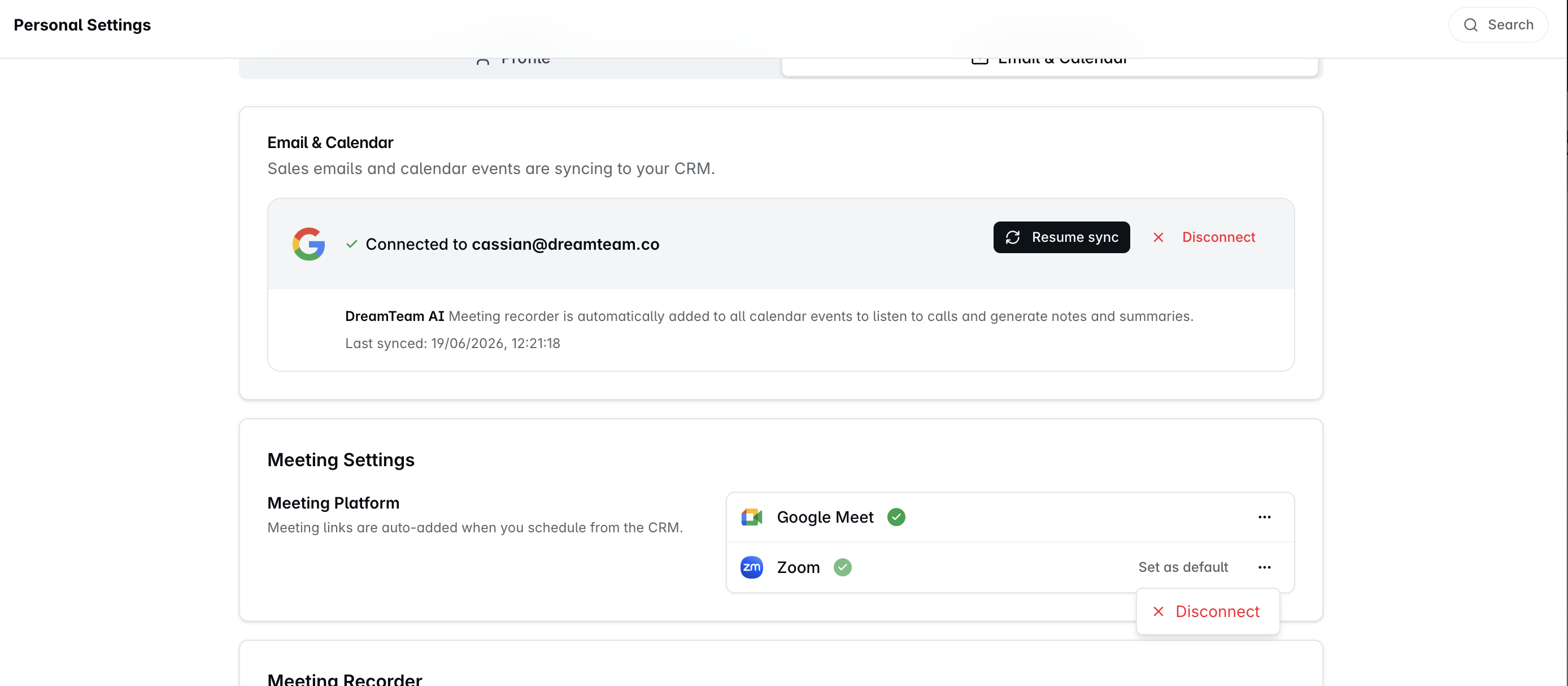
You can reconnect anytime, and your past meeting data stays put.
This is the Zoom connection only. Connecting or disconnecting here changes where your meeting links come from. It does not connect or disconnect the Dreamteam Recorder, which is built into Dreamteam rather than something you attach to it.
Good to know
Use the same Zoom account that's tied to your work calendar - keeps the meeting-to-CRM mapping clean.
Reconnect after a Zoom password change - re-auth keeps the sync alive.
If you need help, reach out to us at gethelp@dreamteam.co.