Adding a task to a contact, company or deal
Last updated: October 8, 2026
The call ends well. They are travelling until Thursday, so ring them Friday morning. You write it on the pad beside your keyboard, the next call starts, and by Friday the pad says nothing useful.
A task puts that reminder on the record instead, with the date on it, so it finds you on the morning it matters. You do not fill in a form to make one. You say what needs doing, in a sentence, and check what comes back.
Adding the task
Open the contact, company or deal it concerns, then use whichever of these is nearest:
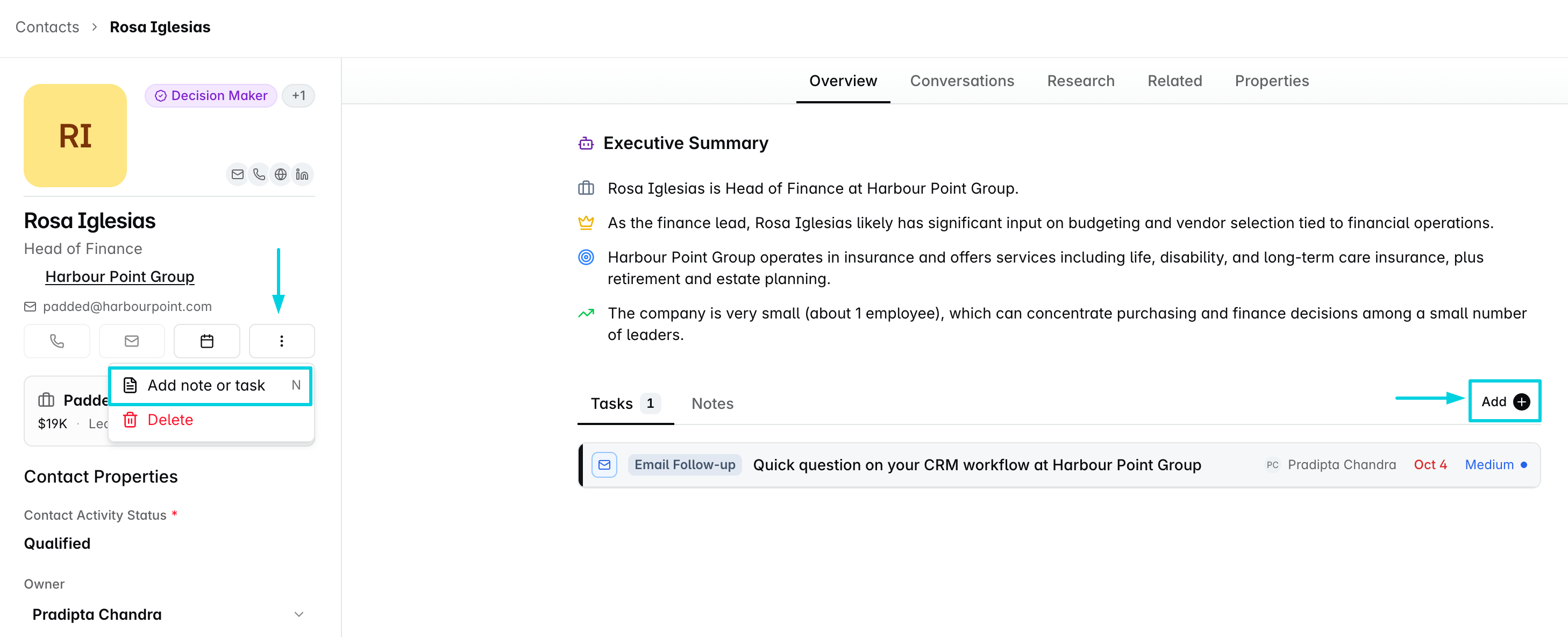
The three dots at the end of the action row in the left pane. The menu offers Add note or task.
The Add button above the Tasks / Notes strip on the Overview tab. Hovering it reads Add note or task.
The N key, anywhere on the record.
All three open Ask Dreamteam in the panel on the right. Nothing is sent and nothing starts thinking until you type. The Add button is the same button on all three sub-tabs, so there is no need to switch to Tasks first.
It opens with a question rather than a form, and it is always the same one: What's on your mind? It does not name the record, but it can see which one you are on, so you never have to name the person.
Ask for a task by name.
These controls add a note or a task, and a note is what you get unless you say which you want. The words that ask for a task are task, reminder and follow-up.
Ring them Friday morning is saved as a note, straight away and with no card. Task to ring them Friday morning comes back as a card to approve, which is what the rest of this article describes.
You do not have to be on the record at all.
Those buttons are a shortcut, not the only way in. Ask Dreamteam sits on every page of the CRM, so you can open it from wherever you happen to be, name the person, and say what you want: add a task to Rosa Iglesias to call him Friday morning. It lands on his record just the same.
Starting from the record saves you naming them, and for a task that is the whole of the difference. A note is the exception: typed at the record's own controls it is saved with no card, while one asked for from another page is shown to you on a card first.
Say what you want in one sentence
Write it the way you would say it out loud. Every part of the sentence is used, including the part that sounds like an aside.
Worked example
On Jordan Blake's contact you type: "Create a task to call this customer after 2 days at 9 am because they are unavailable until tomorrow."
Call this customer becomes the task's title, shortened to Call customer.
After 2 days at 9 am becomes the due date and the time.
Because they are unavailable until tomorrow becomes the description. The reason you gave is kept, so when the task comes up on Friday it still says why it was set for Friday.
Put everything you want recorded into that first message. The description is written from what you said, so a line of context given now is a line the task carries later. You are not asked a second time.
Check the card before anything is created
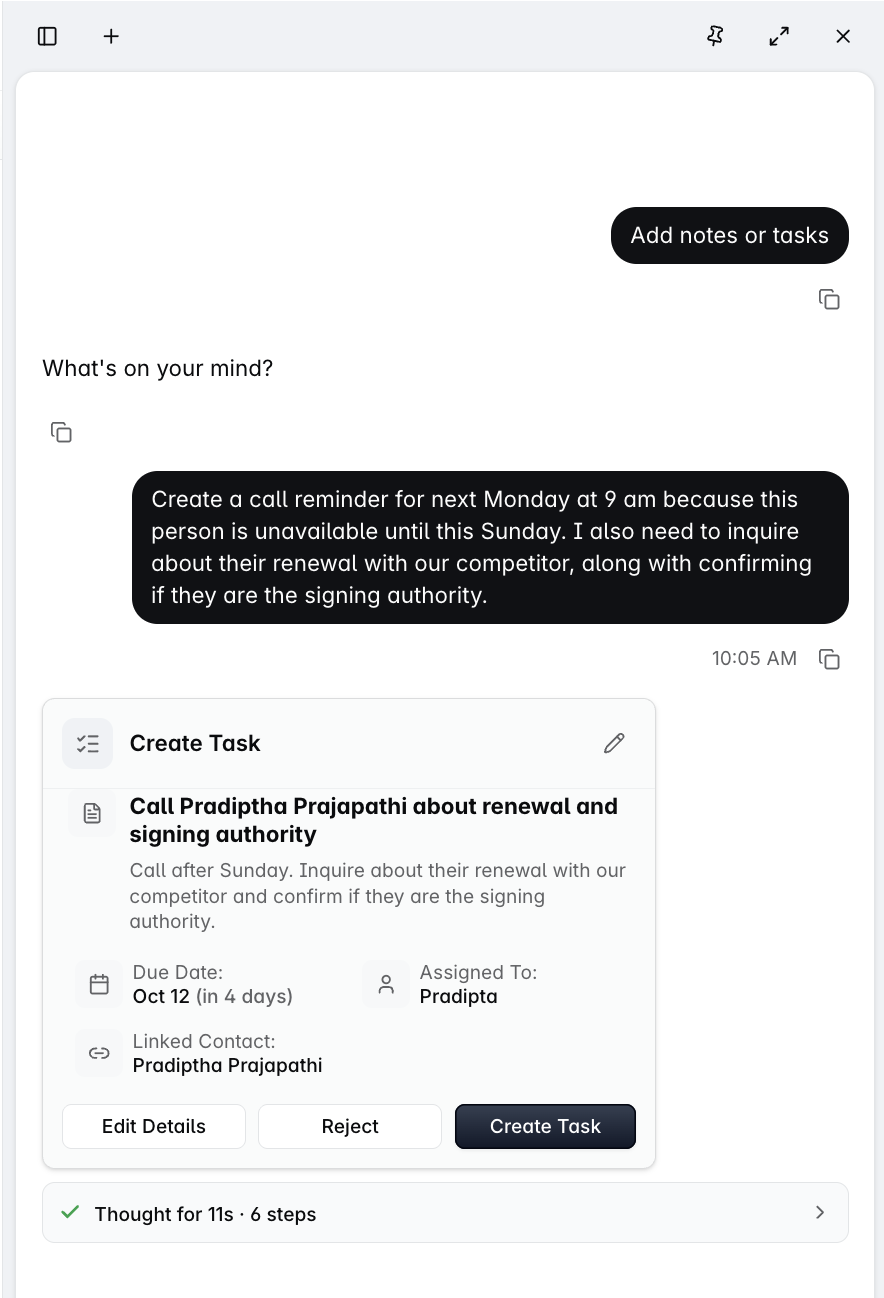
What comes back is a Create Task card, not a task. It shows what was understood:
Title and description, written from your sentence.
Due Date, worked out from today, printed with its reasoning, as in Oct 9 (in 2 days).
Assigned To, which is you unless you said otherwise.
Linked Contact, which is the record you were standing on.
Three buttons sit under it. Edit Details changes anything that is not quite right. Reject throws it away and lets you start again. Create Task is the one that writes it.
Nothing is created until you press Create Task. The date is the thing worth reading twice, because after 2 days is counted from today, and the card tells you which day that landed on.
Where the task shows up
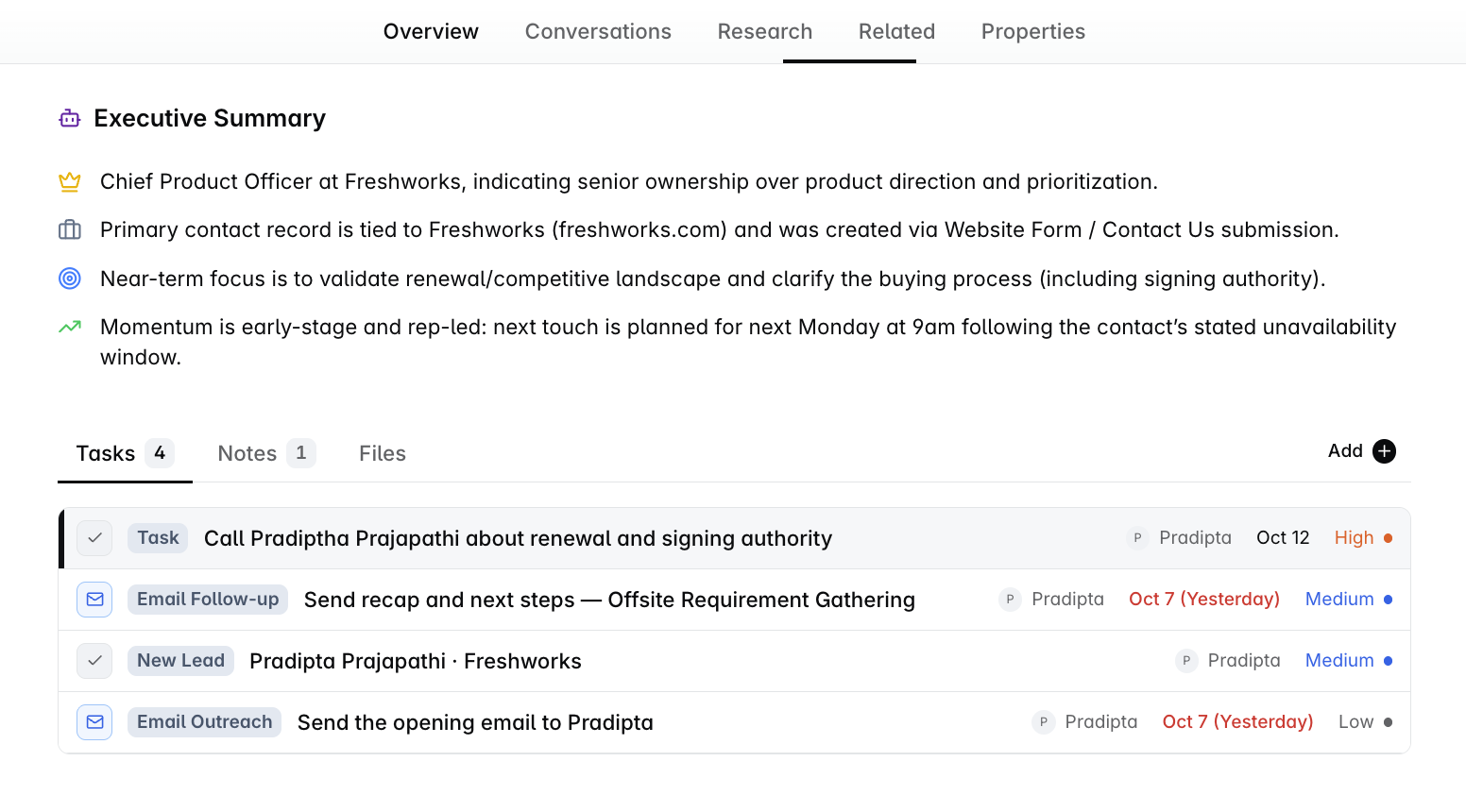
Once you approve it, the same task appears in two places:
On the record, under the Tasks tab, with the count going up by one. It sits alongside anything your assistants raised for the same record.
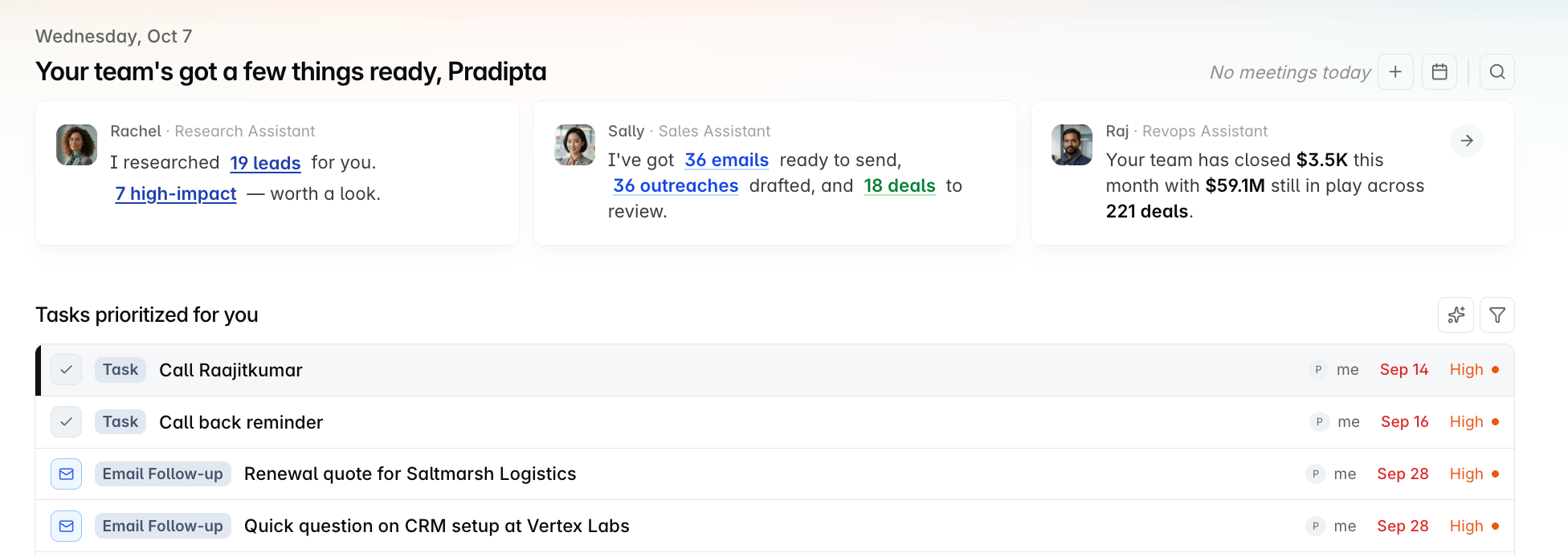
On My Day, in your queue, on the day it is due.
It is badged Task. That is what tells it apart from the cards your assistants raise, which carry badges naming what they are, such as Email Follow-up or New Lead.
Finding it again on My Day
My Day opens on Tasks prioritized for you, which is today's work. A task due later in the week is in the queue, just not in that first view. Two ways to bring it up:
The AI filter, the sparkle at the top right of the queue. Ask in plain language, such as tasks due in the next 7 days. It applies the filter and shows what it applied as a chip you can clear.
The Manual Tasks view, from the view menu, which gathers the tasks that came from you rather than from an assistant.
Common questions
It saved a note when I wanted a task. Why?
Because the sentence did not ask for a task by name. These controls add either one, and a note is what you get by default. Say task, reminder or follow-up and the Create Task card comes back instead.
The note it saved is on the record's Notes tab. You wrote it, so you can edit it or delete it from there.
Is there a form for adding a task?
No. The buttons on a record open Ask Dreamteam and you describe the task in a sentence instead of filling in fields.
You still get to check everything before it is written. The card it shows you lists the title, the description, the due date, who it is assigned to and which record it is attached to, and Edit Details lets you change any of them.
Do I have to say who the task is for?
No. Starting from the record does that for you, which is why the first thing it says back names the person.
Begin with what needs doing and when.
Can I add a task to a company or a deal, or only a contact?
All three. Contacts, companies and deals each carry the same action row and the same Add button on their Overview tab.
What happens if the date it worked out is wrong?
Press Edit Details on the card and correct it. Nothing has been created at that point.
The card prints the date it chose along with how it got there, as in Oct 9 (in 2 days), so a misread instruction is visible before you approve rather than after.
I changed my mind halfway through. How do I stop?
Press Reject. No task is created and nothing is left behind on the record.
Can I add a note the same way?
Yes, and a note is the default. What you type is saved as a note unless you ask for a task by name, using the words task, reminder or follow-up.
A note also saves differently. Typed at the record's own controls it is written straight away, with no card to approve, because it is your own words going onto the record in front of you. A task always waits for your approval.
A note is free-form text with no date on it, so use a note to record what was said and a task to make sure something gets done.
If you need help, reach out to us at gethelp@dreamteam.co.