Notes - giving the AI what it can't see
Last updated: October 8, 2026
A note is the simplest thing in Dreamteam. There is no form and nothing to categorise - you type, and it stays on the record you wrote it on.
It is also the cheapest way to steer what the AI says about an account. Your assistants read your notes and fold them into the summaries they build, so a one-line note that the champion has left, or that procurement is the real blocker, shows up in the summaries your team reads next. You write the notes; the AI never writes them for you.
Writing a note
Open the contact, company or deal and start one from whichever is nearest: the Add button above the Tasks / Notes strip, Add note or task in the three-dot menu on the left, or the N key. All three open Ask Dreamteam in the panel on the right, where it asks What's on your mind? and waits. Type what happened and send it. The note is saved on the record straight away, word for word, with nothing to confirm.
Say "task" if you want a task.
These controls add either one, and what you type is saved as a note unless you ask for a task by name. The words that ask for one are task, reminder and follow-up. Ring them Friday is saved as a note. Task to ring them Friday comes back as a card for you to approve.
You do not have to be on the record at all.
Those controls are a shortcut, not the only way in. Ask Dreamteam sits on every page of the CRM, so you can open it from wherever you happen to be, name the record, and say what you want: add a note to Jordan Blake, procurement is the real blocker on this renewal. It lands on his record just the same.
Starting from the record saves you naming it, and it is also what lets the note save in one step. Asked for from anywhere else, a note is shown to you on a card to approve first.
A note belongs to the record you wrote it on. If a call matters to the deal and to the account, write it where your team will go looking for it.
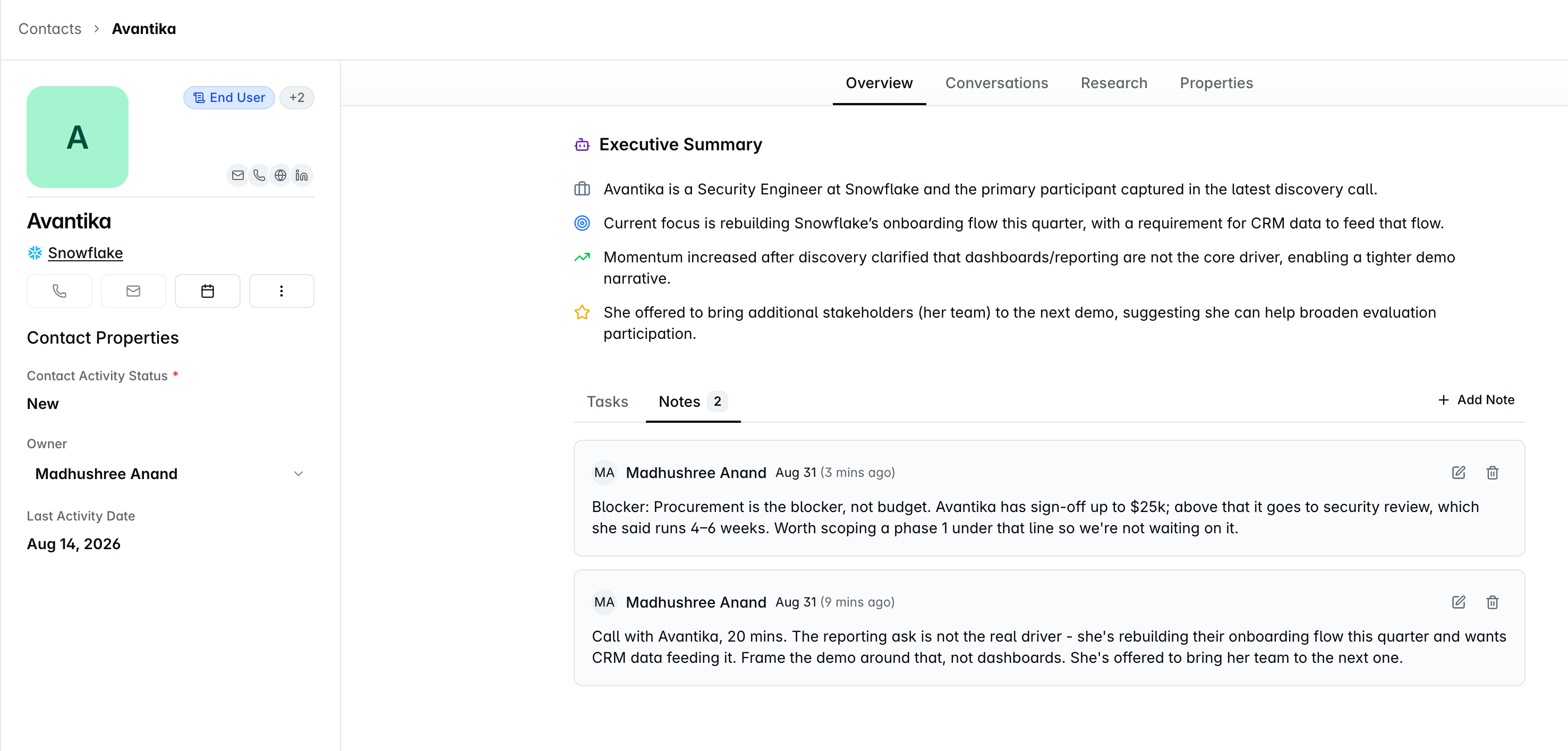
Editing and deleting
Only the author can edit a note. Anyone on the team can write one, and anyone who can see the record can read it, but the wording stays with whoever wrote it. If a note is wrong, add your own correcting it - the AI reads both.
The author or an admin can delete it. Everyone else can only remove their own notes.
Deleting a contact, company or deal permanently deletes the notes on it. There is no recovery and support cannot bring them back - so if a note is the only written record of something that matters, copy it out first.
FAQs
Why did my second note ask me to confirm it?
The one-step save covers the first thing you type after using Add note or task. Write a second note further down the same conversation and it comes back on a card to approve. Start again from the record's own controls and it saves in one step again.
It saved before I could check it. Can I undo that?
There is no undo, but a note is not fixed. You wrote it, so you can edit it: open the record's Notes tab and correct the wording there. Adding a second note that corrects the first works too, and the AI reads both.
Can one note sit on more than one record?
No. A note lives on the record you wrote it on. If the same detail matters on the deal and on the account, write it in both places.
Does a note notify anyone?
No. Notes are a record of what happened, not a message. If somebody needs to act, that is what tasks and email are for.
The record changed owner. Do its notes move too?
A note has an author, not an owner. Reassigning a contact or a deal does not change who wrote its notes, and the notes stay on the record.
If you need help or assistance, reach out to us at gethelp@dreamteam.co.