Assigning Leads Automatically with Jobs
Last updated: November 16, 2026
Assigning Leads Automatically with Jobs
Somebody fills in the form on your website at eleven at night. It sits there. In the morning three people look at it, each assumes one of the others has it, and by the afternoon the lead has booked a demo with somebody else.
You can hand that decision to Dreamteam instead. Tell it once who should get which kind of lead, and from then on every new lead arrives already assigned to the right person, at any hour, without anybody watching the inbox.
Before you start. You need to be an admin to build or change one of these. Everything in this article lives under Settings, in AI Assistants.
What a job is
In Dreamteam, an automation like this is called a job. A job is a rule the CRM follows by itself: when this kind of record turns up, do this with it.
Every job belongs to one of your AI coworkers, who is the one that runs it. Today the work a job does is deciding who owns a record. Most of the time that means lead routing, sending each new lead to the right salesperson, and the same thing works on companies and on deals.
You build a job by describing what you want in plain English. There is no drag-and-drop editor to learn, and you do not have to work the rules out in advance.
Where to find them
Open Settings, go to AI Assistants, and choose Rachel. Every job you build belongs to Rachel.
Rachel's page groups her jobs into job areas. Each area is a stage in the life of a lead, so related jobs sit together rather than in one long list.
Job area | What is in it |
|---|---|
Lead intake and verification | Jobs that catch the lead as it arrives and spot duplicates |
Lead and account enrichment | Jobs that research a new contact or company and write up what they find |
Lead qualification | The job that sizes a company up against the kind of customer you want |
Lead routing | The jobs you build yourself |
Lead source and attribution | Empty until you add a job |
Product signal leads | Empty until you add a job |
An area with nothing in it does not take up a row. It shows as a small + at the foot of the page, which you click to start a job there.
Each row shows the job's name, a line saying what it does, and its state. A green dot means it is running; an orange dot means it is not. Click a row to open it.
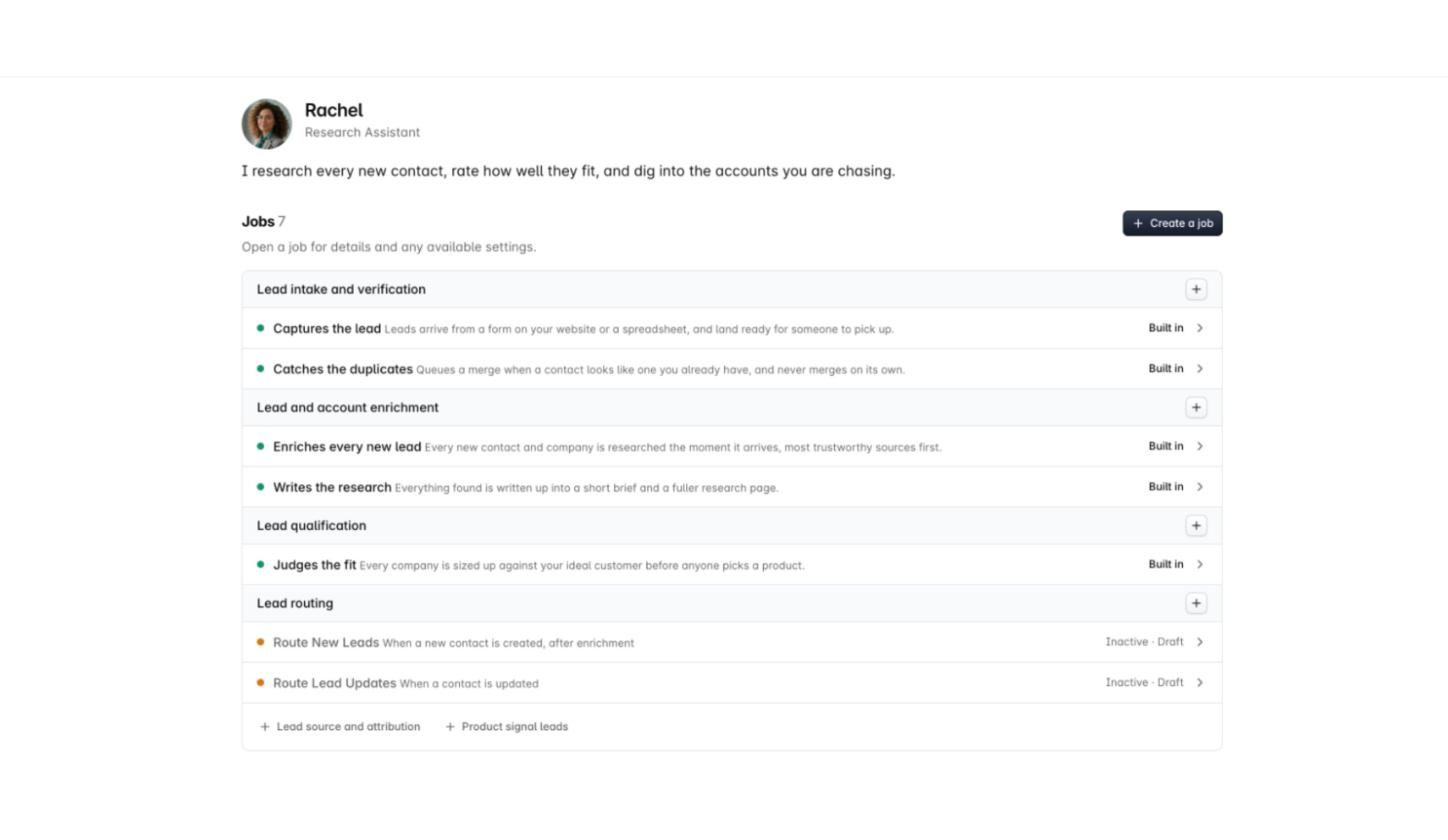
The jobs that are already running
Some jobs are there from your first day and are marked Built in. You can open one to read what it does, but you cannot change it or switch it off.
Built-in job | What it does |
|---|---|
Captures the lead | Leads coming from a form on your website or from a spreadsheet land ready for somebody to pick up |
Catches the duplicates | Queues a merge when a contact looks like one you already have, and never merges on its own |
Enriches every new lead | Researches each new contact and company the moment it arrives |
Writes the research | Turns what it found into a short brief and a fuller research page |
Judges the fit | Sizes each company up against your ideal customer |
The jobs you build sit alongside these and are marked Custom job.
Building a job
Here is the whole thing end to end - the question, the proposal, and the job waiting to be published. The rest of this section takes it a step at a time.
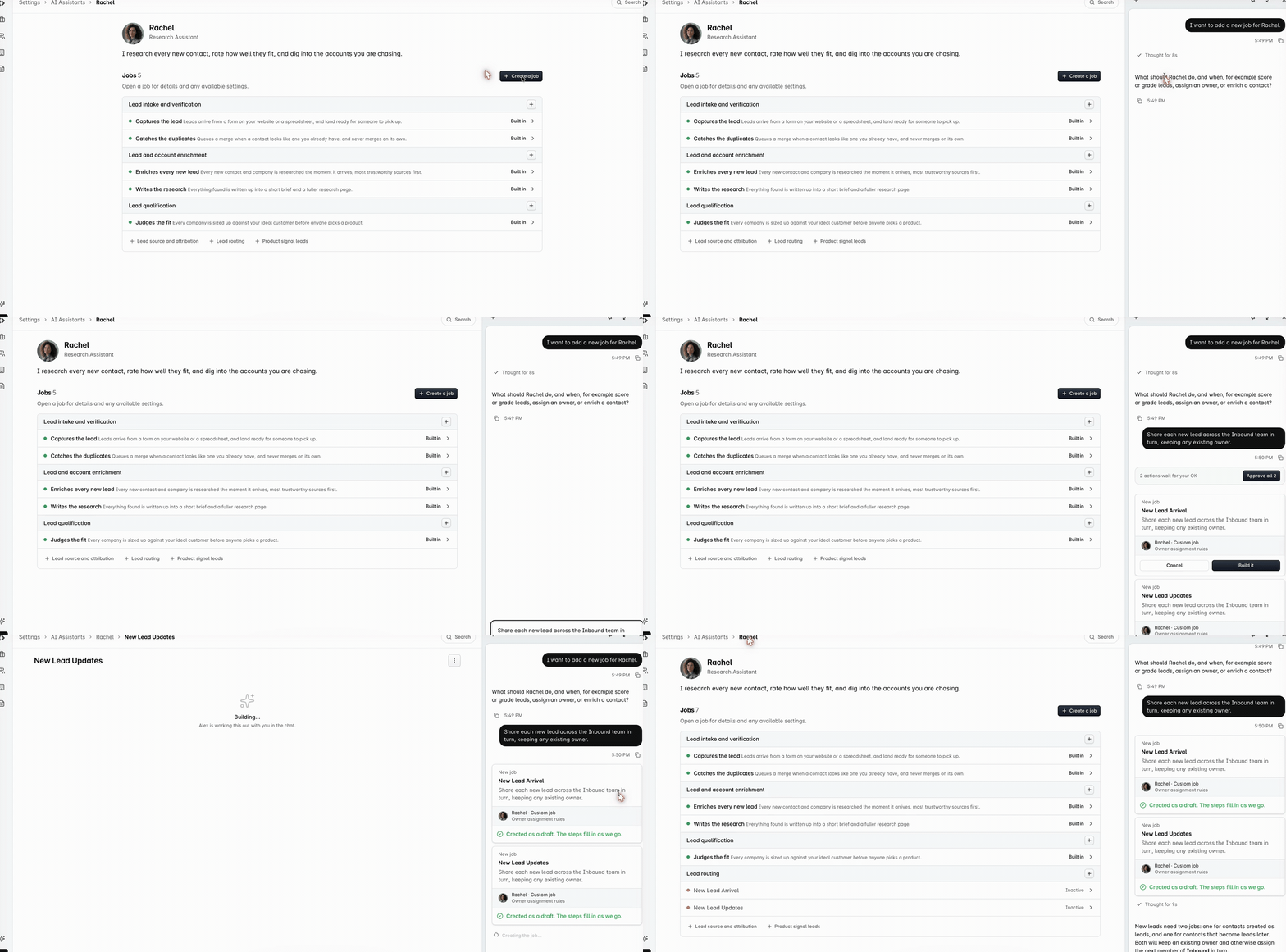
Click Create a job at the top right of Rachel's page, or the + beside the area you want it filed under. Either one opens Alex in a chat panel on the right, ready to start.
Type what you want into the Ask Alex box, for example "send new leads from Germany to the DACH team". Alex works out what you mean and checks what is already in your CRM: your other jobs, your people, your teams and your fields.
Answer the questions. If anything is unclear Alex asks, one question at a time, on a card headed with the subject it is asking about. Each card offers a couple of options, usually with one marked Recommended, and a box where you can type an answer of your own instead. Your answers stay in the thread with a green tick beside them, so you can scroll back later and see what you decided.
Alex tells you if a job you already have covers the same records, and asks whether to change that one or add a new one.
Alex proposes the job as a card showing its name, what it does, and which assistant it belongs to. Click Build it, or Approve all if there is more than one. Cancel drops it.
The card changes to say the job was created as a draft. Writing out the steps takes a minute or two, and the job page says it is still building until that is done.
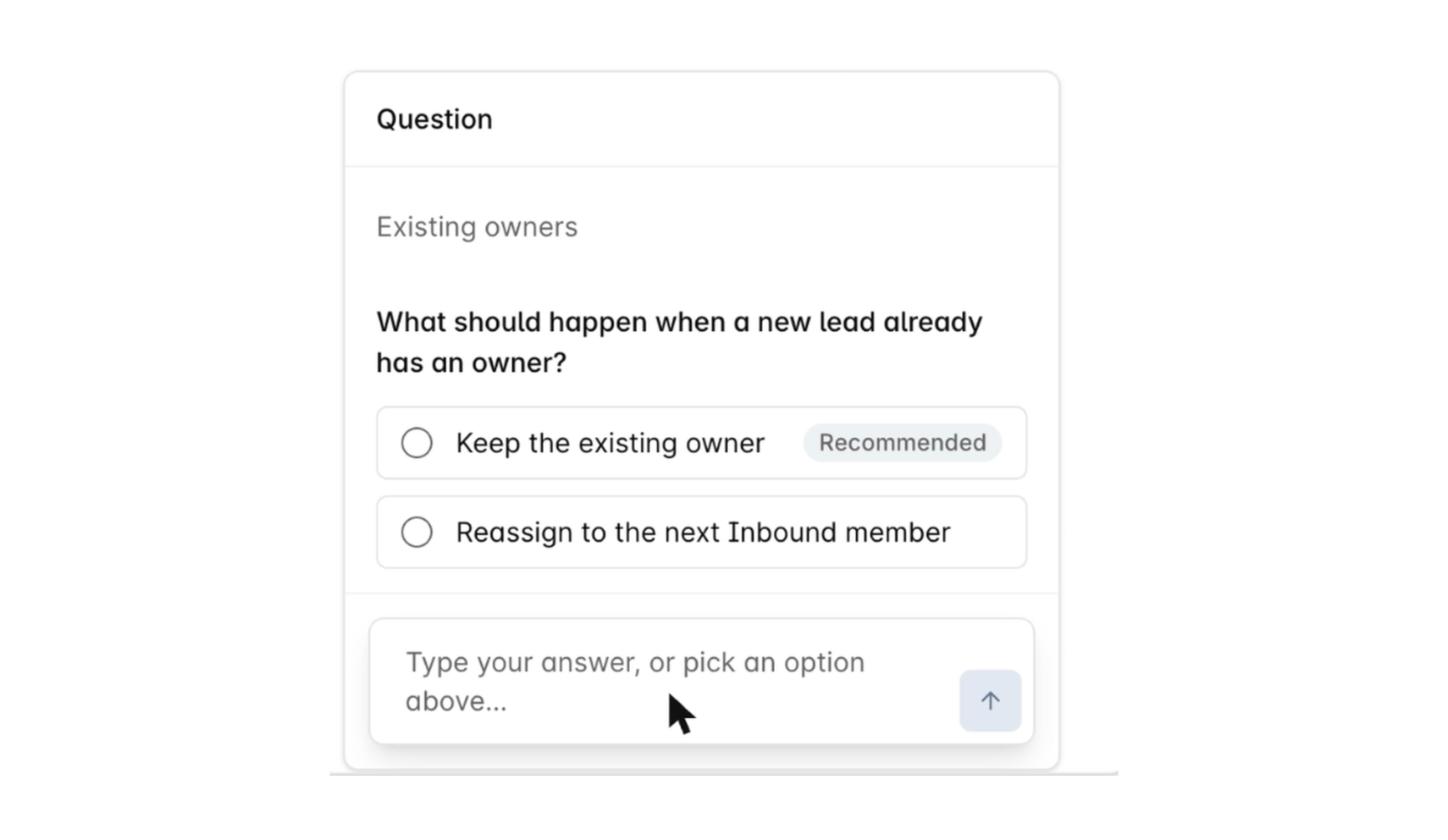
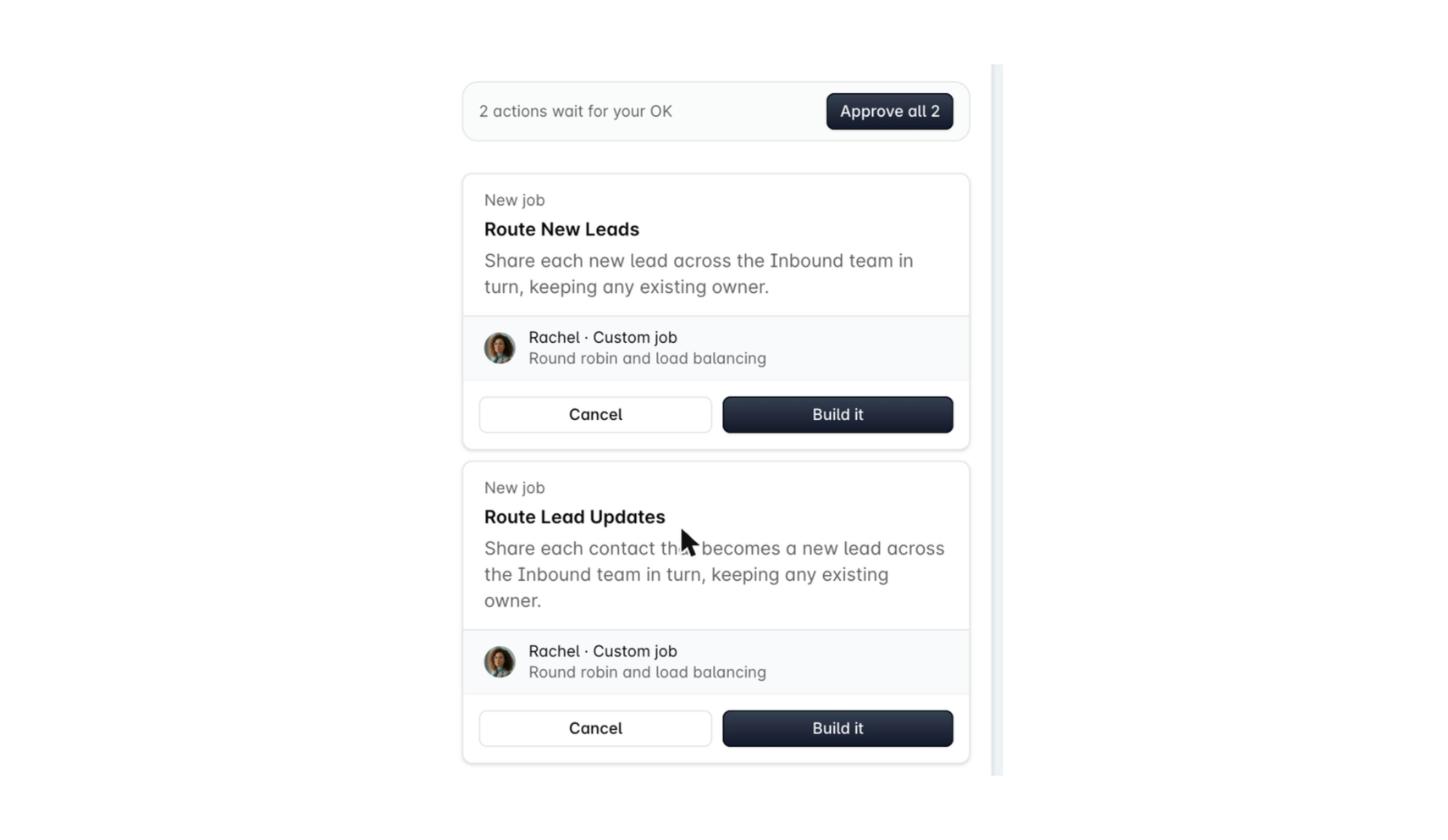
Nothing you have done so far has touched a real record. The job is a draft until you publish it.
How it plays out. You tell Alex to send new German leads to the DACH team and everyone else to whoever is next in the Inbound team. Alex asks whether to overwrite an owner a lead already has, and what to do if nobody on a team is free. You confirm and approve it.
That evening Jordan Blake fills in your website form with a German address. Dreamteam creates the contact, the job runs, and Jordan is sitting with the next person on the DACH team before anybody has opened the CRM.
One thing worth knowing: while a question is open on screen, anything you type in the chat box is read as your answer to it. Finish or skip the open questions before you ask Alex for something else.
Alex sometimes builds two jobs from one request, one for records that arrive that way and one for records that change into it later. Each of those has to be published on its own.
Checking what the job will do
Open the job and you get its name, the kind of record it works on, its state, and an on and off switch. Below that are two tabs, which are the same job described two ways.
Summary, in plain English
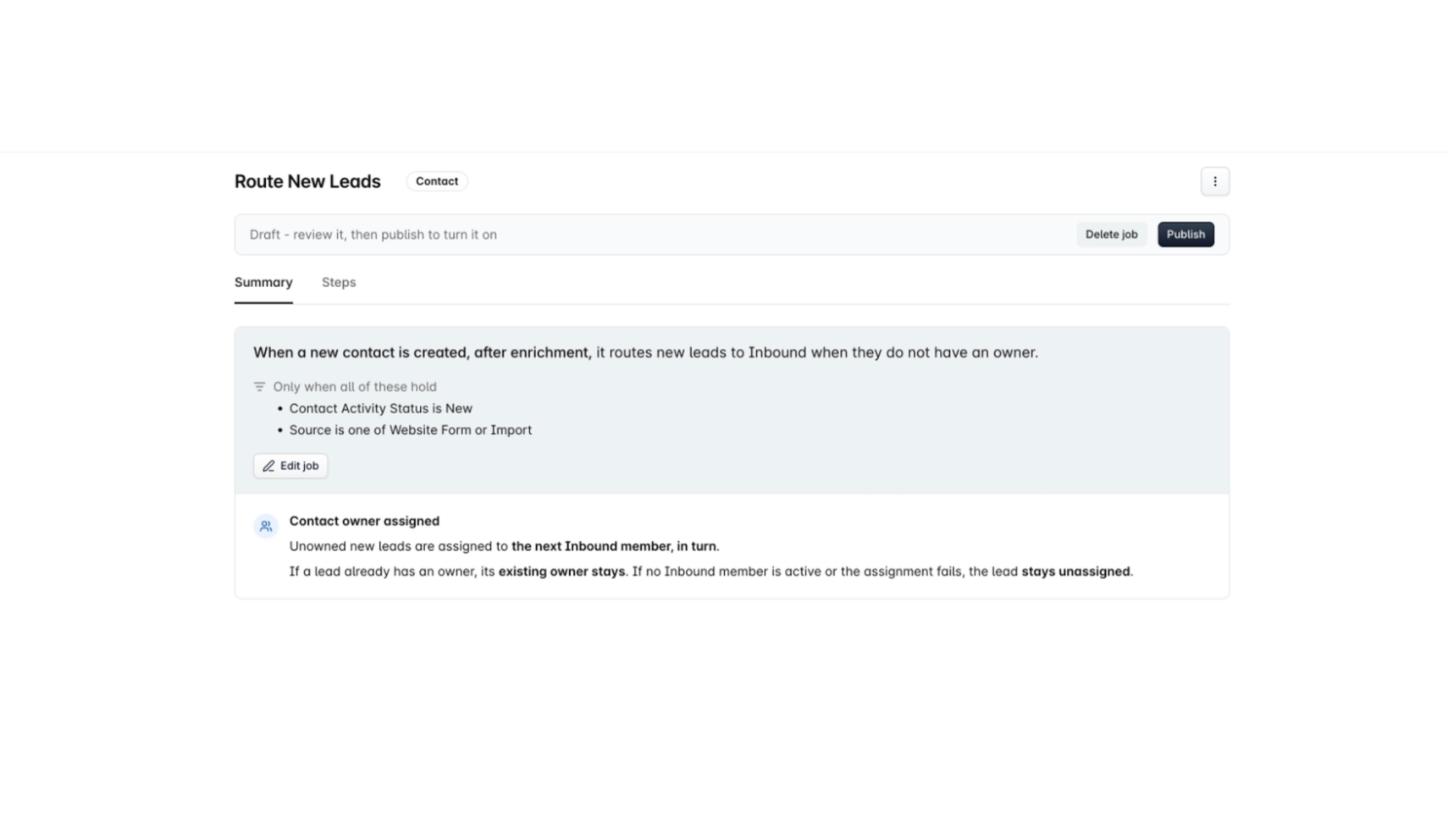
The Summary tab opens with one sentence saying when the job runs and what it does, such as "When a contact is created, it routes each new lead to an owner based on Country."
If the job has a filter, it sits under Only when all of these hold. That is the test a record has to pass before the job touches it at all. A job without a filter acts on every record of that kind.
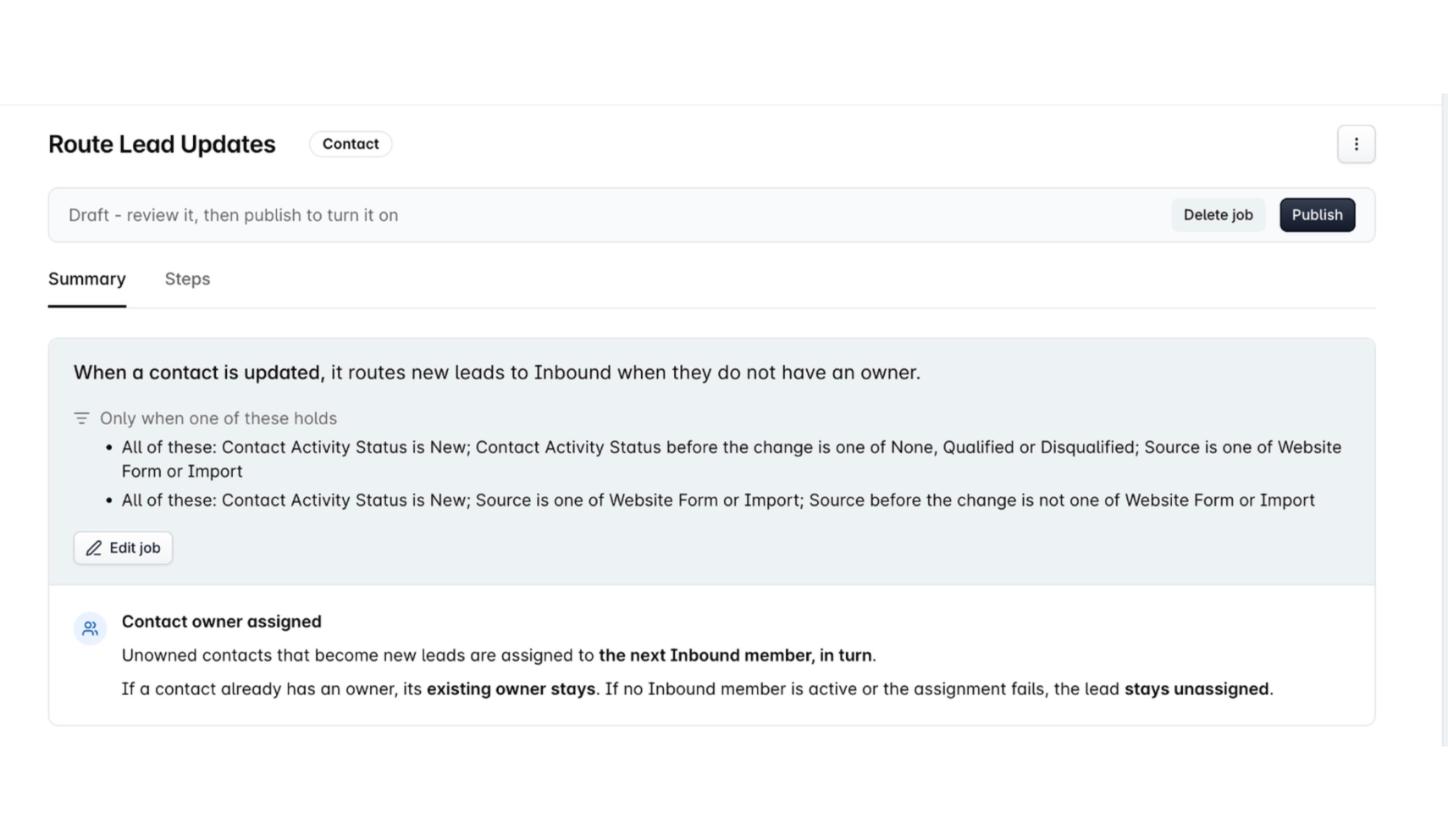
When a job can be set off in more than one way, the heading reads Only when one of these holds instead, and each bullet underneath is a complete set of conditions in its own right. Passing any one bullet is enough.
Then there is one line per rule, in the order they are tried, and a last line saying what happens when nobody can take the record. Edit job lets you rewrite that description in your own words, and Rewrite with Alex turns what you wrote back into steps.
Steps, the exact logic
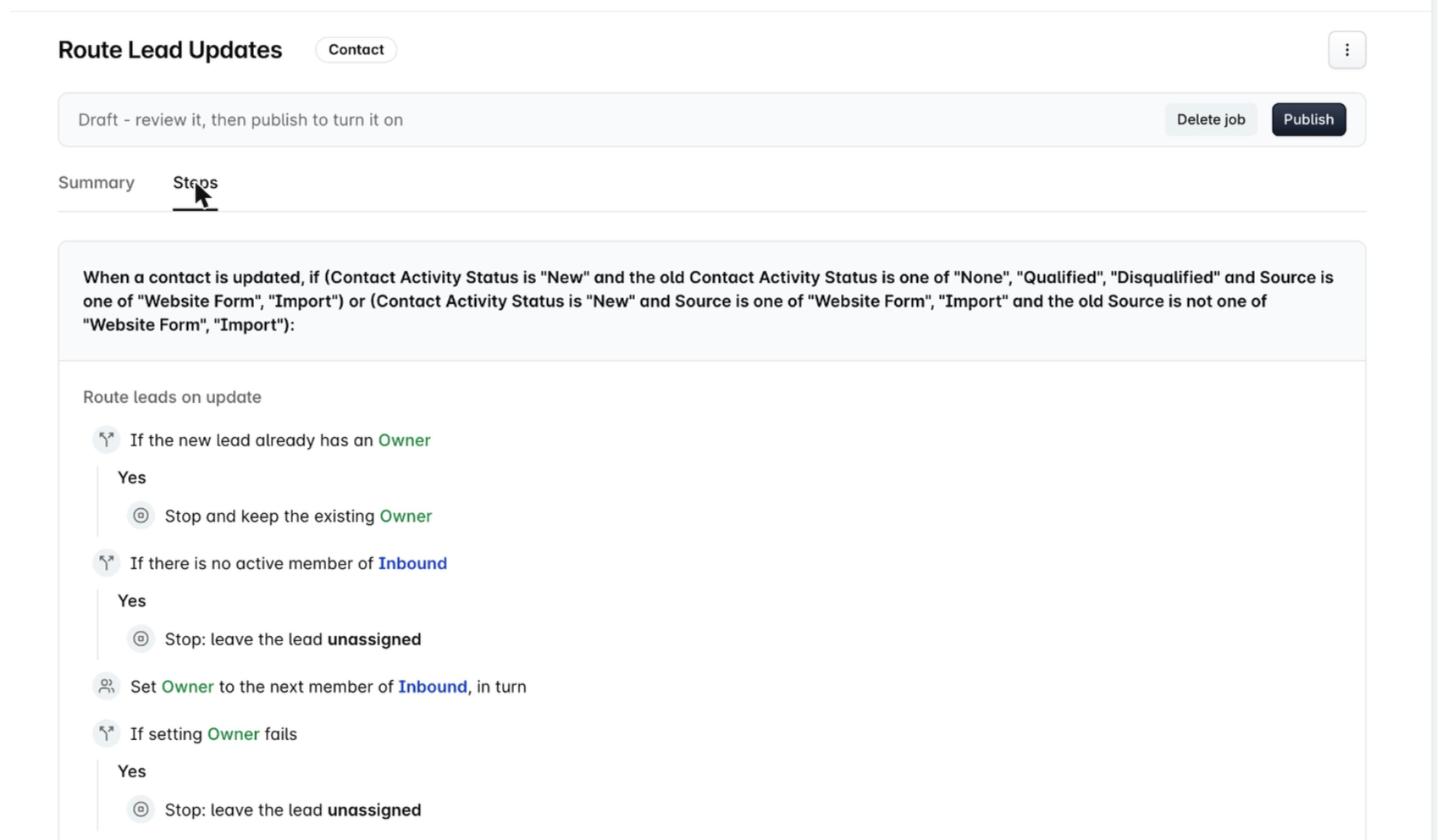
The Steps tab shows the same job as a tree: a condition, what happens when it holds, and what happens when it does not. Field names and teams are picked out in colour so you can tell them apart at a glance.
Use Steps when you want to know what the job does with an awkward record, such as one with no country on it, or one whose owner has left.
Turning it on
A new job opens with a banner reading Draft - review it, then publish to turn it on, next to Delete job and Publish.
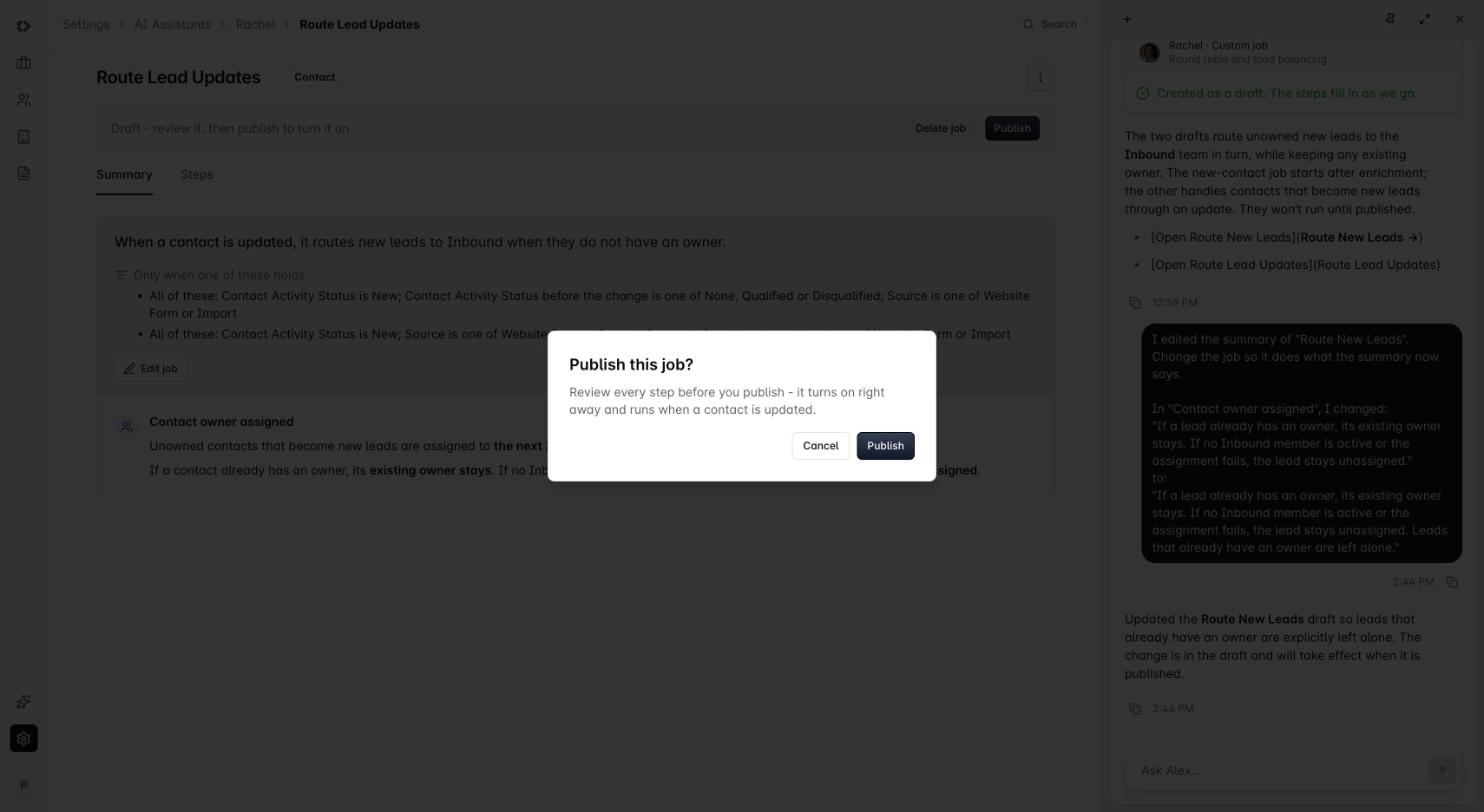
Click Publish and Dreamteam asks you to confirm, and tells you the job turns on straight away. From that moment it runs on every matching record that comes in.
A job never goes back over what you already have. It only acts on records created or changed after you published it, so publishing one will not reshuffle the ownership of your existing contacts.
The switch at the top right of the job turns it on and off, and shows the state with the date it started. Turning a job off stops it immediately. Records it has already assigned keep their owners.
Changing a job that is already live
There are two ways in. Ask Alex in the chat, or click Edit job, reword the job's description yourself, and click Rewrite with Alex. Either way the change is saved as a draft beside the live version, so the job that is running carries on untouched while you work.
A Published and Draft switch appears so you can compare the two, and the banner offers Discard draft and Publish. The change only goes live when you publish it. Discard draft asks you to confirm, then throws the draft away and leaves the published version running.
If you switch on a job that has an unpublished draft waiting, Dreamteam asks which you meant: turn on the published version and leave the draft alone, or publish the changes and turn them on together.

What a job can do today
When it runs
Record | When the job can run |
|---|---|
Contact | When a contact is created, or when a contact is updated |
Company | When a company is created, or when a company is updated |
Deal | When a deal is created, or when a deal is updated |
On contacts, Alex can also hold the job back until the research on that contact has finished, so the job can use something that was found by enrichment rather than only what was typed into the form.
What it can look at
A job can check any field on the record, and ask whether it is a particular value, is not a particular value, or is empty. It can also check whether the person or team you picked is still active.
How it picks an owner
Pattern | What you say | What happens |
|---|---|---|
One owner | "Send all German leads to the DACH lead" | Every record that matches goes to that one person |
A different owner per value | "Germany to DACH, France to the Paris team, everyone else to Inbound" | One owner for each value, and a fallback for anything you did not name |
Round robin | "Share German leads across the DACH team" | The next active member of that team, taking turns |
First one available | "Give these deals to the product specialist, or to their backup" | The first person on your list who is available, in the order you gave them |
For every job Alex also asks you two things. Whether to replace an owner the record already has or only fill the gap when there is nobody on it. And what to do when nobody can take it, where the record either stays unassigned or keeps whoever is on it.
Where the leads come from
Most routed leads arrive through a form on your website. You connect those under Settings, in Lead Capture Channels, and capturing leads from your website forms walks through it. Your routing job then runs on the contacts those forms create.
FAQs
Alex is still saying Building. Can I move it along?
Yes. Send Alex another message in the chat, something like how is that job looking?, and it picks the build back up and finishes writing the steps.
Nothing is lost while you wait. Alex creates the job as a draft as soon as you approve it, which is why it appears in Rachel's list straight away, and a draft never touches a real record. You do not have to describe the job again.
Does the job start working the moment Alex builds it?
No. Alex creates it as a draft, and a draft never touches a real record. It starts working when you click Publish.
That gap is deliberate. It gives you a chance to read the Steps tab and check the edge cases before anything is assigned to anybody.
My job is published but a new lead still has no owner.
Three things explain almost all of these. The job only acts on records created or changed after you published it, so anything already in the CRM is untouched. The record has to pass the test shown under the filter on the Summary tab, and that filter is often narrower than people expect. And if the team you routed to has nobody active in it, the job deliberately leaves the lead alone rather than guessing.
The Steps tab tells you which of the three it was.
Will it reassign the leads I already have?
No. A job only acts on records created or changed after it was published, so your existing contacts keep whoever is on them.
If you do want a batch of existing records reassigned, that is a job for your admin working through the record list rather than something a job will do for you.
Why did Alex make two jobs when I only asked for one?
Because "a new lead" can mean two different things. One is a record that arrives brand new. The other is a record you already had, which later turns into a lead.
Alex builds one job for each case so you can decide about them separately. Publish both if you want them both, and leave one as a draft if you do not.
What happens if the person I routed to leaves the company?
When you build the job, Alex asks what should happen if the person or team you picked is not active. Depending on what you chose, the record either stays unassigned or keeps whoever is already on it.
The Steps tab spells this out, so it is worth reading before you publish rather than finding out from a lead nobody followed up.
Two of my jobs could both match the same lead. What happens?
Keep one routing job per set of records. When two live jobs cover the same ones the result depends on which runs last, which is not something you want to rely on.
Alex flags the overlap while you are building, and will offer to change the existing job instead of adding a second one. Taking that offer is usually the right call.
Can somebody who is not an admin build one of these?
No. Building and changing jobs is an admin job, because a routing rule decides who sees which leads across the whole team.
Anybody can see the result of it, though. The owner on a record is visible to whoever can see that record.
Can I give a job to one of the other assistants?
Not at the moment. Custom jobs belong to Rachel, and she is the one who runs them.
The other assistants do their own work on your records; they just do not take jobs you have written.
Stuck on a rule that will not come out the way you want? Describe what you are trying to do in Ask Dreamteam, or write to us at gethelp@dreamteam.ai.